

The PIVOTBY function in Excel summarizes your data by two things at once, one going down the rows and one going across the columns. You get a cross-tab report, like sales by product and month, from a single formula.
It works a lot like a PivotTable, but it’s just a formula. So when the source data changes, the summary updates on its own, and there’s no Refresh button to remember.
In this article, I’ll show you how PIVOTBY works, starting with a simple summary and moving on to averages, month-wise reports, subtotals, filters, percentages, and even text.
Follow along with the example file
PIVOTBY Function Examples.xlsx
PIVOTBY Function Syntax
Here is the syntax of the PIVOTBY function:
=PIVOTBY(row_fields, col_fields, values, function, [field_headers], [row_total_depth], [row_sort_order], [col_total_depth], [col_sort_order], [filter_array], [relative_to])
- row_fields – the column (or columns) whose items you want listed down the rows
- col_fields – the column (or columns) whose items you want listed across the top
- values – the numbers (or other data) you want to summarize
- function – the calculation to run on each group, such as SUM, AVERAGE, or COUNTA (typed without parentheses, so
SUM, notSUM()) - field_headers – (optional) tells PIVOTBY whether your ranges include header rows and whether to show them
- row_total_depth – (optional) controls the total row at the bottom and any subtotals
- row_sort_order – (optional) the column to sort the rows by
- col_total_depth – (optional) controls the total column on the right
- col_sort_order – (optional) the row to sort the columns by
- filter_array – (optional) a TRUE/FALSE condition that decides which rows of data get included
- relative_to – (optional) what a percentage is calculated against when you use PERCENTOF
Only the first four arguments are required, and the rest have defaults that work for most summaries.
When you skip the two total arguments, PIVOTBY adds a grand total row at the bottom and a grand total column on the right. A 0 turns a total off, 2 adds subtotals, and a negative number moves totals to the top or left.
When you skip the sort arguments, the row and column labels are sorted alphabetically (A to Z). A negative sort number sorts in descending order instead.
The PIVOTBY function works only in Excel for Microsoft 365 (Windows and Mac) and Excel for the web. It’s not available in Excel 2024, 2021, or older versions.
When to Use the PIVOTBY Function
Use this function when you need to:
- Build a cross-tab summary, like sales by product across months or regions
- Create a summary report that updates automatically when the data changes
- Count, average, or total data by two categories at the same time
- Show each item’s share of a total as a percentage
- Turn a long list into a grid, such as a schedule or roster
Let me show you a few practical examples of how to use the PIVOTBY function.
Example 1: Create a Basic Cross-Tab With PIVOTBY
Let’s start with a simple example.
Below is a list of ice cream orders with the flavor, serving type, and sale amount, and I want the total sales for each flavor and serving type in column E.
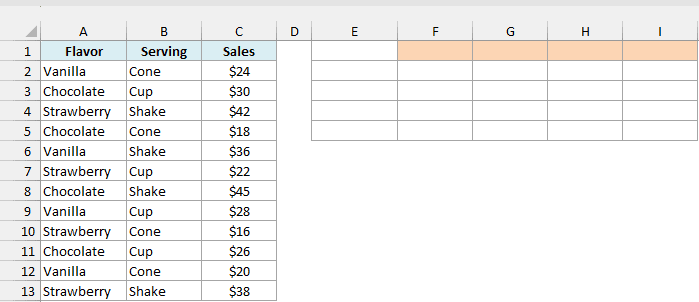
Here is the formula:
=PIVOTBY(A2:A13,B2:B13,C2:C13,SUM)
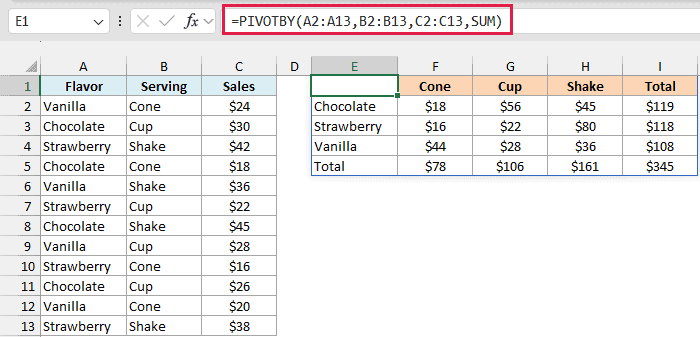
In the above formula, the flavors in A2:A13 go down the rows, the serving types in B2:B13 go across the top, and SUM adds up the sales in C2:C13. So the cell where Vanilla meets Shake shows $36, the total of all vanilla shakes.
PIVOTBY also adds a Total column and a Total row on its own, and the grand total of $345 sits in the bottom-right corner. Notice the flavors and serving types are listed alphabetically, because that’s the default sort order.
The result spills into the cells to the right and below, so you only enter the formula in E1. If any of those cells already have something in them, you’ll get a #SPILL! error instead of the summary.
If you change an amount in column C, the summary updates right away, with nothing to refresh.
Pro Tip: Fixed ranges like A2:A13 won’t pick up new rows you add below the data. Convert your data into an Excel Table and use its column references, so the PIVOTBY summary grows as the data grows.
Example 2: Count Text Entries by Two Categories
Here’s another practical scenario.
Below is a list of summer camp sign-ups with each camper’s name, activity, and week, and I want to count how many campers signed up for each activity in each week in column E.
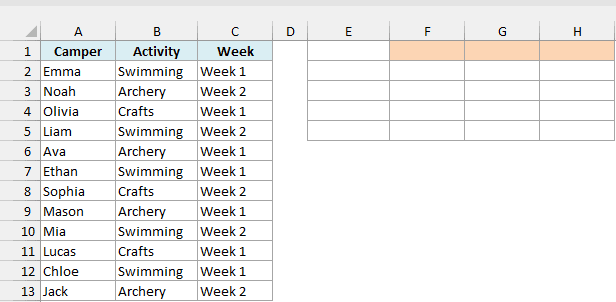
Here is the formula:
=PIVOTBY(B2:B13,C2:C13,A2:A13,COUNTA)
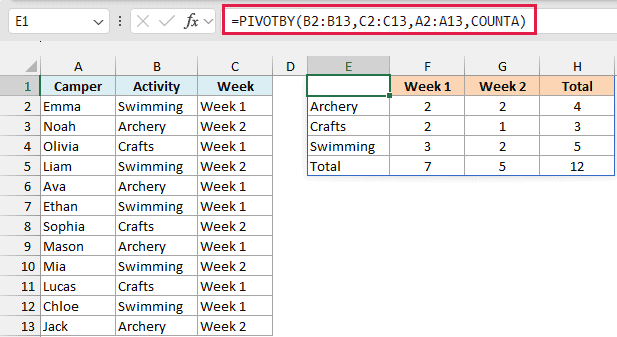
Here, the activities go down the rows, the weeks go across the top, and the camper names in A2:A13 are the values. COUNTA counts the names in each group, so Swimming in Week 1 shows 3, and the grand total matches the 12 sign-ups.
The values don’t have to be numbers here, because we’re counting entries with COUNTA, not adding them.
Important: COUNT only counts numbers, so if you use it on a column of names, every cell in the summary shows 0. Use COUNTA when the values column has text.
Example 3: Calculate Averages by Row and Column
Now let’s look at something a bit more interesting.
Below is a pizza delivery log with the driver, the shift, and how many minutes each delivery took, and I want the average delivery time for each driver and shift in column E.
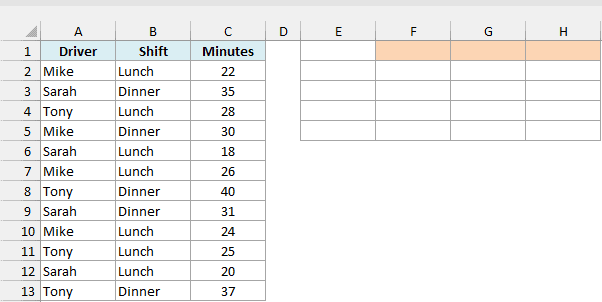
Here is the formula:
=PIVOTBY(A2:A13,B2:B13,C2:C13,AVERAGE)
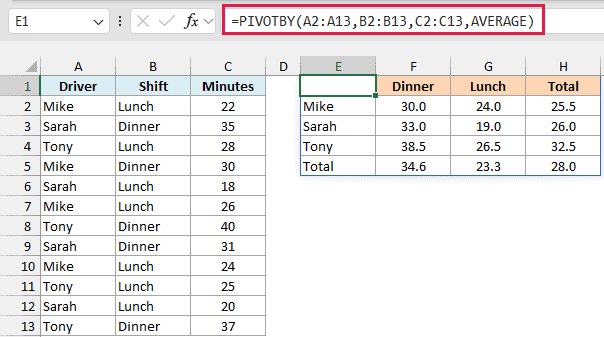
This works just like the SUM version, except that each cell now shows an average. For example, Mike’s three lunch deliveries took 22, 26, and 24 minutes, so his Lunch cell shows 24.0.
The totals are worth a closer look. Mike’s Total shows 25.5, which is the average of all four of his deliveries, and not the average of his Dinner (30.0) and Lunch (24.0) results, which would be 27.
So PIVOTBY always works out the totals from the original data, using the same function. That’s what you want, because an average of averages gives the wrong answer when the groups have a different number of entries.
I formatted the results to show one decimal place. PIVOTBY doesn’t format its output, so you apply the number format to the result cells yourself.
Example 4: Group Dates by Month in Columns
This next one is something you’ll need often when your data has dates.
Below is a list of online orders with the order date, category, and amount, and I want the total sales for each category in each month in column E.
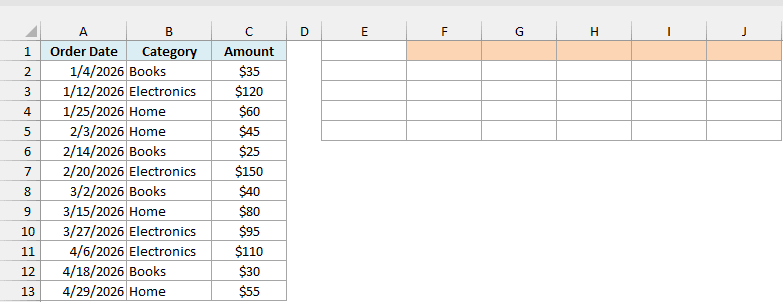
The obvious approach is to turn each date into a month name with TEXT(A2:A13,"mmm") and use that as the column field. But then the month names get sorted alphabetically, so you get Apr, Feb, Jan, Mar, which is not what you want.
The fix is to convert every date to the first day of its month, which keeps it a real date that sorts in calendar order.
Here is the formula:
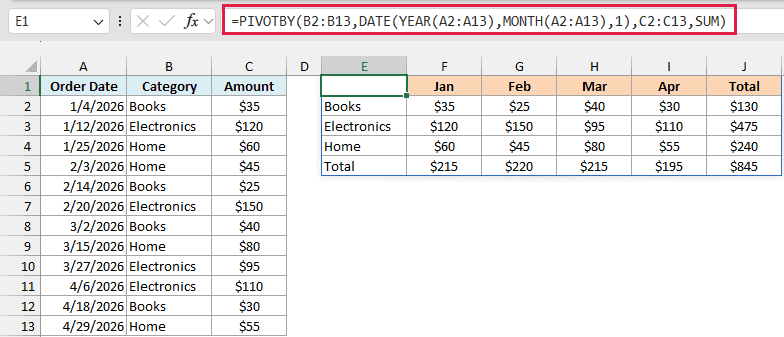
=PIVOTBY(B2:B13,DATE(YEAR(A2:A13),MONTH(A2:A13),1),C2:C13,SUM)
How this formula works:
- YEAR(A2:A13) and MONTH(A2:A13) pull out the year and month from each order date.
- DATE then puts them back together with 1 as the day, so January 4 and January 25 both become January 1, 2026.
- PIVOTBY then uses these month dates as the column field, so all the orders from the same month land in one column, sorted from Jan to Apr.
The result above shows the month headers after formatting. When you first enter the formula, they show up as date serial numbers (like 46023), so select the header cells, press Ctrl + 1, and apply the custom number format mmm.
If your data covers more than one year, use the format mmm yyyy instead. Otherwise, January 2025 and January 2026 would both show up as Jan.
Example 5: Add Subtotals With Multiple Row Fields
Let’s step it up with a more complex use case.
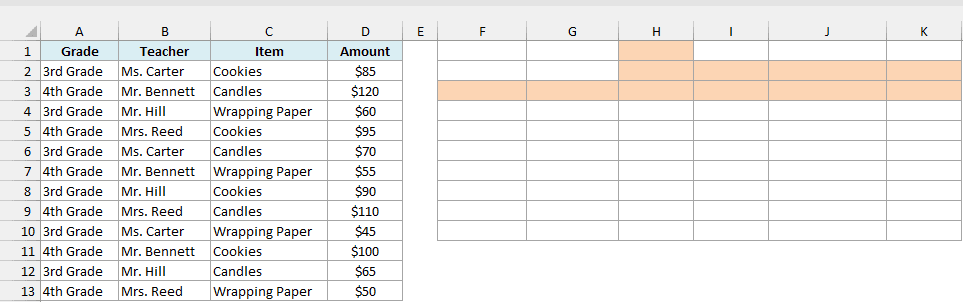
Below is a school fundraiser list with the grade, teacher, item sold, and amount, and I want the sales for each teacher by item, with a subtotal for each grade, in column F.
This time, I also want the Grade, Teacher, and Item headers to show up in the result.
Here is the formula:
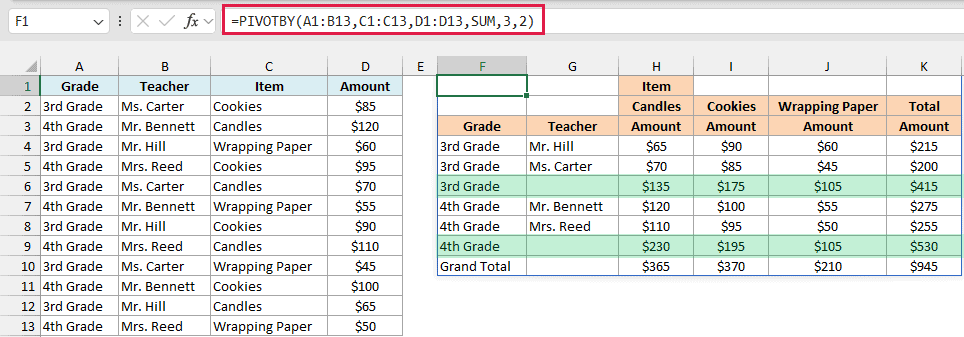
=PIVOTBY(A1:B13,C1:C13,D1:D13,SUM,3,2)
How this formula works:
- A1:B13 is the row field, and it covers two columns (Grade and Teacher). PIVOTBY groups by the grade first and then by the teacher within each grade.
- C1:C13 puts the items across the top, and D1:D13 has the amounts to add up.
- 3 is the field_headers argument. It tells PIVOTBY that the ranges start with a header row (that’s why they begin in row 1) and that the headers should be shown in the result.
- 2 is the row_total_depth argument, which adds a subtotal row after each grade, plus the Grand Total at the bottom.
The subtotal rows are the ones with an empty Teacher cell. For example, the 3rd Grade subtotal shows $415, the total of Mr. Hill’s and Ms. Carter’s sales.
If you leave out the 2, PIVOTBY only shows the grand total, even though there are two row fields.
The headers take up the first three rows of the result, so the first teacher row is row 4. Row 1 has the column field name (Item), row 2 has the items, and row 3 has Grade, Teacher, and Amount over each value column.
Example 6: Filter and Sort the Results
Here’s another useful one.
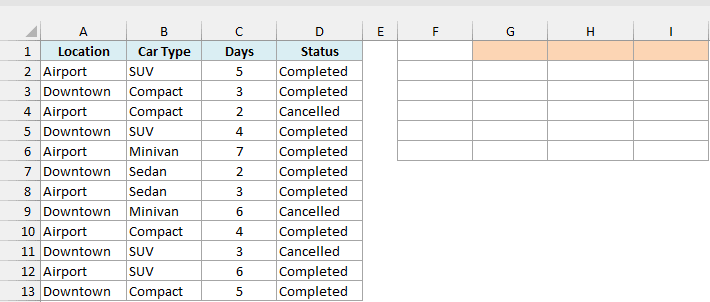
Below is a list of car rentals with the location, car type, rental days, and status, and I want the total rental days for each car type and location in column F, counting only completed rentals and showing the busiest car type first.
Here is the formula:
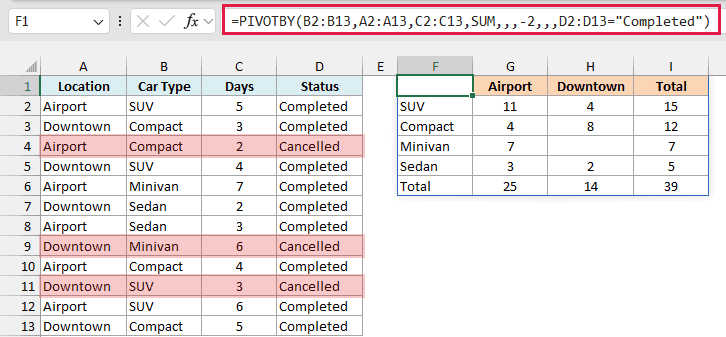
=PIVOTBY(B2:B13,A2:A13,C2:C13,SUM,,,-2,,,D2:D13="Completed")
How this formula works:
- B2:B13, A2:A13, and C2:C13 put the car types in rows, the locations in columns, and add up the rental days.
- The empty arguments (the commas with nothing between them) keep the default headers and totals.
- -2 is the row_sort_order argument. The row labels count as column 1 and the values count as column 2, so sorting by 2 uses each row’s Total, and the minus sign puts the largest first.
- D2:D13=”Completed” is the filter_array argument. It returns TRUE for completed rentals, so the three cancelled rentals are left out.
That’s why SUV comes first with 15 days, followed by Compact, Minivan, and Sedan. Without the sort, the car types would be listed alphabetically.
You’ll also notice an empty cell where Minivan meets Downtown. The only Downtown minivan rental was cancelled, so there’s nothing left to add, and PIVOTBY leaves that cell blank.
Important: If the filter_array condition doesn’t match any rows, PIVOTBY returns a #VALUE! error. Also make sure the filter range is the same size as your other ranges.
Example 7: Show Percentages With PERCENTOF
Now let’s turn the numbers into percentages.
Below is a fitness class attendance log with the class, time slot, and number of attendees, and I want each class’s share of the attendance in each time slot in column E.
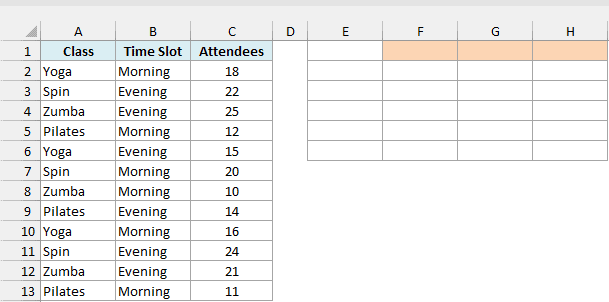
Here is the formula:
=PIVOTBY(A2:A13,B2:B13,C2:C13,PERCENTOF)
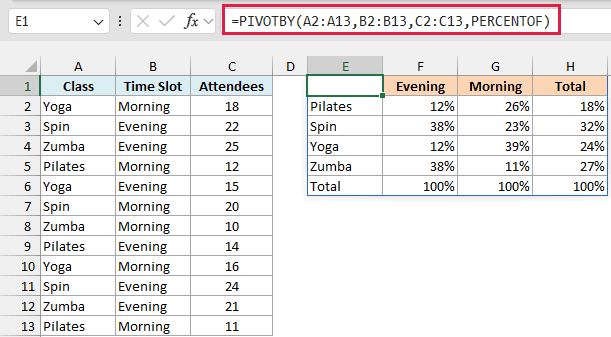
Here, PERCENTOF is used as the function. It divides each group’s total by the column total, so every time slot column adds up to 100%.
For example, Spin had 46 of the 121 evening attendees, which is 38%. The Total column on the right shows each class’s share of all attendees across both time slots.
The column total is the default, because the relative_to argument is 0 when you leave it out. If you want every cell to show its share of the grand total instead, add 2 as the relative_to argument.
The results are formatted as 0%, the same way as in Example 3.
Example 8: Combine Text Into a Grid With ARRAYTOTEXT
Let’s finish with something a little different.
Below is a food bank volunteer sign-up list with each volunteer’s name, day, and shift, and I want a schedule that lists the volunteers for each shift and day in column E.
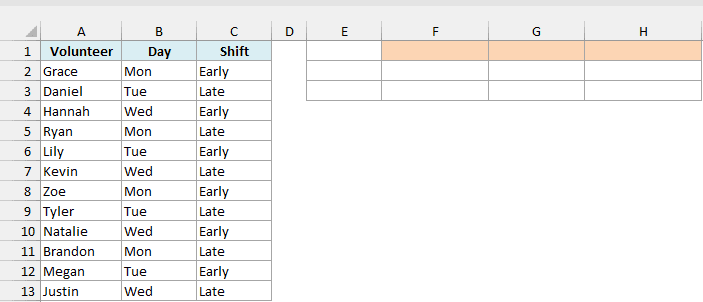
Here is the formula:
=PIVOTBY(C2:C13,B2:B13,A2:A13,ARRAYTOTEXT,,0,,0)
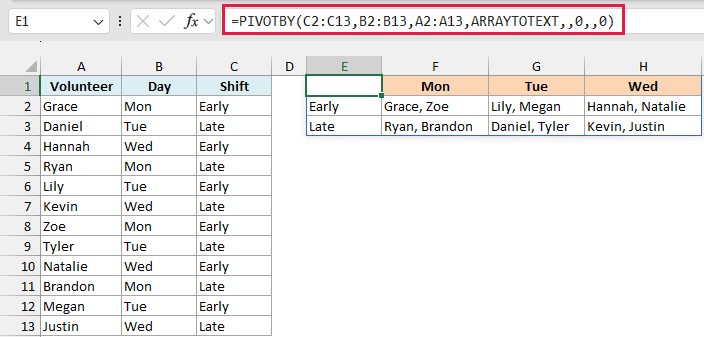
How this formula works:
- C2:C13 puts the shifts in rows, and B2:B13 puts the days across the top.
- A2:A13 has the volunteer names, and ARRAYTOTEXT joins the names in each group into one cell, separated by commas.
- The two 0 values are row_total_depth and col_total_depth, and they turn off the total row and total column. The empty spots between the commas keep the defaults for the other arguments.
The totals are turned off because a text total would just join every name on the list into one long cell, which isn’t useful in a schedule.
The days come out in weekday order here only because Mon, Tue, and Wed also happen to be in alphabetical order, which wouldn’t hold if your list had Thu or Fri.
So these are some practical examples of how you can use the PIVOTBY function in Excel. Once the first four arguments make sense, the optional ones let you add headers, subtotals, filters, and sorting as you need them.
If you only need to group your data down the rows, without anything going across the top, the GROUPBY function does that with a simpler formula.
Other Excel Articles You May Also Like:
