

The ARRAYTOTEXT function in Excel takes a range or an array and returns all its values as a single text string, separated by commas.
It comes in handy when you want to see a whole list in one cell, instead of spread out over a column of cells.
And unlike FILTER or SORT, it doesn’t spill. A whole range goes in, and one cell of text comes out.
Below, I’ll show you how it works with seven examples, from turning a simple list into one line of text to using it with FILTER, BYROW, GROUPBY, and XLOOKUP.
Follow along with the example file
ARRAYTOTEXT Function Examples.xlsx
ARRAYTOTEXT Function Syntax
Here is the syntax of the ARRAYTOTEXT function:
=ARRAYTOTEXT(array, [format])
- array is the range or array you want to turn into text. It can be a cell range like A2:A11, or the result of another formula, like FILTER.
- format is optional and tells Excel how the text should look. Use 0 for the concise format or 1 for the strict format. If you leave it out, Excel uses 0.
The concise format (0) gives you the values separated by a comma and a space, like Road, 12, Mountain, 15. That’s the one you’ll use most of the time, because it reads like a normal list.
The strict format (1) gives you the values the way Excel writes an array inside a formula, like {"Road",12;"Mountain",15}. Text goes in double quotes, and the whole thing sits inside curly braces.
If you use any other value for format, like 2, ARRAYTOTEXT returns a #VALUE! error.
The ARRAYTOTEXT function works in Excel for Microsoft 365, Excel 2024, and Excel 2021, on both Windows and Mac. It’s not available in Excel 2019 or earlier.
When to Use the ARRAYTOTEXT Function
Use this function when you need to:
- Show all the items of a list in a single cell, separated by commas.
- List every name or item that meets a condition in one cell.
- Join the values in each row into one text string.
- Turn a small table into an array constant that you can paste inside a formula.
Let me show you a few practical examples of how to use the ARRAYTOTEXT function.
Example 1: Combine a List Into One Cell With ARRAYTOTEXT
Let’s start with a simple example.
Below is a packing list for a beach trip, and I want all the items in one cell, separated by commas, in cell C2.
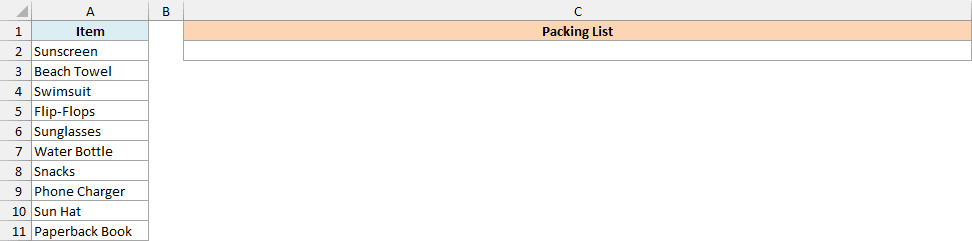
Here is the formula:
=ARRAYTOTEXT(A2:A11)
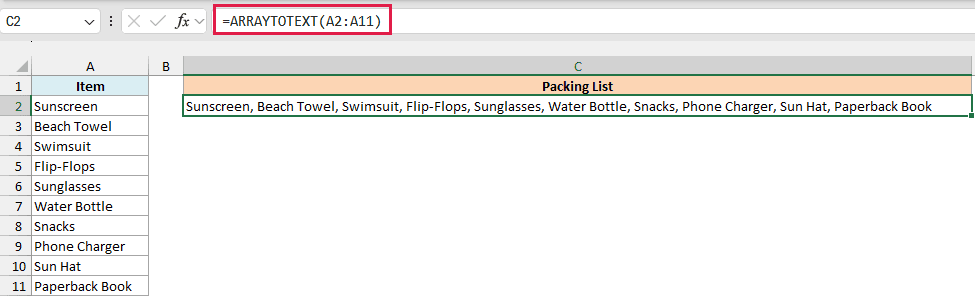
ARRAYTOTEXT goes through A2:A11 from top to bottom and joins the ten items into one text string. Since I didn’t use the format argument, it uses the concise format, with a comma and a space between the items.
The result is plain text in a single cell. So you can copy it and paste it into an email or a chat message as it is.
Important: ARRAYTOTEXT doesn’t skip blank cells, so every empty cell adds an extra comma to the result. That’s also why =ARRAYTOTEXT(A:A) returns a #CALC! error, since all the empty cells push the text past the 32,767-character limit of a cell.
If your list has gaps, or you want a separator other than a comma, the TEXTJOIN function is the better choice. It lets you pick the separator and can ignore empty cells.
Example 2: Concise vs Strict Format in ARRAYTOTEXT
Now let’s see what happens when the range has more than one column, and how the two formats compare.
Below is a bike rental price list with the hourly rate for each bike, and I want the whole table in one cell in column E, once in each format.

Here is the formula that uses the concise format:
=ARRAYTOTEXT(A2:B6)
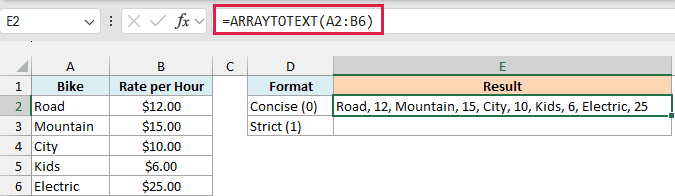
The result starts with the first bike and its rate, then the second bike and its rate, and so on. That’s because ARRAYTOTEXT reads the table row by row, from left to right.
Also notice that the rates show up as 12 and 15, not $12.00 and $15.00. ARRAYTOTEXT ignores the number formatting in the cells and uses the actual values.
If you want to keep a format like the dollar signs, convert the values to text with the TEXT function first. The next example shows how that works with dates.
And here is the formula that uses the strict format:
=ARRAYTOTEXT(A2:B6,1)
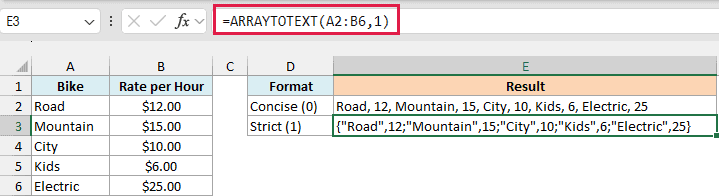
This time, the result is {"Road",12;"Mountain",15;"City",10;"Kids",6;"Electric",25}. Here is how to read it:
- The curly braces wrap the whole result.
- Text values like “Road” are in double quotes, while numbers are not.
- A comma separates the values within a row, and a semicolon marks the start of a new row.
This is exactly how Excel writes an array constant inside a formula. That’s what makes the strict format useful when you want to reuse the data inside a formula, which you’ll see in Example 7.
Example 3: Keep Dates Formatted in the ARRAYTOTEXT Result
Here’s a problem you’re likely to run into.
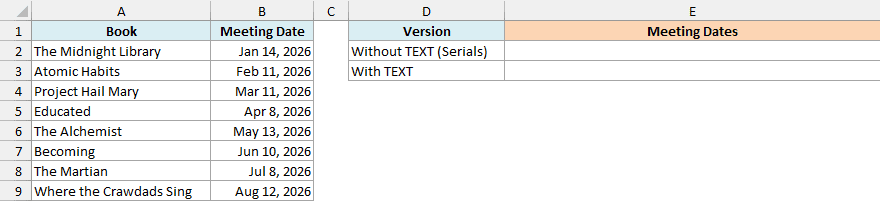
Below is a book club schedule with the date of each meeting, and I want all the meeting dates in one cell in column E.
Here is the formula:
=ARRAYTOTEXT(B2:B9)
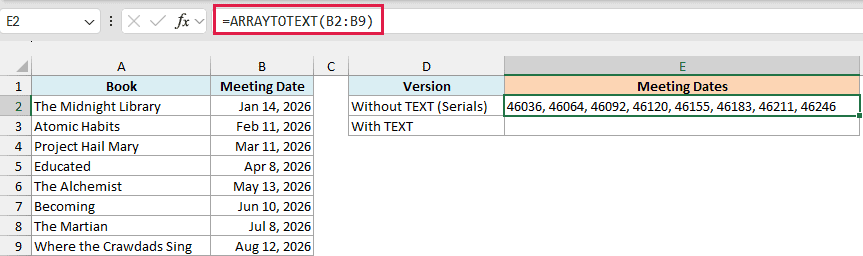
Instead of dates, you get numbers like 46036 and 46064. Excel stores every date as a serial number, and just like the dollar signs in Example 2, the date format gets dropped.
To fix this, turn the dates into text in the format you want before ARRAYTOTEXT joins them. Here is the formula that does this:
=ARRAYTOTEXT(TEXT(B2:B9,"mmm d"))
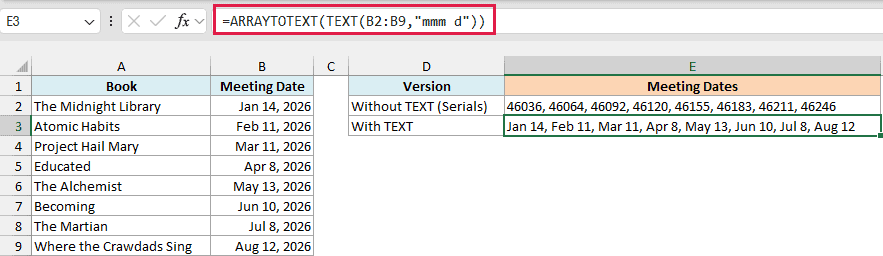
The TEXT function converts each date into text like Jan 14, and ARRAYTOTEXT then joins those text values into one string.
I used “mmm d” here and left out the year on purpose. A format like “mmm d, yyyy” also works, but then each date has its own comma (Jan 14, 2026, Feb 11, 2026), which makes the list hard to read.
Example 4: List All Matching Values in One Cell (ARRAYTOTEXT With FILTER)
Now let’s look at something more useful.
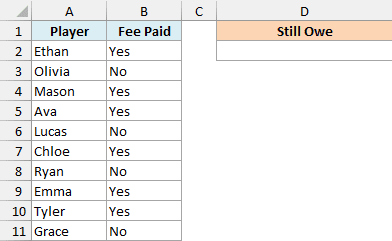
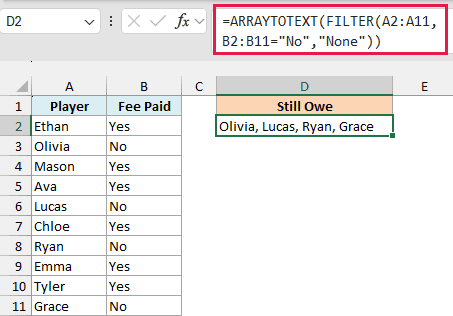
Below is a list of players on a soccer team that shows whether each player has paid the season fee, and I want the names of everyone who still owes it in cell D2.
Here is the formula:
=ARRAYTOTEXT(FILTER(A2:A11,B2:B11="No","None"))
How this formula works:
- The FILTER function checks column B and returns only the names where the fee status is “No”, which are Olivia, Lucas, Ryan, and Grace.
- ARRAYTOTEXT then joins those names into one comma-separated list in D2.
Since it’s a formula, the list updates on its own. When Lucas pays and you change his status to “Yes”, his name drops out of the list.
Important: Don’t skip the “None” at the end of FILTER. When nobody matches, FILTER returns a #CALC! error and ARRAYTOTEXT passes it on, but with “None” in place, the cell simply shows None once everyone has paid.
Example 5: Join Each Row Into One Cell With BYROW
Let’s step it up with a more advanced use case.
Below are some pizza orders with three toppings for each person, and I want each person’s toppings in one cell in column E.
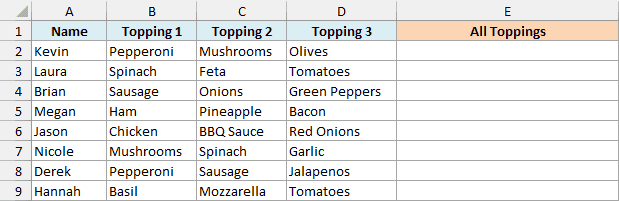
If you try =ARRAYTOTEXT(B2:D9), you get all 24 toppings in one long string in a single cell. That’s because ARRAYTOTEXT always returns one result for the whole range, even when you give it many rows.
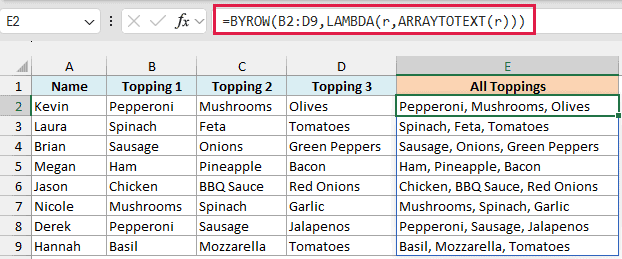
To get one result for each row, you can wrap it in the BYROW function. Here is the formula:
=BYROW(B2:D9,LAMBDA(r,ARRAYTOTEXT(r)))
How this formula works:
- BYROW takes the toppings range B2:D9 and hands it over one row at a time (B2:D2, then B3:D3, and so on).
- The LAMBDA function names each row r, and ARRAYTOTEXT(r) joins the three toppings in that row.
- BYROW stacks the eight results together, and they spill down from E2 to E9.
The BYROW function needs Excel for Microsoft 365 or Excel 2024. If you are using Excel 2021, enter the below formula in cell E2 instead, and it will spill the same results:
=B2:B9&", "&C2:C9&", "&D2:D9
This works fine for three columns, but you’d have to add another piece for every new column. The BYROW version only needs a new range, like B2:E9 if you add a fourth topping column.
Example 6: Group Names by Category With GROUPBY and ARRAYTOTEXT
This next one is a neat way to build a quick summary.
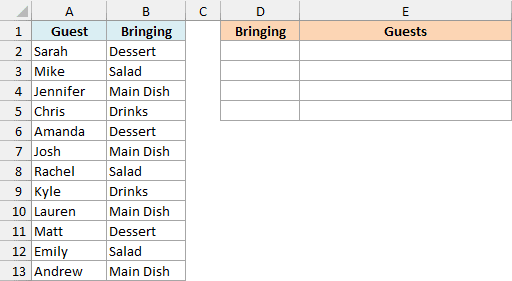
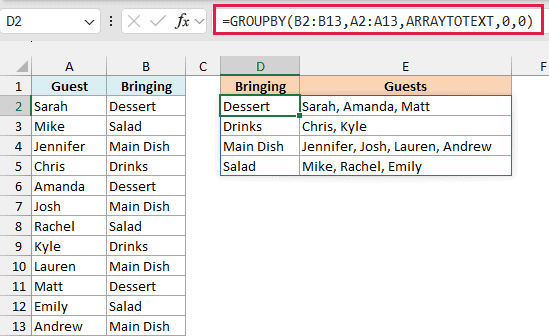
Below is a potluck sign-up sheet with what each guest is bringing, and I want a list of the guests in each category in columns D and E.
Here is the formula:
=GROUPBY(B2:B13,A2:A13,ARRAYTOTEXT,0,0)
How this formula works:
- The GROUPBY function groups the rows by what each guest is bringing (B2:B13) and sorts the categories from A to Z.
- For each category, it collects the matching guest names from A2:A13 and runs ARRAYTOTEXT on them, which joins the names into one cell.
- The first 0 tells GROUPBY that the ranges have no headers, and the second 0 turns off the total row.
Note that ARRAYTOTEXT is written without parentheses here. You’re passing the function itself to GROUPBY, the same way you’d pass SUM or AVERAGE.
The GROUPBY function is only available in Excel for Microsoft 365. If you are using Excel 2024, enter the below formula in cell D2, and it will return the same two columns:
=LET(c,SORT(UNIQUE(B2:B13)),HSTACK(c,MAP(c,LAMBDA(x,ARRAYTOTEXT(FILTER(A2:A13,B2:B13=x))))))
Excel 2021 has neither GROUPBY nor the MAP function, so this example needs Excel for Microsoft 365 or Excel 2024.
Example 7: Turn a Table Into an Array Constant (Strict Format)
In this last example, let’s put the strict format to work.
Below is a store’s membership discount table, and I want an XLOOKUP formula in cell H2 that returns the discount for the tier in G2 without pointing to this table. So first, I’ll turn each column into an array constant in column E.

Here is the formula to convert the tier names:
=ARRAYTOTEXT(A2:A5,1)
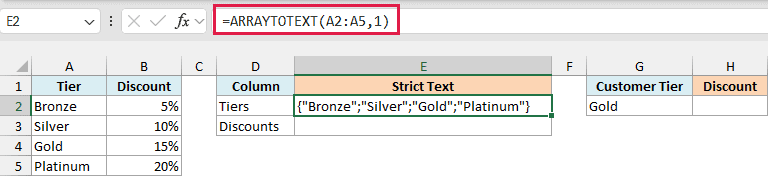
This returns {"Bronze";"Silver";"Gold";"Platinum"}. Since the values sit in a column, a semicolon separates each one, which is how Excel writes a vertical array.
Here is the formula to convert the discounts:
=ARRAYTOTEXT(B2:B5,1)
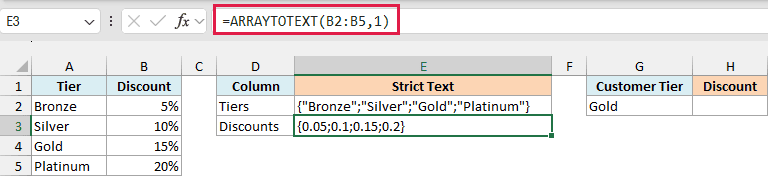
This returns {0.05;0.1;0.15;0.2}. The percentages show up as decimals (the number formatting gets dropped again), and since they’re numbers, they don’t get double quotes.
To use these in a formula, you need the text itself, not the ARRAYTOTEXT formula that’s in the cell. So copy E2, paste it as a value in an empty cell, and then copy the text from the formula bar (do the same for E3).
Here is the XLOOKUP formula with both array constants pasted in:
=XLOOKUP(G2,{"Bronze";"Silver";"Gold";"Platinum"},{0.05;0.1;0.15;0.2})
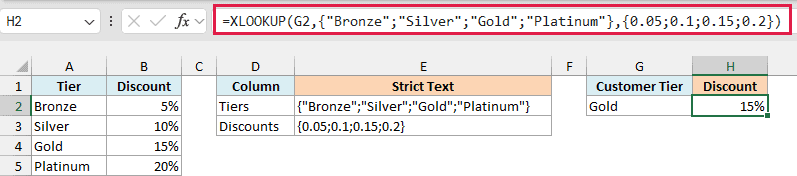
The XLOOKUP function finds Gold in the first array and returns the matching value from the second one, which is 15%. Since the data now lives inside the formula, it keeps working even if you delete the table.
This works well for short lists that rarely change. If the discounts change often, keep them in a table instead, because you’d have to edit the formula every time.
Pro Tip: You can also save each array as a named constant. Go to Formulas > Define Name, type = and paste the text in the Refers to box, and use the names in a formula. With names Tiers and Discounts, the formula becomes =XLOOKUP(G2,Tiers,Discounts).
So these are some practical ways to use the ARRAYTOTEXT function in Excel, from turning a column into one line of text to building array constants for a formula.
I hope you found this article helpful.
Other Excel Articles You May Also Like:
