

The TRIMRANGE function in Excel removes the empty rows and columns from the outer edges of a range, so you’re left with only the part that has data.
This is handy when you point a formula at a bigger range than you need, so it can pick up new entries later. Without TRIMRANGE, all those empty rows come along too and show up in your results as zeros.
In this article, I’ll show you how TRIMRANGE works with seven practical examples. I’ll also cover the shorter dot operator version, called trim references, which does the same job.
Follow along with the example file
TRIMRANGE Function Examples.xlsx
TRIMRANGE Function Syntax
Here is the syntax of the TRIMRANGE function:
=TRIMRANGE(range, [trim_rows], [trim_cols])
- range – The range you want to trim.
- trim_rows – (Optional) Which empty rows to remove. Use 0 for none, 1 for leading rows, 2 for trailing rows, or 3 for both. If you leave it out, it’s 3.
- trim_cols – (Optional) Which empty columns to remove, using the same 0, 1, 2, and 3 values. If you leave it out, it’s 3.
Leading rows are the empty rows above your data, and trailing rows are the empty rows below it. For columns, leading means the empty columns on the left and trailing means the ones on the right.
When you skip both optional arguments, TRIMRANGE removes empty rows and columns from all four sides. That’s what you’ll want most of the time, and Example 3 shows when trimming only one side works better.
TRIMRANGE is only available in Excel for Microsoft 365. It’s not in Excel 2024, 2021, or older versions.
When to Use the TRIMRANGE Function
Use this function when you need to:
- Make a formula pick up new rows automatically, without returning zeros for the empty rows in a range like B2:B100
- Get a clean unique or sorted list from a column that keeps growing
- Pull the latest entry from a log
- Use whole-column references like A:C in dynamic array formulas
Let me show you a few practical examples of how to use TRIMRANGE.
Example 1: Remove Empty Rows and Columns From a Range
Let’s start with a simple example to see what TRIMRANGE actually does.
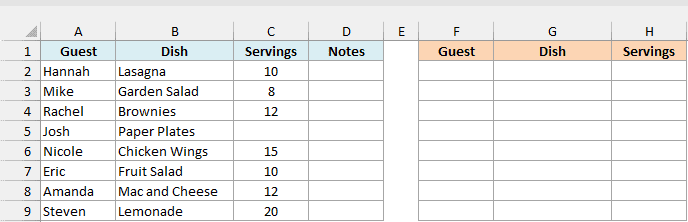
Below is a potluck sign-up list with each guest’s dish, number of servings, and a Notes column nobody has used yet, and I want to get only the filled part of the range A2:D20 in column F.
Here is the formula:
=TRIMRANGE(A2:D20)
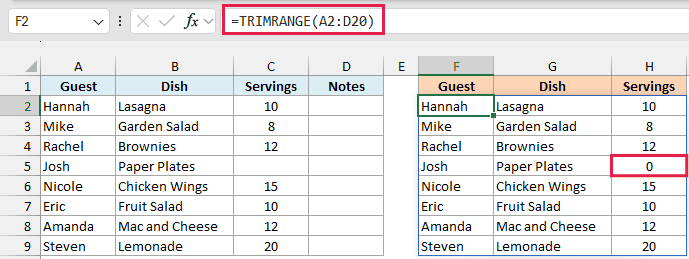
The range A2:D20 is a lot bigger than the list. It has 11 empty rows at the bottom (rows 10 to 20), and the Notes column on the right (column D) is completely empty.
TRIMRANGE removes those empty rows and the empty Notes column, so the result is exactly the eight guests with their dish and servings. If a ninth guest signs up in row 10, the result grows to include them.
Compare that with =A2:D20, which would return all 19 rows and 4 columns, with zeros filling every empty cell.
Important: TRIMRANGE only trims the outer edges of a range. A blank cell inside your data stays in the result and shows up as 0, like the servings for Josh’s paper plates (H5 in the result).
Example 2: Create a Dynamic Range That Grows With Your Data
Here’s where TRIMRANGE becomes really useful in everyday work.
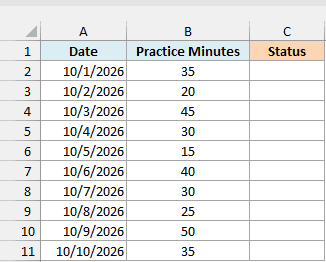
Below is a piano practice log with the minutes practiced each day, and I want to show whether each day met the 30-minute goal in column C.
Here is the formula:
=IF(TRIMRANGE(B2:B100)>=30,"Goal Met","Short")
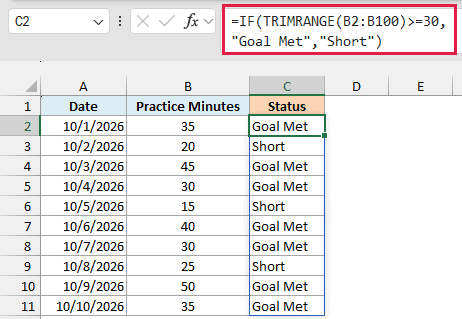
I’ve used B2:B100 so the formula has room for the rest of the month. TRIMRANGE cuts that down to B2:B11, the rows that actually have minutes, so the IF function checks only those ten days.
Without TRIMRANGE, =IF(B2:B100>=30,"Goal Met","Short") would return Short for all 89 empty rows, because an empty cell counts as 0.
When you add the minutes for October 11 in B12, the formula picks them up and the result grows by one row. On a brand-new, empty log, it shows #REF! until the first entry, since nothing is left after trimming.
Pro Tip: If your data is in an Excel Table, you don’t need TRIMRANGE for this. A reference to a table column grows on its own when you add rows to the table.
Example 3: Trim Only the Trailing Empty Rows
Now let’s look at a case where trimming both ends causes a problem.
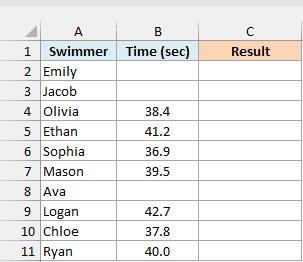
Below is a swim team time trial with each swimmer’s time in seconds, and I want to show whether each swimmer qualified (40 seconds or less) in column C.
Here is the formula:
=LET(t,TRIMRANGE(B2:B100,2),IF(t="","Absent",IF(t<=40,"Qualified","Not Qualified")))
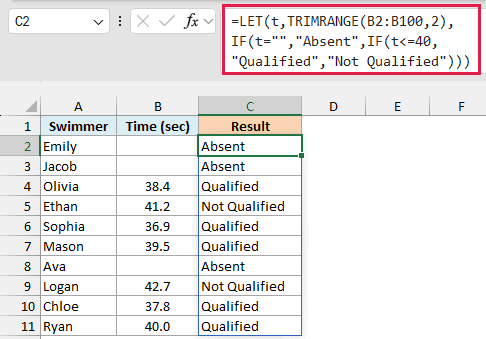
Emily and Jacob didn’t swim, so the first two cells in column B are empty. With the default setting, TRIMRANGE would remove those two leading rows along with the empty rows at the bottom.
The results would then start with Olivia’s time but spill from C2, right next to Emily. Every result would sit two rows above the swimmer it belongs to.
With trim_rows set to 2, the range always starts at B2, so each result lines up with its swimmer.
How this formula works:
- TRIMRANGE(B2:B100,2) removes only the empty rows below the last time, which gives B2:B11.
- LET stores that trimmed range as t, so the formula doesn’t have to repeat it.
- IF(t=””,”Absent”,…) labels the empty times as Absent. Without this check, an empty time would count as 0 seconds and show up as Qualified.
- IF(t<=40,”Qualified”,”Not Qualified”) checks the rest of the times against the 40-second cutoff.
Since trailing rows still get trimmed, a swimmer at the very end of the list with no time would get no result at all. Here Ryan in row 11 has a time, so every swimmer gets a result.
Example 4: Use the Dot Operator (Trim References) Instead
TRIMRANGE also has a shorter version called trim references. Instead of wrapping a range in the function, you add a dot to the colon in the range.
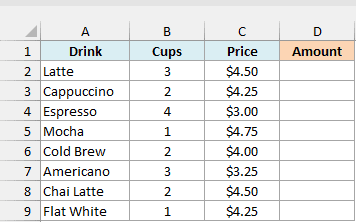
Below is a coffee shop order with the cups and price of each drink, and I want to calculate the amount for each drink in column D.
Here is the formula:
=B2:.B100*C2:.C100
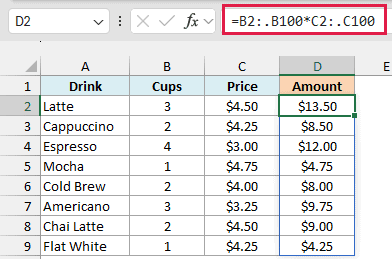
A colon followed by a dot (:.) trims the empty rows and columns at the end of a range. So B2:.B100 works just like TRIMRANGE(B2:B100,2,2), which gives B2:B9 here.
The column part does nothing in this case, since each range is only one column wide.
Both trimmed ranges have eight rows, so the formula multiplies them row by row and returns the eight amounts. Add a new drink in row 10, and its amount shows up right away.
The trailing-only version (:.) is a good fit for row-by-row formulas like this one. It never removes rows from the top, so your results can’t shift the way they would have in Example 3.
Important: Both columns need to end on the same row. If a new drink has a price but no cups yet, the two trimmed ranges have different lengths, and the extra row returns #N/A.
Where you put the dot decides which side gets trimmed:
A1:.E10trims trailing rows and columns, likeTRIMRANGE(A1:E10,2,2)A1.:E10trims leading rows and columns, likeTRIMRANGE(A1:E10,1,1)A1.:.E10trims both, likeTRIMRANGE(A1:E10)A:.Aworks on a whole column, likeTRIMRANGE(A:A,2,2)
Example 5: Get a Unique List Without the Extra 0
When you use the UNIQUE function on a range with room to grow, the empty cells add an extra 0 to your list. A trimmed range fixes that.
Below is a webinar registration list with each attendee’s state, and I want a sorted list of the states, without repeats, in column D.
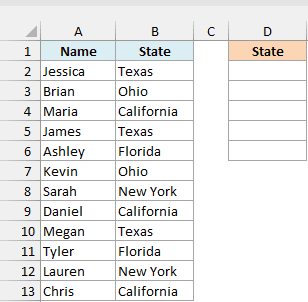
Here is the formula:
=SORT(UNIQUE(B2:.B100))
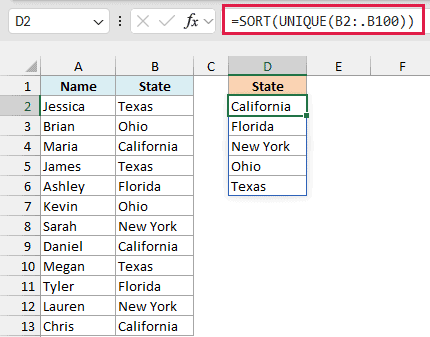
With =SORT(UNIQUE(B2:B100)), the empty cells in B14:B100 would count as one more unique value and show up as a 0 below Texas.
The trim reference B2:.B100 stops at the last state in B13, so UNIQUE only sees real entries. The SORT function then puts the five states in A to Z order.
Example 6: Get the Last Entry in a Growing List
Let’s step it up and combine TRIMRANGE with the TAKE function.
Below is a car service log with the date and odometer reading of each service, and I want to get the latest service date and reading in D2:E2.
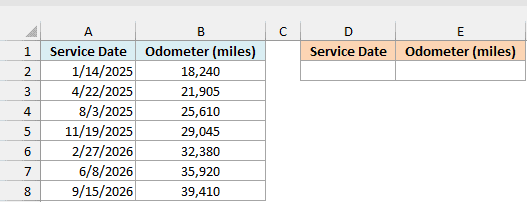
Here is the formula:
=TAKE(TRIMRANGE(A2:B100),-1)
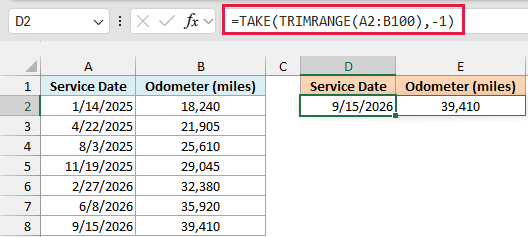
TRIMRANGE trims A2:B100 down to A2:B8, the rows with service records. TAKE with -1 then returns the last row of that, which is the 9/15/2026 service at 39,410 miles.
When the next service gets logged in row 9, the result moves to that row. Without TRIMRANGE, TAKE would return row 100, which is empty, so you wouldn’t get the latest service at all.
Example 7: Use TRIMRANGE With Entire Columns
Finally, let’s use TRIMRANGE with whole-column references.
Below is a list of donations with the donor, date, and amount, and I want to sort it from the biggest donation to the smallest in column E.
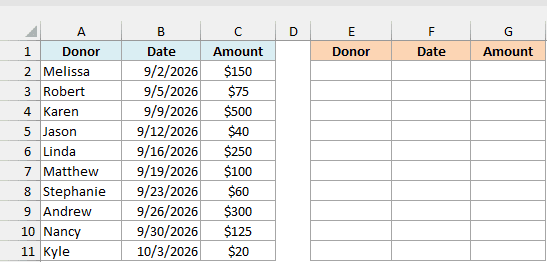
Here is the formula:
=SORT(DROP(TRIMRANGE(A:C),1),3,-1)
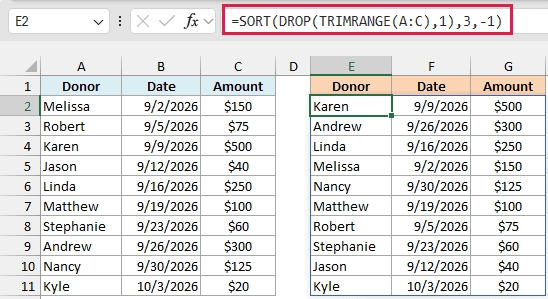
How this formula works:
- TRIMRANGE(A:C) trims columns A to C down to A1:C11, which is the header plus the ten donations.
- DROP(…,1) removes the first row, which is the header.
- SORT(…,3,-1) sorts what’s left by the third column (Amount), from largest to smallest.
With A:C, you never have to guess how far the list might go. Without TRIMRANGE, =SORT(A:C,3,-1) would try to return more than a million rows and give you a #SPILL! error.
Important: TRIMRANGE counts any cell that isn’t empty as data, even a single space or a formula that returns empty text (“”). A stray space in C500 would stretch the range to row 500 and add hundreds of rows of zeros to your sorted list.
So that’s how the TRIMRANGE function works. It cuts a range down to the part that has data, so your formulas skip the empty rows and columns around it.
I hope you found this tutorial useful.
Other Excel Articles You May Also Like:
