

The FIXED function in Excel rounds a number to the decimal places you pick and gives it back as text, with commas added for the thousands. So 1234.567 becomes 1,234.57.
That’s useful when a number has to look a certain way, like when you put it inside a sentence or want every value in a list to show the same number of decimals.
The thing to keep in mind is that the result is text, so it’s great for showing a number, but functions like SUM won’t add it up.
In this article, I’ll show you how to use FIXED with six practical examples.
Follow along with the example file
FIXED Function Examples.xlsx
FIXED Function Syntax
Here is the syntax of the FIXED function:
=FIXED(number, [decimals], [no_commas])
- number – The number you want to round and convert to text. It can be a number, a cell reference, a range, or a formula that returns a number.
- decimals – (Optional) How many digits to keep after the decimal point. If you leave it out, FIXED uses 2.
- no_commas – (Optional) Use TRUE to remove the commas (thousands separators) from the result. FALSE, or leaving it out, keeps them.
The decimals argument can also be a negative number. In that case, FIXED rounds to the left of the decimal point, so -1 gives you the nearest ten, -2 the nearest hundred, and -3 the nearest thousand.
If number is text that looks like a number, such as “12.5”, FIXED converts it and returns 12.50. But if it’s text like “abc”, you get the #VALUE! error.
The FIXED function works in all Excel versions, including Excel for Microsoft 365, 2024, 2021, 2019, 2016, Mac, and Excel on the web.
When to Use the FIXED Function
Use this function when you need to:
- Show a list of numbers with the same number of decimal places
- Round large numbers to the nearest hundred or thousand for a quick summary
- Put a neatly rounded number inside a sentence or a label
- Remove the thousands separators from a number
- Join a list of numbers into one cell with consistent decimals
Let me show you a few practical examples of how to use the FIXED function.
Example 1: Round Numbers to Two Decimal Places with FIXED
Let’s start with a simple example.
Below is a list of students with their GPAs, and I want to show each GPA with two decimal places in column C.
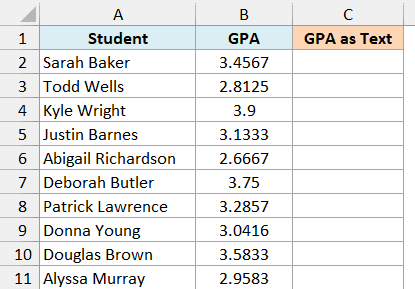
Here is the formula:
=FIXED(B2:B11)
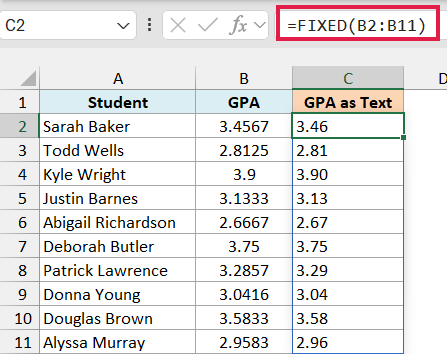
Since I left out the decimals argument, FIXED uses its default of two decimal places. So 3.4567 becomes 3.46, and 3.9 becomes 3.90, with a zero added at the end.
The formula handles all ten GPAs at once and spills the results down to C11.
If any cell in C3:C11 already has something in it, the formula can’t spill and returns a #SPILL! error. So make sure that range is empty before you enter the formula.
Also notice that the results sit on the left side of their cells. Excel lines up text on the left by default, which is a quick sign that FIXED returns text, not numbers.
Important: Since the results are text, a formula like =SUM(C2:C11) returns 0 instead of adding them up. If you need a rounded value you can still calculate with, use the ROUND function instead.
If you are using Excel 2019 or earlier, enter the below formula in cell C2 and then copy it down the range:
=FIXED(B2)
The same applies to the other spilling formulas in this article. Use the first cell of the range in the formula, then copy it down.
Example 2: Round to One Decimal Place
Here’s another practical scenario.
Below is a list of travel bags weighed on a digital scale, and I want to round each weight to one decimal place in column C.
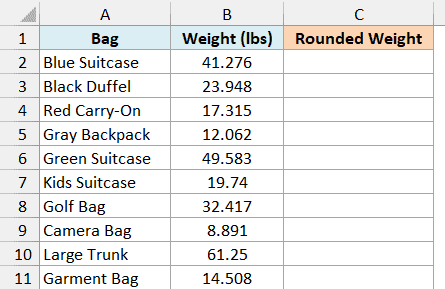
Here is the formula:
=FIXED(B2:B11,1)
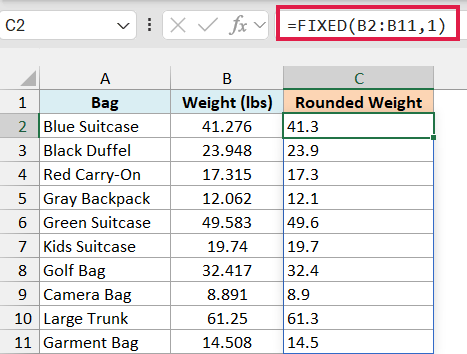
The 1 in the second argument tells FIXED to keep one digit after the decimal point. So 41.276 becomes 41.3, and 23.948 becomes 23.9.
FIXED rounds the number rather than just cutting off the extra digits. A 5 rounds up, the same way it does with the ROUND function, so the Large Trunk’s 61.25 becomes 61.3.
You could get the same look by changing the number format of column B to one decimal place. The difference is that formatting only changes how the number looks, while FIXED gives you text you can drop into a sentence or send somewhere else.
Example 3: Show Whole Numbers With or Without Commas
Now let’s look at the third argument.
Below is a list of used cars with their mileage, and I want to show the mileage as whole numbers, with commas in column C and without commas in column D.
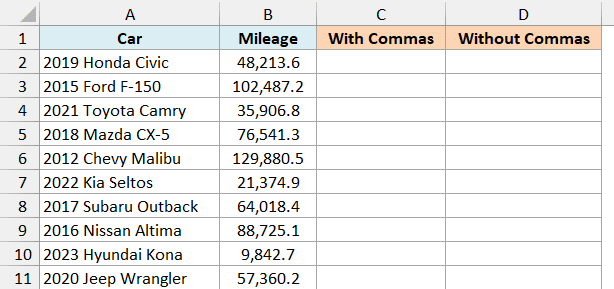
Here is the formula for column C:
=FIXED(B2:B11,0)
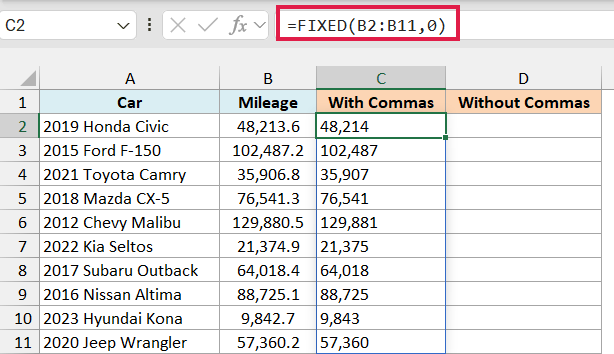
With decimals set to 0, FIXED rounds each mileage to the nearest whole mile and keeps the commas. So 48,213.6 becomes 48,214, and 129,880.5 becomes 129,881.
And here is the formula for column D:
=FIXED(B2:B11,0,TRUE)
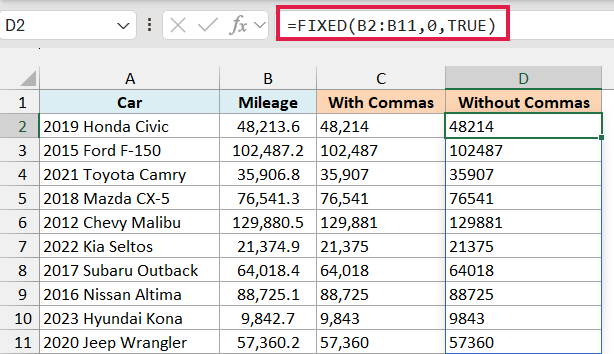
Setting no_commas to TRUE drops the thousands separators, so 102,487.2 becomes 102487. This is handy when the number goes into a form or another program that only accepts plain digits.
Pro Tip: To drop the commas but keep the default two decimals, leave the decimals spot empty, like =FIXED(B2:B11,,TRUE). FIXED still uses two decimals here, so 48,213.6 becomes 48213.60.
Example 4: Round to the Nearest Thousand with Negative Decimals
Let’s try something a bit more interesting.
Below is the attendance for ten home games of a college football team, and I want to round each number to the nearest thousand in column C.
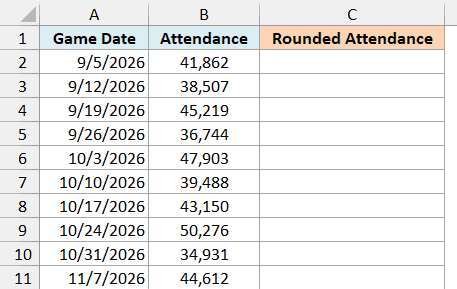
Here is the formula:
=FIXED(B2:B11,-3)
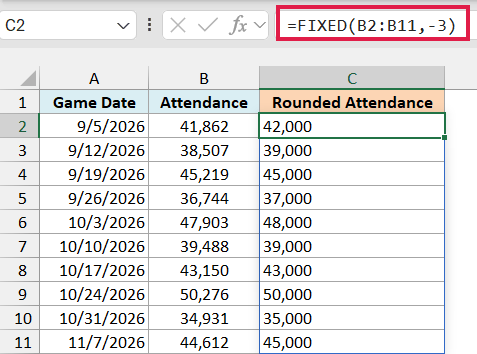
When decimals is negative, FIXED rounds to the left of the decimal point. With -3, it rounds to the nearest thousand, so 41,862 becomes 42,000 and 38,507 becomes 39,000.
Rounded numbers like these are easier to read in a summary, where nobody needs to know that exactly 45,219 people showed up.
Just keep in mind that a number smaller than half of what you’re rounding to becomes 0. So if a game had drawn only 440 people, this formula would show 0 for it, because 440 is closer to 0 than to 1,000.
Example 5: Combine Numbers and Text Using the FIXED Function
This next one is a common reason to use FIXED in the first place.
When you join a number with text using the & operator, Excel uses the number as it’s stored and ignores the cell’s formatting. So you can get a long string of decimals in one row and none at all in the next.
Below is a running log with each runner’s distance for the day, and I want a short summary line for each runner in column C.
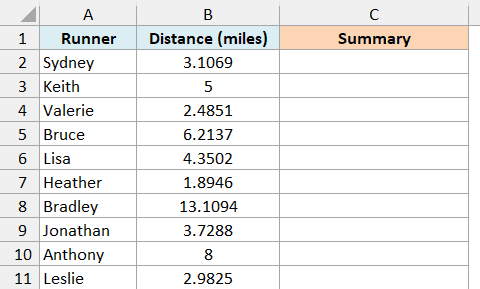
Here is the formula:
=A2:A11&" ran "&FIXED(B2:B11,1)&" miles"
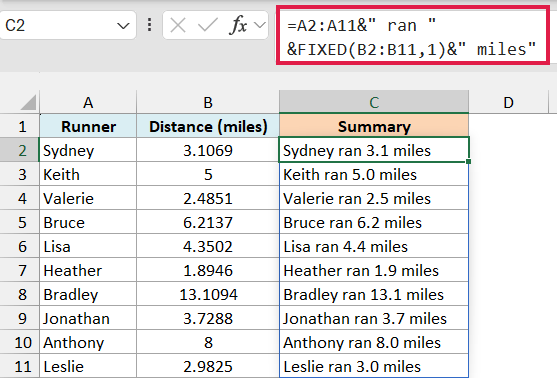
The formula joins each runner’s name, the text ” ran “, the distance rounded by FIXED to one decimal, and the word ” miles”. It does this for all ten runners at once.
Since FIXED rounds every distance the same way, Sydney’s 3.1069 shows as 3.1, and Keith’s 5 shows as 5.0. So every line looks consistent.
You could also use the TEXT function here, with TEXT(B2:B11,"0.0") in place of the FIXED part. FIXED is shorter when all you need is rounding and commas, while TEXT is the better pick when you need something like a percentage or a date format.
Example 6: Join a List of Numbers into One Cell
Let’s finish with FIXED inside another function.
Below are the daily high temperatures for a week, and I want to show all seven in one line, each with one decimal place, in cell D2.
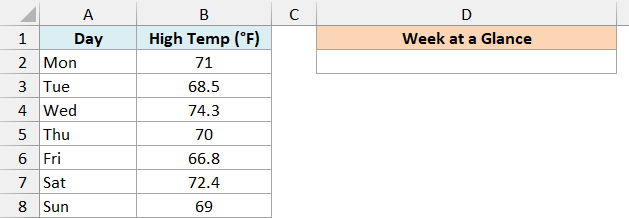
Here is the formula:
=TEXTJOIN(", ",TRUE,FIXED(B2:B8,1))
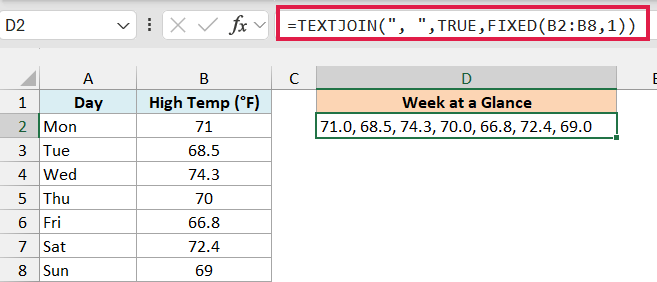
FIXED first turns all seven temperatures into text with one decimal place. The TEXTJOIN function then joins them into a single cell, with a comma and a space between each one.
The TEXTJOIN function is available in Excel 2019 and later versions, including Microsoft 365. FIXED itself works in every version.
Without FIXED, TEXTJOIN would use the numbers as they are, so you’d get 71, 68.5, 74.3, 70, and so on. Some values would have a decimal and some wouldn’t, which looks messy.
If your numbers run into the thousands, the commas FIXED adds can blend in with the separator, so 1250 and 980 show up as “1,250, 980”. In that case, set no_commas to TRUE or use a different separator, such as a semicolon.
So these are six ways to use the FIXED function in Excel. It’s a quick way to control how a number looks when it has to become text.
If you also want a currency symbol in front of the number, the DOLLAR function rounds and converts a number to text in the same way, with the dollar sign added.
I hope you found this article helpful.
Other Excel Articles You May Also Like:
