

The CUMPRINC function in Excel adds up the principal you pay back on a loan between any two payments. Every loan payment is part interest and part principal, and CUMPRINC totals only the principal part.
That’s useful when you want to know how much of a loan you’ve really paid off, because a big chunk of every payment goes to interest and doesn’t reduce what you owe.
In this tutorial, I’ll show you how to use CUMPRINC on a few everyday loans. You’ll also see how payment timing changes the result, and how to find the month you’ve paid off half of a mortgage.
Follow along with the example file
CUMPRINC Function Examples.xlsx
CUMPRINC Function Syntax
Here is the syntax of the CUMPRINC function:
=CUMPRINC(rate, nper, pv, start_period, end_period, type)
- rate – The interest rate for each payment period. For a loan paid monthly, this is the annual rate divided by 12.
- nper – The total number of payments on the loan. A 4-year loan paid monthly has 48.
- pv – The loan amount (the present value).
- start_period – The payment number where you want to start adding up the principal. The first payment is 1.
- end_period – The payment number where you want to stop.
- type – When each payment is made. Use 0 for the end of the period or 1 for the start.
All six arguments are required, including type. If you leave type out, Excel won’t let you enter the formula, so put 0 there when your payments are made at the end of each month.
Both the start and end payments are counted. So a start of 13 and an end of 24 adds up the principal in payments 13 through 24, which is the second year of a monthly loan.
If you use the same number for both, you get the principal in just that one payment.
Enter the loan amount as a positive number. If pv is zero or negative, CUMPRINC returns the #NUM! error.
You’ll also get #NUM! when start_period is less than 1, when it’s bigger than end_period, when end_period goes past the last payment, or when type is any number other than 0 or 1.
The CUMPRINC function works in all Excel versions, including Microsoft 365, Excel 2024, 2021, 2019, 2016, Excel for Mac, and Excel on the web.
When to Use the CUMPRINC Function
Use this function when you need to:
- See how much of a loan you pay off in the first year
- Check how much principal you’ve paid so far, and how much you still owe
- Break a loan down into the principal paid in each year
- Work with loans paid quarterly, yearly, or at the start of each month
- Find out when you’ll have paid off half of a loan
Let me show you a few practical examples of how to use the CUMPRINC function in Excel.
Example 1: CUMPRINC for Principal Paid in the First Year
Let’s start with a simple example.
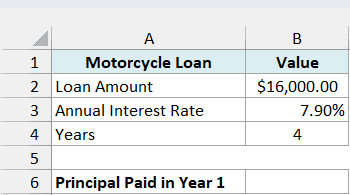
Below are the details of a motorcycle loan with the loan amount, annual interest rate, and term in years, and I want to calculate how much principal is paid in the first year in cell B6.
Here is the formula:
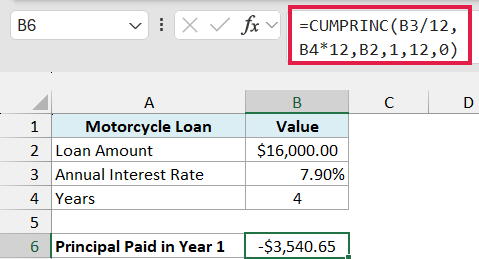
=CUMPRINC(B3/12,B4*12,B2,1,12,0)
How this formula works:
B3/12turns the 7.90% annual rate into a monthly rate, because the payments are monthly.B4*12turns 4 years into 48 monthly payments.B2is the loan amount of $16,000.00.1and12tell CUMPRINC to add up the principal from the first payment through the twelfth.0means each payment is made at the end of the month.
The result is -$3,540.65, so you pay off $3,540.65 of the loan in the first year. The rest of the first year’s payments goes to interest.
CUMPRINC returns a negative number because Excel treats money you pay out as negative. You’ll see how to flip it to a positive number in the next example.
Important: The rate and the number of payments must use the same time unit. If you use B3 instead of B3/12 here, Excel treats 7.90% as a monthly rate and returns -$636.52, a wrong answer with no error to warn you.
Example 2: Find How Much Principal You’ve Paid So Far
Now let’s use CUMPRINC to check your progress on a loan you’re already paying.
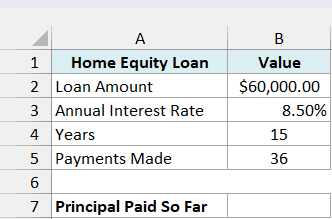
Below are the details of a 15-year home equity loan along with the number of payments made so far in cell B5, and I want to calculate how much principal has been paid off in cell B7.
Here is the formula:
=-CUMPRINC(B3/12,B4*12,B2,1,B5,0)
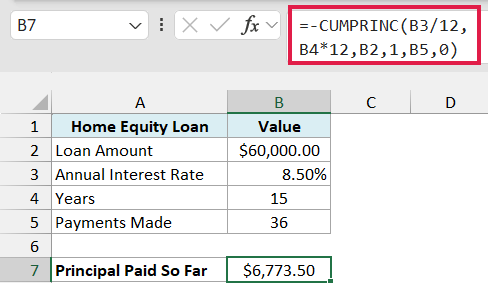
This gives $6,773.50, which is the principal paid in the first 36 payments.
That might feel low after three years of payments. It’s normal, though, because the early payments on a long loan go mostly to interest.
The end_period comes from B5 this time instead of being typed into the formula. So when you make another payment, you just change B5 to 37 and the result updates.
The minus sign at the start of the formula turns the negative result into a positive one, which reads better when you share the number with someone. I’ll use the minus sign in the rest of the examples.
Since the principal paid so far is the part of the loan you’ve cleared, the amount you still owe is the loan minus this number. Here that’s $60,000.00 minus $6,773.50, which leaves $53,226.50.
Example 3: CUMPRINC Formula for Principal Paid Each Year
Now let’s get the principal for every year of a loan with one formula.
Below are the details of a 6-year boat loan, along with the year numbers in column A, and I want to calculate the principal paid in each year in column B.
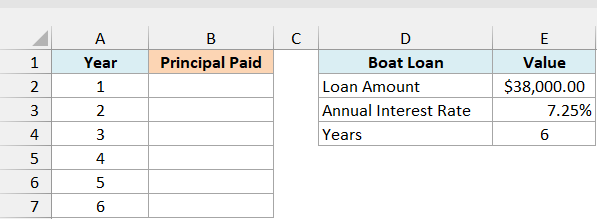
Here is the formula:
=-CUMPRINC(E3/12,E4*12,E2,(A2:A7-1)*12+1,A2:A7*12,0)
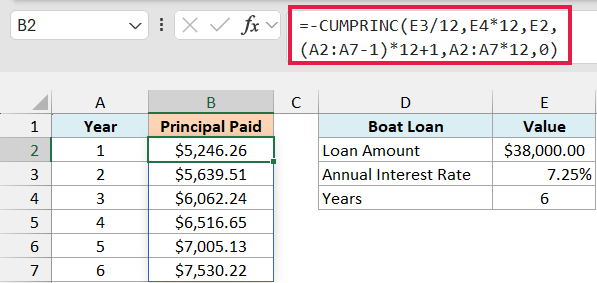
I entered this formula only in cell B2, and it spills the results down to B7.
How this formula works:
(A2:A7-1)*12+1gives the first payment of each year: 1, 13, 25, 37, 49, and 61.A2:A7*12gives the last payment of each year: 12, 24, 36, 48, 60, and 72.- Since both arguments hold six values, CUMPRINC runs once for each year and returns six results.
The principal goes up every year, from $5,246.26 in year 1 to $7,530.22 in year 6. Each payment shrinks the balance, so less of the next payment is needed for interest and more of it goes toward the loan.
The six yearly amounts add up to exactly $38,000.00, the full loan amount. That’s a handy check that your start and end payments cover the whole loan, with no payment missed or counted twice.
Important: If you already have the start and end payment numbers in two columns and use those ranges as they are, CUMPRINC returns a #VALUE! error. Put a plus sign in front of each range (for example, +A2:A7 instead of A2:A7) and it spills.
The formula in this example doesn’t hit that problem, because both range arguments already have math on them. It’s the same quirk that stops functions like EOMONTH from spilling, which I’ve covered in how to fix Excel functions that won’t spill.
Spilling a range like this works in Excel 365 and Excel 2021 or later. If you are using Excel 2019 or earlier, enter the below formula in cell B2 and then copy it down to B7:
=-CUMPRINC($E$3/12,$E$4*12,$E$2,(A2-1)*12+1,A2*12,0)
Example 4: Principal Paid on a Loan With Quarterly Payments
Not every loan is paid monthly.
Below are the details of a bakery equipment loan that’s paid once every quarter, with the number of payments per year in cell B5, and I want to calculate the principal paid in the first year in cell B7.
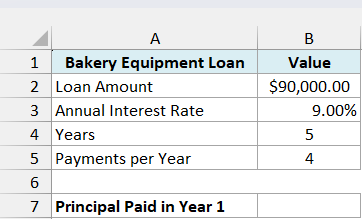
Here is the formula:
=-CUMPRINC(B3/B5,B4*B5,B2,1,B5,0)
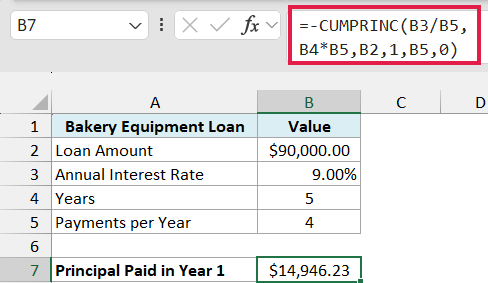
This gives $14,946.23, which is the principal paid in the first four quarterly payments.
Here, B5 does three jobs. B3/B5 turns the 9% annual rate into a quarterly rate, B4*B5 turns 5 years into 20 payments, and B5 as the end_period stops the count after the first year’s four payments.
If you used 12 in all three places out of habit, you’d get $14,924.70. That’s close enough to look right, but it’s the answer for a monthly loan, not this one.
Keeping the payments per year in its own cell also makes the formula easy to reuse. For a loan paid once a year, change B5 to 1, and for monthly payments, change it to 12.
Example 5: How Payment Timing Changes the Principal You Pay
This is where the type argument comes in, because paying at the start of each month instead of the end changes how much of the loan you clear.
Below are the details of a home gym loan, and I want to compare the principal paid in the first year when payments are made at the end of each month versus at the start, in cells B6 and B7.
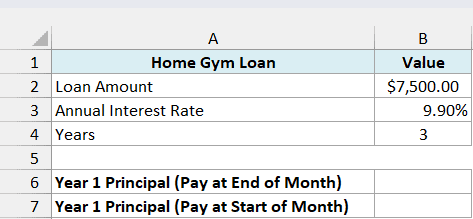
Here is the formula for payments at the end of each month:
=-CUMPRINC(B3/12,B4*12,B2,1,12,0)
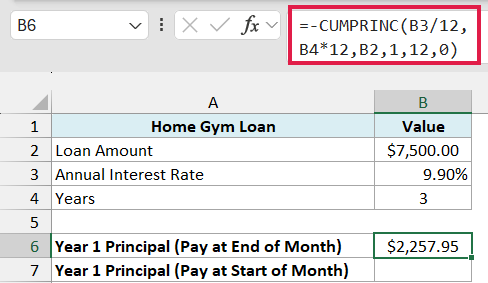
With type set to 0, you pay off $2,257.95 of the loan in the first year.
And here is the formula for payments at the start of each month:
=-CUMPRINC(B3/12,B4*12,B2,1,12,1)
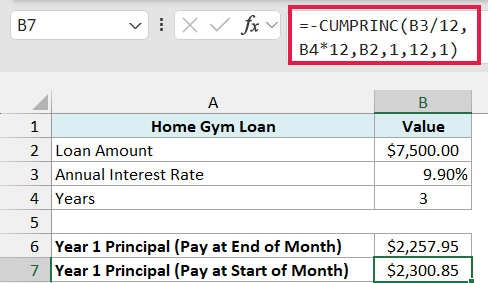
With type set to 1, the first-year principal goes up to $2,300.85, which is about $43 more.
That’s mostly because the very first payment is made on day one, before any interest has built up. So that entire first payment goes toward the loan, instead of only part of it.
If you want the monthly payment itself, the PMT function takes the same type setting. For this loan, payments at the start of each month come to $239.67.
So before you trust the number, check when your lender takes the payment. Most loans collect it at the end of the month, but some payment plans ask for the first payment upfront.
Example 6: Find the Month You’ve Paid Off Half the Loan
Let’s step it up with something a bit more advanced.
Below are the details of a 30-year mortgage, and I want to find the month in which the total principal paid first reaches half of the loan amount, in cell B6.
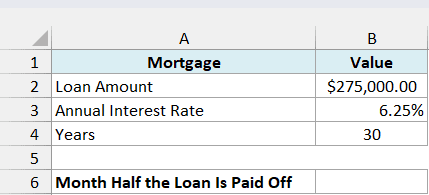
Here is the formula:
=LET(m,SEQUENCE(B4*12),XMATCH(TRUE,-CUMPRINC(B3/12,B4*12,B2,1,m,0)>=B2/2))
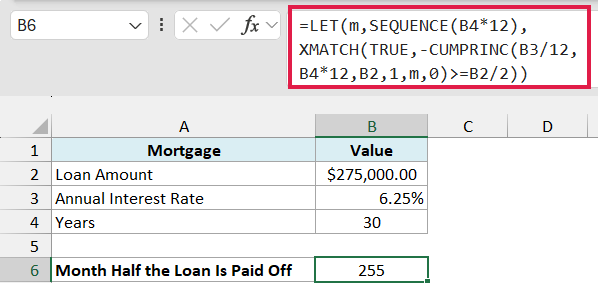
The answer is 255. So you pass the halfway mark on this $275,000 loan in month 255 of 360, which is 21 years and 3 months in.
How this formula works:
SEQUENCE(B4*12)creates the month numbers from 1 to 360. The LET function stores that list as m.-CUMPRINC(B3/12,B4*12,B2,1,m,0)uses 1 as the start and the whole list m as the end, so it returns the total principal paid by the end of every month.>=B2/2checks each of those totals against half the loan ($137,500.00) and gives TRUE where the total has reached it.XMATCH(TRUE, ...)returns the position of the first TRUE. Since the list starts at month 1, that position is the month number.
You can check the boundary yourself. By the end of month 254 you’ve paid $137,344.95 of principal, which is just under half, and month 255 takes it to $138,321.22.
So it takes more than 70% of the loan term to pay off the first half of the principal. The second half goes much faster, because by then most of each payment is principal.
This formula needs Excel 365 or Excel 2021 and later, since LET, SEQUENCE, and XMATCH aren’t available in older versions.
So that’s how CUMPRINC works on a few different loans, from a simple first-year total to the halfway point of a mortgage. The two things to watch are matching the rate to how often you pay and keeping the loan amount positive.
If you need the interest part instead of the principal, the CUMIPMT function works the same way and takes the same six arguments.
I hope you found this Excel tutorial useful.
Other Excel Articles You May Also Like:
