

The DAVERAGE function averages the numbers in one column of your data, but only for the rows that meet the conditions you set. It’s one of Excel’s database functions, so the conditions go in a few cells on the sheet, not inside the formula.
That setup is handy for two reasons. You can change what gets averaged just by editing a cell, and you can average rows that match one value or another, which is clumsy to do with other average formulas.
In this tutorial, I’ll show you how to use DAVERAGE with one condition, multiple conditions, date ranges, wildcards, and formula-based conditions. I’ll also cover the #DIV/0! error you get when nothing is left to average.
Follow along with the example file
DAVERAGE Function Examples.xlsx
DAVERAGE Function Syntax
Here is the syntax of the DAVERAGE function:
=DAVERAGE(database, field, criteria)
- database – The whole data range, including the header row. Each row is a record and each column is a field.
- field – The column you want to average. You can give its header in double quotes (like “Price”) or its position in the database as a number (like 3 for the third column).
- criteria – The range that holds your conditions. Its top row has headers that match the headers in your data, and the conditions go in the cells right below them.
The layout of the criteria range decides how your conditions combine. Conditions on the same row must all be true (Example 3), while conditions on separate rows mean any one of them can be true (Example 4).
If you leave the cell under a criteria header empty, it matches every row. So an empty condition gives you the plain average of the whole column.
The DAVERAGE function works in Excel for Microsoft 365, Excel 2024, 2021, 2019, and 2016, on both Windows and Mac.
When to Use the DAVERAGE Function
Use this function when you need to:
- Average values for rows that meet one or more conditions, with the conditions kept in cells you can change
- Average rows that match any one of several values (OR logic) in a single formula
- Average values between two dates or two numbers
- Average rows based on a calculated condition, such as the month of a date
Let me show you a few practical examples of how to use the DAVERAGE function.
Example 1: Average Rent for One Neighborhood
Let’s start with a simple example.
Below is a list of apartment rentals with the neighborhood and monthly rent for each, and I want the average rent in Riverside in cell E5.
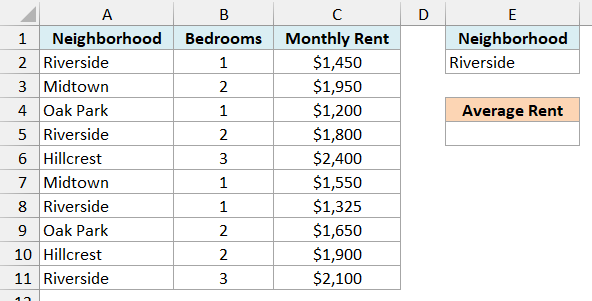
Here is the formula:
=DAVERAGE(A1:C11,"Monthly Rent",E1:E2)
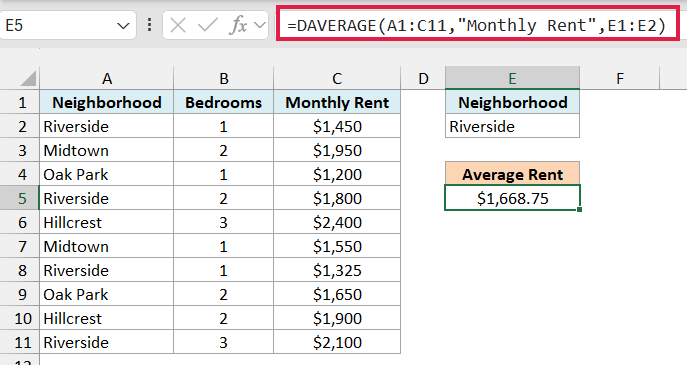
This gives us $1,668.75, which is the average rent of the four Riverside apartments.
In the above formula, A1:C11 is the full data with its headers, “Monthly Rent” is the column to average, and E1:E2 is the criteria range. The header in E1 tells DAVERAGE which column to check, and E2 holds the value to look for.
Since Riverside sits in a cell and not inside the formula, you can type Midtown in E2 and the average updates right away.
Important: The criteria header must match the data header exactly. If E1 said “Neighbourhood” instead of “Neighborhood”, no row would match, and DAVERAGE would return a #DIV/0! error.
I placed the criteria range to the right of the data on purpose. Microsoft recommends not putting it below your data, because that’s where new rows usually get added.
If your data keeps growing, you can convert it to an Excel Table and use the full Table reference (like Rentals[#All]) as the database. New rows then get included in the average automatically.
The database does have to be a real range on the sheet, though. If you point it at a formula result like FILTER, Excel won’t let you enter the formula at all.
Example 2: Average Scores for 5+ Study Hours (Field as a Column Number)
Here’s another practical scenario.
Below is a list of students with the hours each one studied and their test score, and I want the average score of students who studied 5 hours or more in cell E5.
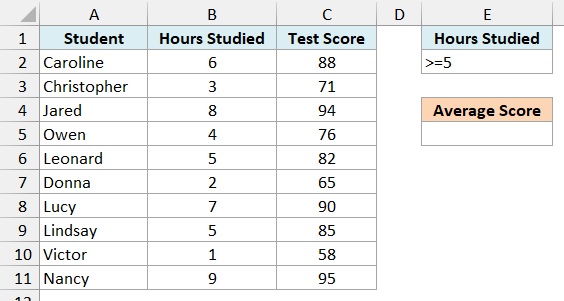
Here is the formula:
=DAVERAGE(A1:C11,3,E1:E2)
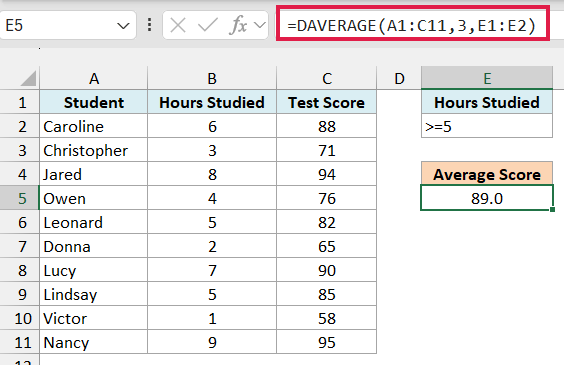
This returns 89.0, the average score of the six students who studied at least 5 hours.
The condition in E2 is >=5, typed straight into the cell. Any comparison operator works the same way, such as >80, <10, or <>0.
This time, I used 3 as the field instead of “Test Score”. Since Test Score is the third column in A1:C11, DAVERAGE averages that column.
A column number is quicker to type, but it can break without warning. If someone inserts a column inside the data, 3 will point to a different column, while “Test Score” keeps working.
Example 3: DAVERAGE With Multiple Criteria (AND)
Now let’s look at rows that need to meet two conditions at the same time.
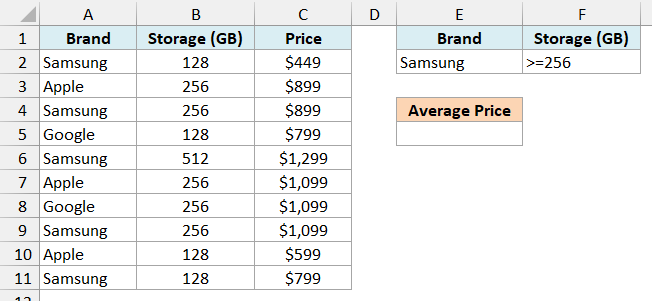
Below is a phone store’s price list with each phone’s brand, storage, and price, and I want the average price of Samsung phones with 256 GB of storage or more in cell E5.
Here is the formula:
=DAVERAGE(A1:C11,"Price",E1:F2)
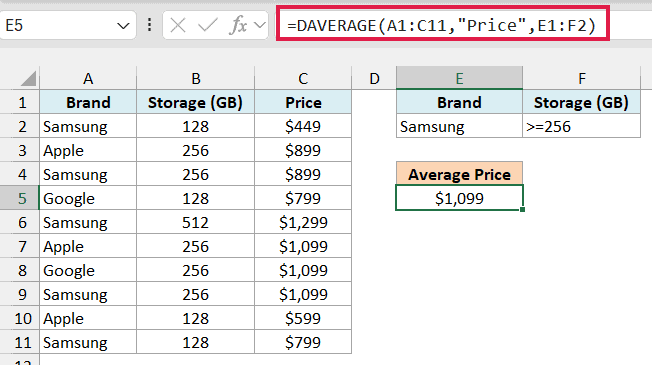
This gives us $1,099, the average price of the three Samsung phones with at least 256 GB.
The criteria range now has two headers, Brand and Storage (GB), and both conditions sit on the same row. When conditions share a row, a phone is counted only if it meets all of them.
You can add more conditions the same way. Put another header in G1 with its condition in G2, and extend the criteria reference to E1:G2.
Example 4: Average Values That Match Either Condition (OR)
This next one shows where DAVERAGE does better than the other average formulas.
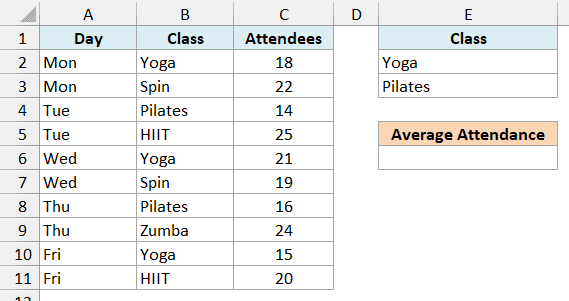
Below is a fitness studio’s class log with each class and the number of attendees, and I want the average attendance of the Yoga and Pilates classes combined in cell E6.
Here is the formula:
=DAVERAGE(A1:C11,"Attendees",E1:E3)
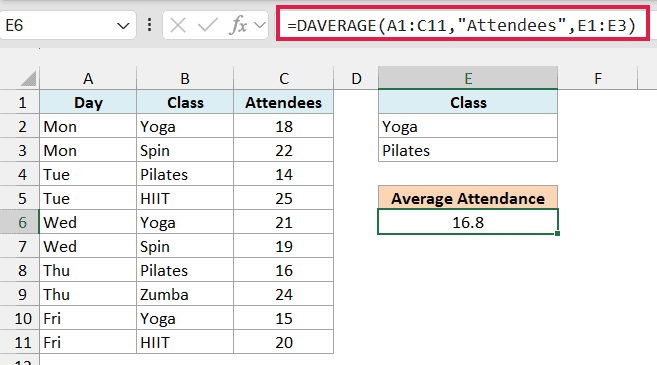
This returns 16.8, which is the average of the five Yoga and Pilates classes.
The OR logic comes from the criteria range. Yoga and Pilates are on separate rows under the same Class header, and separate rows work as OR, so a class is counted if it matches either one.
AVERAGEIFS can’t do this directly, because all of its conditions have to be true at the same time. A common workaround is to get the Yoga average and the Pilates average with AVERAGEIFS and then average those two numbers, but that gives 16.5 here.
That number is off because it treats the three Yoga classes and the two Pilates classes as equal groups. DAVERAGE averages all five classes together, which is the right answer.
Important: Make sure the criteria range has no empty rows. If you used E1:E4 here, the blank row would match every class, and you’d get 19.4, the average of all ten classes.
Example 5: Average Between Two Dates With DAVERAGE
Let’s step it up with a date range you can change without touching the formula.
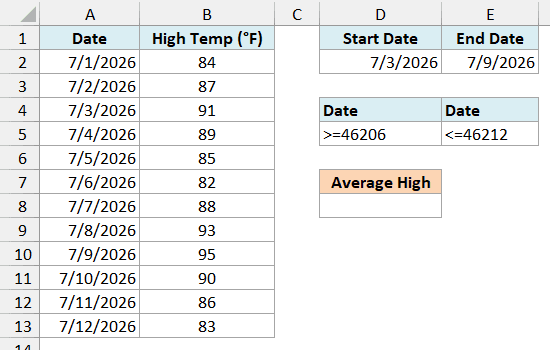
Below is a weather log with the daily high temperature, and I want the average high between the start date in D2 and the end date in E2, with the result in D8.
Here is the formula:
=DAVERAGE(A1:B13,"High Temp (°F)",D4:E5)
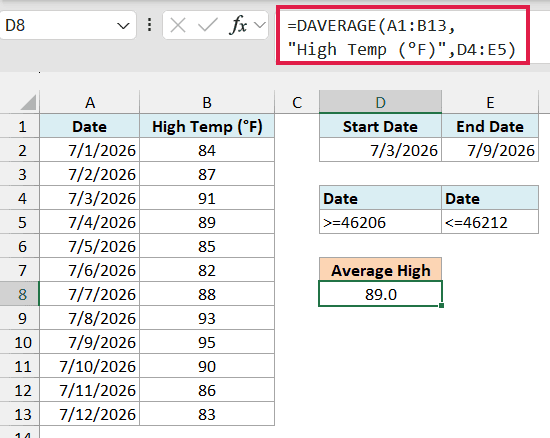
This gives us 89.0, the average high from July 3 to July 9, 2026.
The criteria range D4:E5 uses the Date header twice on the same row. Since conditions on one row must all be true, a day is counted only if it’s on or after the start date and on or before the end date.
The conditions are built with formulas. D5 has =">="&D2 and E5 has ="<="&E2, which join the comparison operator with the dates in D2 and E2.
They display as >=46206 and <=46212 because Excel stores dates as serial numbers, and 46206 is July 3, 2026.
The field header here has a degree sign, which is easy to get wrong when typing it. If the field name doesn’t match the header exactly, you get a #VALUE! error, so you could also use 2 as the field instead.
Example 6: How DAVERAGE Handles Blank Cells and Text
Now let’s see what DAVERAGE does with blank cells and text in the column you’re averaging.
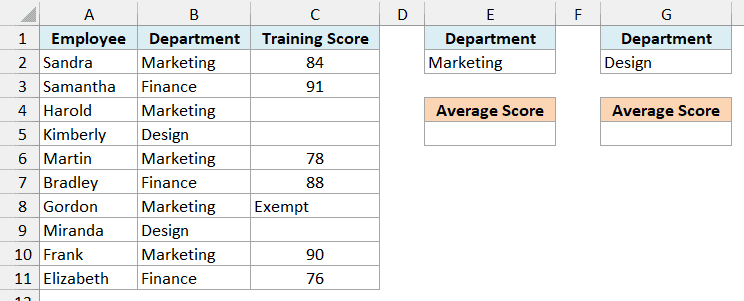
Below is a list of new hires with each person’s department and training score, where some haven’t taken the test yet and one is marked Exempt, and I want the average Marketing score in E5.
Here is the formula:
=DAVERAGE(A1:C11,"Training Score",E1:E2)
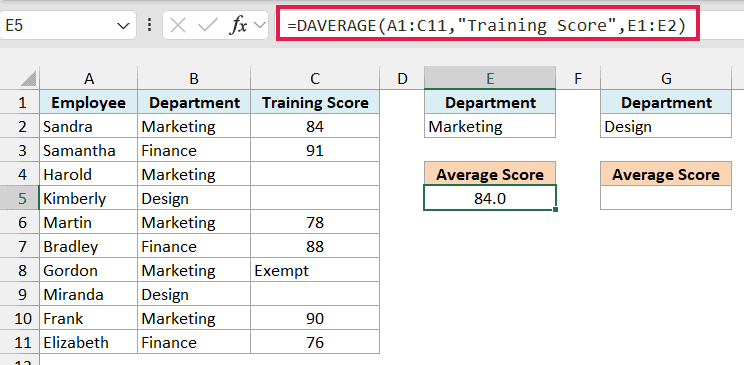
This returns 84.0. Marketing has five people, but only Sandra, Martin, and Frank have a score, so DAVERAGE averages just those three numbers.
Harold’s blank cell and Gordon’s Exempt are skipped, not counted as zero. That’s what you want here, because a missing score isn’t a score of 0, and counting it would drag the average down.
Now, what if nobody in a department has a score yet? Both Design hires are blank, so there’s nothing to average, and DAVERAGE returns a #DIV/0! error.
To show a friendly message instead of the error, wrap DAVERAGE in IFERROR. Here is the formula in G5:
=IFERROR(DAVERAGE(A1:C11,"Training Score",G1:G2),"No scores yet")
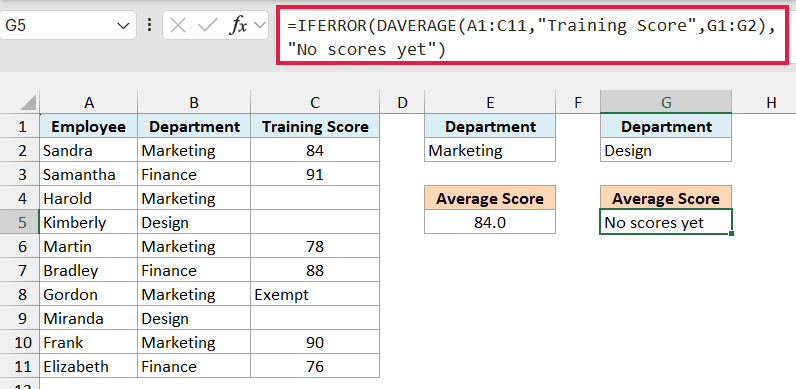
Since no one in Design has a score, the formula shows No scores yet instead of #DIV/0!.
Important: IFERROR hides every error, not just #DIV/0!. If you misspell the field name or a criteria header, you’ll also see No scores yet, so check that the formula works before you wrap it.
Example 7: Use Wildcards in DAVERAGE Criteria
Let’s look at averaging based on part of a text value.
Below is a clothing store’s price list, and I want the average price of every hoodie, wherever the word Hoodie appears in the item name, with the result in E5.
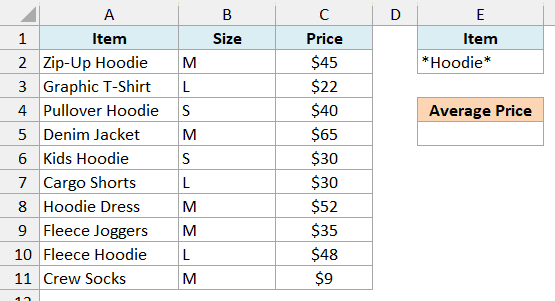
Here is the formula:
=DAVERAGE(A1:C11,"Price",E1:E2)
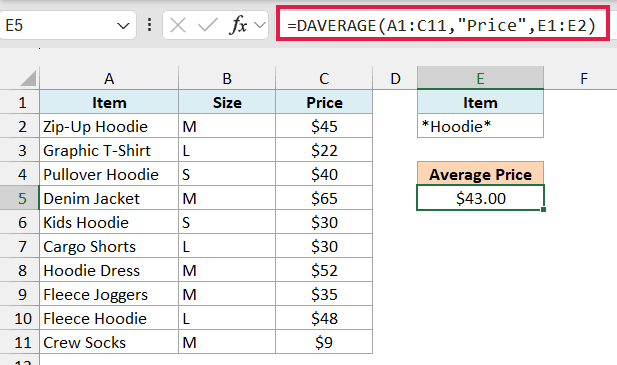
This gives us $43.00, the average price of the five hoodies.
The condition in E2 is Hoodie, where the asterisk (*) is a wildcard that stands for any number of characters. So Hoodie matches the word Hoodie anywhere in the item name, and a question mark (?) would stand for exactly one character.
You need the asterisk at the front because a plain text condition in DAVERAGE matches values that begin with that text. Typing just Hoodie would only pick up Hoodie Dress and give you $52.
For the same reason, a plain text condition is never an exact match. To match only cells that are exactly Hoodie Dress, enter ="=Hoodie Dress" in the criteria cell.
Text conditions also aren’t case-sensitive, so hoodie and HOODIE pick up the same items.
Example 8: Use a Formula as the Criteria
Let’s end with a condition that AVERAGEIFS can’t handle without a helper column.
Below is a list of monthly electric bills for 2025, and I want the average bill for the winter months (December, January, and February) in cell D5.
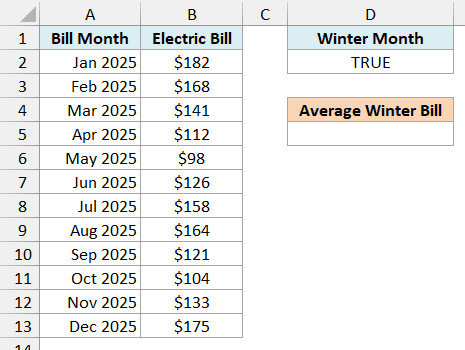
Here is the formula:
=DAVERAGE(A1:B13,"Electric Bill",D1:D2)
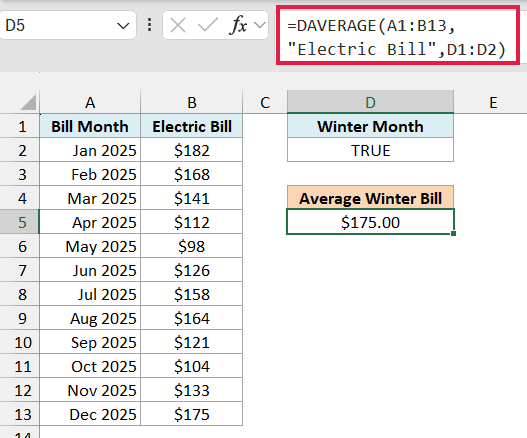
This returns $175.00, the average of the January, February, and December bills.
The criteria range is D1:D2, and D2 holds the formula =OR(MONTH(A2)=12,MONTH(A2)<=2). It checks whether a date falls in December, January, or February.
D2 shows TRUE because it’s checking the first row, January 2025. For each later row, DAVERAGE moves the A2 reference down, so every bill gets its own check.
The header in D1 must not match any header in your data, which is why I used Winter Month. If D1 said Bill Month, DAVERAGE would treat it as a normal condition and return #DIV/0!.
Important: Keep A2 as a relative reference in the criteria formula. If you lock it as $A$2, every row gets checked against January, and you’d get $140.17, the average of all 12 bills.
So these are some practical ways to use the DAVERAGE function in Excel. I covered single conditions, AND and OR conditions, date ranges, blank cells, wildcards, and formula-based conditions.
I hope you found this Excel tutorial useful.
Other Excel Articles You May Also Like:
