

The INTRATE function in Excel gives you the annual interest rate on an investment where you put in money once and get a fixed amount back on a set date, with no interest payments in between.
Think of a CD that pays everything at maturity, a Treasury bill, or a zero-coupon bond. You know what you paid and what you’ll get back, and INTRATE turns that gap into a yearly rate you can compare.
One thing that trips people up is getting the rate for several investments at once. INTRATE doesn’t accept plain ranges, so pointing it at whole columns of dates and amounts gives you a #VALUE! error instead of a list of rates.
I’ll show you the small fix for that in Example 2.
Follow along with the example file
INTRATE Function Examples.xlsx
INTRATE Function Syntax
Here is the syntax of the INTRATE function:
=INTRATE(settlement,maturity,investment,redemption,[basis])
- settlement – the date you buy the investment.
- maturity – the date the investment ends and pays you back.
- investment – the amount you pay for it.
- redemption – the amount you get back on the maturity date.
- [basis] – optional. The day count method: 0 (US 30/360), 1 (actual/actual), 2 (actual/360), 3 (actual/365), or 4 (European 30/360). If you leave it out, Excel uses 0.
INTRATE gives you a simple annual rate. It takes your gain as a share of what you invested and scales it to a full year, without any compounding.
The basis decides how the days between the two dates are counted and how many days make a year. Example 4 shows how much each option changes the rate.
If you get back less than you invested, INTRATE doesn’t show an error. It returns a negative rate, so $5,000 that comes back as $4,900 after six months gives -4.00%.
You get the #NUM! error if the settlement date is on or after the maturity date, if the investment or redemption is 0 or less, or if basis is anything other than 0 to 4.
The dates should be real dates in cells, or dates built with the DATE function. If a date can’t be read as a date, INTRATE returns the #VALUE! error.
The INTRATE function works in Excel 365, 2024, 2021, 2019, and 2016 on Windows, and in Excel 365, 2024, and 2021 for Mac.
When to Use the INTRATE Function
Use this function when you need to:
- Find the yearly interest rate on a CD that pays everything at maturity
- Compare investments that run for different lengths of time
- Work out the rate when you know the term in months instead of the maturity date
- Get the rate you actually earn on a Treasury bill from its price
- See how the day count method (basis) changes the rate
Let me show you a few practical examples of how to use the INTRATE function.
Example 1: Find the Interest Rate on a CD
Let’s start with a simple example.
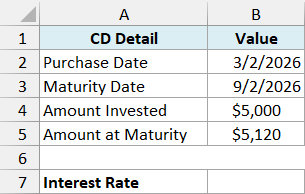
Below are the details of a 6-month CD where I invested $5,000 and got $5,120 back, and I want the yearly interest rate in cell B7.
Here is the formula:
=INTRATE(B2,B3,B4,B5)
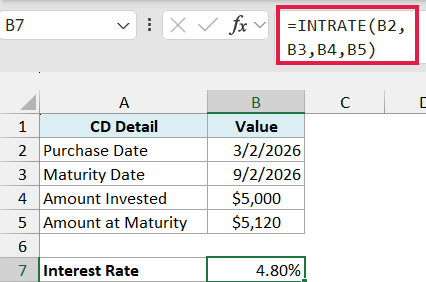
The formula returns 4.80%. The CD earned $120 on $5,000, which is 2.40% for six months, and INTRATE scales that up to a full year.
Since I left out the basis, Excel used the US 30/360 method. It counts every month as 30 days, so March 2 to September 2 is exactly 180 days, or half of a 360-day year.
That’s the same day count the DAYS360 function gives for these two dates.
Example 2: Compare Several Investments With One Formula
Now let’s say you have a log of CDs bought at different times, for different lengths, and you want to see which ones paid the best rate.
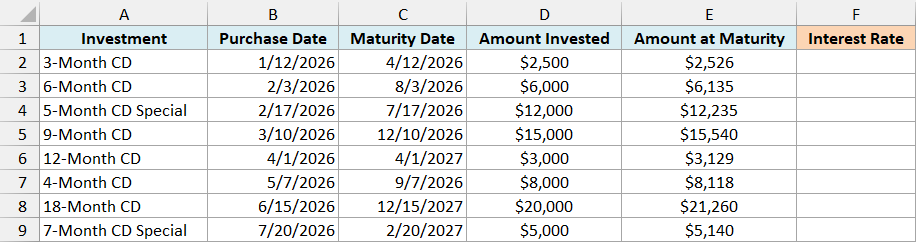
Below is a list of eight CDs with their purchase dates, maturity dates, and amounts, and I want the interest rate for each CD in column F.
Here is the formula:
=INTRATE(+B2:B9,+C2:C9,+D2:D9,+E2:E9)
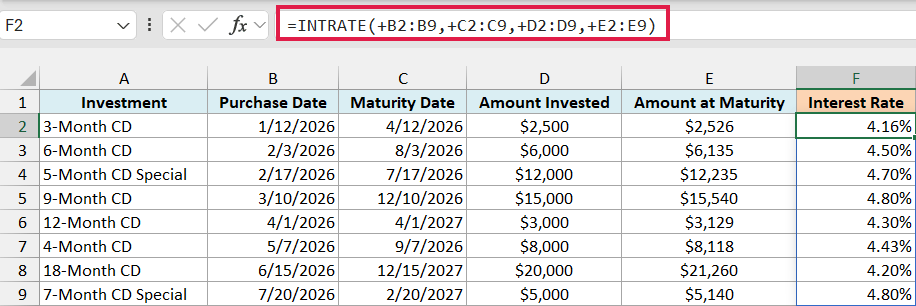
This one formula spills all eight rates into F2:F9.
The plus sign (+) in front of each range is what makes this work. With plain ranges, INTRATE returns a single #VALUE! error, but the plus sign turns each range into a list of values, and INTRATE returns one result for each CD.
This is the same trick that fixes other Excel functions that won’t spill, like the EDATE and EOMONTH functions.
Important: Every range needs its own plus sign. If you leave it off even one, the formula still spills, but you get a mix of errors and wrong rates (like 290.80% for a CD that earned 4.50%).
Now look at the 18-Month CD. It made the most money by far ($1,260), but its rate is only 4.20%, one of the lowest in the list.
That’s because it tied up the money for a year and a half. The 9-Month CD and the 7-Month CD Special earned less in dollars but paid the best rate (4.80%).
You only see that once every CD is turned into a yearly rate.
If you are using Excel 2019 or earlier, enter the below formula in cell F2 and then copy it down the range:
=INTRATE(B2,C2,D2,E2)
Example 3: Use a Term in Months Instead of a Maturity Date
CD offers usually tell you the term (like 9 months) instead of the exact maturity date. You don’t need to work out that date yourself.
Below are the details of a 9-month CD, and I want the interest rate in cell B7 using the term in B3.
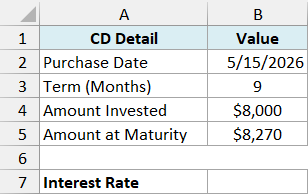
Here is the formula:
=INTRATE(B2,EDATE(B2,B3),B4,B5)
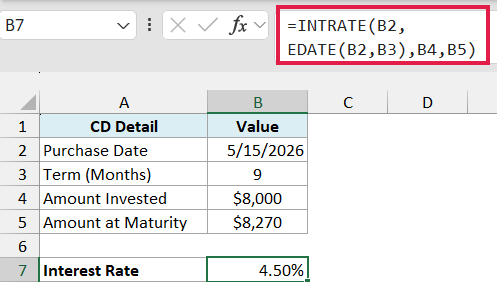
The formula returns 4.50%.
Here, the EDATE function adds 9 months to the purchase date in B2, which gives February 15, 2027. INTRATE uses that as the maturity date, so the $270 earned on $8,000 over nine months works out to 4.50% a year.
Example 4: See How the Basis Argument Changes the Rate
The basis argument is easy to skip, so let’s see what it actually does to the result.
Below are the details of a CD and the five basis codes, and I want the interest rate for each basis in column C.
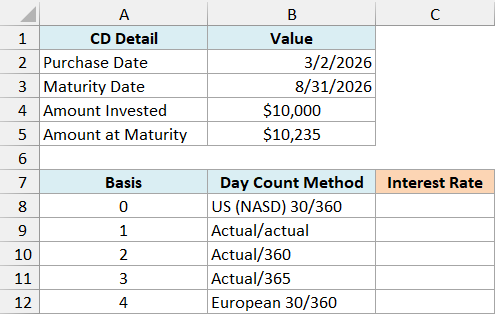
Here is the formula:
=INTRATE(B2,B3,B4,B5,+A8:A12)
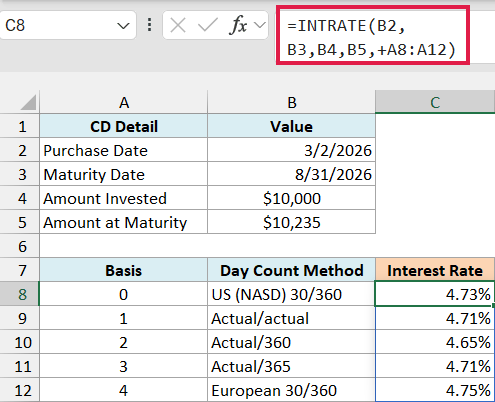
The formula spills five rates into C8:C12, one for each basis code in A8:A12 (the plus sign is needed here too).
The same $235 gain gives a rate anywhere from 4.65% to 4.75%. That’s because each basis counts the days from March 2 to August 31 differently, and some also use a different number of days in a year.
- Basis 0 (US 30/360) counts 179 days in a 360-day year, which gives 4.73%.
- Basis 1 (actual/actual) and basis 3 (actual/365) both count the actual 182 days in a 365-day year, so both give 4.71%. They match only because this period has no February 29 (if it did, basis 1 would use a 366-day year).
- Basis 2 (actual/360) gives the lowest rate (4.65%), because it divides the same 182 days by a shorter 360-day year.
- Basis 4 (European 30/360) counts 178 days, one fewer than basis 0, because it treats the August 31 maturity as the 30th. That gives the highest rate (4.75%).
When you compare investments with each other, use the same basis for all of them. Otherwise part of the difference you see comes from the day count, not the investment.
If you are using Excel 2019 or earlier, enter the below formula in cell C8 and then copy it down the range:
=INTRATE($B$2,$B$3,$B$4,$B$5,A8)
Example 5: Discount Rate vs Investment Rate for a Treasury Bill
Treasury bills are usually quoted with a discount rate, which is a different number from the rate you actually earn on what you pay. Let’s see both side by side.
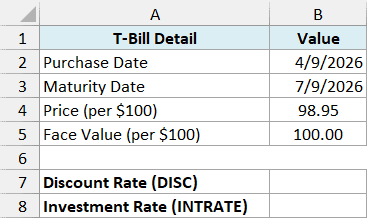
Below are the details of a 13-week Treasury bill bought at 98.95 per $100 of face value, and I want its discount rate in B7 and its investment rate in B8.
Here is the formula for the discount rate:
=DISC(B2,B3,B4,B5,2)
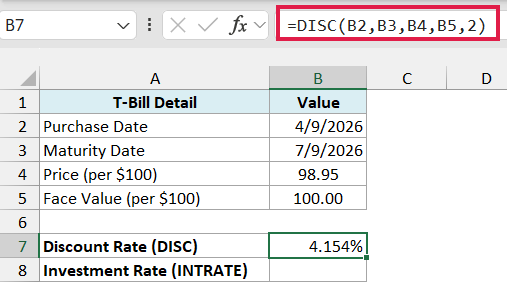
The DISC function returns 4.154%. It divides the $1.05 discount by the $100 face value and uses a 360-day year (basis 2), which is how the Treasury calculates the discount rate.
And here is the formula for the investment rate:
=INTRATE(B2,B3,B4,B5,3)
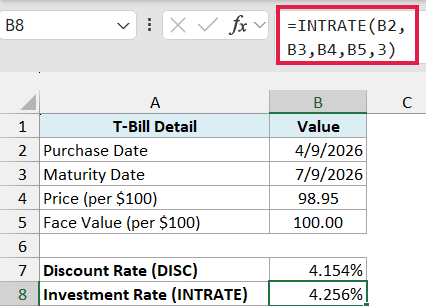
INTRATE returns 4.256%, which is higher than the discount rate. That’s because it divides the same $1.05 by the 98.95 you actually paid, and uses a 365-day year (basis 3).
This matches the Treasury’s investment rate, which is the one to compare with a CD or a savings account rate.
Important: INTRATE with basis 3 matches the investment rate only for bills of 26 weeks or less. Longer bills use a different Treasury formula, and if the year after the issue date has a February 29, the Treasury counts 366 days instead.
If you only have the quoted discount rate and not the price, the TBILLEQ function gives you the same investment rate from it (4.256% for this bill).
So these are five practical ways to use the INTRATE function in Excel. It gives you the yearly rate on a single investment, compares a whole list of them with one formula, and gets the investment rate on a Treasury bill from its price.
If your investment pays back in regular installments, like a loan, the RATE function is the one to use instead.
I hope you found this Excel tutorial useful.
Other Excel Articles You May Also Like:
