

The DURATION function in Excel calculates the Macaulay duration of a bond. That’s the average time, in years, it takes to get your money back from the bond’s interest payments and its final repayment, with each payment weighted by its value today.
Duration is also a quick way to see how risky a bond is when interest rates change. The higher the duration, the more the bond’s price drops when rates go up (and rises when they come down).
This function is all about bonds. If you’re here to find the time between two times or dates, my guide on how to calculate time in Excel covers that.
Follow along with the example file
DURATION Function Examples.xlsx
DURATION Function Syntax
Here is the syntax of the DURATION function:
=DURATION(settlement, maturity, coupon, yld, frequency, [basis])
- settlement – the date you buy the bond, which is when it becomes yours.
- maturity – the date the bond ends and pays back its face value.
- coupon – the bond’s annual coupon rate, which is the interest it pays each year.
- yld – the bond’s annual yield, the return you earn if you buy it at today’s price and hold it until maturity.
- frequency – the number of coupon payments per year. Use 1 for annual, 2 for semi-annual, and 4 for quarterly.
- basis – (optional) how Excel counts the days between dates. Use 0 for US (NASD) 30/360, 1 for actual/actual, 2 for actual/360, 3 for actual/365, and 4 for European 30/360.
The result is in years. Excel works it out for a bond with a $100 face value, so there’s no face value argument to fill in.
DURATION needs the yield, not the price. If you only know what the bond costs, get its yield first with the YIELD function and use that result here.
The frequency must be 1, 2, or 4, and any other number (such as 12 for monthly) returns the #NUM! error. You also get #NUM! when the settlement date is on or after maturity, or the coupon or yield is negative.
Leaving out basis is the same as using 0 (30/360), which is the usual convention for US corporate bonds. US Treasury bonds count actual days, so use 1 for those.
Enter the dates as real dates in cells, or build them with the DATE function, because Microsoft warns that dates typed as text can cause problems. A settlement or maturity value that isn’t a valid date returns the #VALUE! error.
The DURATION function works in Excel 365, 2024, 2021, 2019, and 2016 on Windows, and in Excel 365, 2024, and 2021 for Mac.
When to Use the DURATION Function
Use this function when you need to:
- Compare how sensitive different bonds are to a change in interest rates
- See how a bond’s coupon rate and maturity affect its risk
- Estimate how much a bond’s price will move when rates go up or down
- Find the overall duration of a bond portfolio or a bond fund
- Pick bonds whose duration lines up with when you’ll need the money
Let me show you a few practical examples of how to use this function.
Example 1: Calculate the Duration of a Bond
Let’s start with a simple example.
Below I have a 10-year corporate bond with a 5% coupon that pays interest twice a year, and I want its duration in cell B8.
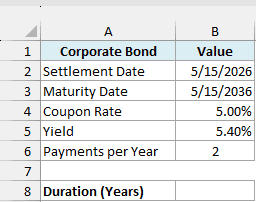
Here is the formula:
=DURATION(B2,B3,B4,B5,B6)
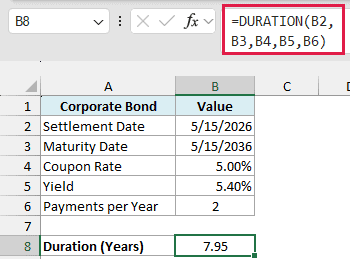
This returns 7.95. So even though the bond runs for 10 years, its duration is just under 8 years.
That’s because you get an interest payment every six months along the way. Some of your money comes back early, which pulls the average time below the 10-year maturity.
I left out the optional basis argument here, as the default is the right one for a corporate bond.
Important: Make sure the coupon and yield go in as percentages (5% or 0.05), not as 5. If you type 5 in B4, DURATION doesn’t show an error, it returns 4.89, which is completely wrong.
Example 2: Find the Duration of Multiple Bonds at Once
Now let’s get the duration of a whole list of bonds with a single formula.
Below I have eight bonds with maturities from 2 to 30 years, all bought on the settlement date in H1, and I want the duration of each bond in column E.
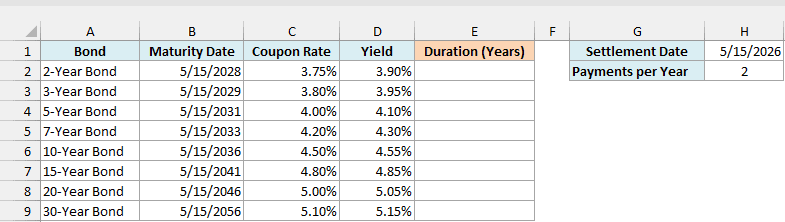
Here is the formula:
=DURATION(H1,+B2:B9,+C2:C9,+D2:D9,H2)
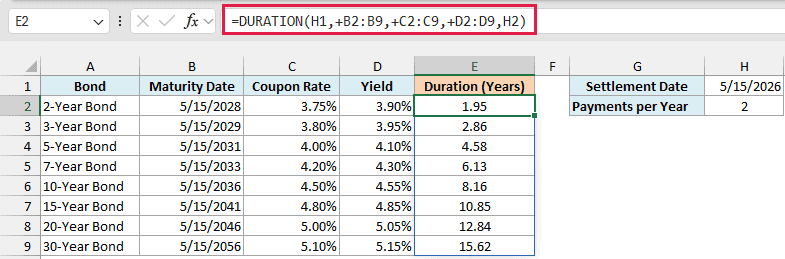
This one formula in E2 spills the duration for all eight bonds. Duration grows with maturity, but much more slowly than the maturity itself.
The 2-year bond has a duration of 1.95, while the 30-year bond comes in at 15.62. So the 30-year bond runs 15 times longer, but its duration is only about 8 times higher.
Now, about those plus signs before the ranges. DURATION started life in the old Analysis ToolPak add-in, and it still expects one value per argument.
The plus sign turns each range into an array of values, which DURATION can work with, and the results spill.
Important: If you give DURATION plain ranges, as in =DURATION(H1,B2:B9,C2:C9,D2:D9,H2), it returns the #VALUE! error instead of spilling.
I’ve explained this trick in more detail in my guide on Excel functions that won’t spill.
If you are using Excel 2019 or earlier, enter the below formula in cell E2 and then copy it down to E9:
=DURATION($H$1,B2,C2,D2,$H$2)
The dollar signs keep the settlement date and payments per year locked to H1 and H2 as you copy the formula down.
Example 3: See How the Coupon Rate Changes Duration
Here’s an example that shows why two bonds with the same maturity can have very different durations.
Below I have one 10-year bond with six possible coupon rates, from 0% to 10%, and I want the duration for each coupon rate in column B.
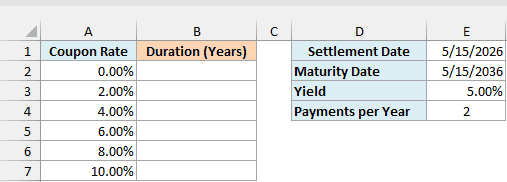
Here is the formula:
=DURATION(E1,E2,+A2:A7,E3,E4)
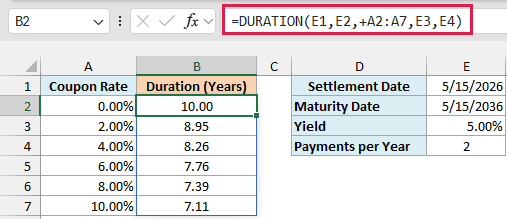
With a 0% coupon, the duration is exactly 10.00, the same as the years to maturity. A zero-coupon bond pays nothing until the end, so all of your money comes back on the maturity date.
As the coupon goes up, the duration drops, all the way down to 7.11 at 10%. Bigger interest payments return more of your money early, which pulls the average time down.
So between two bonds with the same maturity, the one with the lower coupon has the higher duration. Its price moves more when interest rates change.
If you are using Excel 2019 or earlier, enter the below formula in cell B2 and then copy it down to B7:
=DURATION($E$1,$E$2,A2,$E$3,$E$4)
Example 4: Estimate How Much a Bond’s Price Changes When Rates Rise
Now let’s use duration to estimate how much a bond loses when interest rates go up.
Below I have a 10-year bond with a 4.50% coupon rate and a 4.50% yield, and I want to estimate how much its price changes in B11 if interest rates rise by 1%.
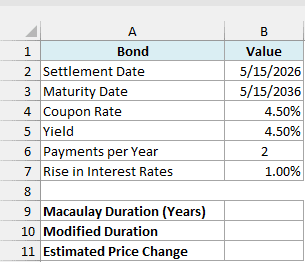
First, here is the formula for its Macaulay duration in B9:
=DURATION(B2,B3,B4,B5,B6)
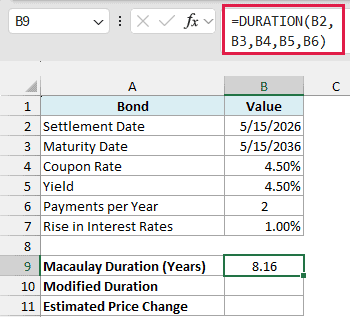
This returns 8.16 years. Macaulay duration doesn’t give you the price change directly, so for that you need the modified duration.
Here is the formula for the modified duration in B10:
=MDURATION(B2,B3,B4,B5,B6)
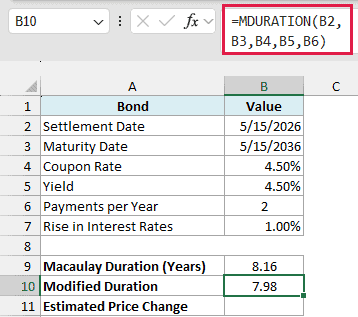
MDURATION takes the same arguments as DURATION and returns 7.98. It’s the Macaulay duration divided by (1 + yield / payments per year), so here that’s 8.16 divided by 1.0225.
And here is the formula for the estimated price change in B11:
=-B10*B7
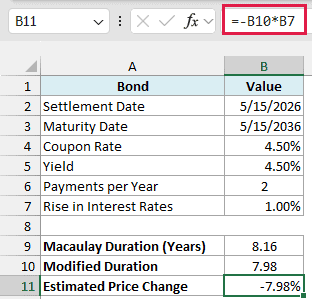
This returns -7.98%, so if rates rise by 1%, the bond’s price should fall by about 7.98%. The minus sign is there because bond prices move in the opposite direction to interest rates.
Keep in mind this is an estimate. If you reprice the bond at a 5.50% yield with the PRICE function (which returns a bond’s price per $100 of face value), the actual drop is 7.61%.
So duration slightly overstates the fall here, and the gap grows as the rate move gets bigger.
Example 5: Calculate the Duration of a Bond Portfolio
Let’s step it up and find the duration of a whole bond portfolio in one formula.
Below I have six bonds in a portfolio along with their market values, and I want the duration of the whole portfolio in cell H3.
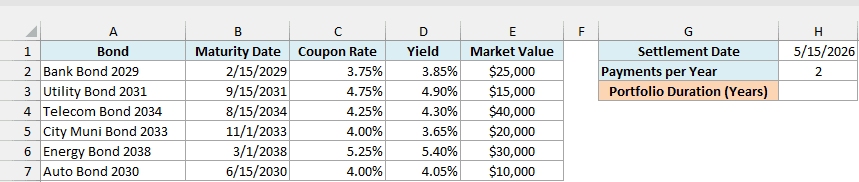
Here is the formula:
=SUMPRODUCT(DURATION(H1,+B2:B7,+C2:C7,+D2:D7,H2),E2:E7)/SUM(E2:E7)
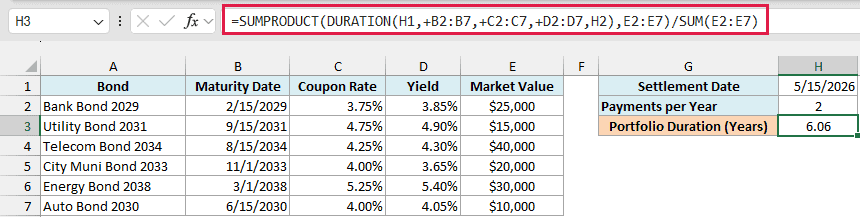
This returns 6.06, which means the portfolio as a whole behaves like a single bond with a duration of about 6 years.
How this formula works:
- DURATION(H1,+B2:B7,+C2:C7,+D2:D7,H2) returns the duration of each of the six bonds as an array, from 2.62 for Bank Bond 2029 to 8.82 for Energy Bond 2038. The plus signs are needed for the same reason as in Example 2.
- SUMPRODUCT(…,E2:E7) multiplies each bond’s duration by its market value and adds up the results.
- /SUM(E2:E7) divides that by the total portfolio value of $140,000, which gives the average duration weighted by market value.
Because the average is weighted, a big position pulls the result more than a small one. The $40,000 Telecom Bond 2034 counts four times as much as the $10,000 Auto Bond 2030.
If you are using Excel 2019 or earlier, or you want to see each bond’s duration on the sheet, enter the below formula in cell J2 (an empty column to the right of the inputs) and then copy it down to J7:
=DURATION($H$1,B2,C2,D2,$H$2)
Then use this SUMPRODUCT formula on that column to get the portfolio duration:
=SUMPRODUCT(J2:J7,E2:E7)/SUM(E2:E7)
I’ve covered this weighting approach in more detail in my guide on calculating a weighted average in Excel.
Example 6: Check the Duration by Building the Cash Flows
For the last example, let’s look under the hood and see where the duration number comes from.
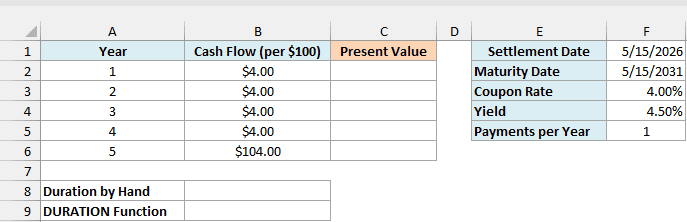
Below I have a 5-year bond with a 4% coupon paid once a year, along with the cash it pays each year per $100 of face value, and I want the present value of each payment in column C.
Here is the formula:
=B2:B6/(1+F4)^A2:A6
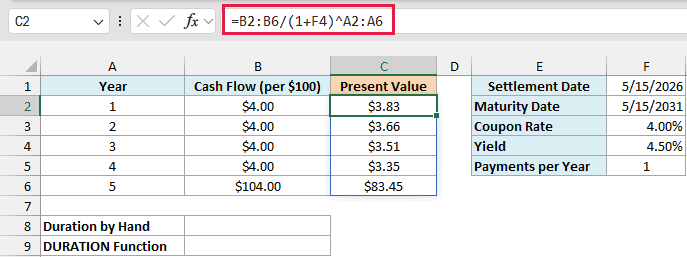
This discounts each year’s payment back to today using the 4.50% yield in F4. The final $104 payment (the last $4 coupon plus the $100 face value) is worth $83.45 today, which is most of the bond’s value.
If you are using Excel 2019 or earlier, enter the below formula in cell C2 and then copy it down to C6:
=B2/(1+$F$4)^A2
Now here is the formula that works out the duration by hand in B8:
=SUMPRODUCT(A2:A6,C2:C6)/SUM(C2:C6)
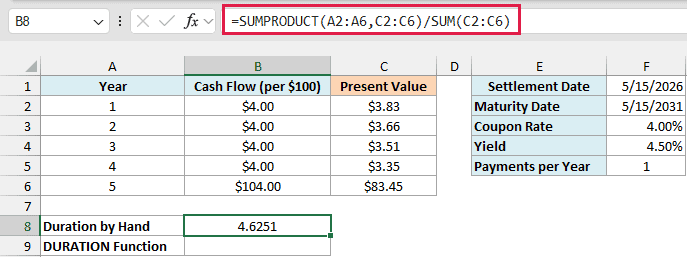
This multiplies each year number by the present value of that year’s payment, adds them up, and divides by the total present value. The result, 4.6251, is the average year in which you get your money back, weighted by value.
And here is the DURATION formula for the same bond in B9:
=DURATION(F1,F2,F3,F4,F5)
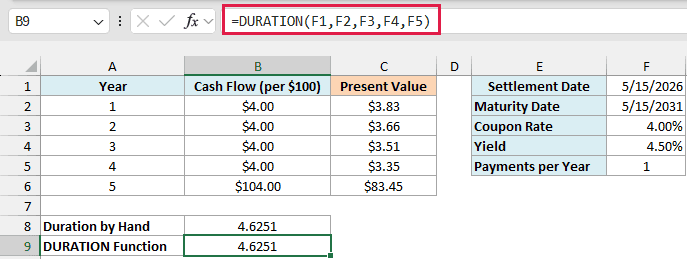
It returns exactly the same 4.6251. That’s all DURATION does in the back end: it lays out the cash flows, discounts them at the yield, and finds this weighted average time.
This simple table works here because the bond was bought exactly on a payment date and pays once a year. When you buy a bond between payment dates, the timing gets messy, and that’s where DURATION saves you a lot of work.
So these are six ways to use the DURATION function in Excel, from a single bond to a full portfolio.
If you need the price sensitivity rather than the time measure, MDURATION is the companion function to reach for. I hope you found this tutorial helpful.
Other Excel Articles You May Also Like:
