

The ACOSH function in Excel returns the inverse hyperbolic cosine of a number. In other words, it finds the nonnegative number whose hyperbolic cosine equals your input.
You use it when a calculation contains hyperbolic cosine and you need to work backward. In this tutorial, I’ll show you how to calculate it for a list of numbers, understand its errors, and use it to solve a hanging-curve equation.
Follow along with the example file
ACOSH Function Examples.xlsx
ACOSH Function Syntax
Here is the syntax of the ACOSH function:
=ACOSH(number)
- number is the required value for which you want the inverse hyperbolic cosine. It must be greater than or equal to 1.
You can supply a number directly, refer to a cell containing it, or supply a range to calculate several results in dynamic-array Excel.
The ACOSH function works in Excel 365, 2024, 2021, 2019, 2016, Mac, and the web. The range formulas below require dynamic-array Excel, such as 365, 2024, 2021, or the web.
When to Use the ACOSH Function
Use this function when you need to:
- Calculate inverse hyperbolic cosine values for a set of mathematical inputs.
- Find an unknown value in an equation containing hyperbolic cosine, with the other quantities already known.
Let’s start with a simple calculation and then see what happens when we work backward from a hyperbolic cosine result.
Example 1: Calculate Inverse Hyperbolic Cosine
Let’s start with a list of valid inputs.
Below is a list of numbers, and we want to calculate their inverse hyperbolic cosine in column B.
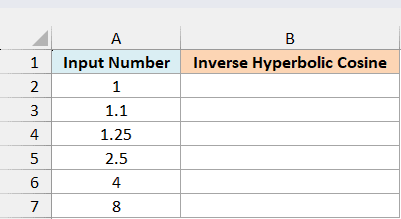
Enter the following formula in cell B2:
=ACOSH(A2:A7)
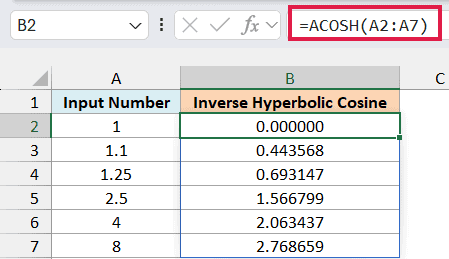
The formula calculates one result for each number in A2:A7 and spills the results into B2:B7. You only enter the formula once, in B2.
For example, the input 2.5 returns approximately 1.566799. That means the hyperbolic cosine of 1.566799 is approximately 2.5.
The input 1 returns 0, which is the smallest result ACOSH returns. The workbook displays six decimal places so you can compare the other results without a long string of digits.
If another value is already in the spill area, Excel shows a #SPILL! error. Clear the cells below B2 that the formula needs to fill.
If you are using Excel 2019 or 2016, enter the following formula in B2 and copy it down to B7:
=ACOSH(A2)
Example 2: Reverse a COSH Calculation
Now let’s see what ACOSH can recover from a hyperbolic cosine result.
Below are positive and negative numbers, and we want their hyperbolic cosine in column B and the value recovered by ACOSH in column C.
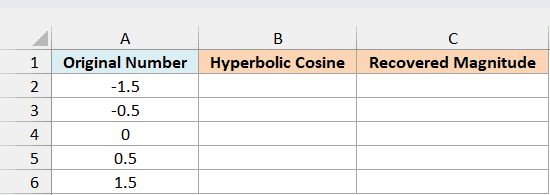
First, enter the following formula in B2 to calculate the hyperbolic cosine of each original number:
=COSH(A2:A6)
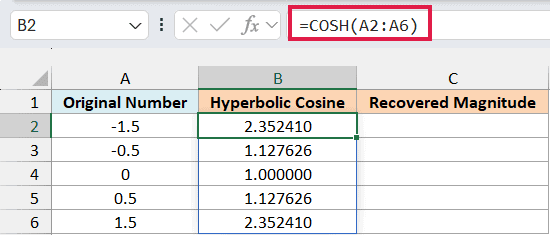
The COSH function returns the same result for opposite numbers. For example, both -1.5 and 1.5 produce approximately 2.352410, so that result alone cannot tell us which sign the original number had.
Now enter this formula in C2 to apply ACOSH to those results:
=ACOSH(B2:B6)
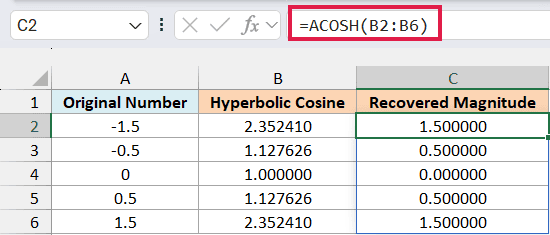
Column C returns 1.5 for both of those rows. The positive inputs come back unchanged, while the negative inputs come back as their positive magnitudes.
Important: ACOSH cannot recover an original negative sign from a COSH result. If the sign matters to your calculation, keep the original signed value or record its sign separately.
If you already have the original number and only want its magnitude, the ABS function is the direct choice.
If you are using Excel 2019 or 2016, enter the following formula in B2 and copy it down to B6:
=COSH(A2)
Then, in Excel 2019 or 2016, enter the following formula in C2 and copy it down to C6:
=ACOSH(B2)
Example 3: Understand ACOSH Input Errors
Let’s compare valid inputs with values that ACOSH cannot calculate.
Below are labeled input cases, including a missing value and a text label, and we want to see the ACOSH result for each in column C.
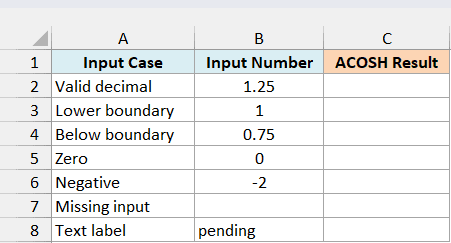
Enter the following formula in C2:
=ACOSH(B2:B8)
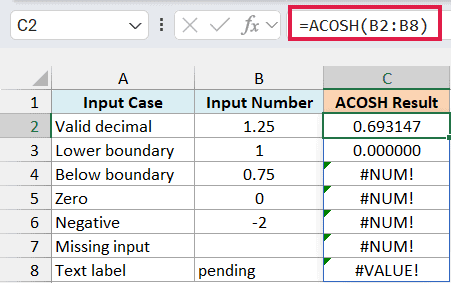
The first two inputs work: 1.25 returns approximately 0.693147, and 1 returns 0.
The values 0.75, 0, and -2 return #NUM! because each is below 1. To fix this error, check that the source value is suitable for an inverse hyperbolic cosine calculation.
The missing-input row also returns #NUM!. ACOSH treats the blank reference in B7 as 0, so leaving an input empty does not produce an empty result.
The word pending returns #VALUE! because it cannot be interpreted as a number. Replace it with a valid numeric input when that value is available.
Avoid replacing all these errors with 0 just to hide them. Zero is already the valid result for an input of 1, so doing that would make missing or invalid data look like a successful calculation.
If you are using Excel 2019 or 2016, enter the following formula in C2 and copy it down to C8:
=ACOSH(B2)
Example 4: Solve a Hanging-Curve Equation
Here’s an example of using ACOSH inside a mathematical model.
A uniform cable hanging freely under its own weight forms a curve called a catenary. In the catenary model described by OpenStax, the rise above its lowest point can be written as h = a*(cosh(x/a)-1).
Here, a is a positive scale that sets the curve’s shape, h is the rise above the lowest point, and x is the horizontal distance from that point. We’ll use meters for all three quantities and solve for the nonnegative distance.
For this example, the model’s scale is already known to be 6 meters. It is a curve parameter, not the cable’s length.
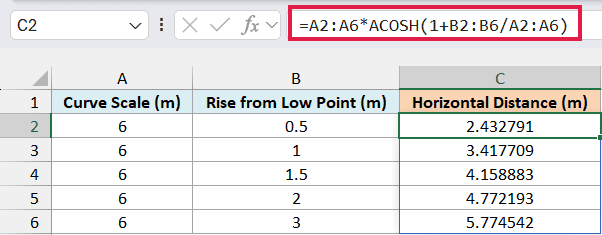
Below are the curve scale and several rises above the lowest point, and we want to find the corresponding horizontal distances in column C.
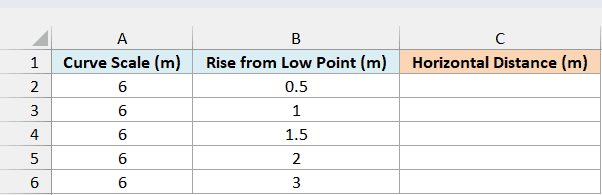
Enter the following formula in C2:
=A2:A6*ACOSH(1+B2:B6/A2:A6)
How this formula works:
B2:B6/A2:A6divides each rise by its curve scale.- Adding 1 gives the hyperbolic cosine value from the model.
- ACOSH reverses that value to get
x/a, and multiplying by the scale givesxin meters.
For a rise of 0.5 meters, the horizontal distance is approximately 2.432791 meters. At a rise of 3 meters, it is approximately 5.774542 meters.
These results measure horizontal distance from the lowest point. They do not measure distance along the cable or the full distance between its supports.
If you are using Excel 2019 or 2016, enter the following formula in C2 and copy it down to C6:
=A2*ACOSH(1+B2/A2)
When using ACOSH in your own calculation, check the value being passed into it. It must be at least 1, and its result always uses the nonnegative inverse.
Other Excel Articles You May Also Like:
