

The ATANH function in Excel returns the inverse hyperbolic tangent of a number. It reverses the TANH function (which returns the hyperbolic tangent), so you can work back from a TANH result to the number you started with.
It only accepts numbers greater than -1 and less than 1. Outside of pure math, it’s also used in statistics to work with correlation values, for example to average several of them.
In this tutorial, I’ll show you how ATANH works on a list of values, how to reverse a TANH result, how to use it with correlations, and what its errors mean.
Follow along with the example file
ATANH Function Examples.xlsx
ATANH Function Syntax
Here is the syntax of the ATANH function:
=ATANH(number)
- number – the value whose inverse hyperbolic tangent you want. It can be a number or a cell reference. In Microsoft 365 and Excel 2021 or later, it can also be a range, and you get one result for each cell in it.
The number must be greater than -1 and less than 1. If it is exactly 1 or -1, or anything outside that range, ATANH returns a #NUM! error.
The ATANH function works in all Excel versions, including Microsoft 365, 2024, 2021, 2019, 2016, and Mac.
When to Use the ATANH Function
Use this function when you need to:
- Find the inverse hyperbolic tangent of a value as part of a math or engineering calculation.
- Get the original number back from a TANH result.
- Average several correlation coefficients in a fairer way than a plain average.
- Work out the range the true correlation most likely falls in, based on a correlation from a sample (its confidence interval).
Let me show you a few practical examples of how to use the ATANH function.
Example 1: Calculate ATANH for a List of Numbers
Let’s start with a simple example.
Below is a list of numbers between -1 and 1, and I want the inverse hyperbolic tangent of each one in column B.
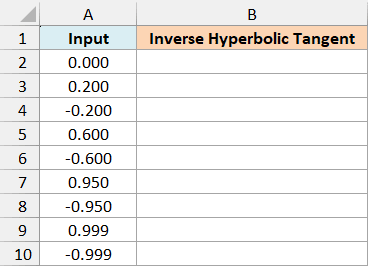
Here is the formula:
=ATANH(A2:A10)
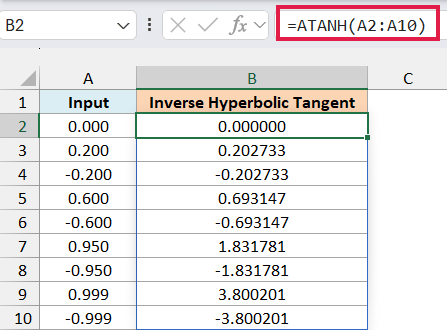
You enter this formula once in cell B2, and the results spill down to B10. ATANH calculates one result for every value in A2:A10.
Notice that the results come in matching pairs. 0.2 returns 0.202733 and -0.2 returns -0.202733, so flipping the sign of the input only flips the sign of the result.
The results also grow faster as the input gets closer to 1 or -1. Going from 0.6 to 0.95 takes the result from 0.693147 to 1.831781, and 0.999 already returns 3.800201.
Make sure the cells below B2 are empty before you enter the formula. If anything is in the way, Excel shows a #SPILL! error instead of the results.
If you are using Excel 2019 or earlier, enter the below formula in cell B2 and then copy it down the range:
=ATANH(A2)
The same copy-down approach works for the range formulas in Examples 2 and 5. Example 3 needs a different approach in older versions, which I cover there.
Example 2: Reverse a TANH Calculation With ATANH
The TANH function returns the hyperbolic tangent of a number, and ATANH is its inverse. So if you run a number through TANH and then through ATANH, you should get the original number back.
Below is a list of original values, and I want their hyperbolic tangents in column B and the recovered values in column C.
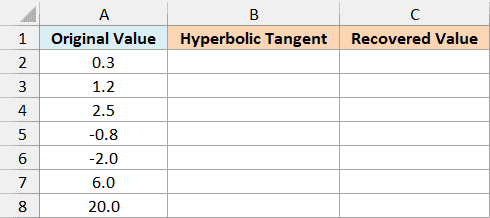
Here is the formula to get the hyperbolic tangents in column B:
=TANH(A2:A8)
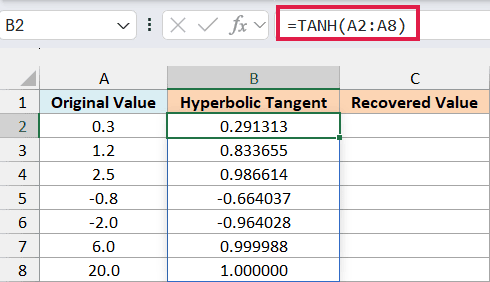
Every result falls between -1 and 1, which is the range ATANH accepts. For large values, though, the result gets so close to 1 that Excel rounds it to exactly 1, as you can see in the last row.
Now here is the formula that reverses those results in column C:
=ATANH(B2:B8)
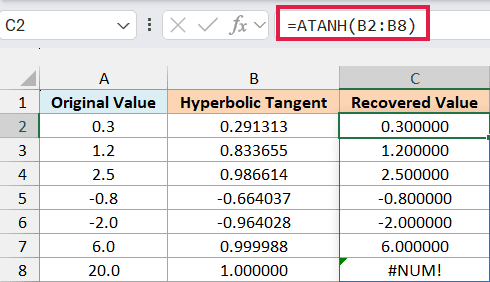
For the first six rows, ATANH gives back the original value. For example, 1.2 comes back as 1.200000 and -2 comes back as -2.000000.
The last row is different. The hyperbolic tangent of 20 is so close to 1 that Excel stores it as exactly 1, and ATANH returns #NUM! because 1 is one of the limits it can’t accept.
Important: This round trip gives back the original value (to six decimals) for values between about -10 and 10. Beyond that the recovered value starts to drift (18 comes back as 18.021827), and from about 19 onward ATANH returns #NUM!.
Example 3: Average Correlation Coefficients (Fisher Transformation)
Now let’s look at where ATANH comes in handy in statistics.
A correlation can’t go above 1, so high correlations get crowded together near the top. For example, 0.89 and 0.93 are only 0.04 apart, but after ATANH they become 1.421926 and 1.658390, which are about 0.24 apart.
Because of that crowding, a plain average of correlations tends to come out too low. The fix is to convert each correlation with ATANH, average those values, and then convert the average back with TANH.
This conversion is called the Fisher transformation, and each converted value is called a Fisher z value.
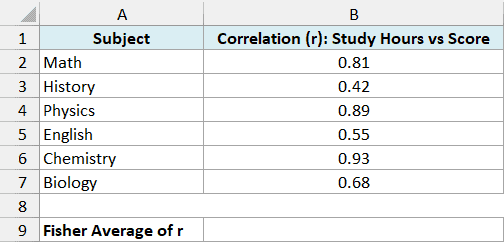
Below are the correlations between study hours and exam scores in six subjects, each with the same number of students, and I want the average correlation in cell B9.
Here is the formula:
=TANH(AVERAGE(ATANH(B2:B7)))
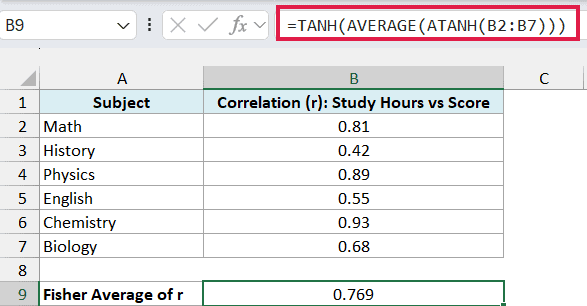
This returns 0.769 as the average correlation.
How this formula works:
- ATANH(B2:B7) converts each of the six correlations into a Fisher z value.
- The AVERAGE function then takes the average of those six z values.
- TANH converts that average back into a correlation, because TANH is the inverse of ATANH.
Important: If you are using Excel 2019 or earlier, enter this formula with Control + Shift + Enter instead of just Enter. Otherwise, Excel returns a #VALUE! error instead of the average.
Here is the plain average for comparison:
=AVERAGE(B2:B7)
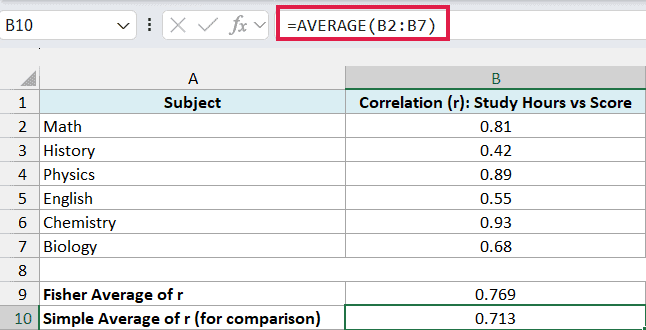
This returns 0.713, which is lower than the 0.769 we got with the Fisher transformation.
A simple average of the z values works here because every subject has the same number of students.
If your groups are very different in size, larger groups should count more, so use a weighted average of the z values where each group’s weight is its number of students minus 3.
Excel also has the FISHER and FISHERINV functions. FISHER does the same calculation as ATANH and FISHERINV does the same as TANH, so =FISHERINV(AVERAGE(FISHER(B2:B7))) also returns 0.769.
Example 4: Confidence Interval for a Correlation Using ATANH
Here is another place where ATANH helps. A correlation you calculate from a sample (like a group of stores) is only an estimate, and a 95% confidence interval gives the range the true correlation most likely falls in.
Below is the correlation between ad spend and sales across 40 stores, and I want the lower and upper limits of its 95% confidence interval in cells B5 and B6.
The 1.96 in cell B3 is the multiplier for 95% confidence, which is a different kind of number from a Fisher z value.
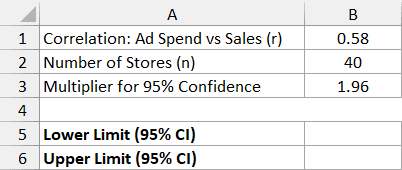
Here is the formula for the lower limit:
=TANH(ATANH(B1)-B3/SQRT(B2-3))
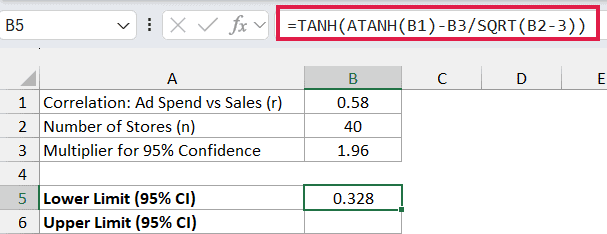
This returns 0.328.
How this formula works:
- ATANH(B1) converts the correlation of 0.58 into a Fisher z value, just like in Example 3.
- SQRT(B2-3) is the square root of the number of stores minus 3. Dividing 1 by it gives how much a Fisher z value typically varies for a sample of this size, so more stores give a narrower interval.
- B3/SQRT(B2-3) is 1.96 times that amount, which is the margin. Subtracting the margin from the Fisher z value gives the lower limit, and TANH converts it back into a correlation.
And here is the formula for the upper limit, which adds the margin instead of subtracting it:
=TANH(ATANH(B1)+B3/SQRT(B2-3))
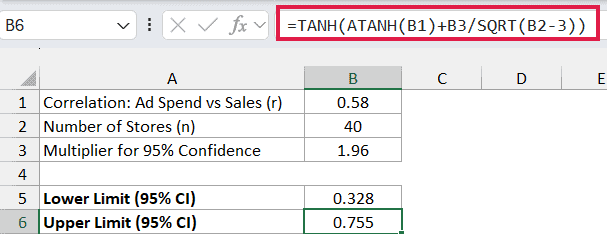
This returns 0.755. So you can be 95% confident that the true correlation between ad spend and sales is somewhere between 0.328 and 0.755.
Notice that the interval isn’t centered on 0.58. The lower limit is 0.252 below it and the upper limit only 0.175 above it, because TANH squeezes values as they get closer to 1.
For a 99% interval, change the multiplier in B3 to 2.576. You can get it with the NORM.S.INV function using =NORM.S.INV(0.995).
The 0.995 comes from the 1% that a 99% interval leaves outside, split evenly with 0.5% on each side, so 1 – 0.005 = 0.995. In the same way, 95% leaves 2.5% on each side, and =NORM.S.INV(0.975) returns the 1.96.
Example 5: Why ATANH Returns #NUM! or #VALUE!
Lastly, let’s look at what ATANH does with inputs it can’t use.
Below are some inputs that commonly cause trouble, and I want to see what ATANH returns for each one in column C.
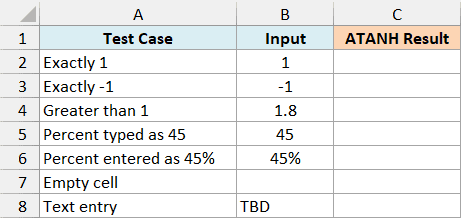
Here is the formula:
=ATANH(B2:B8)
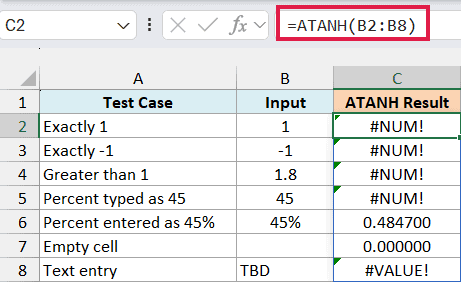
The first four inputs return #NUM!. The values 1 and -1 are the limits themselves, while 1.8 and 45 are outside the range.
The 45 is an easy mistake to make with percentages and correlations. If you mean 45%, enter it as 45% or 0.45, and ATANH returns 0.484700.
Important: An empty cell doesn’t return an error. Excel treats it as 0 and ATANH returns 0, which looks like a valid result, so make sure every input cell has a value.
The text TBD returns #VALUE! because ATANH can’t calculate anything from a word. Replace it with the actual number once you have it.
So these are a few examples of how to use the ATANH function in Excel. Just remember that the input has to be greater than -1 and less than 1, and that TANH takes you back the other way.
Other Excel Articles You May Also Like:
