

The DEVSQ function in Excel adds up the squared differences between your numbers and their average. It saves you from calculating each difference, squaring it, and then adding the results yourself.
This total is useful when a statistical calculation calls for the sum of squared deviations. DEVSQ gives you one result, even when you supply a whole range of numbers.
Follow along with the example file
DEVSQ Function Examples.xlsx
DEVSQ Function Syntax
Here is the syntax of the DEVSQ function:
=DEVSQ(number1, [number2], ...)
- number1 is required. Supply a number, a cell reference, a range, or an array containing the values to use.
- number2, … are optional additional inputs. DEVSQ combines them with the first input and calculates one total for all the numbers.
You can supply up to 255 arguments. A range counts as one argument, so this limit doesn’t restrict you to 255 cells.
DEVSQ is available in Microsoft 365, Excel 2024, Excel 2021, Excel 2019, and Excel 2016.
When to Use the DEVSQ Function
Use DEVSQ when you need to:
- Get the sum of squared deviations for a statistical calculation.
- Combine numbers from several ranges into one calculation.
- Calculate squared deviations for one category by selecting its values first.
Let’s work through these with a few small datasets.
Example 1: Calculate Squared Deviations With DEVSQ
Let’s start with one column of numbers.
Below are the durations of eight bus trips, and we want the sum of squared deviations in cell B11.
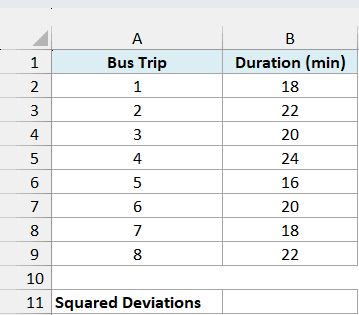
Enter this formula in cell B11:
=DEVSQ(B2:B9)
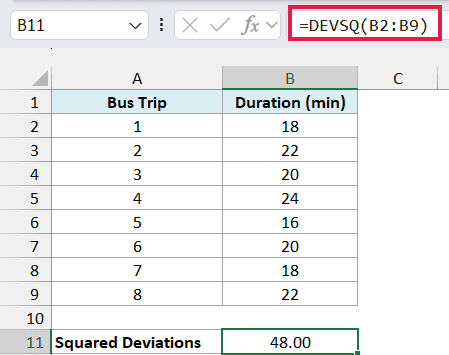
The formula returns 48, displayed as 48.00 in the example file.
The average trip takes 20 minutes. DEVSQ subtracts 20 from each duration, squares each difference, and adds those squared differences together.
For the first trip, the difference is 18 minus 20, or -2. Squaring -2 gives 4, so a trip below the average still contributes a positive amount to the total.
For all eight trips, the squared differences are 4, 4, 0, 16, 16, 0, 4, and 4. Their sum is 48.
Because the differences are squared, this result is in squared minutes. It isn’t a 48-minute delay or the standard deviation of the trip durations.
If all the durations were identical, every difference would be zero and DEVSQ would return 0. It also returns 0 when you supply just one number, since that number equals its own average.
Example 2: Use DEVSQ With Multiple Ranges
You can pass more than one range to the same formula.
Below are matinee and evening ticket prices for six cinemas, and we want the combined sum of squared deviations in cell B9.
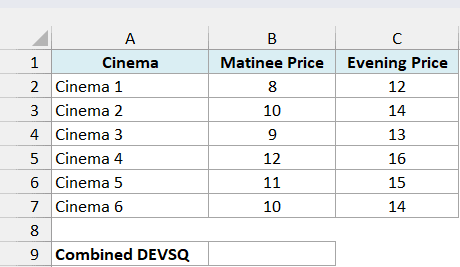
Enter this formula in cell B9:
=DEVSQ(B2:B7,C2:C7)
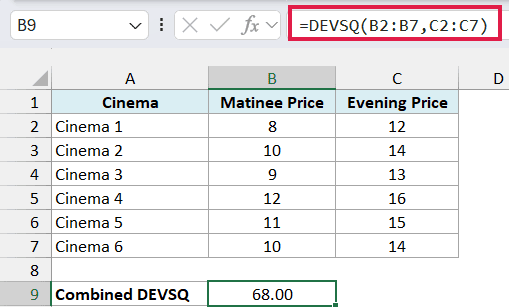
The result is 68. DEVSQ treats the two ranges as one set of 12 prices and uses their shared average of 12.
That shared average matters. Calculating each column separately would use an average of 10 for matinee prices and 14 for evening prices, so adding those two results would give 20 instead.
Use multiple arguments when you want one calculation across all the values. The ranges don’t have to be next to each other, even though they are in this example.
Example 3: Handle Blanks, Text, and Zeros
Real datasets often contain something other than numbers.
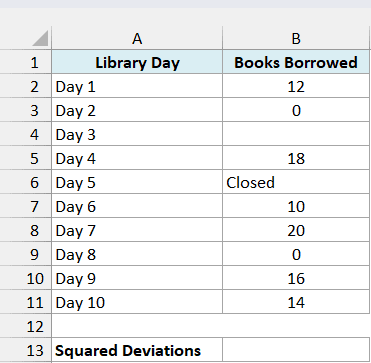
Below is a library’s daily borrowing log, and we want the sum of squared deviations for the numeric counts in cell B13.
Enter this formula in cell B13:
=DEVSQ(B2:B11)
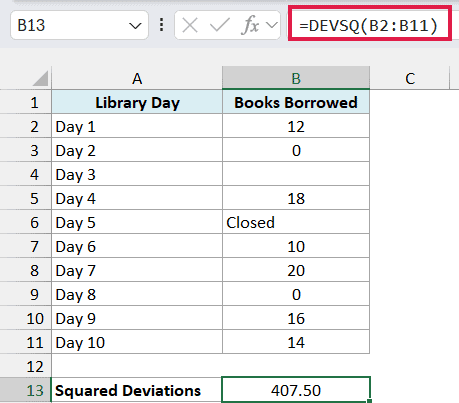
The formula returns 407.5, displayed as 407.50. It uses eight numeric counts, including the two zeros, and ignores the blank cell and the text Closed.
Those eight counts have an average of 11.25. Each zero contributes to the squared-deviation total because zero is a recorded number, while a blank supplies no number at all.
Don’t replace a missing count with zero just to fill the gap. That would change both the average and the result.
Numbers stored as text in referenced cells are ignored too. If those entries should count, convert them to numbers before calculating.
Logical values such as TRUE and FALSE in referenced cells are also ignored. When you type them directly as arguments instead, DEVSQ counts TRUE as 1 and FALSE as 0; directly supplied numeric text is also counted.
If the referenced range has no numeric values, DEVSQ returns #NUM!. An error already present in a referenced cell, such as #N/A, passes through to the result, so fix that source error first.
Example 4: Calculate DEVSQ for One Category
To calculate the total for only one group, use the FILTER function to select that group’s numbers before passing them to DEVSQ.
Below is a takeaway order log, and we want the sum of squared deviations for Pickup wait times in cell F2.
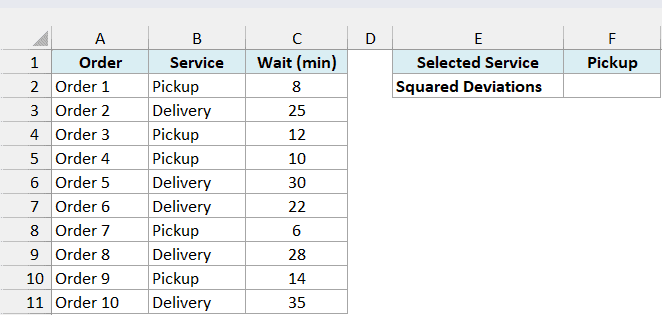
With Pickup entered in cell F1, enter this formula in cell F2:
=DEVSQ(FILTER(C2:C11,B2:B11=F1))
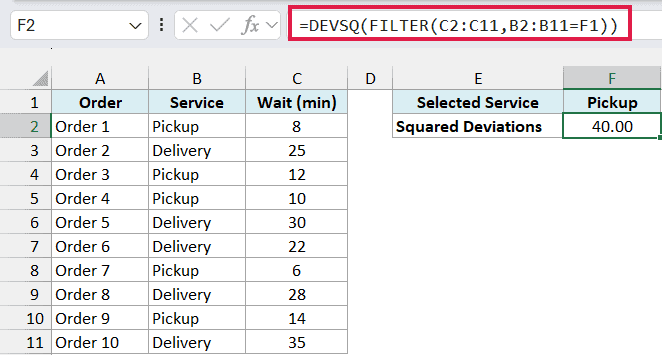
The formula returns 40 for the five Pickup orders.
How this formula works:
B2:B11=F1checks which orders have the service entered in F1.FILTER(C2:C11,B2:B11=F1)keeps the matching wait times: 8, 12, 10, 6, and 14 minutes.- DEVSQ uses the average of those five waits, which is 10 minutes, and adds their squared differences to get 40.
The FILTER function passes several numbers into DEVSQ, but the final formula still returns one value in F2. Delivery wait times don’t affect the Pickup average or the result.
This example requires Microsoft 365, Excel 2024, or Excel 2021 because it uses the FILTER function.
Important: If F1 contains a service that isn’t in the table, the FILTER function returns #CALC! because it has no matching values. Check the service name and source data.
DEVSQ’s total depends on how many values you include. A larger total alone doesn’t mean greater variability when groups have different numbers of observations.
For that comparison, use Excel’s dedicated functions to calculate variance or standard deviation, which account for the number of observations.
Other Excel Articles You May Also Like:
