

The SUMXMY2 function in Excel takes two lists of numbers, finds the difference between each matching pair, squares those differences, and adds them all up. In other words, it gives you the sum of squared differences in one step.
It’s useful whenever you want to measure how far apart two sets of numbers are, like an estimate and the actual result. In this article, I’ll show you how SUMXMY2 works with a few practical examples, including how to use it to calculate RMSE.
Follow along with the example file
SUMXMY2 Function Examples.xlsx
SUMXMY2 Function Syntax
Here is the syntax of the SUMXMY2 function:
=SUMXMY2(array_x, array_y)
- array_x – The first range or array of numbers. This argument is required.
- array_y – The second range or array of numbers, with one value to pair with each value in array_x. This argument is also required.
The order of the two arguments doesn’t change the result. Squaring turns every difference into a positive number, so 8 minus 5 and 5 minus 8 both add 9 to the total.
Both arguments need the same number of values. If one range has 12 cells and the other has 11, SUMXMY2 returns the #N/A error.
The shape doesn’t have to match, though. A column of three cells and a row of three cells work fine together, because SUMXMY2 pairs the values in order.
If any cell in either range holds an error value, such as #DIV/0!, SUMXMY2 returns that error. So fix the error in the source cell first.
The SUMXMY2 function works in all Excel versions, including Microsoft 365, 2024, 2021, 2019, 2016, Mac, and the web.
When to Use the SUMXMY2 Function
Use this function when you need to:
- Measure how much two lists of scores or numbers disagree
- Find the sum of squared errors between estimates and actual values
- Calculate RMSE (root mean squared error) to see how accurate a forecast or estimate is
- Compare one set of numbers against many others to find the closest match
Let me show you a few practical examples of how to use SUMXMY2 in Excel.
Example 1: Find the Sum of Squared Differences Between Two Lists
Let’s start with a simple example.
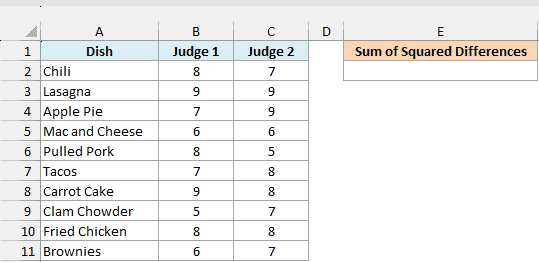
Below are the scores two judges gave to ten dishes at a cook-off, and I want to measure how much the judges disagreed in cell E2.
Here is the formula:
=SUMXMY2(B2:B11,C2:C11)
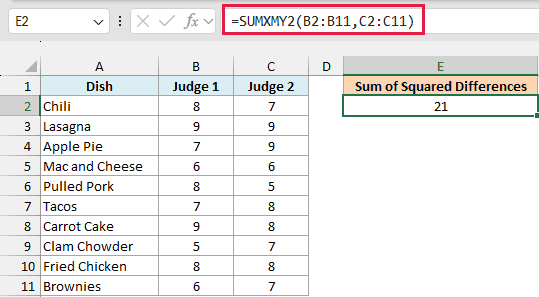
This returns 21.
SUMXMY2 subtracts Judge 2’s score from Judge 1’s score for each dish, squares each of those gaps, and adds them up. For the Chili, the gap is 1 (8 minus 7), so it adds 1 to the total.
Squaring makes bigger gaps count a lot more than small ones. The judges were 3 points apart on the Pulled Pork, and that one dish adds 9 to the total, while a 1-point gap adds just 1.
If the judges had given every dish the same score, SUMXMY2 would return 0. So the closer the result is to 0, the more the two lists agree.
Example 2: How SUMXMY2 Handles Blank Cells and Text
Here’s something you’ll run into with real data.
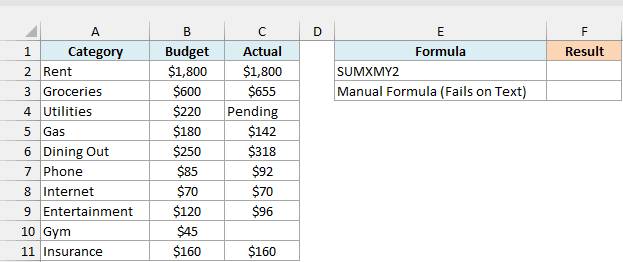
Below is a monthly budget with what I planned to spend and what I actually spent in each category (two bills haven’t come in yet), and I want the sum of squared differences in cell F2.
Here is the formula:
=SUMXMY2(B2:B11,C2:C11)
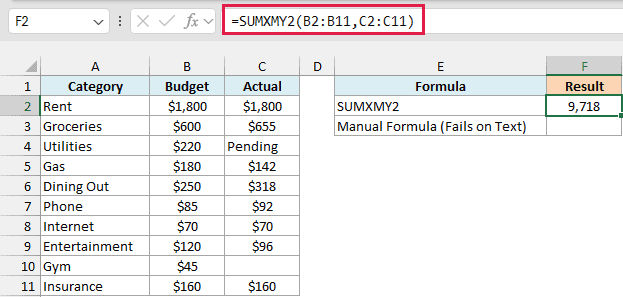
This returns 9,718.
The Actual cell for Utilities says Pending, and the one for Gym is blank. SUMXMY2 skips the whole pair when either side is blank, text, or TRUE/FALSE, so both the budget and the actual for those two categories are left out.
Pairs that match exactly still count. Rent, Internet, and Insurance came in exactly on budget, so each of those pairs is included and adds 0 to the total.
To see why skipping blank and text pairs matters, here is the manual version of the same math in cell F3:
=SUM((B2:B11-C2:C11)^2)
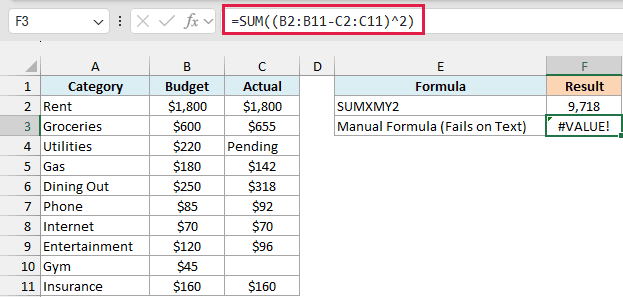
This returns the #VALUE! error. Excel can’t subtract the text Pending from 220, so the Utilities row produces an error and the SUM function passes it on.
Even without the Pending text, the manual formula would treat the blank Gym cell as 0. That adds 2,025 (45 squared) to the total, as if you had spent nothing on the gym, while SUMXMY2 simply leaves that pair out.
Important: If a missing value should count as zero, type 0 in the cell. SUMXMY2 only skips cells that are blank or hold text or TRUE/FALSE values, so a real 0 is always included.
Example 3: Calculate RMSE in Excel With SUMXMY2
This next one is the most common reason people need a sum of squared differences.
Below is a commute log with a map app’s estimated travel time and the actual travel time for 12 trips, and I want to find out how far off the app’s estimates typically are (the RMSE) in cell B15.
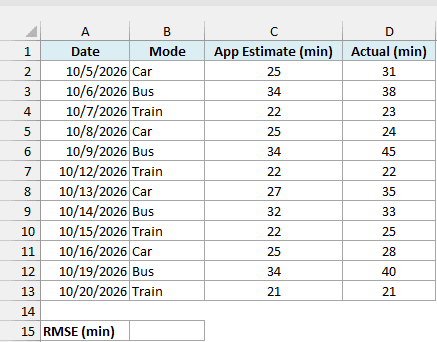
Here is the formula:
=SQRT(SUMXMY2(C2:C13,D2:D13)/COUNT(C2:C13))
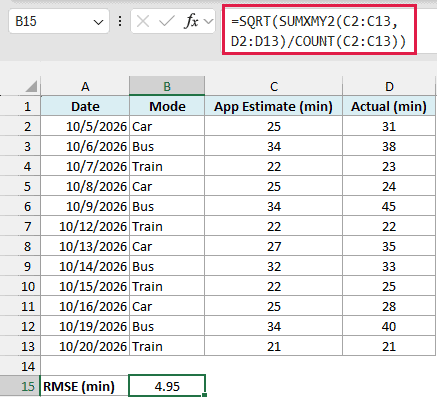
This returns 4.95, so the app’s estimates are off by about 5 minutes on a typical trip.
How this formula works:
- SUMXMY2(C2:C13,D2:D13) squares the miss for each trip and adds them up, which gives 294. This is the sum of squared errors.
- COUNT(C2:C13) counts the 12 trips, and dividing 294 by 12 gives the average squared miss, 24.5. This is called the mean squared error.
- The SQRT function takes the square root of 24.5, which brings the result back to minutes.
RMSE stands for root mean squared error. Because the misses are squared before they’re averaged, one big miss (like the 11-minute one on October 9) pulls the RMSE up more than a few small ones do.
Important: If an actual time is missing, SUMXMY2 skips that trip but COUNT(C2:C13) still counts it, so you divide by too many trips and the RMSE looks better than it is. If your data can have gaps, replace COUNT(C2:C13) with SUMPRODUCT(ISNUMBER(C2:C13)*ISNUMBER(D2:D13)), which counts only the complete pairs.
Example 4: RMSE for One Group (SUMXMY2 With FILTER)
Let’s step it up with a condition.
Below is the same commute log, and I want the RMSE for just the transport mode typed in cell G2 (Bus) in cell G3.
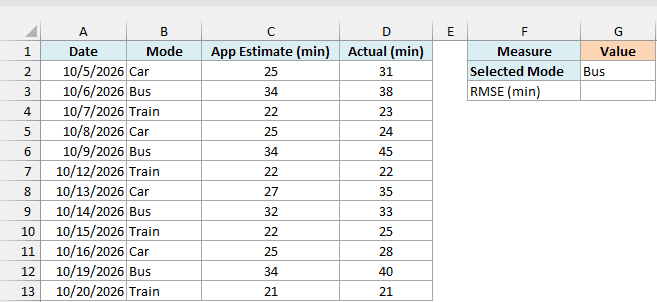
Here is the formula:
=SQRT(SUMXMY2(FILTER(C2:C13,B2:B13=G2),FILTER(D2:D13,B2:B13=G2))/COUNTIF(B2:B13,G2))
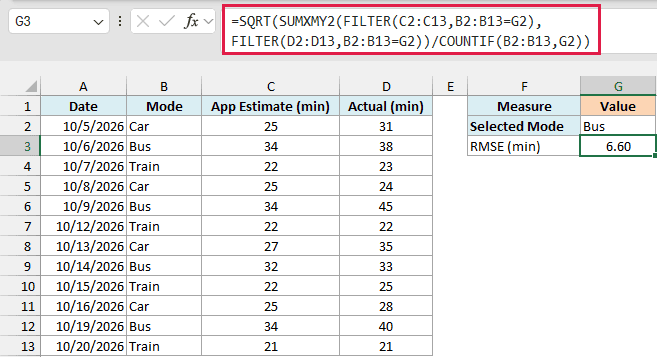
This returns 6.60, so the app is off by about 6.6 minutes on a typical bus trip.
How this formula works:
- FILTER(C2:C13,B2:B13=G2) returns the app estimates for the bus trips only (34, 34, 32, and 34).
- FILTER(D2:D13,B2:B13=G2) returns the actual times for the same trips (38, 45, 33, and 40). Both use the same condition, so the pairs stay matched.
- SUMXMY2 squares the four misses and adds them up, which gives 174.
- COUNTIF(B2:B13,G2) counts the 4 bus trips, and SQRT turns the average squared miss back into minutes.
G2 is the only cell you need to change. Type Train in it and the result drops to 1.58, and Car gives 5.24, so the app is most reliable for train trips.
There is no SUMXMY2IF function in Excel, so the FILTER function is the cleanest way to hand SUMXMY2 only the rows that meet a condition. If G2 holds a mode that isn’t in the list, FILTER finds nothing and the formula returns the #CALC! error.
The FILTER function is only available in Excel 365, 2021, and 2024.
If you are using Excel 2019 or earlier, enter the below formula in cell G3 instead. It uses the SUMPRODUCT function to square and add only the bus misses:
=SQRT(SUMPRODUCT((B2:B13=G2)*(C2:C13-D2:D13)^2)/COUNTIF(B2:B13,G2))
Example 5: Find the Closest Match Between Rows
Now let’s look at something a bit more fun.
Below are my ratings for five movies at the top, and my friends’ ratings for the same movies below, and I want a taste gap for each friend in column G to see whose taste is closest to mine.
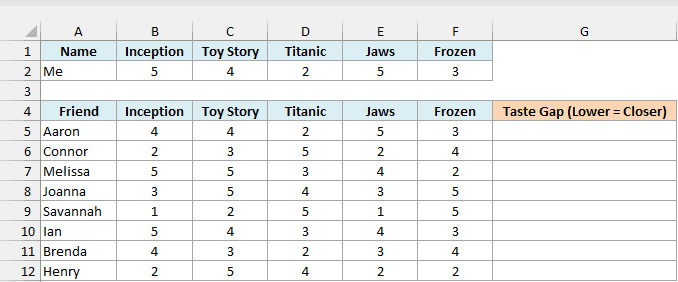
Enter the below formula in cell G5 and copy it down to G12:
=SUMXMY2(B5:F5,$B$2:$F$2)
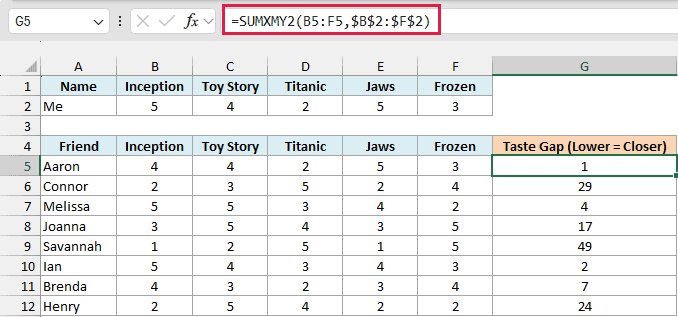
Each formula compares one friend’s five ratings with mine and returns the sum of the squared differences. The dollar signs make $B$2:$F$2 an absolute reference, so my ratings stay the same as you copy the formula down, while B5:F5 moves to each friend’s row.
The lower the number, the closer the match. Aaron gets 1 because he’s just one point off on Inception, so his taste is closest to mine, while Savannah’s 49 makes her the furthest away.
This also shows that SUMXMY2 works with ranges that go across a row, not just down a column.
This one has to be a per-row formula. One SUMXMY2 formula returns one number, so each friend needs their own formula (and pointing it at the whole B5:F12 block returns #N/A, since 40 ratings can’t pair up with my 5).
Pro Tip: In Excel 365 or 2024, you can get all eight gaps with one formula in G5: =BYROW(B5:F12,LAMBDA(r,SUMXMY2(r,B2:F2))). The BYROW function hands each friend’s row to SUMXMY2 and spills the results down the column.
So these are some practical ways to use the SUMXMY2 function in Excel.
On its own, it tells you how far apart two lists are, and it quietly skips any pair that’s missing a number. Wrap it in SQRT and you get the RMSE, and add FILTER when you only want one group.
If you only need to square and add a single list, the SUMSQ function is the one to use. Excel’s SUMX2MY2 and SUMX2PY2 functions also work with two lists, but they square each value before combining them instead of squaring the differences.
I hope you found this Excel tutorial useful.
Other Excel Articles You May Also Like:
