

The SUMX2PY2 function in Excel takes two lists of numbers, squares every value in both lists, and adds all those squares into one total. The name is shorthand for “sum of x squared plus y squared”.
It’s most useful when each row holds two numbers that belong together, like how far a shot landed left or right of a target and how far up or down.
Squaring and adding those two numbers gives the squared distance of each shot from the target, so the total tells you how far off the whole set was. The catch is that it comes out in squared units, which are hard to picture.
In this article, I’ll show you how SUMX2PY2 works and how to turn its result into a number you can actually read.
Follow along with the example file
SUMX2PY2 Function Examples.xlsx
SUMX2PY2 Function Syntax
Here is the syntax of the SUMX2PY2 function:
=SUMX2PY2(array_x, array_y)
- array_x – The first range or array of numbers (the x values). This argument is required.
- array_y – The second range or array of numbers (the y values). This argument is also required.
SUMX2PY2 works on the two arguments in pairs. The first value in array_x goes with the first value in array_y, the second with the second, and so on.
For each pair, it adds x squared and y squared, and then it adds up all the pairs. So =SUMX2PY2({3,5},{4,12}) returns 194, which is 9 + 16 + 25 + 144.
Both arguments must hold the same number of values. If one range is a row shorter than the other (say B2:B11 and C2:C10), SUMX2PY2 returns the #N/A error instead of a total.
The SUMX2PY2 function works in all Excel versions, including Microsoft 365, 2024, 2021, 2019, 2016, and Mac.
When to Use the SUMX2PY2 Function
Use this function when you need to:
- Add up x squared plus y squared for two paired columns in one formula
- Measure how far shots, throws, or readings landed from a target
- Get a typical (RMS) error from left/right and up/down measurements
- Leave out rows where one of the two values is missing
- Compare groups, like players or teams, by their sum of squares
Let me show you a few practical examples of how to use SUMX2PY2 in Excel.
Example 1: Find the Sum of Squares of Two Columns
Let’s start with a simple example.
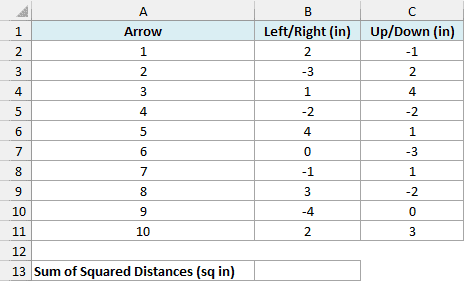
Below are ten arrows shot at a target, with how far each one landed left or right of the center and how far up or down, in inches, and I want the sum of the squared distances in cell B13.
Here is the formula:
=SUMX2PY2(B2:B11,C2:C11)
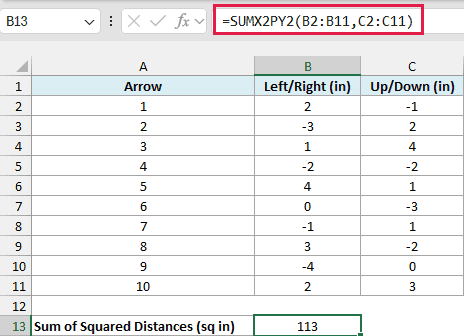
This returns 113 (in square inches).
In this data, a positive number means right or up, and a negative number means left or down. For each arrow, SUMX2PY2 squares both numbers and adds them, so Arrow 1 (2 inches right, 1 inch down) gives 4 + 1 = 5.
That pair total is the squared straight-line distance from the center, thanks to the Pythagorean theorem. So Arrow 1 landed the square root of 5, about 2.2 inches, from the middle.
SUMX2PY2 then adds all ten pair totals to get 113. Squaring also gets rid of the minus signs, so a miss to the left counts the same as an equal miss to the right.
The lower this total, the closer the arrows landed to the center overall. On its own it’s hard to picture, though, so the next example turns it into a distance.
Example 2: Calculate the RMS Error From X and Y Values
Now let’s turn the sum into a number that’s easier to read.
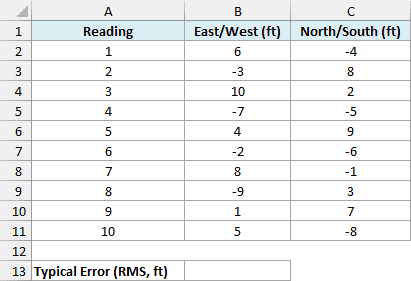
Below are ten GPS readings that a phone logged while it sat on one marked spot, with how many feet each reading was off east or west and north or south, and I want the typical error in feet in cell B13.
Here is the formula:
=SQRT(SUMX2PY2(B2:B11,C2:C11)/COUNT(B2:B11))
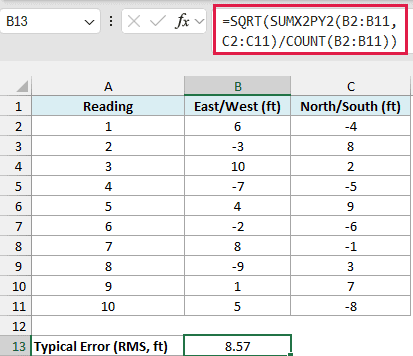
This returns 8.57, so a typical reading was off by about 8.6 feet.
How this formula works:
- SUMX2PY2(B2:B11,C2:C11) adds up the squared distance of every reading from the marked spot, which comes to 734.
- COUNT(B2:B11) counts the 10 readings, and dividing by it gives the average squared distance (73.4).
- SQRT takes the square root of that average, which brings the number back to feet.
This is called the root mean square (RMS) error, a common way to describe how accurate a set of position readings is.
Because the distances are squared before they’re averaged, one big miss pulls the result up more than it would in a plain average of the distances.
Example 3: SUMX2PY2 vs SUMSQ With Blank Cells
This next one matters as soon as your data has a few gaps in it.
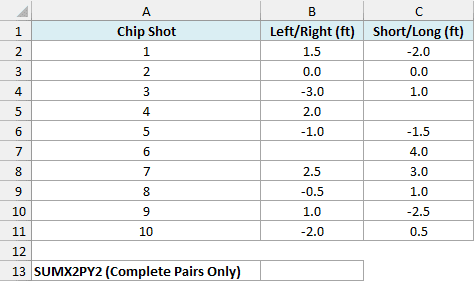
Below are ten golf chip shots with how far each ball stopped from the hole (left or right, and short or long, in feet), and I want the sum of the squared distances in cell B13.
Here is the formula:
=SUMX2PY2(B2:B11,C2:C11)
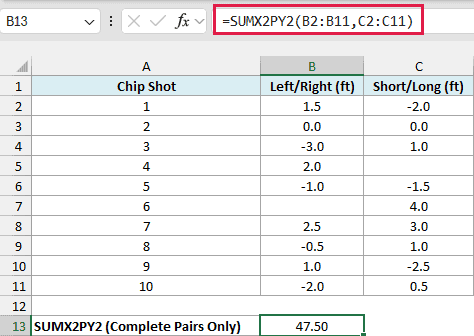
This returns 47.50.
A negative short/long number means the ball stopped short of the hole, but the sign doesn’t change anything once the number is squared.
SUMX2PY2 works pair by pair, and it skips a pair completely when either value in it is a blank cell, text, or a TRUE/FALSE value. Shot 4 has no short/long number and shot 6 has no left/right number, so both shots are left out.
A zero is different. Shot 2 went in the hole (0 and 0), and SUMX2PY2 counts it as a real pair that adds nothing to the total.
To see why the skipping matters, here is the SUMSQ function on the same data in cell B14:
=SUMSQ(B2:C11)
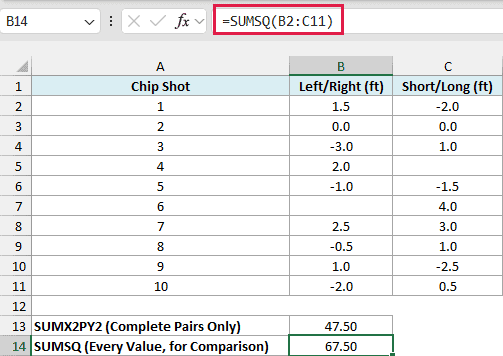
This returns 67.50.
SUMSQ squares every number it finds, so it also adds the lone 2 from shot 4 (which squares to 4) and the lone 4 from shot 6 (which squares to 16).
Half-recorded shots aren’t real distances, so the 47.50 from SUMX2PY2 is the right total here.
If you go on to work out a typical distance like in Example 2, watch the divisor. The COUNT(B2:B11) part of that formula counts only the numbers in column B, so here it returns 9, even though only 8 shots have both numbers.
So divide by the number of rows where both cells hold a number (8 here), which are the same rows SUMX2PY2 used. Dividing by more shots than that makes the error look smaller than it really is.
Important: Use SUMX2PY2 only when a row’s two numbers belong together. If each row holds the sides of two square rugs and a room has only one rug, SUMX2PY2 leaves that rug out of the total area, so use SUMSQ there.
Example 4: SUMX2PY2 With a Condition (Using FILTER)
Let’s step it up with a condition.
Below are 12 dart throws from a three-player darts league, with how far each dart landed from the bullseye left or right and up or down, in inches, and I want each player’s sum of squared distances in column F.
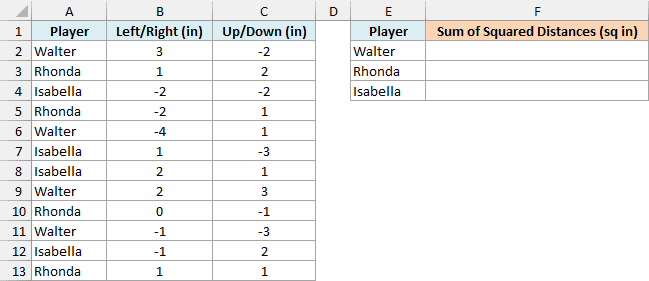
Enter the below formula in cell F2 and copy it down to F4:
=SUMX2PY2(FILTER($B$2:$B$13,$A$2:$A$13=E2),FILTER($C$2:$C$13,$A$2:$A$13=E2))
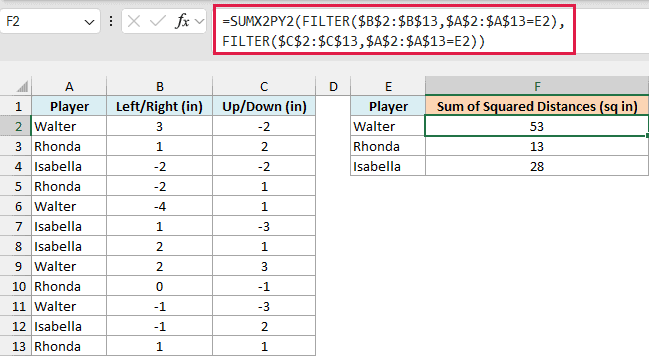
This returns 53 for Walter, 13 for Rhonda, and 28 for Isabella.
How this formula works:
- FILTER($B$2:$B$13,$A$2:$A$13=E2) returns only the left/right numbers for the player in cell E2 (Walter).
- The second FILTER does the same for the up/down numbers. Both lists come out in the same order, so they still line up as pairs.
- SUMX2PY2 squares and adds those pairs. The dollar signs keep the data ranges fixed as you copy the formula down, while E2 changes to E3 and E4.
You can’t point one formula at E2:E4 and get all three totals, because SUMX2PY2 always returns a single value. That’s why each player gets a separate copy of the formula in F2:F4.
Each player threw 4 darts, so the totals compare fairly, and Rhonda’s 13 makes her the most accurate. If the players threw different numbers of darts, divide each total by that player’s own number of throws and take the square root before you compare them.
If the name in column E doesn’t appear in column A, FILTER has nothing to return and gives a #CALC! error, which SUMX2PY2 passes on. That error is useful here, because it tells you a name is misspelled or has no throws.
The FILTER function is only available in Excel 365, 2021, and 2024. If you are using Excel 2019 or earlier, enter the below formula in cell F2 and copy it down to F4 instead:
=SUMPRODUCT(($A$2:$A$13=E2)*($B$2:$B$13^2+$C$2:$C$13^2))
This SUMPRODUCT version treats a blank cell as 0 instead of skipping the pair, so it only matches SUMX2PY2 when every throw has both numbers.
So these are a few practical ways to use the SUMX2PY2 function in Excel. It squares and adds paired values in one step, and with the SQRT and FILTER functions it gives you a typical miss distance and a total for each group.
Excel also has two close relatives. The SUMX2MY2 function subtracts y squared from x squared instead of adding it, and the SUMXMY2 function squares the difference between the two values in each pair.
I hope you found this Excel tutorial useful.
Other Excel Articles You May Also Like:
