

The PERMUTATIONA function in Excel tells you how many different arrangements you can make when you pick a set number of items, the order of the picks matters, and the same item can be picked again.
That’s how passwords, lock codes, and day-by-day schedules work. In a password, “aab” and “aba” use the same letters but are two different passwords, and the letter a shows up twice in both.
In this tutorial, I’ll show you how PERMUTATIONA works with five examples, from counting passwords to working out the odds of a lucky guess, and how it differs from the PERMUT function.
Follow along with the example file
PERMUTATIONA Function Examples.xlsx
PERMUTATIONA Function Syntax
Here is the syntax of the PERMUTATIONA function:
=PERMUTATIONA(number, number_chosen)
- number is the total number of items you can pick from, like the 10 digits from 0 to 9.
- number_chosen is how many items go into each arrangement, like the length of a code.
Since every pick can be any of the items, PERMUTATIONA multiplies number by itself number_chosen times. So =PERMUTATIONA(3,2) returns 9, the same as 3 x 3.
Because items can repeat, number_chosen can be bigger than number. For example, =PERMUTATIONA(2,3) returns 8, which is the number of heads-and-tails results you can get from three coin tosses.
Both arguments are meant to be whole numbers. PERMUTATIONA drops any decimal part instead of rounding it, so =PERMUTATIONA(6.9,2.5) is read as =PERMUTATIONA(6,2) and returns 36.
A negative number in either argument gives you a #NUM! error. Text such as “ten” gives a #VALUE! error, but a number stored as text, like “10”, still works.
The PERMUTATIONA function works in Excel 2013 and later, including Excel 365, 2024, 2021, 2019, 2016, and Mac. The formulas below that spill results need Excel 365 or Excel 2021 and later.
When to Use the PERMUTATIONA Function
Use this function when you need to:
- Count the possible passwords, PINs, or codes for a set of characters and a code length.
- Count the different schedules you can make when the same option can repeat from day to day.
- Work out the chance of guessing a whole sequence correctly.
- Find how long a code needs to be so every item gets its own code.
- Compare the count with repeats allowed against the count without repeats.
Let me show you a few practical examples of how to use the PERMUTATIONA function.
Example 1: Count Permutations With Repetition for Passwords
Let’s start with a simple example.
Below is a list of password rules, with how many characters each rule allows and how long the password is, and I want the number of possible passwords for each rule in column D.
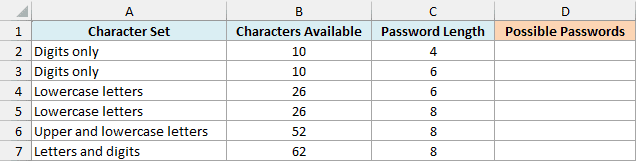
Here is the formula to enter in cell D2:
=PERMUTATIONA(B2:B7,C2:C7)
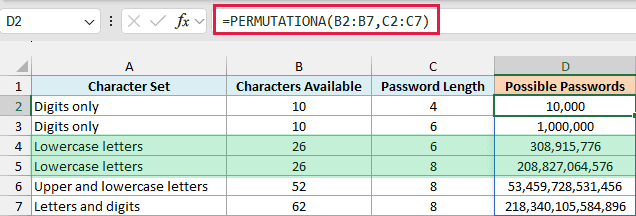
You only enter the formula in cell D2. Both arguments are ranges, so PERMUTATIONA works out one count for each row, and the results spill down to D7.
Take the 6-digit passcode in row 3. Each of the 6 positions can be any of the 10 digits, so there are 1,000,000 possible passcodes.
Repeats count, so 111111 is one of them. Order matters too, so 123456 and 654321 are two different passcodes.
Now compare rows 4 and 5. Making a lowercase password two letters longer takes the count from about 309 million to over 208 billion, because each extra letter multiplies the count by 26.
Important: Swapping the two arguments gives you a different count, as =PERMUTATIONA(10,6) returns 1,000,000 but =PERMUTATIONA(6,10) returns 60,466,176. So the first argument must always be the number of characters (column B here), and the second must be the password length.
If any cell in D3:D7 already has something in it, you’ll get a #SPILL! error. Clear those cells, and the results show up.
If you are using Excel 2019 or earlier, enter the below formula in cell D2 and then copy it down to D7:
=PERMUTATIONA(B2,C2)
Example 2: Get the Number of Options From a List
Here’s another practical scenario.
Below is a list of the classes at a gym, and I want the number of different weekly plans in cell D2 if I take one class on each of the workout days in cell D1.
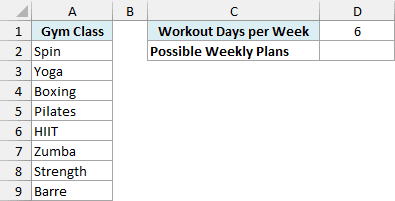
Here is the formula to enter in cell D2:
=PERMUTATIONA(COUNTA(A2:A9),D1)
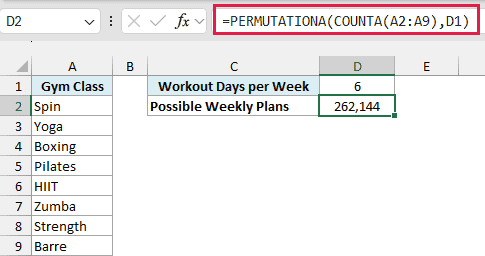
Here, the COUNTA function counts the 8 classes in A2:A9, and that count becomes the number argument. PERMUTATIONA then works out how many ways you can fill 6 days with those 8 classes, which is 262,144.
The order matters because Spin on Monday and Yoga on Tuesday is a different week from Yoga on Monday and Spin on Tuesday. And repeats are allowed, since nothing stops you from taking Spin twice in the same week.
Counting the list also means you never have to type the number of classes yourself. If the gym drops a class and you clear that cell, COUNTA returns 7 and the result drops to 117,649 on its own.
Pro Tip: A2:A9 won’t pick up classes you add below row 9. Turn the list into an Excel Table with Ctrl + T and point COUNTA at the table column, and new classes get counted as soon as you add them.
Example 3: Find the Odds of Guessing Every Penalty
Now let’s use PERMUTATIONA to work out some odds.
Below is a penalty shootout where each kick can go left, center, or right (the 3 directions are in cell E1), and I want the chance that the goalkeeper guesses the direction of every kick correctly in column B.
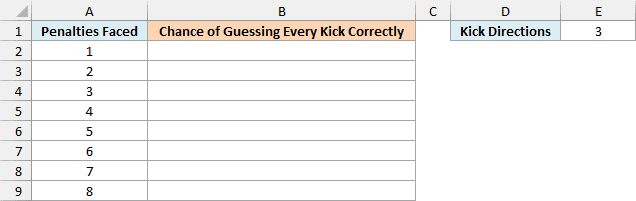
Here is the formula to enter in cell B2:
=1/PERMUTATIONA(E1,A2:A9)
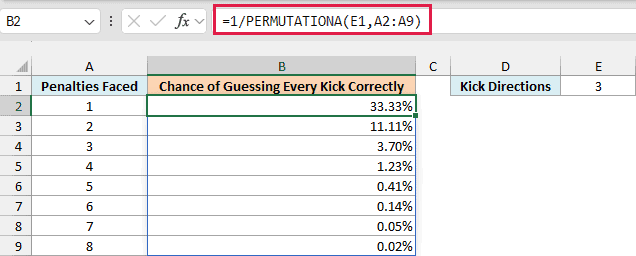
How this formula works:
- PERMUTATIONA(E1,A2:A9) counts the possible direction sequences for each number of penalties. For 5 penalties, there are 243 sequences, like left, left, right, center, left.
- Only one of those sequences is the one that actually happens. So 1 divided by the count gives the chance of guessing all of it, which is 1 in 243 (0.41%) for 5 penalties.
This assumes each kick is equally likely to go in any of the three directions. Even so, it shows how fast the odds drop, as each extra penalty cuts the goalkeeper’s chance to a third.
The last two rows round to 0.05% and 0.02%, which are really 1 in 2,187 and 1 in 6,561. If you’d rather see the count itself, use PERMUTATIONA without the 1/ part.
If you are using Excel 2019 or earlier, enter the below formula in cell B2 and then copy it down to B9:
=1/PERMUTATIONA($E$1,A2)
The dollar signs keep the reference to E1 fixed while you copy the formula down.
Example 4: Find the Shortest Code Length You Need
Let’s step it up with a formula that uses PERMUTATIONA with a couple of other functions.
Below is a list of things a school wants to label with letter-only codes (like AB or QXT), with how many of each it has, and I want the shortest code length that gives every item its own code in column C.
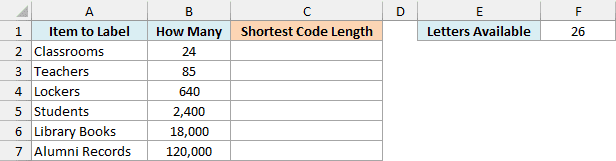
Here is the formula to enter in cell C2:
=XMATCH(B2:B7,PERMUTATIONA(F1,SEQUENCE(10)),1)
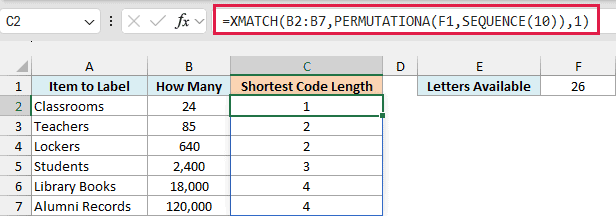
How this formula works:
- SEQUENCE(10) gives the code lengths 1 to 10.
- PERMUTATIONA(F1,SEQUENCE(10)) turns each length into the number of codes it allows with the 26 letters in F1. That’s 26 codes for 1 letter, 676 for 2 letters, 17,576 for 3 letters, and so on.
- The XMATCH function looks up each item count in that list. The 1 at the end tells it to return the exact match or the next larger value, so it finds the first length with enough codes.
Since the list of counts starts at length 1, the position XMATCH returns is the code length itself.
So the 640 lockers fit in 2 letters (676 codes), but the 18,000 library books need 4, since 3 letters give only 17,576 codes.
Excel’s own column names run into the same limit. One and two letters give only 702 names (26 + 676), so Excel’s 16,384 columns need three-letter names, which run up to XFD.
If the codes can use digits as well, change F1 to 36. The library books then fit in 3 characters.
Important: SEQUENCE(10) only checks code lengths up to 10. With 26 letters, that covers about 141 trillion items, but a bigger count returns #N/A, so raise the 10 if you ever need longer codes.
The XMATCH and SEQUENCE functions need Excel 365 or Excel 2021 and later. If you are using Excel 2019 or earlier, enter the below formula in cell C2 and then copy it down to C7:
=ROUNDUP(LOG(B2,$F$1),0)
This one gets the same answer with math instead. The LOG function finds the power of 26 that gives the item count, and the ROUNDUP function moves it up to the next whole number.
Example 5: PERMUTATIONA vs PERMUT (When Repeats Are Allowed)
PERMUTATIONA has a close cousin, the PERMUT function, and the only difference between them is whether an item can be picked again.
Below is an ice cream shop with 12 flavors (cell B2) and cones that stack 3 scoops (cell B3), and I want the number of possible cones in cell B5 (repeat flavors allowed) and cell B6 (every scoop a different flavor).
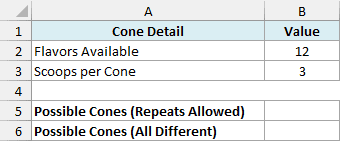
Here is the PERMUTATIONA formula in cell B5:
=PERMUTATIONA(B2,B3)
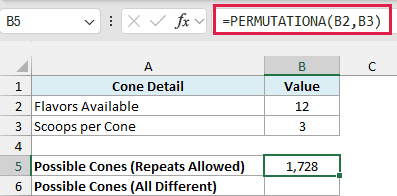
This returns 1,728. Each of the 3 scoops can be any of the 12 flavors, so it counts cones like triple chocolate too.
The order matters because the scoop on top is a different spot from the one at the bottom. So chocolate on top of vanilla is a different cone from vanilla on top of chocolate.
Now here is the PERMUT formula in cell B6:
=PERMUT(B2,B3)
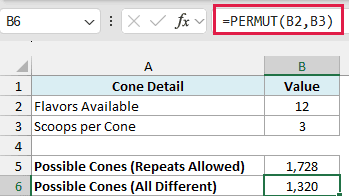
This returns 1,320, because PERMUT only counts cones where all three scoops are different flavors. It leaves out the 408 cones that repeat a flavor.
The question to ask is whether the same item can be picked again. If it can, use PERMUTATIONA, and if each item can only be used once, use PERMUT.
So these are a few ways you can use the PERMUTATIONA function in Excel. Whenever the order matters and items can repeat, it gives you the count in one step.
If the order of the picks doesn’t matter, use the COMBIN function instead, or the COMBINA function when items can repeat.
I hope you found this tutorial useful.
Other Excel Articles You May Also Like:
