

The CONFIDENCE.T function in Excel calculates the margin of error for a confidence interval around a population mean, using Student’s t distribution.
You use it when you have a sample of measurements and want to estimate the average for the larger group. Add and subtract the returned margin from your sample average to get the two ends of the interval.
In this tutorial, I’ll show you how to build that interval, compare confidence levels, and calculate margins for several samples at once.
Follow along with the example file
CONFIDENCE.T Function Examples.xlsx
CONFIDENCE.T Function Syntax
Here is the syntax of the CONFIDENCE.T function:
=CONFIDENCE.T(alpha, standard_dev, size)
- alpha is required. It is 1 minus the confidence level, so use 0.05 for 95% confidence and 0.01 for 99% confidence.
- standard_dev is required. Supply the standard deviation in the same units as your measurements. For the sample-based t intervals below, this is the sample standard deviation.
- size is required. It is the number of numeric observations in your sample, not the number of observations in the whole population.
Alpha must be greater than 0 and less than 1, and standard_dev must be positive. Size should be a whole number of at least 2; Excel drops any decimal part rather than rounding it.
CONFIDENCE.T is available in Excel 2010 and later, including Microsoft 365, Excel 2024, 2021, 2019, 2016, Mac, and the web. The spilling examples below need Excel 365, 2024, 2021, or the web.
When to Use the CONFIDENCE.T Function
Use this function when you need to:
- Estimate a population mean from a sample when you don’t know the population standard deviation.
- See how changing the confidence level changes the margin of error.
- Calculate separate margins from several samples’ summary statistics.
- Explore how sample size affects the margin while holding an assumed standard deviation fixed.
The observations should come from a representative, independent sample. For a small sample, the t interval also relies on the population being approximately normal, so strong skew or extreme outliers need attention before using this calculation.
Let me show you how this works in Excel.
Example 1: Calculate a 95% Confidence Interval
Below are 12 pickup wait times in minutes, and I want a 95% confidence interval for the population’s average wait time in column E.
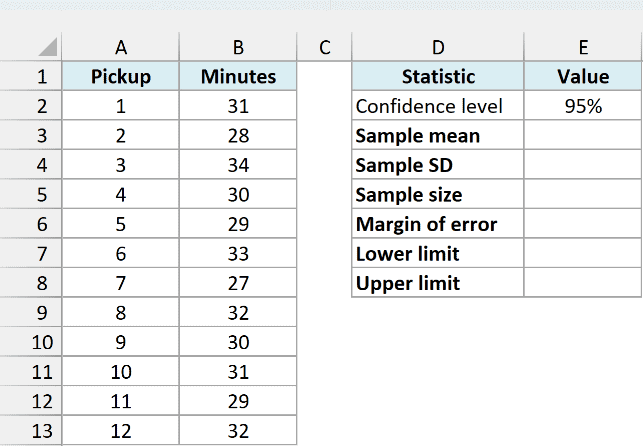
These are made-up measurements for practicing the calculation. For this example, assume they meet the sampling conditions above.
First, enter the following formula in E3 to get the sample mean:
=AVERAGE(B2:B13)
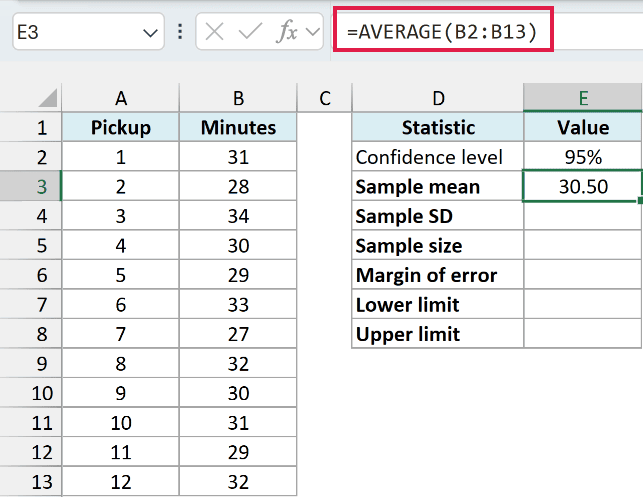
The AVERAGE function returns 30.50 minutes. This is the center of the interval we are about to calculate.
Next, enter the following formula in E4 to get the sample standard deviation:
=STDEV.S(B2:B13)
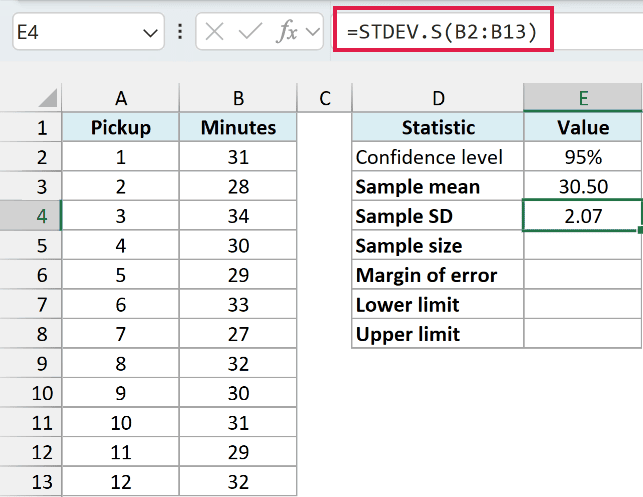
The STDEV.S function measures the spread of these sample measurements and returns about 2.07 minutes. Excel keeps the full value behind the displayed two decimal places.
Enter the following formula in E5 to count the numeric measurements:
=COUNT(B2:B13)
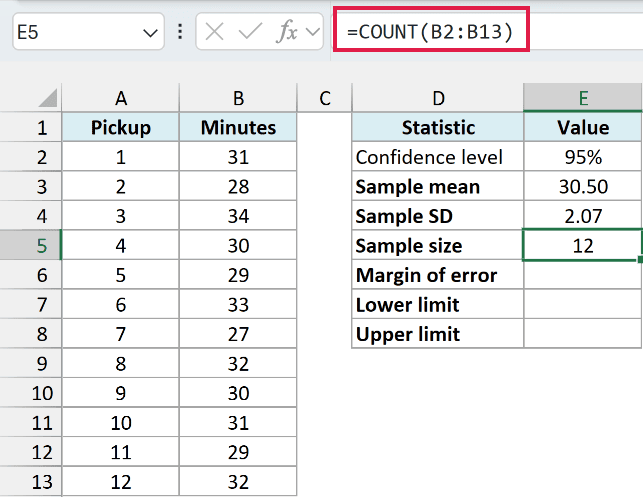
The COUNT function returns 12. Counting numeric cells keeps the sample size consistent with the observations used by the other two functions.
If a measurement is stored as text, these range-based calculations leave it out. Correct accidentally stored text numbers before calculating the interval, and extend all three ranges together if you add measurements below row 13.
With the confidence level set to 95% in E2, enter this formula in E6:
=CONFIDENCE.T(1-E2,E4,E5)
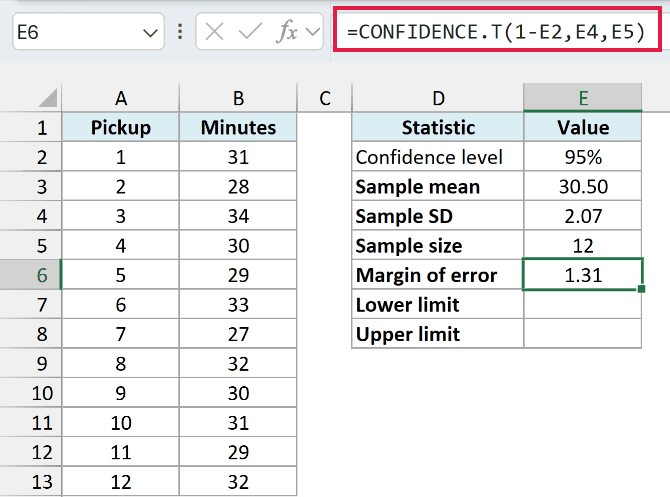
This gives a margin of about 1.31 minutes. The formula converts 95% to an alpha of 0.05, then uses the sample standard deviation and sample size to calculate a two-sided t margin.
We are calculating one margin for one sample here, so a single-cell result is exactly what we need.
Important: The 1.31 result is the margin of error, not the lower limit, upper limit, or full interval width. Subtract it from the sample mean for the lower limit and add it for the upper limit.
To calculate the lower limit, enter this formula in E7:
=E3-E6
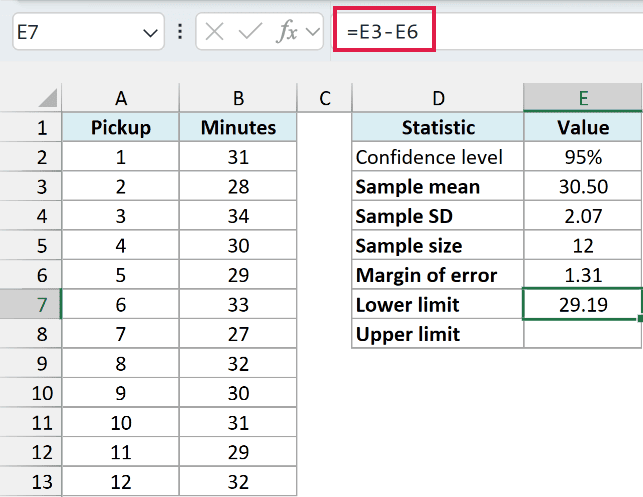
The lower limit is 29.19 minutes.
To calculate the upper limit, enter this formula in E8:
=E3+E6
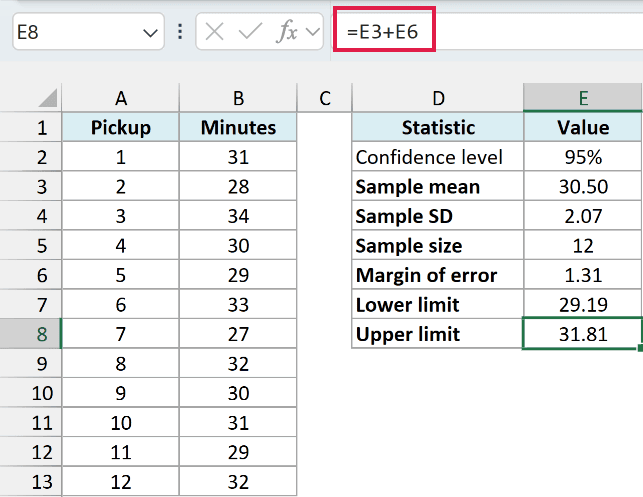
The upper limit is 31.81 minutes, giving a 95% confidence interval of 29.19 to 31.81 minutes for the population mean. These formulas use the unrounded values in E3 and E6.
The 95% describes the method: if you repeatedly took samples this way and calculated an interval each time, about 95% of those intervals would contain the population mean. It does not mean that 95% of individual pickup times fall inside this interval.
Example 2: Compare Different Confidence Levels
Below are six confidence levels for a sample with a standard deviation of 4 minutes and 12 observations, and I want the corresponding margins in column B.
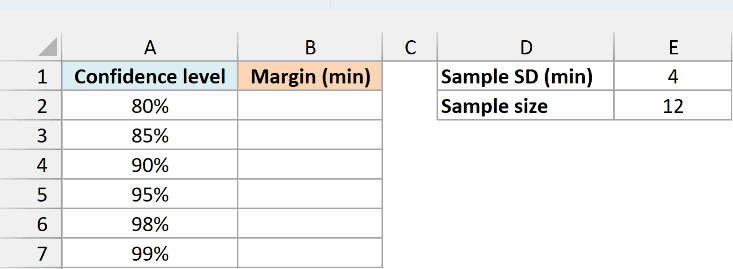
In a version of Excel that supports spilling, enter this formula in B2:
=CONFIDENCE.T(1-A2:A7,$E$1,$E$2)
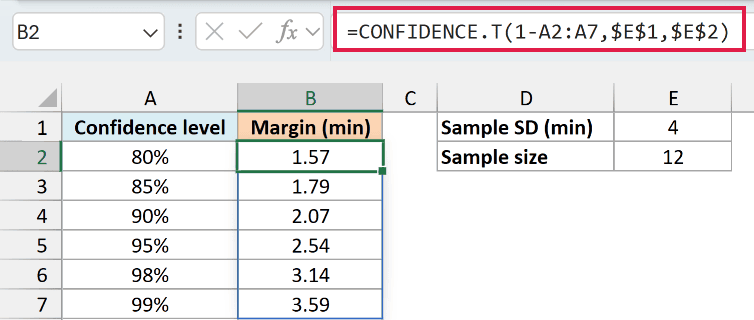
The formula spills six margins into B2:B7. The expression 1-A2:A7 converts each confidence level to alpha, while the references to E1 and E2 use the same standard deviation and sample size for every calculation.
The 90% margin is about 2.07 minutes, the 95% margin is 2.54 minutes, and the 99% margin is 3.59 minutes. Greater confidence needs a wider interval when the sample statistics stay the same.
Entering 95 instead of 95% makes the alpha negative, which produces a #NUM! error. Make sure the confidence levels are actual percentages, such as 0.95 formatted as 95%.
If Excel returns #SPILL!, check whether existing content is blocking B3:B7. Clear or move that content so the single formula can return all six results.
For Excel 2010 through 2019, enter the following formula in B2 and copy it down to B7:
=CONFIDENCE.T(1-A2,$E$1,$E$2)
The dollar signs keep the two sample inputs fixed as you copy the formula down.
Example 3: Calculate Margins for Several Samples
Below are sample summaries for bread weights at six bakeries, and I want a separate 95% margin of error in grams for each bakery in column D.
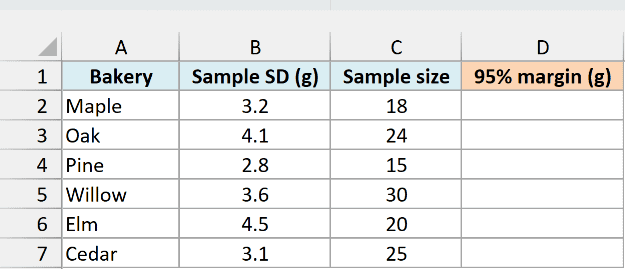
Enter the following formula in D2:
=CONFIDENCE.T(0.05,B2:B7,C2:C7)
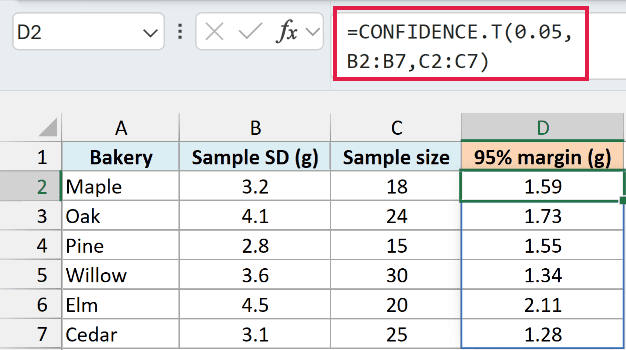
Each row supplies its own sample standard deviation and size. The formula returns six margins, including 1.59 grams for Maple and 2.11 grams for Elm.
To build an interval for a particular bakery, you would add and subtract that bakery’s margin from its own sample mean. These margins alone don’t tell you which bakery has the highest mean weight or whether two means differ significantly.
If you get #DIV/0!, check whether a sample size is 1. There isn’t enough information for this t calculation; each sample needs at least two numeric observations and a positive standard deviation.
A zero or negative standard deviation produces #NUM!. A nonnumeric input such as the text “unknown” produces #VALUE!, so check the summary inputs rather than hiding the error.
For Excel 2010 through 2019, enter the following formula in D2 and copy it down to D7:
=CONFIDENCE.T(0.05,B2,C2)
Example 4: Explore Different Sample Sizes
Below are six possible sample sizes for measuring rental-return processing time, and I want to compare their 95% margins in column B using an assumed standard deviation of 7.5 minutes.
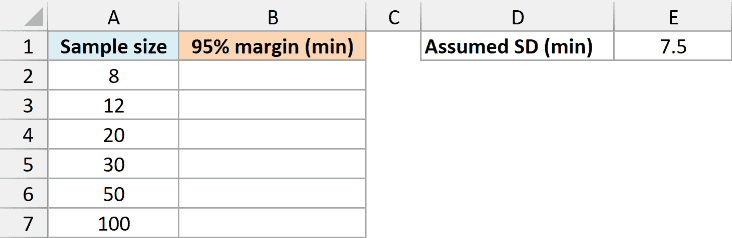
Enter this formula in B2:
=CONFIDENCE.T(0.05,$E$1,A2:A7)
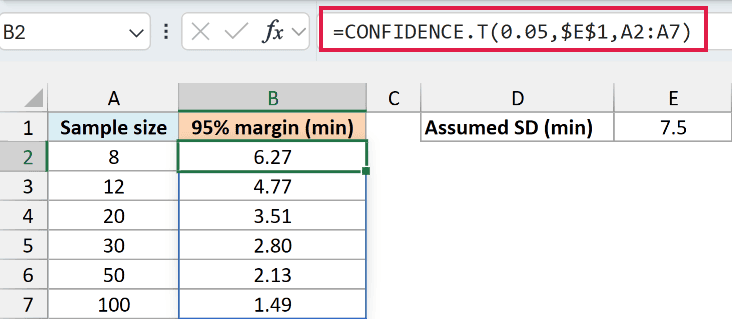
The margins decrease from about 6.27 minutes for 8 observations to 1.49 minutes for 100 observations. With the same assumed variability, a larger sample estimates the mean more precisely.
This is a planning comparison that holds the standard deviation fixed. A future sample could have a different standard deviation, so the table does not guarantee the interval width you will actually get.
For Excel 2010 through 2019, enter the following formula in B2 and copy it down to B7:
=CONFIDENCE.T(0.05,$E$1,A2)
CONFIDENCE.T vs CONFIDENCE.NORM
Use CONFIDENCE.T for the usual mean interval when the population standard deviation is unknown and you estimate it from your sample. It uses the t distribution, allowing for the uncertainty in that estimate.
The CONFIDENCE.NORM function uses the normal distribution and is appropriate when the population standard deviation is genuinely known, under the corresponding normal-interval assumptions. Choosing between them isn’t simply a rule about whether the sample has fewer than 30 observations.
Microsoft’s CONFIDENCE.T reference describes standard_dev as a known population standard deviation. The sample-based t interval demonstrated here follows the statistical definition using the sample standard deviation, as explained in the NIST confidence-limits reference.
CONFIDENCE.T gives you the margin. Keep the mean and the two endpoint calculations beside it so the finished interval is easy to read and check.
Other Excel Articles You May Also Like:
