

The T.DIST.RT function in Excel returns the right-tailed probability from Student’s t-distribution. In practice, it turns a t statistic and its degrees of freedom into a one-sided p-value.
That’s the number you need when you only care about one direction, such as whether quiz scores went up after a review session. T.DIST.RT doesn’t calculate the t statistic for you, so you bring that and the degrees of freedom.
In this tutorial, I’ll show you five examples, from a single p-value to a complete before and after test on step counts.
Follow along with the example file
T.DIST.RT Function Examples.xlsx
T.DIST.RT Function Syntax
Here is the syntax of the T.DIST.RT function:
=T.DIST.RT(x,deg_freedom)
- x is the t statistic, a number that shows how far your result sits from the value you are testing against, relative to the variation in your data. It can be positive, zero, or negative, and you can give it a number, a cell reference, or a range.
- deg_freedom is the degrees of freedom, a count based on your sample size that sets the exact shape of the t-distribution curve. It has to be 1 or more, and for a one-sample or paired test it is the number of values (or pairs) minus 1.
Both arguments are required. T.DIST.RT returns the probability of getting a t value equal to or higher than x, which is the area under the t-distribution curve to the right of it.
So the bigger the t statistic, the smaller the result. A t statistic of 0 sits in the middle of the curve, so it returns exactly 0.5.
Excel drops the decimal part of deg_freedom, so 10.9 is treated as 10. A value below 1 returns a #NUM! error, and text in either argument returns a #VALUE! error.
The T.DIST.RT function works in Excel 2010 and later versions, including 365, 2024, 2021, 2019, 2016, and Mac.
When to Use the T.DIST.RT Function
Use this function when you need to:
- Get a one-sided p-value from a t statistic you have already calculated.
- Calculate p-values for several tests, each with its own degrees of freedom.
- Check whether a result moved in the direction you were testing for.
- Finish a paired or one-sample t-test after calculating the sample statistics.
Let me show you a few practical examples of how to use the T.DIST.RT function in Excel.
Example 1: Get a Right-Tailed p-Value from a t Statistic
Let’s start with a simple example.
Below is the result of a quiz review test, where 12 students took the same quiz before and after a review session, and I want the right-tailed p-value in B5.
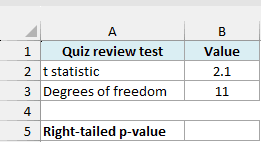
Here is the formula:
=T.DIST.RT(B2,B3)
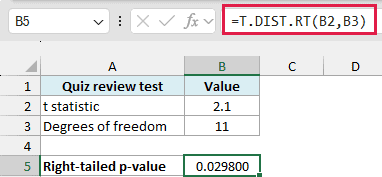
The formula returns approximately 0.029800, or 2.98%. It uses the t statistic of 2.1 in B2 and the 11 degrees of freedom in B3.
Since the same 12 students took both quizzes, there are 12 pairs of scores, and a paired test has one degree of freedom fewer than that. That’s where 11 comes from.
The p-value is the probability of getting a t statistic of 2.1 or higher if the review session made no real difference. It counts only the right tail, because the question was whether scores went up.
Pro Tip: You may see this calculated as 1 minus the T.DIST function, which returns the probability to the left. It gives the same answer, but T.DIST.RT skips the subtraction, so it avoids small rounding differences for very small probabilities.
Example 2: Calculate Several p-Values at Once
When you have results for several tests, you can pass all of their t statistics and degrees of freedom to one formula.
Below are six language classes, each tested to see whether quiz scores improved, and I want the right-tailed p-values in column D.
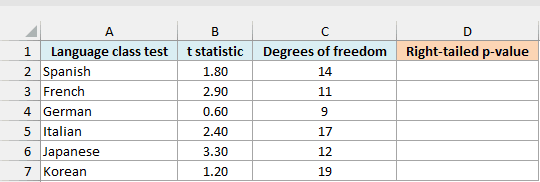
Enter the below formula in cell D2:
=T.DIST.RT(B2:B7,C2:C7)
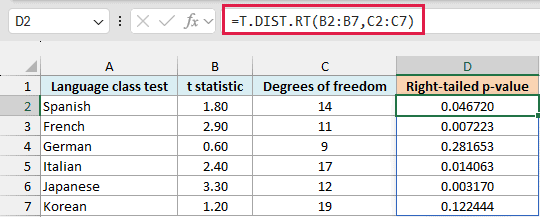
The formula spills six results down column D. It pairs each t statistic in B2:B7 with the degrees of freedom on the same row in C2:C7.
French has a t statistic of 2.9 with 11 degrees of freedom, which gives approximately 0.007223. German’s 0.6 with 9 degrees of freedom gives approximately 0.281653.
Make sure D3:D7 are empty before you enter the formula. If one of them contains something, Excel returns a #SPILL! error because it can’t place all six answers.
If you are using Excel 2019 or earlier, enter the below formula in cell D2 and then copy it down the range:
=T.DIST.RT(B2,C2)
Example 3: Use Negative and Zero t Statistics
A t statistic is negative when the result moved the opposite way from the one you were testing for. T.DIST.RT accepts that, and the p-value comes out above 0.5.
Below are six sleep tips, each with a signed t statistic that is positive when people slept longer, and I want the right-tailed p-values in column D.
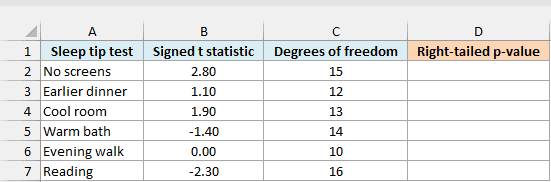
Enter the below formula in cell D2:
=T.DIST.RT(B2:B7,C2:C7)
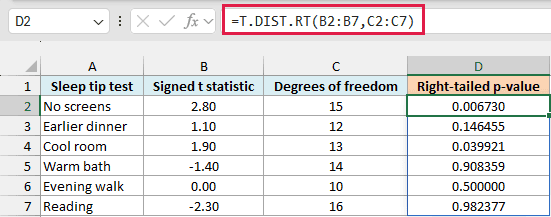
The earlier examples only had positive t statistics, so every p-value was below 0.5. A negative one pushes most of the curve to its right, so Warm bath, at -1.4, returns approximately 0.908359.
Evening walk has a t statistic of exactly 0, so it returns 0.500000. No screens, with a positive 2.8, returns a small 0.006730.
Important: Don’t wrap the t statistics in ABS here. It would turn Reading’s -2.3 into 2.3 and return about 0.0176, which wrongly suggests the tip helped when sleep actually dropped.
A one-sided test depends on the direction of the result, so keep the sign. Other p-value functions, such as T.DIST.2T and the older TDIST, return a #NUM! error for a negative t statistic, so T.DIST.RT is the one that handles it.
If you are using Excel 2019 or earlier, enter the below formula in cell D2 and then copy it down the range:
=T.DIST.RT(B2,C2)
Example 4: Compare the p-Values with a Significance Level
A p-value on its own doesn’t tell you what to do. Most tests compare it with a significance level, a cutoff you choose before looking at the results, and 0.05 is the common one.
Below are six plant food tests, with the significance level of 0.05 in H2, and I want the right-tailed p-value in column D and a verdict in column E.
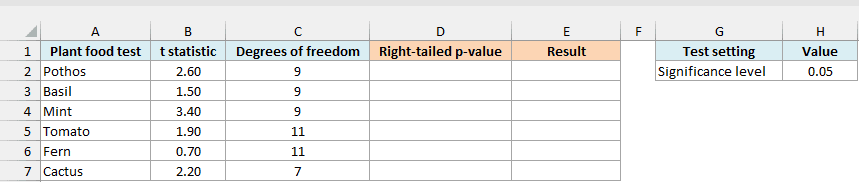
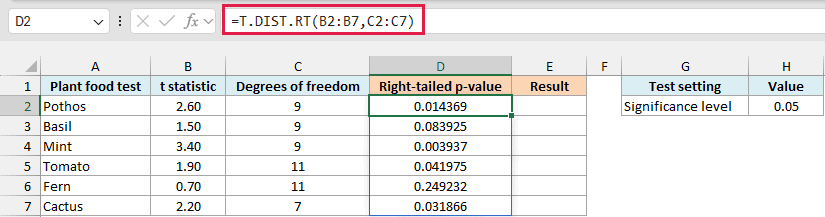
First, enter the below formula in cell D2 to get the p-values:
=T.DIST.RT(B2:B7,C2:C7)
Now enter the below formula in cell E2:
=IF(D2:D7<H2,"Significant","Not significant")
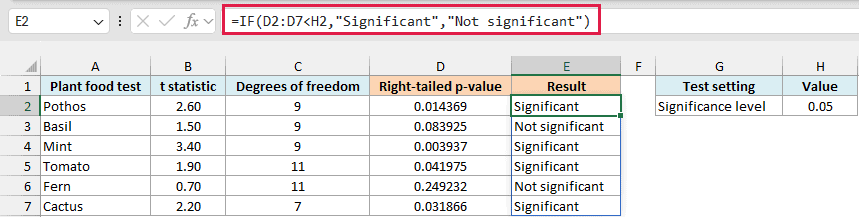
The IF function checks every p-value against the significance level in H2, and the results spill down column E. A p-value below 0.05 is labeled Significant.
Tomato, with a t statistic of 1.9 and a p-value of approximately 0.041975, just passes. Basil, with a t statistic of 1.5 and approximately 0.083925, doesn’t.
Significant here only means a result this strong would be unlikely if the plant food made no real difference. It doesn’t say the plant food made a big difference.
Pro Tip: Keep the significance level in its own cell instead of typing 0.05 into the formula. Change H2 to 0.01 and every verdict updates, leaving only Mint as Significant.
If you are using Excel 2019 or earlier, enter the below formula in cell D2 and then copy it down the range:
=T.DIST.RT(B2,C2)
Then enter the below formula in cell E2 and copy it down as well:
=IF(D2<$H$2,"Significant","Not significant")
Example 5: Run a Paired Before and After Test
So far the t statistics were given to you. This time, let’s calculate one from the original before and after numbers and use T.DIST.RT for the final p-value.
Ten people tracked their average daily steps before and after a walking challenge. The question is whether their average steps went up, which makes it a one-sided paired test.
These are made-up numbers to demonstrate the calculation. A real test needs independent pairs, and the changes should look roughly normal for a sample this small.
Below are the before and after daily steps for ten walkers, and I want the right-tailed p-value for an increase in G7.
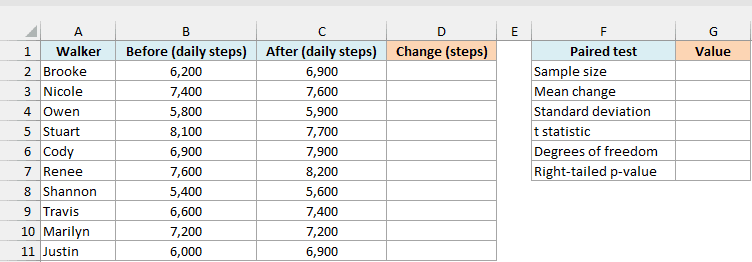
A paired test works on the change for each person. Enter the below formula in cell D2 to subtract each before value from its after value:
=C2:C11-B2:B11
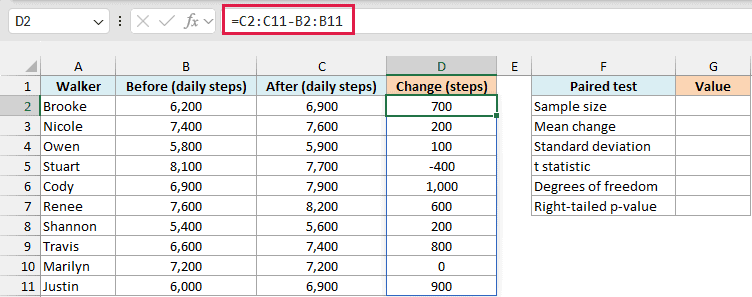
Positive numbers mean steps went up, and Stuart’s -400 means his went down.
If you are using Excel 2019 or earlier, enter the below formula in cell D2 and then copy it down the range:
=C2-B2
Now use the COUNT function in cell G2 to get the sample size:
=COUNT(D2:D11)
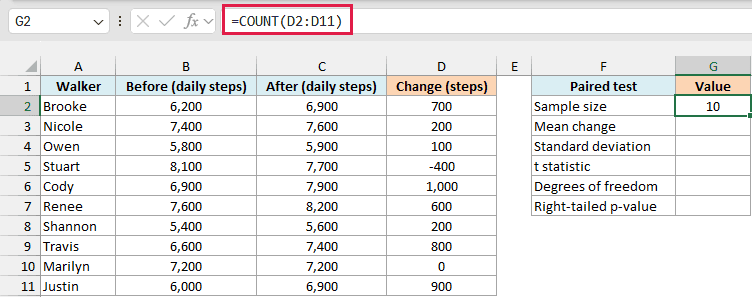
This returns 10. Next, use the AVERAGE function in cell G3 to get the mean change:
=AVERAGE(D2:D11)
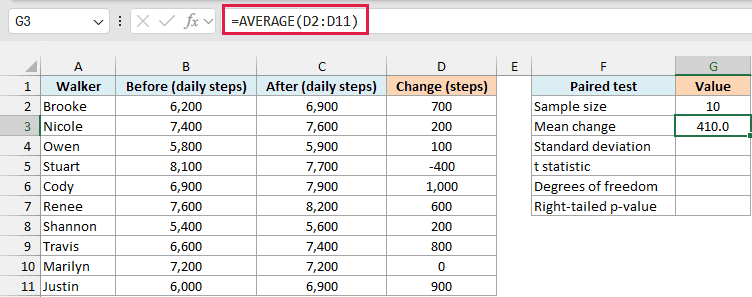
The average walker took 410 more steps a day. The test also has to account for how much those changes vary, so calculate the standard deviation in cell G4:
=STDEV.S(D2:D11)
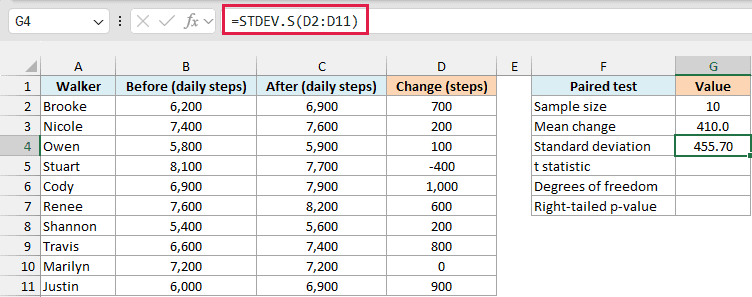
This returns approximately 455.70. Now calculate the t statistic in cell G5:
=G3/(G4/SQRT(G2))
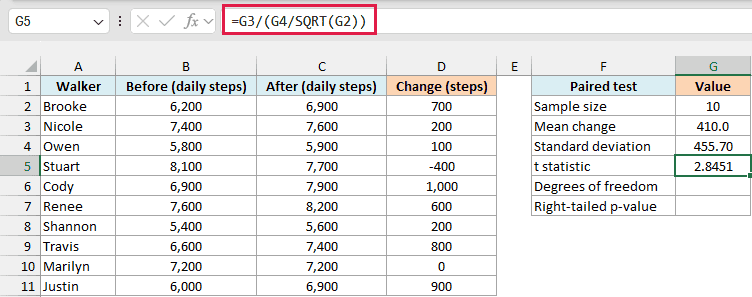
How this formula works:
G4/SQRT(G2)is the standard error, which measures how uncertain the average change is. It divides the standard deviation by the square root of the sample size.- Dividing the mean change in G3 by that standard error gives the t statistic, approximately 2.8451.
For a paired test, the degrees of freedom are the number of pairs minus 1. Enter the below formula in cell G6:
=G2-1
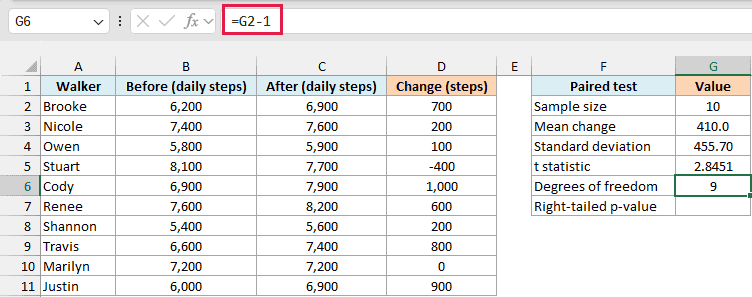
This gives 9 degrees of freedom. Finally, calculate the right-tailed p-value in cell G7:
=T.DIST.RT(G5,G6)
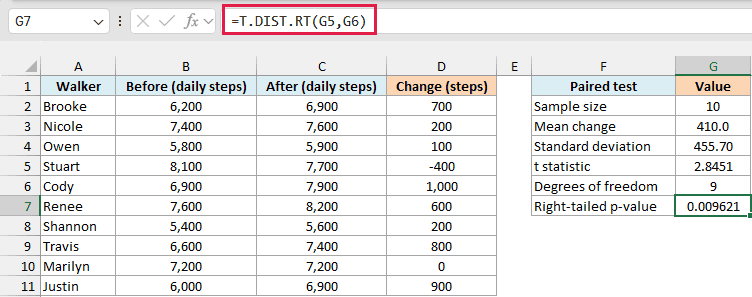
The formula returns approximately 0.009621, or 0.96%. That is below 0.05, so if you picked a 5% significance level beforehand, you would conclude that average daily steps increased, provided the test’s assumptions hold.
The p-value is small because the t statistic of 2.8451 is large and positive, even with only 9 degrees of freedom. If the average change had been negative, the same formula would return a value above 0.5, as in Example 3.
The T.TEST function can run a paired test straight from the two columns. If you set its tails argument to 1, though, it returns the same p-value whichever way the change went, so this step by step version is safer for a directional question.
So these are five ways to use the T.DIST.RT function, from a single p-value to a full paired test calculated from the raw numbers.
I hope you found this article helpful.
Other Excel Articles You May Also Like:
