

The CHISQ.INV.RT function returns a chi-square value for a probability in the right tail of the distribution. You can use it to find the cutoff for a chi-square test instead of looking through a statistical table.
For example, a 5% right-tail probability gives you the value with 5% of the distribution above it. That cutoff depends on the test’s degrees of freedom, so there isn’t one number that works for every test.
In this tutorial, I’ll show you how to find a critical value, calculate several cutoffs together, recover a statistic from a p-value, and get the two boundaries needed for a two-sided variance test.
Follow along with the example file
CHISQ.INV.RT Function Examples.xlsx
CHISQ.INV.RT Function Syntax
Here is the syntax of the CHISQ.INV.RT function:
=CHISQ.INV.RT(probability,deg_freedom)
- probability is required. It is the area to the right of the chi-square value you want. For a 5% right tail, enter
0.05or5%. - deg_freedom is required. It is the number of degrees of freedom for the distribution, which determines its shape. Use the value appropriate to your statistical test, not automatically the number of observations.
The probability must be greater than zero and no more than 1. A probability of 1 returns 0, while 0, a negative probability, or a probability above 1 returns #NUM!.
Degrees of freedom must be at least 1. Excel drops any decimal part, so 6.9 gives the same result as 6; a value below 1 returns #NUM!.
Both arguments need numeric values. Text that Excel cannot interpret as a number, such as “Five”, returns #VALUE!.
CHISQ.INV.RT works in Excel 2010 and later, including Microsoft 365, Excel 2024, 2021, 2019, 2016, and Excel for Mac. The spilling examples below need a version with dynamic arrays, such as Microsoft 365, 2024, or 2021.
When to Use the CHISQ.INV.RT Function
Use this function when you need to:
- Find a critical value for a chi-square test at a chosen significance level.
- Calculate cutoffs for several tests with different degrees of freedom.
- Recover a chi-square statistic when you know its right-tail p-value and degrees of freedom.
- Find lower and upper chi-square cutoffs for a two-sided test of a population variance.
Let me show you how these work in Excel.
Example 1: Find a Chi-Square Critical Value
Let’s start with one test and one cutoff.
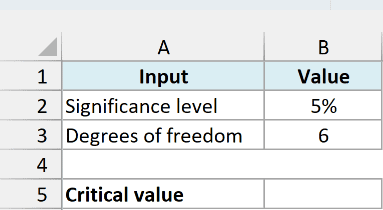
Suppose you are checking whether bookings are equally distributed across seven weekdays. With seven categories and no parameters estimated from the data, the degrees of freedom are seven minus one, which gives us 6.
Below are the test’s significance level and degrees of freedom, and we want the critical value in cell B5.
Enter this formula in cell B5:
=CHISQ.INV.RT(B2,B3)
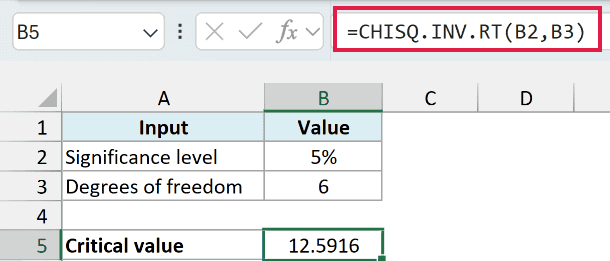
The result is 12.5916, rounded to four decimal places. CHISQ.INV.RT uses the 5% probability in B2 and the 6 degrees of freedom in B3 to find the cutoff with 5% of the distribution above it.
For this right-tailed test, a calculated test statistic above that cutoff would lead you to reject the hypothesis of equal booking proportions at the 5% significance level. The function supplies the cutoff; you still need the observed counts to calculate your test statistic.
The significance level is a threshold chosen for the test. It does not mean there is a 5% probability that your hypothesis is true.
Important: Enter 5% as 0.05 or 5%, not 5. The number 5 means 500%, which is outside the probability range and returns #NUM!.
If you need to work from observed and expected counts, the tutorial on calculating a chi-square test in Excel walks through that part.
Example 2: Calculate Several Cutoffs at Once
You can also give CHISQ.INV.RT a range of probabilities and degrees of freedom.
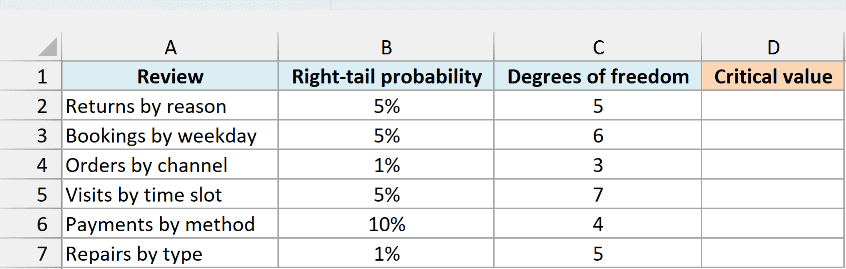
Below is a summary of six planned reviews, and we want each review’s critical value in column D.
In cell D2, enter this formula and press Enter:
=CHISQ.INV.RT(B2:B7,C2:C7)
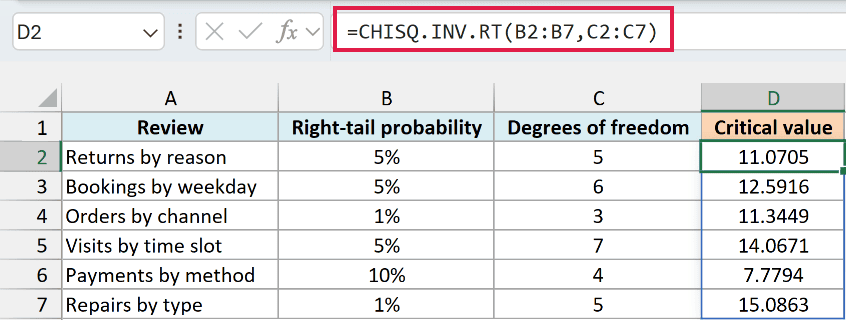
The formula fills D2:D7 automatically. Excel pairs each probability in B2:B7 with the degrees of freedom on the same row in C2:C7.
For example, the returns review uses 5% and 5 degrees of freedom, giving 11.0705. The orders review uses 1% and 3 degrees of freedom, giving 11.3449.
These are settings for separate tests. Each review still needs its own valid statistical test and observed data before you can draw a conclusion from its cutoff.
If Excel shows #SPILL!, a cell in the output range may already contain something. Clear or move that content so the formula has room to return all six values.
If you are using Excel 2019 or earlier, enter the following formula in D2 and copy it down through D7:
=CHISQ.INV.RT(B2,C2)
Example 3: Recover a Statistic from a P-Value
Sometimes a report gives you the p-value and degrees of freedom but leaves out the chi-square statistic.
A right-tail p-value is the probability of a statistic at least as large as the observed one, assuming the test’s null hypothesis is true. CHISQ.INV.RT works backward from that probability to the corresponding statistic.
Below is a test summary with a right-tail p-value of 0.02 and 4 degrees of freedom, and we want the recovered statistic in B5.
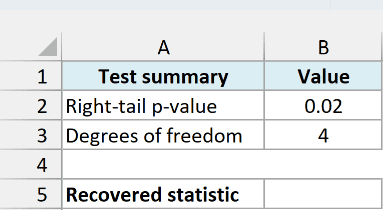
Enter the following formula in B5:
=CHISQ.INV.RT(B2,B3)
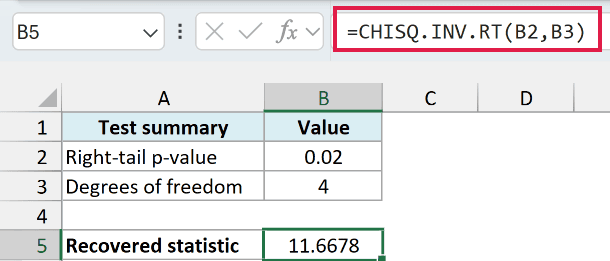
The result is 11.6678. For a chi-square distribution with 4 degrees of freedom, 2% of the distribution lies above that value.
This is the reverse of the CHISQ.DIST.RT function, which takes a statistic and returns the right-tail probability. Here, we already have the probability and want the statistic.
Although the formula looks the same as Example 1, the input has a different role. Example 1 uses a chosen significance level to find a decision cutoff; this example uses an observed p-value to recover the statistic.
Important: If a report rounded its p-value to 0.02, the recovered statistic is only an approximation. Use the full p-value when available, and don’t treat a statement such as “p < 0.02” as an exact value.
Excel finds the answer through an iterative calculation. Microsoft documents a #N/A result if that calculation does not converge, so an error should not be replaced with a made-up statistic.
Example 4: Get Lower and Upper Cutoffs
A two-sided test of a population variance needs two cutoffs because unusually small and unusually large variation can both count against the hypothesis.
For a sample of 20 independent observations from a normal population, this test uses 19 degrees of freedom. At a 5% significance level, split the probability equally between the two tails, giving 2.5% in each tail.
Below are the right-tail probabilities for those two boundaries, and we want the chi-square cutoffs in column D.

Enter this formula in D2:
=CHISQ.INV.RT(B2:B3,C2:C3)
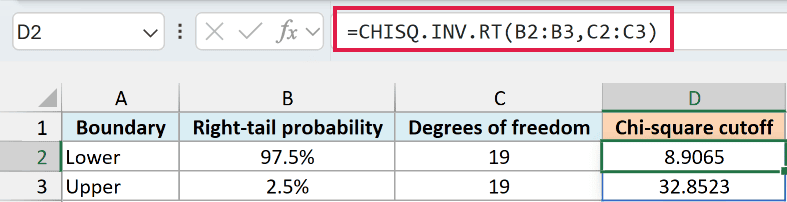
The formula returns 8.9065 for the lower cutoff and 32.8523 for the upper cutoff.
The lower boundary uses a right-tail probability of 97.5%. That leaves 2.5% below the boundary, which is exactly the small left tail we need.
The upper boundary uses a right-tail probability of 2.5%. A test statistic between the two cutoffs falls in the central 95% of this chi-square distribution.
For this two-sided variance test, reject the hypothesized variance when the test statistic falls below the lower cutoff or above the upper cutoff. These are chi-square statistic boundaries, not confidence limits for the variance itself.
If you are using Excel 2019 or earlier, enter the following formula in D2 and copy it to D3:
=CHISQ.INV.RT(B2,C2)
The CHISQ.INV function uses the area to the left instead. To get the same two cutoffs with that function, the probability inputs would be 2.5% for the lower boundary and 97.5% for the upper boundary.
That tail distinction also matters in Example 1: a 5% right-tail cutoff corresponds to a 95% left-tail probability. The older CHIINV function follows the same right-tail convention as CHISQ.INV.RT.
I hope these examples help you use CHISQ.INV.RT with the right probability and degrees of freedom for your test.
Other Excel Articles You May Also Like:
