

The F.INV function in Excel gives you the value in an F distribution that has a certain probability to its left. Give it 5% along with its two degrees of freedom values, and it returns the point that 5% of that distribution falls below.
An F value is one variance divided by another, so you’ll mostly use F.INV when comparing two variances. For example, it finds F-test critical values and the cutoffs for a confidence interval.
Just remember that it always works with the area on the left, so an upper cutoff needs a probability like 95%.
Follow along with the example file
F.INV Function Examples.xlsx
F.INV Function Syntax
Here is the syntax of the F.INV function:
=F.INV(probability,deg_freedom1,deg_freedom2)
- probability is the cumulative probability, which is the area to the left of the F value you want. For 5%, enter 5% or 0.05, not 5.
- deg_freedom1 is the numerator degrees of freedom. It goes with the variance on top of the F ratio, the one you divide.
- deg_freedom2 is the denominator degrees of freedom. It goes with the variance at the bottom of the F ratio, the one you divide by.
Since the probability is a left-tail area, a small probability gives a small F value and a large probability gives a large one. For example, 0.05 returns the lower 5% cutoff, while 0.95 returns the value with 5% of the distribution above it.
The probability must be at least 0 and less than 1. A probability of 0 returns 0, and anything below 0 or above 1 returns the #NUM! error because it isn’t a valid probability.
Exactly 1 also returns #NUM!, because no F value has the whole distribution to its left.
Both degrees of freedom must be at least 1, or you get the #NUM! error. If you enter a decimal, Excel drops the decimal part instead of rounding it, so 4.9 is treated as 4.
The F.INV function works in Excel 2010 and later, including Microsoft 365, Excel 2024, 2021, 2019, 2016, Mac, and the web. The spilling formulas below need Microsoft 365, Excel 2024, Excel 2021, or Excel for the web.
When to Use the F.INV Function
Use this function when you need to:
- Find percentiles of an F distribution with known degrees of freedom.
- Get the lower critical value for a left-tailed F-test.
- Get both cutoffs for a two-tailed test that compares two variances.
- Build a confidence interval for the ratio of two variances.
Let me show you a few practical examples of how to use this function.
Example 1: Find F Distribution Percentiles
Let’s start with the basic job, turning a probability into an F value.
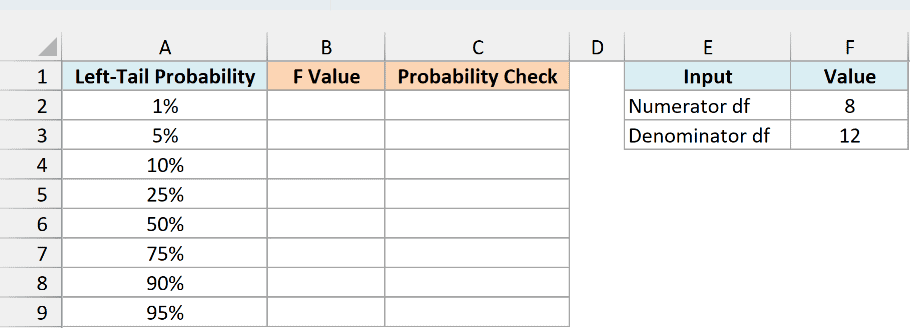
Below is a list of left-tail probabilities for an F distribution with 8 and 12 degrees of freedom, and I want the matching F values in column B.
Here is the formula that will give us the result:
=F.INV(A2:A9,$F$2,$F$3)
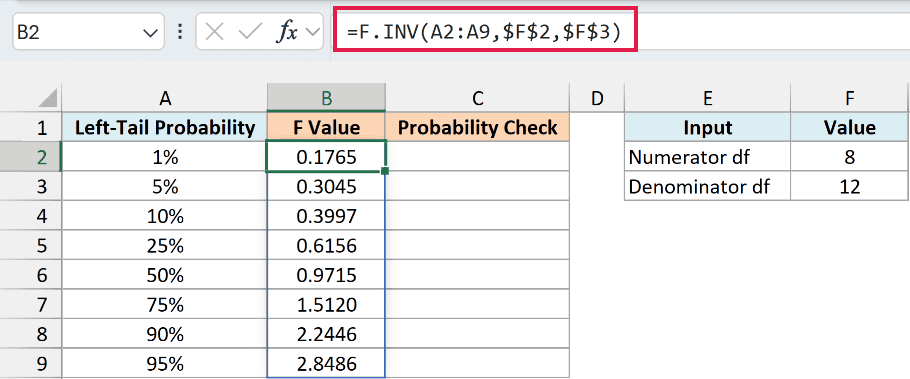
The formula takes each probability in A2:A9 and uses the numerator degrees of freedom in F2 and the denominator degrees of freedom in F3. It returns eight F values that spill into B2:B9.
The 5% row returns 0.3045. That means 5% of this F distribution lies below 0.3045, which makes it the lower 5% cutoff.
At 95%, you get 2.8486. This value has 95% of the distribution below it and 5% above it, so it’s the upper 5% cutoff for the same degrees of freedom.
Since this is a spilling formula, B3:B9 need to be empty when you enter it. If anything is in the way, you get the #SPILL! error until you clear those cells.
To see what these F values mean, you can feed them back into the F.DIST function. Enter this formula in cell C2:
=F.DIST(B2:B9,$F$2,$F$3,TRUE)
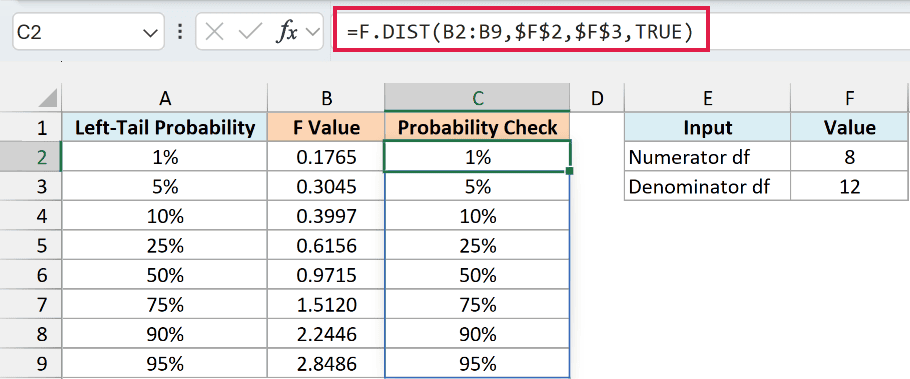
With TRUE as the last argument, the F.DIST function returns the cumulative probability, the area to the left of each F value. It gives back 1%, 5%, 10% and the rest of column A, which shows that F.INV simply reverses the F.DIST function.
This check only works when both formulas use the same degrees of freedom in the same order. Using FALSE instead of TRUE returns the height of the curve (the density), not a probability, so it won’t match column A.
If you are using Excel 2019 or earlier, enter the below formula in cell B2 and then copy it down to B9:
=F.INV(A2,$F$2,$F$3)
For the check column, enter the below formula in cell C2 and copy it down to C9:
=F.DIST(B2,$F$2,$F$3,TRUE)
Example 2: See How Degrees of Freedom Change the Cutoff
Now let’s look at the two degrees of freedom arguments, because they change the answer quite a lot.
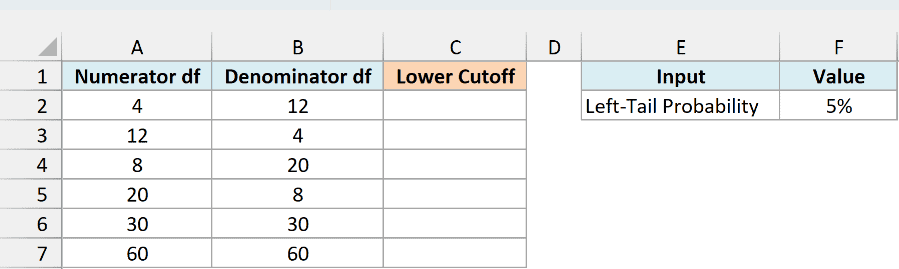
Below is a list of numerator and denominator degrees of freedom pairs, and I want the lower 5% cutoff for each pair in column C.
Here is the formula:
=F.INV($F$2,A2:A7,B2:B7)
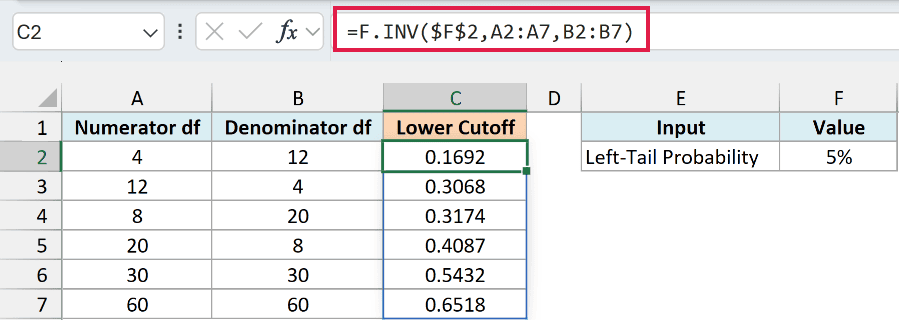
In the above formula, F2 holds the 5% probability that every row uses. The numerator degrees of freedom come from A2:A7 and the denominator degrees of freedom from B2:B7, so you get six cutoffs in C2:C7.
Look at the first two rows. Swapping 4 and 12 changes the cutoff from 0.1692 to 0.3068, so the order matters, and the numerator degrees of freedom always go first.
As both degrees of freedom grow, the cutoff moves closer to 1. It’s 0.5432 at 30 and 30, and 0.6518 at 60 and 60, because bigger samples leave a variance ratio less room to drift far from 1 by chance.
In a real test, the degrees of freedom usually come from sample sizes. For a sample variance, it’s the number of values minus 1, which is what the next example uses.
If you are using Excel 2019 or earlier, enter the below formula in cell C2 and then copy it down to C7:
=F.INV($F$2,A2,B2)
Example 3: Find the Lower F Critical Value for a Test
Here’s where the lower cutoff becomes useful in a real test.
Suppose a juice company replaced an old bottle filler and wants to know whether the new one fills bottles more consistently. More consistent means a smaller variance, so this is a left-tailed F-test on the new filler’s variance divided by the old filler’s.
Below are 10 fill amounts from each filler, and I want the lower critical value for a 5% test in cell E4.
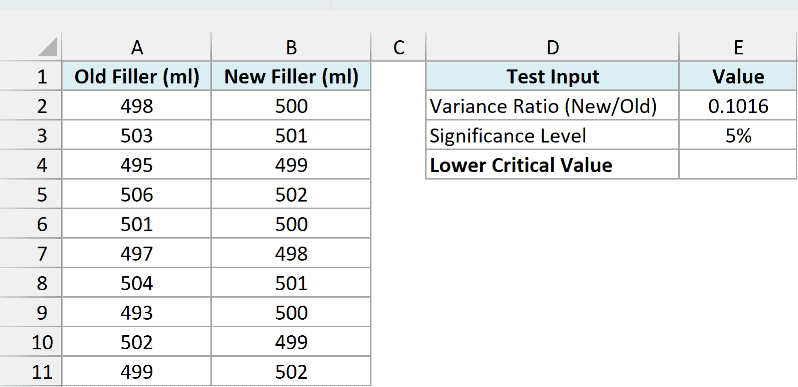
The variance ratio in E2 is already calculated with =VAR.S(B2:B11)/VAR.S(A2:A11), which divides the new filler’s sample variance by the old filler’s.
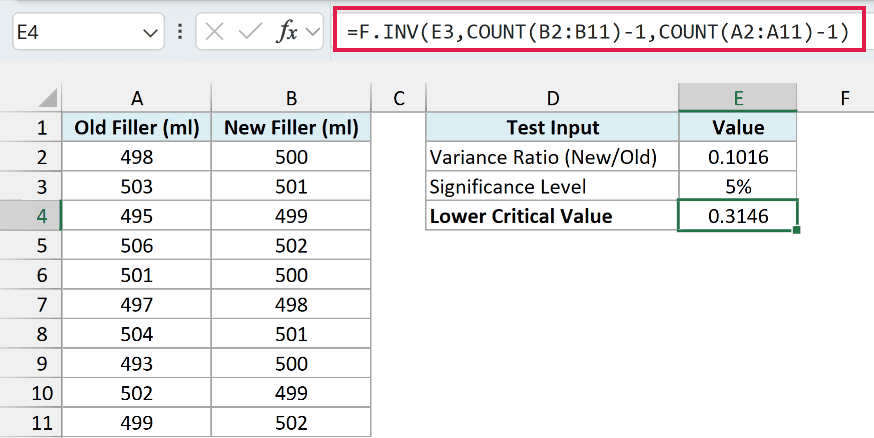
Here is the formula for the critical value:
=F.INV(E3,COUNT(B2:B11)-1,COUNT(A2:A11)-1)
How this formula works:
E3is the 5% significance level. In a left-tailed test, this is the left-tail area, so it goes straight in as the probability.COUNT(B2:B11)-1gives the numerator degrees of freedom. The new filler’s variance is on top of the ratio, so its 10 fills minus 1 give 9.COUNT(A2:A11)-1gives the denominator degrees of freedom from the old filler’s 10 fills, which is also 9.
The formula returns 0.3146. The variance ratio in E2 is 0.1016, which is below that cutoff, so at the 5% level the data supports the new filler being more consistent.
Using the COUNT function instead of typing 9 means the degrees of freedom update on their own if you add more fills to either column (and extend the ranges).
This test assumes both sets of fills are independent random samples from roughly normal populations. The F-test is sensitive to that, so it’s worth checking the shape of your data before relying on the result.
Example 4: Get Both Two-Tailed Cutoffs with F.INV
Sometimes you don’t have a direction in mind. You just want to know whether two variances differ, and that needs a cutoff on each side.
Below are the sample size and weight variance of cookies from two bakeries, and I want the lower and upper cutoffs for a 5% two-tailed test in column I.

The variance ratio in F2 is =C2/C3, Bakery A’s variance divided by Bakery B’s.
H2 and H3 hold the left-tail areas 2.5% and 97.5%. The first puts 2.5% below the lower cutoff and the second leaves 2.5% above the upper cutoff, so together they make the 5% significance level.
Here is the formula:
=F.INV(H2:H3,B2-1,B3-1)

The formula returns a lower cutoff of 0.3629 and an upper cutoff of 2.5731. Bakery A is the numerator, so its 16 cookies minus 1 give 15 degrees of freedom, and Bakery B’s 21 cookies give 20.
The variance ratio of 1.9290 falls between the two cutoffs. So at the 5% level, there isn’t enough evidence that the two bakeries differ in how consistent their cookie weights are.
The upper cutoff matches what F.INV.RT(0.025,15,20) returns, because that function takes the right-tail area instead of the left.
Important: The older FINV function also uses the right-tail area. If you replace the FINV function with F.INV in an old workbook, change the probability to 1 minus the original (0.025 becomes 0.975), or you’ll get the lower cutoff instead of the upper one.
If you are using Excel 2019 or earlier, enter the below formula in cell I2 and then copy it down to I3:
=F.INV(H2,$B$2-1,$B$3-1)
Example 5: Confidence Interval for a Variance Ratio
Let’s finish with a confidence interval, which gives a range of believable values for the ratio of two population variances.
Below are the sample size and battery-life variance for two phone models, and I want a 95% confidence interval for the variance ratio in F4 and F5.
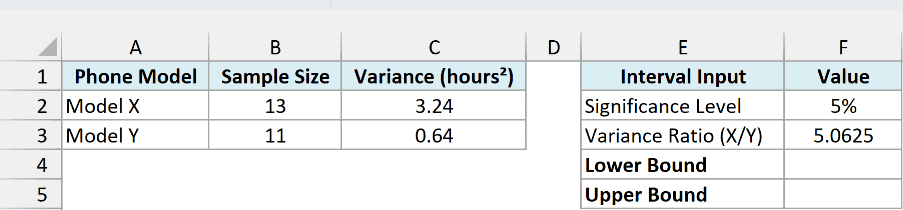
F2 holds the 5% significance level, and F3 has the sample variance ratio, =C2/C3, which is Model X’s variance divided by Model Y’s.
Here is the formula for the lower bound in cell F4:
=F3/F.INV(1-F2/2,B2-1,B3-1)
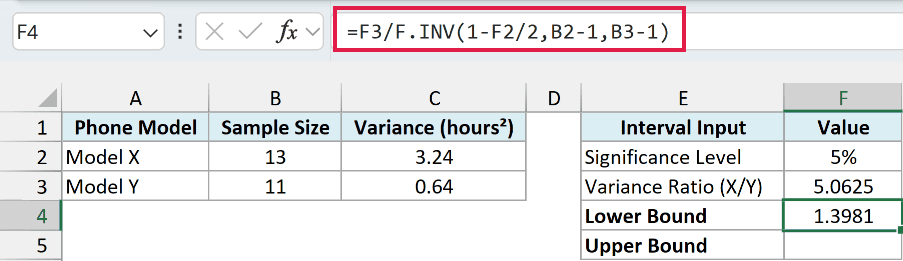
Here, 1-F2/2 is 0.975, so F.INV returns the upper 2.5% cutoff with 12 and 10 degrees of freedom. Dividing the sample ratio by that larger cutoff gives the lower bound, 1.3981.
And here is the formula for the upper bound in cell F5:
=F3/F.INV(F2/2,B2-1,B3-1)
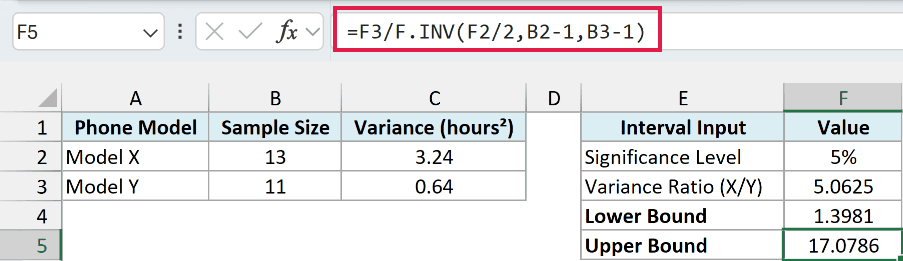
This time F2/2 is 0.025, so F.INV returns the lower cutoff. Dividing by that small number gives the upper bound, 17.0786.
The cutoffs swap places here, since the upper cutoff produces the lower bound and the lower cutoff produces the upper bound. It’s easy to flip by mistake, so check that F4 is the smaller of the two numbers.
The interval runs from about 1.40 to 17.08. Since the whole range is above 1, the data suggests that Model X’s battery life varies more than Model Y’s.
So these are five ways you can use the F.INV function in Excel. I hope you found this tutorial useful.
Other Excel Articles You May Also Like:
