

The F.TEST function in Excel compares the variances of two samples and returns a p-value. Variance measures how spread out the numbers are, so this test helps you compare consistency rather than averages.
You can give it two separate columns, even when they contain different numbers of observations. In this tutorial, I’ll show you how to interpret the result, handle missing entries, and compare groups from a mixed list.
Follow along with the example file
F.TEST Function Examples.xlsx
F.TEST Function Syntax
Here is the syntax of the F.TEST function:
=F.TEST(array1,array2)
- array1 is the first sample. Supply a range or array containing its observations.
- array2 is the second sample. Supply the other sample’s range or array.
Both arguments are required, and you can use ranges of different sizes. F.TEST compares the two samples as groups, so the values don’t need to form matching pairs across rows.
F.TEST works in Excel for Microsoft 365, Excel 2024, 2021, 2019, and 2016, including the corresponding Mac versions.
When to Use the F.TEST Function
Use this function when you need to:
- Compare the spread of measurements from two independent samples.
- Check for a difference in variability when the samples have different sizes.
- Compare two groups from a larger list by selecting their observations first.
Let me show you how the results work with a few examples.
Example 1: Compare Variances With F.TEST
Let’s start with two columns of measurements.
Below are roll weights from two batches, and we want to compare their variability with the p-value in cell E2.
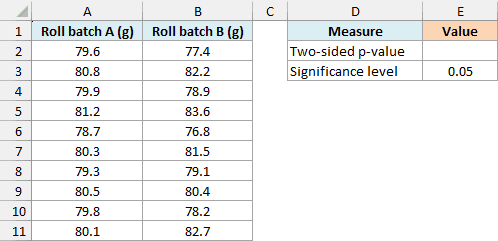
On the Roll Weights sheet, enter this formula in cell E2:
=F.TEST(A2:A11,B2:B11)
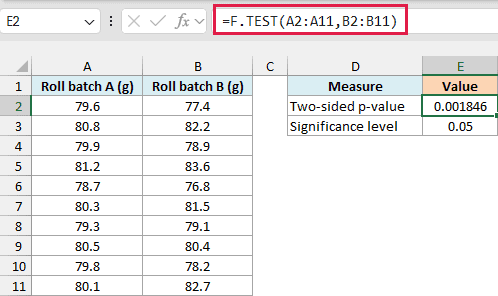
The result is approximately 0.001846. F.TEST uses all ten weights in each sample and returns one value, even in Excel versions that support dynamic arrays.
This is a two-tailed p-value, which means the test looks for a difference in either direction. It can detect evidence that either population has greater variance.
The starting assumption, called the null hypothesis, is that the two population variances are equal. The p-value describes how unusual a result at least this extreme would be under that assumption and the test’s conditions.
To make a decision, compare the p-value with a significance level chosen before the test. Here, cell E3 contains 0.05, and 0.001846 is below that threshold, so we reject equal population variances at the 5% level.
For this illustration, assume the weights are independent random samples from normal populations. With real data, check whether those assumptions are reasonable before interpreting the p-value.
The F-test is sensitive to departures from normality, so strong skew or unusual observations can make the conclusion unreliable. NIST explains the assumptions and limitations in more detail.
Important: The p-value is not the probability that the population variances are equal. A large p-value means this test hasn’t found enough evidence of a difference, rather than proving equality.
You can swap the two sample ranges without changing this two-tailed p-value. You don’t need to put the sample with the larger variance first.
If you’re comparing this with Excel’s Analysis ToolPak, check the output label. The ToolPak’s F-test report includes a probability labeled one-tail, while F.TEST returns a two-tailed p-value, so those numbers aren’t directly interchangeable.
Example 2: Test Unequal Samples and Missing Data
The two ranges don’t have to contain the same number of readings.
Below are measurement offsets from two scales, with some missing entries for scale A, and we want the comparison’s p-value in cell E2.
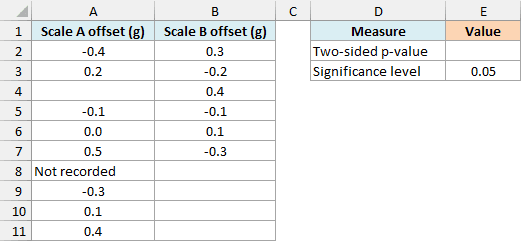
On the Unequal Samples sheet, enter this formula in E2:
=F.TEST(A2:A11,B2:B7)
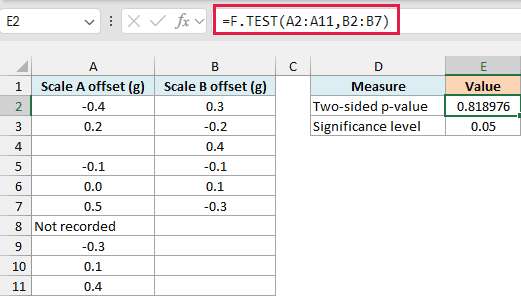
This returns approximately 0.818976. There are eight numeric observations in the first range and six in the second, and F.TEST uses each sample’s own observation count.
The blank cell and the text Not recorded in column A are ignored. The zero in A6 is included because it is a real numeric reading.
Logical values such as TRUE and FALSE in referenced cells are also ignored. If a measurement was imported as text, convert it to a number before running the test, or it won’t count as an observation.
Missing readings aren’t zero readings, so don’t replace blanks with zeros just to make the columns look complete. That would change the sample and could change the test result.
At the 0.05 significance level, this p-value doesn’t give enough evidence to reject equal population variances. It does not establish that the scales have identical variability, especially with samples this small.
Existing Excel errors in the referenced data aren’t skipped like text or blanks. If a source cell contains an error, investigate that cell before using the test result.
Example 3: Understand the #DIV/0! Error
F.TEST also needs each sample to contain some variation.
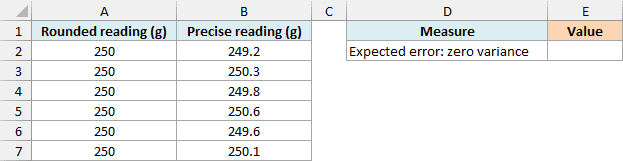
Below are rounded and precise weight readings, and we want to see why the test returns an error in cell E2.
On the Rounded Readings sheet, enter this formula in E2:
=F.TEST(A2:A7,B2:B7)
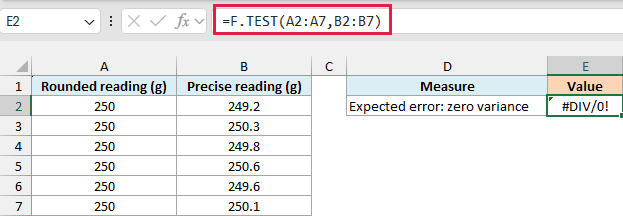
The result is #DIV/0! because every value stored in A2:A7 is 250. That sample has zero variance, so F.TEST cannot perform its variance-ratio calculation.
Here, the readings were rounded before being entered into Excel. Changing a cell’s number format only changes what you see, so displaying fewer decimal places would not, by itself, remove variation from the stored numbers.
If rounding removed useful measurement detail, return to the original readings and keep their precision. If the original sample genuinely has no variation, this F-test can’t be calculated from that sample.
Important: F.TEST also returns #DIV/0! when either sample has fewer than two numeric observations. Check both sample counts and their variation instead of replacing the error with zero, which would look like a valid p-value.
Example 4: Compare Groups With F.TEST and FILTER
Sometimes both samples are mixed together in one list.
Below is a log of loaf weights from two ovens, and we want to compare their variability with the p-value in cell E2.
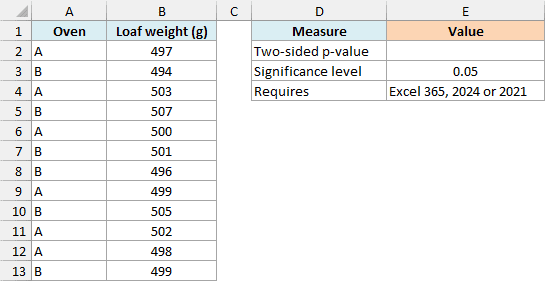
On the Filter by Oven sheet, enter this formula in E2:
=F.TEST(FILTER(B2:B13,A2:A13="A"),FILTER(B2:B13,A2:A13="B"))
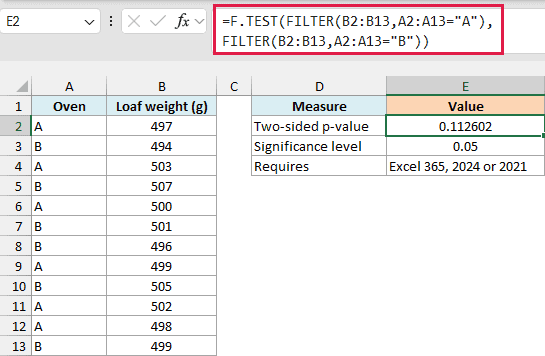
The result is approximately 0.112602. At a significance level of 0.05, this sample doesn’t provide enough evidence to conclude that the population variances differ.
How this formula works:
- The first FILTER function takes the weights from B2:B13 only where the oven in A2:A13 is A.
- The second FILTER function selects the weights for oven B.
- F.TEST compares those two six-observation arrays and returns one p-value in E2.
The filtered arrays are calculated inside the formula. They don’t spill onto the worksheet because F.TEST reduces them to a single result.
This example needs Excel for Microsoft 365, Excel 2024, or Excel 2021 because it uses the FILTER function. In older versions, put each oven’s observations in a separate column and apply the two-range approach from Example 1.
If an oven label has no matches, the FILTER function returns #CALC! in this formula. Check the labels and source range, then make sure each selected group still has at least two numeric observations and a nonzero variance.
The older FTEST function, without the dot, remains available for compatibility with older workbooks. Use F.TEST for new formulas.
If your question is about a difference in average weights, use a test for means such as the T.TEST function. F.TEST answers a question about variability.
Other Excel Articles You May Also Like:
