

The CHISQ.TEST function in Excel runs a chi-square test on counts. It compares the counts you actually got with the counts you expected, and returns a p-value that tells you whether the difference is likely real or just chance.
That makes it useful whenever your data is a tally, like how many people picked each option in a survey, sales by product category, or the results of an A/B test.
The catch is that CHISQ.TEST doesn’t work out the expected counts for you, so you have to supply them.
In this tutorial, I’ll show you how to do that for an even split, a known mix, and a two-way table, plus how to turn the p-value into a plain answer.
Follow along with the example file
CHISQ.TEST Function Examples.xlsx
CHISQ.TEST Function Syntax
Here is the syntax of the CHISQ.TEST function:
=CHISQ.TEST(actual_range, expected_range)
- actual_range – The counts you actually observed, such as how many cups of each flavor were sold.
- expected_range – The counts you would expect if there were no real difference or relationship. It must hold the same number of cells as actual_range.
The function returns a p-value between 0 and 1. The smaller it is, the less likely you’d see gaps this big between your actual and expected counts if there were no real difference, and most people treat anything below 0.05 as a real difference.
If the two ranges don’t have the same number of cells, CHISQ.TEST returns the #N/A error. So when you select the ranges, select only the counts, not the labels or totals around them.
If you’ve done a chi-square test by hand, you’ll know it also needs the degrees of freedom, which depend on how many categories you’re comparing. CHISQ.TEST works them out for you from the shape of actual_range, so there’s no third argument to fill in.
The CHISQ.TEST function works in Excel 2010 and later, including Excel 365, 2024, 2021, 2019, 2016, and Excel for Mac. In Excel 2007 and earlier, use the CHITEST function, which takes the same two arguments.
When to Use the CHISQ.TEST Function
Use this function when you need to:
- Check whether counts across categories match an even split, like sales of each flavor or votes for each option.
- Check whether this period’s counts follow a known mix, like last year’s share of sales by size.
- Check whether two categories are related, like the snack people buy and the time of the show.
- Compare the results of an A/B test, such as two versions of a checkout page.
Let me show you a few practical examples of how to use CHISQ.TEST in Excel.
Example 1: Check If Sales Match an Even Split
Let’s start with a simple example.
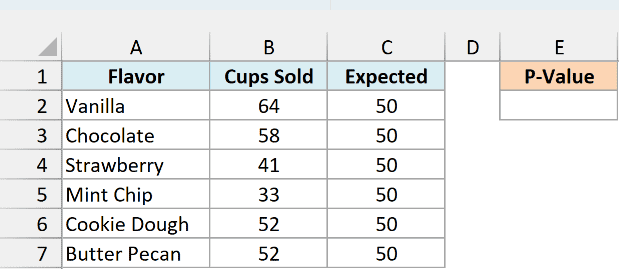
Below are the cups sold for six ice cream flavors, along with 50 expected cups for each flavor if customers had no favorite, and I want to check whether the difference is real, with the p-value in cell E2.
Here is the formula:
=CHISQ.TEST(B2:B7,C2:C7)
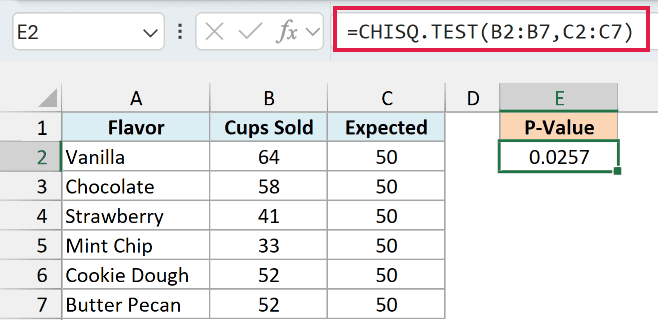
The formula returns 0.0257.
CHISQ.TEST compares each flavor’s cups sold in B2:B7 with the 50 expected cups in C2:C7. The 50 is simply the 300 cups sold, split evenly across six flavors.
A p-value of 0.0257 means that if customers really had no favorite, you’d see gaps this big only about 2.6% of the time. That’s below 0.05, so the flavors are not selling evenly, with Vanilla well above 50 and Mint Chip well below it.
If any cell in the expected range is 0, CHISQ.TEST returns the #DIV/0! error, because the test divides by every expected count.
Example 2: Compare Sales With Last Year’s Mix
Now let’s look at a case where the expected counts aren’t all the same.
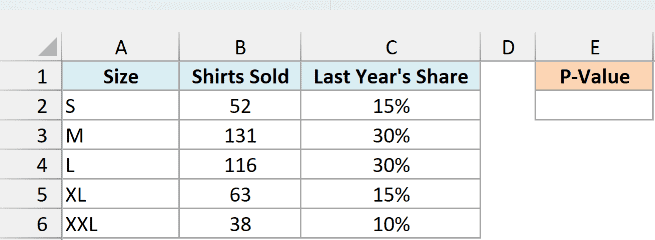
Below are the T-shirts a store sold this month by size, along with each size’s share of sales last year, and I want to check whether this month’s sales follow last year’s mix, with the p-value in cell E2.
Here is the formula:
=CHISQ.TEST(B2:B6,C2:C6*SUM(B2:B6))
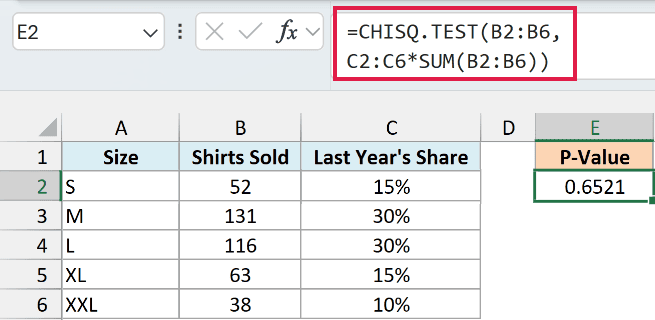
The formula returns 0.6521.
How this formula works:
SUM(B2:B6)adds up the shirts sold this month, which is 400.C2:C6*SUM(B2:B6)turns last year’s shares into expected counts for 400 shirts: 60, 120, 120, 60, and 40.- CHISQ.TEST then compares the shirts sold in B2:B6 with those expected counts.
A p-value of 0.6521 is far above 0.05, so this month’s sales are in line with last year’s mix. Gaps like 52 small shirts instead of 60 are the kind you’d get by chance.
Important: Don’t point CHISQ.TEST at the percentages directly. Here, =CHISQ.TEST(B2:B6,C2:C6) returns 0 and wrongly says the mix changed, because expected values must be counts with the same total as the actual counts.
Example 3: Chi-Square Test of Independence With an Expected Table
This next example uses a two-way table, where you want to know whether two categories are related.
Below are the snacks a movie theater sold at matinee and evening shows, with row and column totals, and I want to check whether the snack people buy depends on the showtime, with the expected counts in H2:J3 and the p-value in L2.

First, here is the formula that builds the expected table in cell H2:
=E2:E3*B4:D4/E4

Matinees made 120 of the 300 snack sales, which is 40%. So if the snack choice had nothing to do with the showtime, you’d expect about 40% of the 160 popcorn sales, or 64, to happen at matinees.
That’s why each expected count is its row total times its column total, divided by the grand total. For matinee popcorn, that’s 120 x 160 / 300 = 64.
The formula multiplies the two row totals in E2:E3 by the three column totals in B4:D4 and divides by the grand total in E4. Because one range runs down and the other runs across, the results spill into a full two-by-three table.
If you are using Excel 2019 or earlier, enter the below formula in cell H2 and then copy it to the rest of H2:J3:
=$E2*B$4/$E$4
Now here is the CHISQ.TEST formula in cell L2:
=CHISQ.TEST(B2:D3,H2#)

The formula returns 0.0004.
CHISQ.TEST compares the six snack counts in B2:D3 with the expected table, and H2# refers to that whole table that spilled from H2.
A p-value of 0.0004 is tiny, so the snack choice and the showtime are related. Evening shows sold 62 nachos against 48 expected, while matinees sold only 18 against 32 expected.
If you are using Excel 2019 or earlier, enter the below formula in cell L2 instead:
=CHISQ.TEST(B2:D3,H2:J3)
Important: Select only the six counts in B2:D3 for the first argument. If you include the Total row or column, the two ranges no longer have the same number of cells, and CHISQ.TEST returns the #N/A error.
The test is most reliable when every expected count is at least 5, which some statisticians recommend. All six expected counts here are well above that.
Example 4: Run the Chi-Square Test in a Single Formula
In the previous example, you needed totals and a separate expected table. In newer versions of Excel, you can skip both.
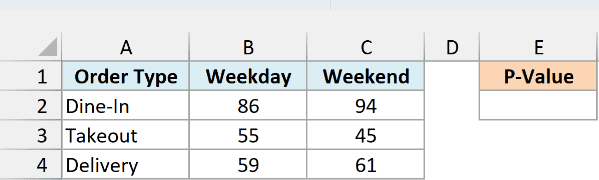
Below are a restaurant’s orders by order type on weekdays and weekends, and I want to check whether the order type depends on the day, with the p-value in cell E2.
Here is the formula:
=LET(obs,B2:C4,CHISQ.TEST(obs,BYROW(obs,SUM)*BYCOL(obs,SUM)/SUM(obs)))
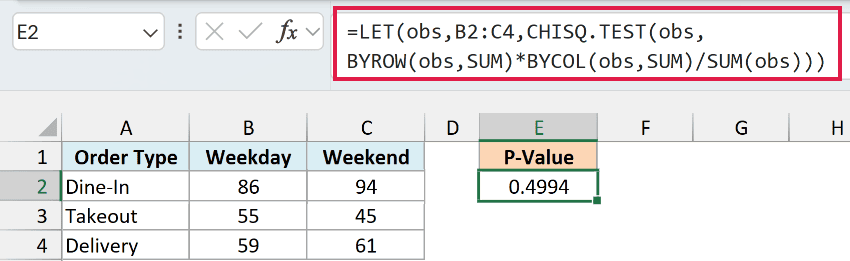
The formula returns 0.4994.
How this formula works:
- The LET function names the counts in B2:C4 as
obs, so the formula doesn’t have to repeat the range. BYROW(obs,SUM)returns the total for each order type (180, 100, and 120), andBYCOL(obs,SUM)returns the total for each day type (200 and 200).- Multiplying them and dividing by
SUM(obs), which is 400, builds the same kind of expected table as Example 3, without putting it on the sheet. - CHISQ.TEST then compares the actual counts with that expected table.
A p-value of 0.4994 is far above 0.05, so there’s no sign that the order type depends on the day. A gap like 55 takeout orders on weekdays against 45 on weekends is well within what chance would give you.
The BYROW function and the BYCOL function were added in Excel 2024, and this exact formula works in Excel 365. In Excel 2021 or earlier, build the expected table on the sheet as shown in Example 3.
Example 5: Turn the P-Value Into a Clear Answer
A p-value is easy to misread when you share a report, so this last example turns it into a plain answer.
Below are the results of an A/B test on an online store’s checkout page, with how many of 500 visitors on each version bought something, and I want a Significant or Not Significant answer in cell L2.

The expected table in F2:G3 comes from =BYROW(B2:C3,SUM)*BYCOL(B2:C3,SUM)/SUM(B2:C3), the same calculation as in Example 4, and the significance level of 0.05 is in cell J2.
Here is the formula:
=IF(CHISQ.TEST(B2:C3,F2#)<J2,"Significant","Not Significant")

The formula returns Significant.
Inside the formula, CHISQ.TEST returns a p-value of 0.0195. The IF function checks whether that is below the 0.05 in J2, and since it is, the new page’s 72 buyers against the old page’s 48 are unlikely to be chance.
If you are using Excel 2021 or earlier, the BYROW and BYCOL formula won’t work. Enter the below formula in cell F2 and then copy it to the rest of F2:G3 to build the expected table:
=SUM($B2:$C2)*SUM(B$2:B$3)/SUM($B$2:$C$3)
Then, in cell L2, use this formula with F2:G3 in place of the spill reference:
=IF(CHISQ.TEST(B2:C3,F2:G3)<J2,"Significant","Not Significant")
Because the significance level sits in its own cell, you can make the test stricter without touching the formula. Change J2 to 0.01 and the answer becomes Not Significant, since 0.0195 is above 0.01.
For a two-by-two table like this one, CHISQ.TEST does not apply the Yates continuity correction that some statistics tools use. So its p-value can come out a little smaller than the one those tools report.
So these are the ways you can use the CHISQ.TEST function in Excel to check whether your counts differ from what you expected.
If you also need the chi-square statistic itself, my guide on how to calculate chi-square in Excel walks through the manual method. I hope you found this tutorial useful.
Other Excel Articles You May Also Like:
