

The HYPGEOM.DIST function in Excel calculates the chance of getting a particular number of items with a certain feature when you randomly select from a fixed group without replacement.
For example, you could work out the chance that two of five lunch boxes are vegetarian, knowing how many vegetarian boxes are available. Once a box is picked, it stays out of the group for the rest of that selection.
Below, I’ll show you how to calculate exact probabilities, cumulative probabilities, and the chance of getting at least a certain number or a number within a range.
Follow along with the example file
HYPGEOM.DIST Function Examples.xlsx
HYPGEOM.DIST Function Syntax
Here is the syntax of the HYPGEOM.DIST function:
=HYPGEOM.DIST(sample_s, number_sample, population_s, number_pop, cumulative)
All five arguments are required:
- sample_s is the count you want to check in your sample. If you want the probability of exactly two vegetarian lunch boxes, this is 2.
- number_sample is the total number of items selected, including items with and without the feature you’re counting.
- population_s is how many items in the full group have that feature before you start selecting.
- number_pop is the total number of items in the full group, including both types.
- cumulative controls the question Excel answers. Use FALSE for exactly
sample_s, or TRUE forsample_sor fewer.
Excel’s term “success” simply means an item has the feature you’re counting. It could mean a vegetarian box, a comic book, or even a damaged product, so it doesn’t have to be a good outcome.
When you set cumulative to TRUE, the requested count is included. For a count of 2, Excel adds the probabilities of 0, 1, and 2; FALSE returns only the probability of 2.
Use whole-number counts. Excel drops the decimal part of the four count arguments, so a requested count of 2.9 is treated as 2 rather than rounded to 3.
HYPGEOM.DIST works in Excel 2016, 2019, 2021, 2024, and Microsoft 365, including their Mac versions. The range formulas below need dynamic arrays, available in Microsoft 365, Excel 2024, and Excel 2021.
When to Use the HYPGEOM.DIST Function
Use this function when you need to:
- Find the chance of an exact count in a random selection from a known group.
- Calculate the probability of getting no more than a specified count.
- Work out the chance of reaching a minimum count or staying within two count limits.
The group must have a known size and a known number of items with the feature you’re counting. Each selection of the same size must be equally likely, and an item can’t be picked again during that selection.
Let me show you how this works with four examples.
Example 1: Calculate an Exact Probability
Let’s start with one possible outcome.
Below is a tray of 18 lunch boxes, including 6 vegetarian boxes, and I want the probability that exactly 2 of 5 randomly selected boxes are vegetarian in cell B8.
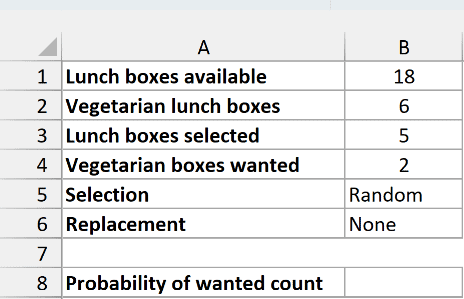
Enter the following formula in B8:
=HYPGEOM.DIST(B4,B3,B2,B1,FALSE)
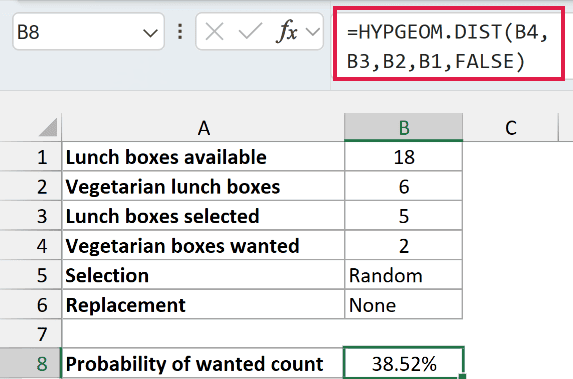
The result is 38.52%, with the result cell formatted as a percentage to two decimal places. Excel stores the underlying probability as approximately 0.385154.
The formula checks for 2 vegetarian boxes out of 5 picks, from a tray containing 6 vegetarian boxes out of 18 total. FALSE tells Excel to count only selections with exactly 2 vegetarian boxes, rather than 2 or fewer.
The other 3 selected boxes must be nonvegetarian. You don’t need to supply that count separately because Excel works it out from the total sample size and the vegetarian count.
Important: These probabilities assume the boxes are selected randomly without replacement. If someone deliberately chooses vegetarian boxes, or puts each box back before the next pick, this calculation no longer describes the selection.
Keep the inputs numeric. Text such as “five” gives a #VALUE! error, so enter 5 and keep the description in the label beside it.
Example 2: Find Cumulative Probabilities in Excel
Now let’s calculate the chance of staying below different limits.
Below is a shelf of 24 books, including 8 comics, and I want the probability of selecting no more than each listed number of comics in a random selection of 6 books in column B.
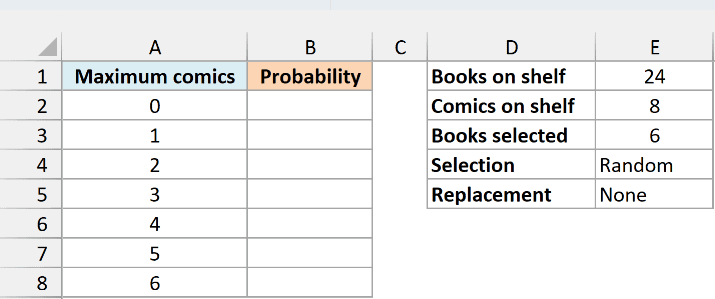
Enter this formula in B2:
=HYPGEOM.DIST(A2:A8,$E$3,$E$2,$E$1,TRUE)
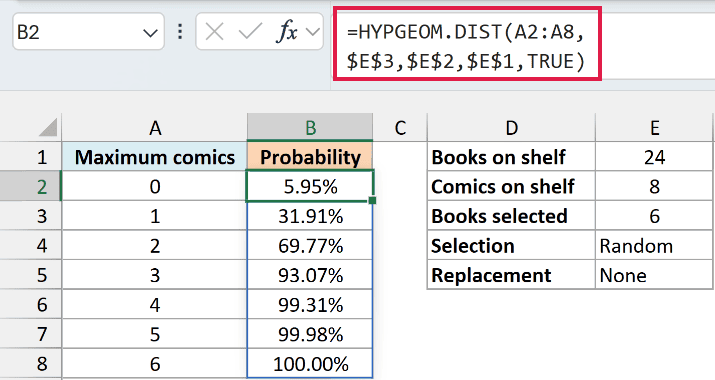
The formula returns seven probabilities in B2:B8. It reads each maximum in A2:A8 and uses the same sample size, comic count, and total book count from the input card.
For the maximum of 1, the result is 31.91%. That includes selections with no comics and selections with exactly 1 comic; it doesn’t mean exactly 1.
The maximum of 2 gives 69.77%, while the maximum of 6 gives 100.00%. You can’t select more than 6 comics when you only select 6 books, so every possible selection meets that last limit.
In Microsoft 365, Excel 2024, and Excel 2021, the results spill down from the single formula in B2. Leave the cells below it clear, because an existing value in the output area can cause a #SPILL! error.
If you’re using Excel 2019 or 2016, give sample_s one number or one cell reference and calculate one maximum at a time. Those versions don’t automatically spill this range formula into seven results.
Example 3: Find an At-Least Probability
This time, let’s set a minimum instead of a maximum.
Below is a bus with 30 passengers, including 12 monthly-pass holders, and I want the probability of finding at least each listed number of pass holders when surveying 6 randomly selected passengers in column B.
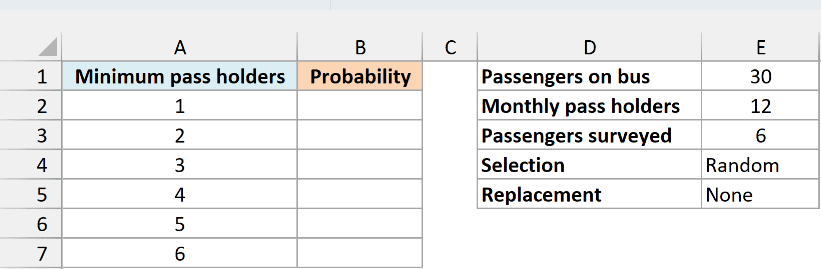
Enter this formula in B2:
=1-HYPGEOM.DIST(A2:A7-1,$E$3,$E$2,$E$1,TRUE)
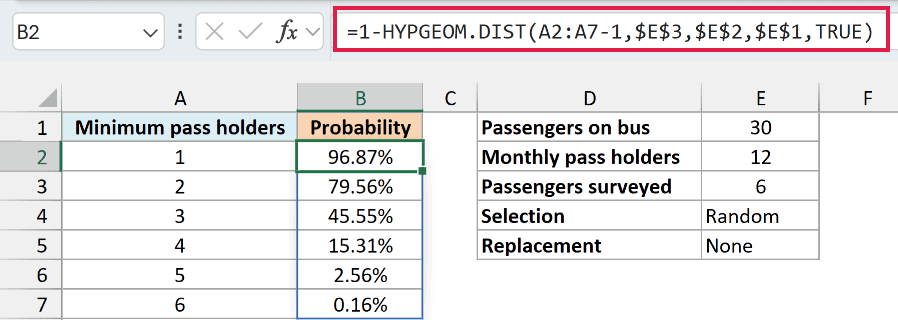
The results spill into B2:B7. For a minimum of 2 pass holders, the probability is 79.56%; for a minimum of 3, it’s 45.55%.
TRUE gives the chance of a count or fewer, so the formula first calculates the chance of falling short of the minimum. It then subtracts that probability from 1, which represents all possible outcomes.
For a minimum of 2, falling short means 0 or 1 pass holder. That’s why the formula uses the minimum minus 1 inside HYPGEOM.DIST, then subtracts the answer from 1.
Important: For “at least 2,” subtract the cumulative probability through 1. Subtracting the cumulative probability through 2 would leave only 3 or more, so it would exclude the count you wanted to include.
Subtracting from 1 works well here, but it can lose precision when the chance of meeting the minimum is extremely small. Adding the exact probabilities for all counts at or above the minimum can be more accurate in that case.
On Excel 2019 or 2016, calculate one minimum at a time using a single number or cell reference for sample_s, as in the previous example.
Example 4: Find Probability Between Two Counts
You can also ask for a count anywhere within two limits.
Below are 20 products, including 7 discounted products, and I want the probability that a random display of 5 products includes 1 through 3 discounted products in cell B9.
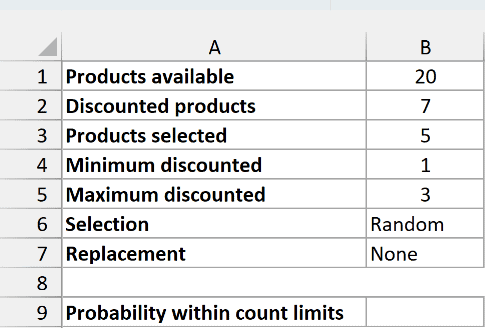
Enter this formula in B9:
=HYPGEOM.DIST(B5,B3,B2,B1,TRUE)-HYPGEOM.DIST(B4-1,B3,B2,B1,TRUE)
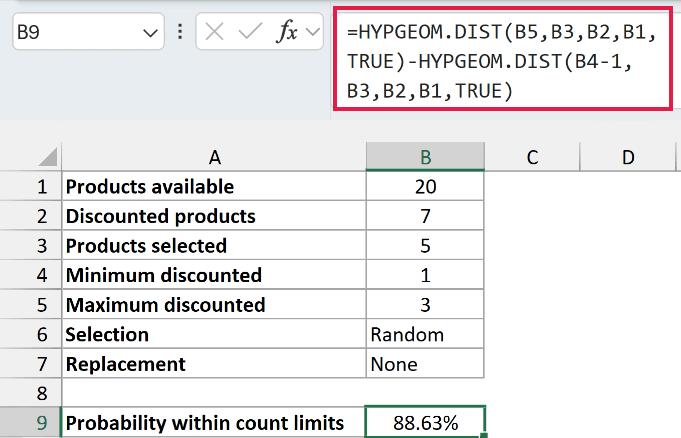
The result is 88.63%, including selections with 1, 2, or 3 discounted products.
The first HYPGEOM.DIST call finds the chance of 3 or fewer discounted products. The second finds the chance of fewer than the minimum, which means 0 discounted products here.
Subtracting the second probability removes the selections below the minimum and leaves the full interval from 1 through 3. Both limits are included because the second call uses the minimum minus 1.
This approach is convenient when the interval covers several possible counts. For a very narrow interval with a tiny probability, adding its individual exact probabilities can avoid the precision lost when subtracting two nearly equal cumulative values.
If you change the inputs, make sure the sample size doesn’t exceed the total number of products. Asking Excel to select 21 products from a group of 20 gives a #NUM! error, so correct the inputs rather than hiding that error.
HYPGEOM.DIST calculates the probability directly; you don’t need to build the same calculation manually with the COMBIN function. The older HYPGEOMDIST function returns exact probabilities but doesn’t have the cumulative argument.
For independent trials where the probability stays the same each time, the BINOM.DIST function is the relevant distribution instead. That differs from the without-replacement selections used throughout these examples.
So these are four ways you can use HYPGEOM.DIST to calculate probabilities when selecting from a fixed group without replacement. I hope you found this tutorial helpful.
Other Excel Articles You May Also Like:
