

The F.DIST.RT function in Excel calculates a right-tail probability for an F statistic. It tells you how much of the specified F distribution lies above your value.
That probability can be a p-value for a variance test or an analysis of variance (ANOVA). In this tutorial, I’ll show you how to calculate it and interpret the result without mixing up the two tests.
Follow along with the example file
F.DIST.RT Function Examples.xlsx
F.DIST.RT Function Syntax
Here is the syntax of the F.DIST.RT function:
=F.DIST.RT(x,deg_freedom1,deg_freedom2)
- x is the F statistic from your test, a ratio of two estimates of variability. It must be zero or greater.
- deg_freedom1 is the numerator degrees of freedom. It must be at least 1 and belongs to the quantity on top of the F ratio.
- deg_freedom2 is the denominator degrees of freedom. It must be at least 1 and belongs to the quantity on the bottom of the F ratio.
All three arguments are required. The two degrees of freedom control the shape of the distribution, so the same F statistic can return different probabilities when these inputs change.
Excel truncates fractional degrees of freedom rather than rounding them. For example, 4.9 becomes 4, so use the actual whole-number degrees of freedom from your test.
F.DIST.RT is available in Excel 2010 and later, including current Mac versions. The spilling examples below require Microsoft 365 or Excel 2021 and later.
When to Use the F.DIST.RT Function
Use this function when you need to:
- Find the probability above a known F statistic.
- See how the degrees of freedom affect that probability.
- Calculate a one-sided p-value when comparing two population variances.
- Get p-values from completed ANOVA summaries.
Let me show you how these calculations work in the example file.
Example 1: Calculate Right-Tail Probabilities
Let’s start with the function doing its basic job.
Below is a table of F statistics with fixed degrees of freedom, and I want to calculate their right-tail probabilities in column D.
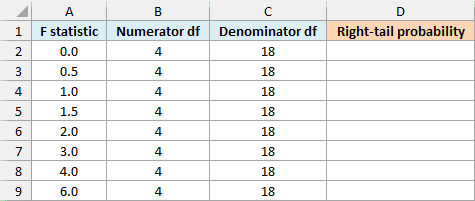
On the Example 1 Right Tail sheet, enter this formula in D2:
=F.DIST.RT(A2:A9,B2:B9,C2:C9)
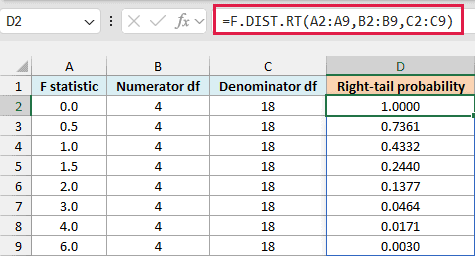
The formula takes each F statistic from A2:A9 and uses the corresponding numerator and denominator degrees of freedom. Press Enter once, and the eight results spill into D2:D9.
For an F statistic of 3 with 4 and 18 degrees of freedom, the result is about 0.0464, or 4.64%. This is the area above 3 under that particular F distribution.
The F.DIST function with its cumulative argument set to TRUE gives the area to the left. F.DIST.RT gives the area to the right and has no cumulative argument.
As the F statistic increases, the right-tail probability gets smaller. At zero, the probability is 1 because the F distribution has no probability below zero.
The results in the file use four decimal places. Excel keeps more precision for calculations, so a displayed 0.0000 in your own data would not necessarily mean an exact zero.
Make sure the output cells below D2 are empty before entering the formula. If something blocks the results, Excel returns a #SPILL! error; move the blocking content and enter the formula again.
If you are using Excel 2019 or earlier, enter the below formula in D2 and copy it down to D9:
=F.DIST.RT(A2,B2,C2)
You may also see the older FDIST function in existing files; F.DIST.RT is its modern replacement.
For this function, a negative F statistic or degrees of freedom below 1 returns #NUM!. A nonnumeric argument, such as a word typed into an input cell, returns #VALUE!, so check the inputs rather than hiding the error.
Example 2: Compare Different Sample Sizes
Now let’s keep the F statistic unchanged and change the degrees of freedom.
Below are six hypothetical comparisons with the same variance ratio of 2 but different sample sizes, and I want their right-tail probabilities in column E.
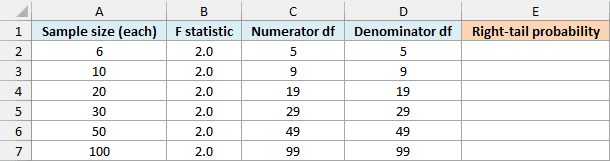
For a two-sample variance comparison, each sample contributes its number of observations minus 1 as degrees of freedom. Each row here assumes equal sample sizes in the two groups.
On the Example 2 Sample Size sheet, enter this formula in E2:
=F.DIST.RT(B2:B7,C2:C7,D2:D7)
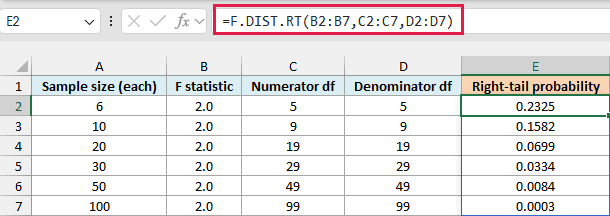
The six probabilities spill into E2:E7. With 6 observations in each sample, the result is 0.2325; with 100 in each sample, it falls to 0.0003.
The variance ratio is still 2 in every row. Under the equal-variance model, a ratio this large becomes less likely as the samples get larger, so the same ratio can provide stronger evidence with more observations.
These are separate hypothetical scenarios, not six recalculations from one pair of samples. The degrees of freedom must come from the observations actually used in each comparison.
Here, the null hypothesis says the two population variances are equal. The right-tail probability tells you how often a ratio at least this large would occur under that model.
Important: A p-value is calculated assuming the null hypothesis is true. It is not the probability that the null hypothesis itself is true.
For Excel 2019 or earlier, enter the below formula in E2 and copy it down to E7:
=F.DIST.RT(B2,C2,D2)
Follow along with the example file
F.DIST.RT Function Examples.xlsx
Example 3: Compare Delivery-Time Variability
Let’s calculate an F statistic from two samples.
Below are practice delivery times for two couriers, and I want a one-sided p-value in E7 to test whether Courier A’s population variance is greater than Courier B’s.
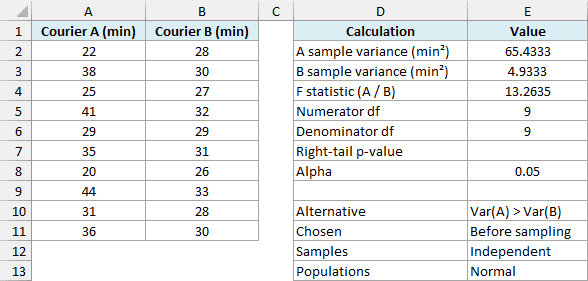
Variance measures spread, so this question is about consistency of delivery times rather than which courier is faster on average. The direction of the test was chosen before examining the sample results.
The Example 3 Delivery Spread sheet already contains these calculations:
- E2 uses
=VAR.S(A2:A11)to calculate Courier A’s sample variance, displayed as 65.4333 square minutes. - E3 uses
=VAR.S(B2:B11)to calculate Courier B’s sample variance, displayed as 4.9333 square minutes. - E4 divides the two variances with
=E2/E3, giving an F statistic of about 13.2635. - E5 uses
=COUNT(A2:A11)-1for 9 numerator degrees of freedom. - E6 uses
=COUNT(B2:B11)-1for 9 denominator degrees of freedom.
Enter this formula in E7:
=F.DIST.RT(E4,E5,E6)
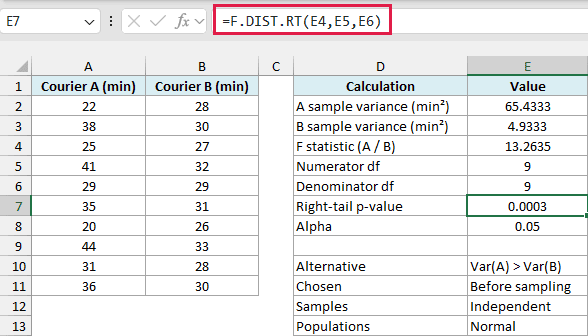
The result is about 0.0003447, displayed as 0.0003. It is below the 0.05 significance level in E8, so we reject equal population variances in favor of the preselected alternative that A’s variance is greater.
This classical F test assumes independent samples from normally distributed populations. The small p-value is evidence under those assumptions; the function does not check whether the delivery data satisfy them.
Important: Keep Courier A in the numerator because the question is whether A’s variance is greater. Don’t switch to whichever sample has the larger variance after seeing the data; that changes the test you chose.
There is just one comparison here, so a single-cell formula is the natural fit. The range formulas in the other examples calculate several probabilities at once.
If your question is whether the variances differ in either direction, you need a two-sided test. The F.TEST function calculates that probability directly from two sample ranges; the unaltered right-tail value above does not answer that question.
The sample formulas ignore blank and text cells in their referenced ranges. Keep the variance and count ranges matched, and extend both when adding observations; a zero denominator variance or fewer than two numeric values cannot support this calculation.
Example 4: Get p-Values from ANOVA Results
F.DIST.RT also handles the probability step of an ANOVA.
Below are supplied F statistics from separate workshop studies, and I want the ANOVA p-value for each study in column E.
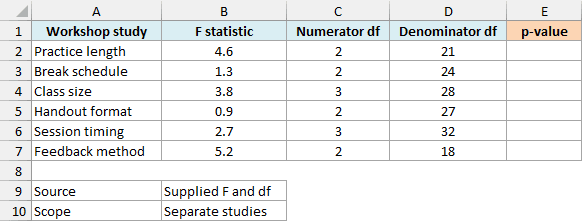
ANOVA compares group means. Its F statistic compares variation between the groups with variation within them, so the right-tail probability answers a different question from the two-variance test above.
On the Example 4 Workshop ANOVA sheet, enter this formula in E2:
=F.DIST.RT(B2:B7,C2:C7,D2:D7)
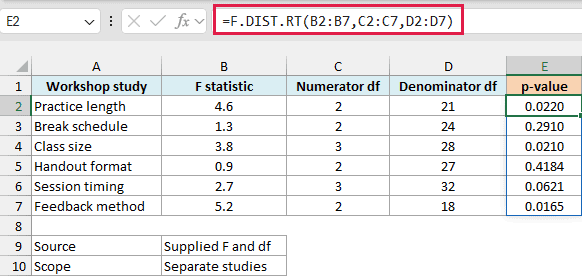
The six results spill into E2:E7. For the Practice length study, an F statistic of 4.6 with 2 and 21 degrees of freedom gives a p-value of about 0.0220.
For a one-way ANOVA, the numerator degrees of freedom are the number of groups minus 1. The denominator degrees of freedom are the total number of observations minus the number of groups.
So 2 and 21 degrees of freedom correspond to 3 groups and 24 observations in total. These inputs come from the completed ANOVA, not from counting the six summary rows in this worksheet.
At a 0.05 significance level, the Practice length result gives evidence that at least one population mean differs. It does not identify which groups differ or show that every pair differs.
This interpretation assumes the usual one-way ANOVA conditions: independent observations, approximately normal errors within groups, and equal population variances. F.DIST.RT calculates the probability from the supplied F and degrees of freedom; it does not run or validate the ANOVA.
Each row is a separate study, but you might use several tests together to answer one overall question. Doing that creates more chances to find a difference that isn’t really there, called a false positive.
A multiple-testing adjustment accounts for that combined false-positive risk. The p-values above have no such adjustment, so don’t treat the separate 5% cutoffs as a 5% error rate for the whole set.
For Excel 2019 or earlier, enter the below formula in E2 and copy it down to E7:
=F.DIST.RT(B2,C2,D2)
In this article, I showed you how to calculate right-tail probabilities, see the effect of sample size, and use F.DIST.RT with variance tests and ANOVA summaries.
I hope you found this article helpful.
Other Excel Articles You May Also Like:
