

The ASC function in Excel converts supported full-width characters to their half-width forms. For example, full-width letters such as A have a wider appearance than the ordinary A you type on an English keyboard.
This is useful when imported text mixes character widths, especially in Japanese data. Two codes can look almost the same while containing different characters, which can prevent a match.
Conversion depends on language support. The Excel installation used for this tutorial returned the full-width text unchanged, so the examples show those actual results beside clearly labeled reference targets.
You can use the workbook to check how ASC behaves in your own Excel before relying on it to clean a list.
Follow along with the example file
ASC Function Examples.xlsx
ASC Function Syntax
Here is the syntax of the ASC function:
=ASC(text)
- text is required. Supply the text you want to convert, or a reference to the cell containing it.
You can put text directly in double quotes or refer to a cell. Characters that do not need conversion are left unchanged.
Microsoft lists ASC for Excel 365, 2024, 2021, 2019, and 2016, including Mac editions. The range formulas below use dynamic arrays in Excel 365, 2024, or 2021.
When to Use the ASC Function
Use the ASC function when you need to:
- Standardize supported full-width letters and digits in imported codes.
- Convert full-width katakana to its half-width form when your Excel language configuration supports it.
- Check whether character-width conversion works on your installation before using the cleaned text elsewhere.
Let’s look at two examples, starting with letters and digits.
Example 1: Check Imported Labels and Codes
Let’s start with text that’s easy to compare.
Below is a list of stationery labels and identifiers, and we want to check their half-width conversion in column C.
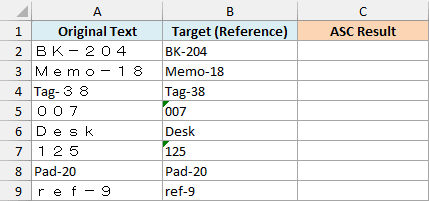
The Target (Reference) column contains comparison text entered separately. It shows the half-width forms we want, rather than results calculated by ASC.
Enter the below formula in cell C2:
=ASC(A2:A9)
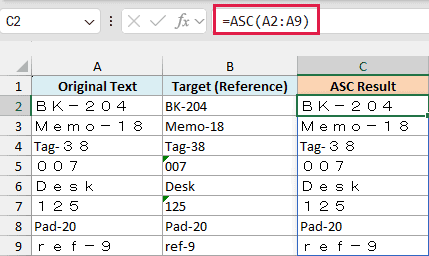
The formula passes all eight strings to ASC and spills one result per row into C2:C9. You only enter it once in C2.
On the installation shown, BK-204 stays BK-204, rather than becoming the reference target BK-204. This is an observed conversion limitation here, not a successful cleanup.
Microsoft describes ASC as a conversion function for double-byte character set (DBCS) languages. The function is intended for those language settings, and the unchanged results here show why you need to test it before relying on a conversion.
Important: If full-width text comes back unchanged, do not treat it as normalized data. Check your Excel language setup and test a known width pair before using the results for matching or exporting.
The ordinary label Pad-20 also stays unchanged, which is expected because it already uses half-width characters. The mixed label Tag-38 is useful for checking whether the full-width digits convert while the ordinary letters stay as they are.
The reference target for 007 is the text 007. An identifier can need those leading zeros, so converting it into a number would change the identifier to 7.
ASC returns text. A successful width conversion of numeric-looking text is separate from converting that text into an arithmetic number.
If Excel shows a #SPILL! error, clear any content blocking C2:C9 so the results have room to appear. Keep the formula in C2; the other result cells belong to its spill.
If you are using Excel 2019 or 2016, enter the below formula in cell C2 and then copy it down through C9:
=ASC(A2)
The one-cell formula uses the same conversion behavior, so copying it down does not fix a language-dependent conversion problem.
Example 2: Compare Japanese Character Widths
Now let’s look at the Japanese text ASC was designed to handle.
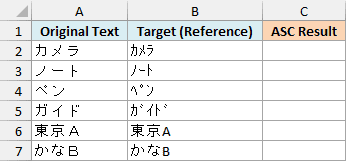
Below is a list of Japanese item text, and we want to check the ASC output in column C against half-width reference text.
Enter the below formula in cell C2:
=ASC(A2:A7)
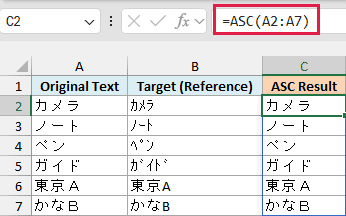
This spills six results into C2:C7. As in the first example, the screenshot preserves the unchanged output returned by this installation.
Compare カメラ with its reference target カメラ. The target uses half-width katakana, while the original uses full-width katakana.
The ペン and ガイド rows show why a width change is not always a one-character-for-one-character replacement. In their half-width reference forms, the small marks attached to some full-width characters become separate characters.
The last two rows mix Japanese text with a full-width Latin letter. The reference targets 東京A and かなB keep the Japanese part and narrow the Latin letter.
ASC changes supported character widths. It does not translate Japanese into English or turn Japanese text into Latin spellings, so a result containing Japanese characters is not automatically a failed conversion.
If you are using Excel 2019 or 2016, enter the below formula in cell C2 and then copy it down through C7:
=ASC(A2)
ASC in a Worksheet Versus VBA
There is also a VBA function named Asc, but it does a different job. It returns the character code for the first character in a string.
The worksheet ASC function returns text with supported character widths converted. It does not return an ASCII code, and the worksheet CODE function is the relevant starting point if you need a character code in a cell.
These examples let you compare ASC’s actual output with reference targets before using it on imported text. Check that conversion works on your installation before relying on the result.
Other Excel Articles You May Also Like:
