

The F.DIST function in Excel tells you how likely an F value is to land at or below a given number. An F value (or F statistic) is the ratio of two variances, the number you get in variance tests and ANOVA.
Set its last argument to TRUE and you get that probability. Set it to FALSE and you get the height of the F distribution curve at that number instead.
In this tutorial, I’ll show you how both settings work and how to calculate left-tailed and two-tailed p-values with F.DIST.
Follow along with the example file
F.DIST Function Examples.xlsx
F.DIST Function Syntax
Here is the syntax of the F.DIST function:
=F.DIST(x,deg_freedom1,deg_freedom2,cumulative)
- x is the value at which you want to evaluate the distribution, usually an F statistic. It must be zero or greater.
- deg_freedom1 is the numerator degrees of freedom, which belong to the sample whose variance is on top of the F ratio. It must be at least 1.
- deg_freedom2 is the denominator degrees of freedom, which belong to the sample whose variance is on the bottom. It must be at least 1.
- cumulative is TRUE or FALSE. TRUE returns the cumulative probability, and FALSE returns the probability density.
For a sample variance, the degrees of freedom are usually the number of values in that sample minus 1. So a ratio built from samples of 6 and 13 values has 5 numerator and 12 denominator degrees of freedom.
All four arguments are required. There is no default for cumulative, so you always have to tell Excel whether you want TRUE or FALSE.
With TRUE, you get the area under the curve to the left of x. That is the probability that an F value is less than or equal to x.
With FALSE, you get the height of the curve at x. That height describes the shape of the distribution, but it isn’t a probability by itself.
Excel truncates fractional degrees of freedom instead of rounding them. For example, 4.9 is treated as 4, so use the whole-number degrees of freedom from your data.
The F.DIST function is available in Excel 2010 and later, including Microsoft 365, Excel for Mac, and Excel for the web. The spilling formulas in the examples below need Microsoft 365 or Excel 2021 and later.
When to Use the F.DIST Function
Use this function when you need to:
- Find the probability that an F value is at or below a given number.
- Get the density of the F distribution, for example to see the shape of its curve.
- Find the probability that an F value falls between two numbers.
- Calculate a left-tailed or two-tailed p-value when comparing two variances.
Let me show you a few practical examples of how to use the F.DIST function.
Example 1: Calculate the Cumulative F Distribution
Let’s start with the job you’ll use F.DIST for most often.
Below is a list of F values with the degrees of freedom in E2 and E3, and I want the cumulative probability for each value in column B.
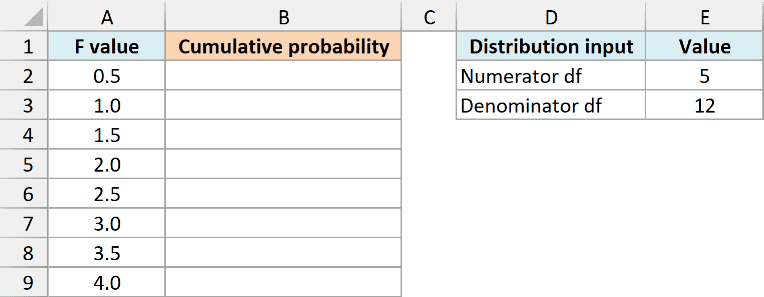
On the Example 1 Cumulative sheet, enter this formula in B2:
=F.DIST(A2:A9,E2,E3,TRUE)
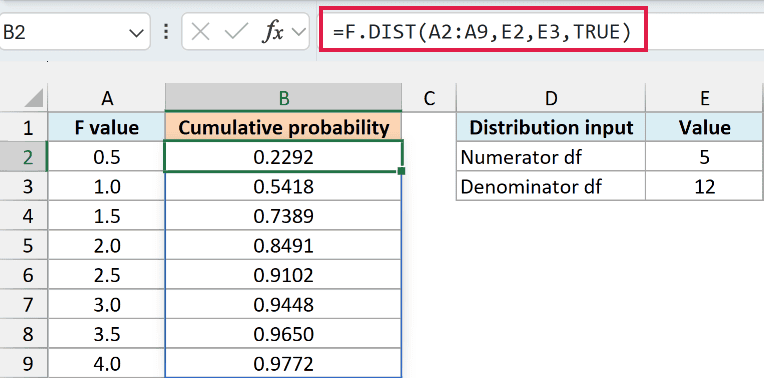
The formula evaluates every F value in A2:A9 using 5 numerator and 12 denominator degrees of freedom. Because A2:A9 is a range, you enter the formula once and the eight results spill into B2:B9.
For an F value of 2, the result is 0.8491. So about 84.91% of this F distribution lies at or below 2.
The results keep going up as the F value increases, because each larger value adds more area from the left. They get closer and closer to 1 but never go past it.
If you need the area to the right instead, the F.DIST.RT function returns 1 minus this result directly. That right-tail probability is the one an ANOVA p-value uses.
Make sure B3:B9 are empty before you enter the formula. If anything is in the way, Excel shows a #SPILL! error instead of the results, and clearing those cells fixes it.
If you are using Excel 2019 or earlier, enter the below formula in B2 and then copy it down to B9:
=F.DIST(A2,$E$2,$E$3,TRUE)
The dollar signs keep the degrees of freedom locked to E2 and E3 while the F value changes on each row.
A negative F value makes F.DIST return the #NUM! error, and so does a degrees of freedom value below 1. Text in any argument gives the #VALUE! error, so check the input cells when you see either one.
Example 2: Get the F Distribution Density with FALSE
Now let’s switch the last argument to FALSE.
Below is a list of F values from 0 to 4 with the same 5 and 12 degrees of freedom in E2 and E3, and I want the probability density for each value in column B.
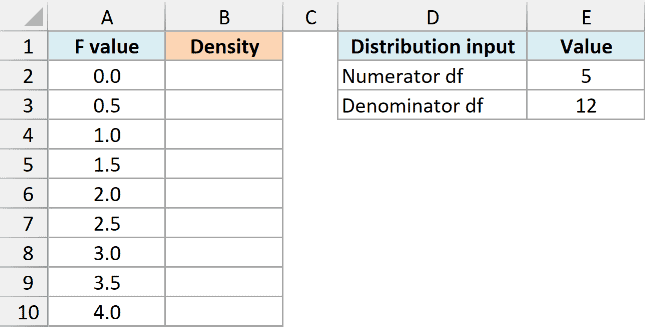
On the Example 2 Density sheet, enter this formula in B2:
=F.DIST(A2:A10,E2,E3,FALSE)
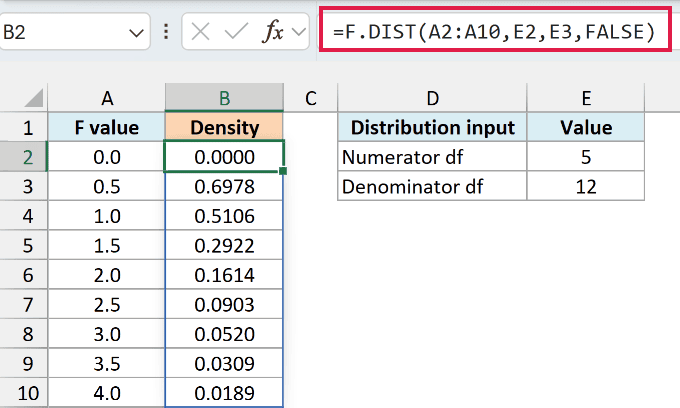
The nine density values spill into B2:B10. Each one is the height of the F distribution curve at that F value.
The density is 0 at an F value of 0, jumps to 0.6978 at 0.5, and then falls steadily to 0.0189 at 4. That quick rise and long tail to the right is the typical shape of an F distribution.
Important: A density value is not a probability, and with some degrees of freedom it can even be greater than 1. Whenever you need an actual probability, set cumulative to TRUE.
Other distribution functions, such as the NORM.DIST function, use the same TRUE/FALSE switch. So once you know what each setting returns here, it means the same thing there.
Density values are mostly useful for drawing the curve. If you select both columns and insert a scatter chart with smooth lines, you can see the shape for any degrees of freedom you put in E2 and E3.
If you are using Excel 2019 or earlier, enter the below formula in B2 and then copy it down to B10:
=F.DIST(A2,$E$2,$E$3,FALSE)
Example 3: Find the Probability Between Two F Values
Here’s another useful thing you can do with the cumulative version.
Below are pairs of F values with the degrees of freedom in F2 and F3, and I want the probability that an F value falls between each pair in column C.
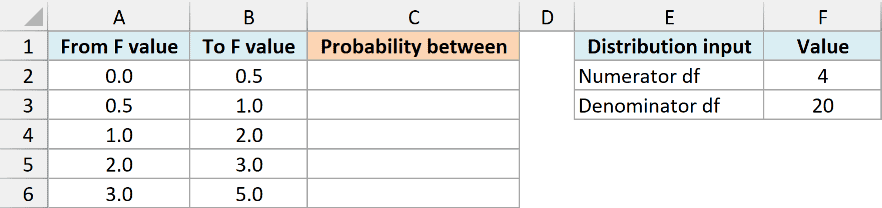
On the Example 3 Between sheet, enter this formula in C2:
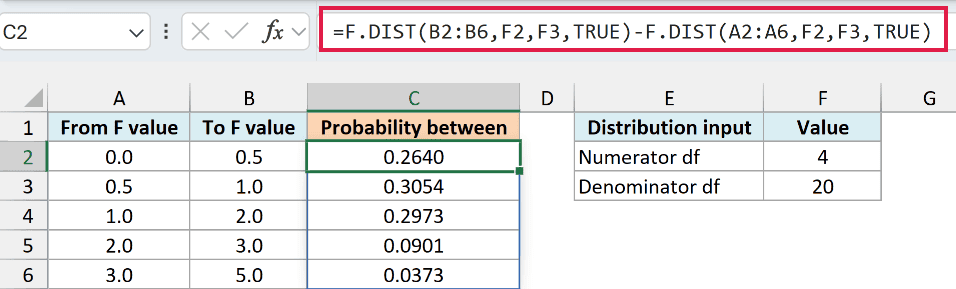
=F.DIST(B2:B6,F2,F3,TRUE)-F.DIST(A2:A6,F2,F3,TRUE)
How this formula works:
F.DIST(B2:B6,F2,F3,TRUE)returns the area up to each To value.F.DIST(A2:A6,F2,F3,TRUE)returns the area up to each From value.- Subtracting the second from the first leaves only the area between the two values, and the five results spill into C2:C6.
For example, with 4 and 20 degrees of freedom, the probability that an F value falls between 1 and 2 is 0.2973.
I made the later pairs wider because the curve gets low on the right, and a narrow band there would hold very little.
You can see the effect in the results. The 1 to 2 band is twice as wide as the 0.5 to 1 band, but it holds slightly less (0.2973 against 0.3054) because the curve is lower there.
The five pairs cover everything from 0 to 5, so their results add up to about 0.9941. The small remainder is the chance of getting an F value above 5.
Since the F distribution is continuous, the chance of hitting one exact value is zero. So it doesn’t matter whether you think of “between” as including the end values or not.
If you are using Excel 2019 or earlier, enter the below formula in C2 and then copy it down to C6:
=F.DIST(B2,$F$2,$F$3,TRUE)-F.DIST(A2,$F$2,$F$3,TRUE)
Example 4: Left-Tailed F Test to Compare Two Variances
Now let’s use F.DIST for an actual test.
Below are the weights of 10 chip bags from an old filling machine and 10 from a new one, and I want a left-tailed p-value in E7 to test whether the new machine’s fill weights vary less.
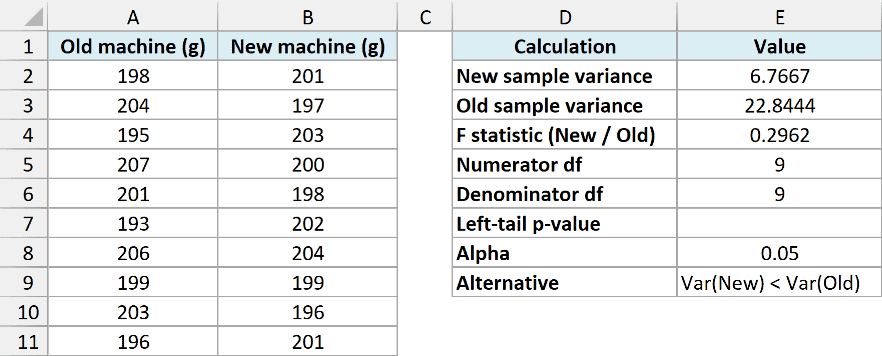
Both machines fill close to 200 grams on average, so this test is about consistency. Variance measures how spread out the weights are, and a smaller variance means a more consistent machine.
Before looking at the data, the question was whether the new machine’s variance is smaller than the old one’s. We only weighed 10 bags from each, so the test uses these samples to judge the population variance, the spread of every bag each machine fills.
The Example 4 Left Tail sheet already contains these calculations:
- E2 uses
=VAR.S(B2:B11)for the new machine’s sample variance, displayed as 6.7667. - E3 uses
=VAR.S(A2:A11)for the old machine’s sample variance, displayed as 22.8444. - E4 divides them with
=E2/E3, giving an F statistic of 0.2962. - E5 uses
=COUNT(B2:B11)-1for 9 numerator degrees of freedom. - E6 uses
=COUNT(A2:A11)-1for 9 denominator degrees of freedom.
The VAR.S function is the right choice here because these 10 bags are samples from each machine, not every bag it has filled.
The new machine’s variance sits on top of the ratio, so if it really is smaller, the F statistic comes out small and lands far into the left tail. That’s why the p-value for this test is the left-tail area, which F.DIST returns with TRUE.
Enter this formula in E7:
=F.DIST(E4,E5,E6,TRUE)
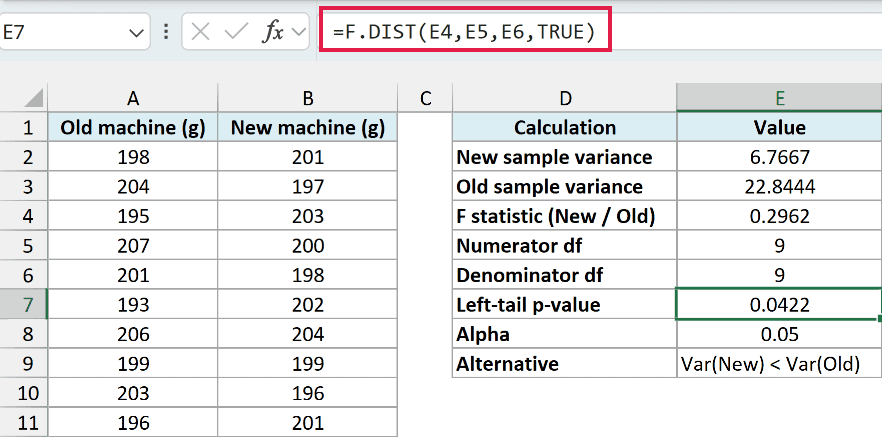
The result is 0.0422. So if the two machines really had the same variance, an F statistic this small or smaller would turn up only about 4.22% of the time.
Alpha, in E8, is the cutoff you pick before running the test, here 0.05. Since 0.0422 is below it, the data support the idea that the new machine’s population variance is smaller than the old machine’s.
The F.DIST.RT function would give the right tail instead, which is the wrong side for this question.
Important: Decide which variance goes on top, and which tail you will test, before you look at the data. Picking the tail after seeing which variance came out smaller makes the p-value overstate the evidence.
This F test assumes the two samples are independent and come from normally distributed populations. F.DIST only calculates the probability, so it can’t tell you whether your data meet those assumptions.
Example 5: Two-Tailed F Test from Summary Statistics
Let’s finish with a two-tailed test when all you have are summary numbers.
Below are the standard deviation of travel times and the number of trips timed for two train lines, and I want a two-tailed p-value in F7 to test whether their travel-time variances differ.
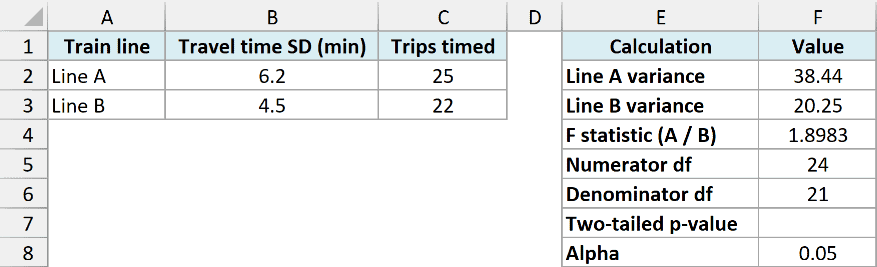
The Example 5 Two Tailed sheet already turns those numbers into the test inputs:
- F2 and F3 square each standard deviation (
=B2^2and=B3^2) to get the variances, 38.44 and 20.25. - F4 divides them with
=F2/F3, giving an F statistic of 1.8983. - F5 and F6 subtract 1 from each trip count (
=C2-1and=C3-1), giving 24 and 21 degrees of freedom.
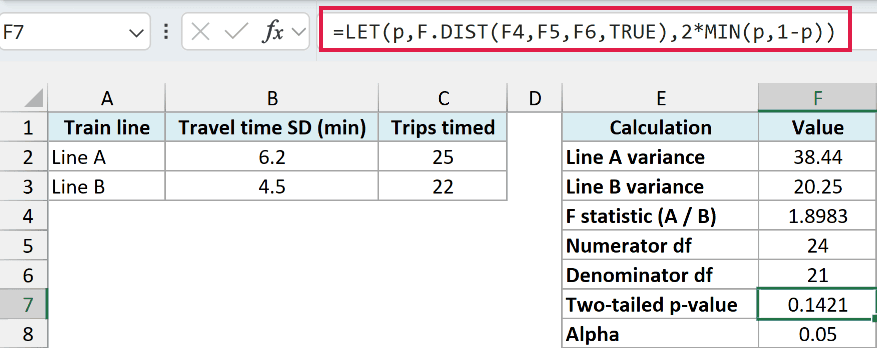
Enter this formula in F7:
=LET(p,F.DIST(F4,F5,F6,TRUE),2*MIN(p,1-p))
How this formula works:
F.DIST(F4,F5,F6,TRUE)returns the left-tail probability of the F statistic, about 0.9289.- The LET function stores that value as
p, so Excel calculates F.DIST only once. MIN(p,1-p)picks the smaller of the two tails, here the right tail of about 0.0711.- Multiplying by 2 counts both tails, because a two-tailed test looks for a difference in either direction.
The result is 0.1421, which is above the 0.05 alpha in F8. So these numbers don’t give enough evidence that the two lines differ in how much their travel times vary.
Because the formula checks both tails, it doesn’t matter which line goes on top. If you swap the two lines (and their degrees of freedom), the p-value is still 0.1421.
If you have the raw travel times, the F.TEST function returns this same two-tailed p-value straight from the two ranges. With only standard deviations and counts, F.DIST is the way to get it.
The LET function needs Microsoft 365 or Excel 2021 and later. If you are using Excel 2019 or earlier, enter the below formula in F7 instead:
=2*MIN(F.DIST(F4,F5,F6,TRUE),F.DIST.RT(F4,F5,F6))
Here the F.DIST.RT function supplies the right tail, so you don’t need LET to reuse the F.DIST result.
In this article, I showed you how to use the F.DIST function to get cumulative probabilities and density values, find the probability between two F values, and calculate left-tailed and two-tailed p-values for comparing variances.
I hope you found this article helpful.
Other Excel Articles You May Also Like:
