

The BESSELJ function returns the Bessel function of the first kind, written as Jn(x). Bessel functions show up in physics and engineering whenever something round or wavy is involved, like a vibrating drum or a circular pipe.
Excel gives you this one as a ready-made function, so you hand it a number and an order and it hands back the value.
One catch is that BESSELJ won’t take a range of cells directly, so I’ll show you the small fix for that in Example 1.
Follow along with the example file
BESSELJ Function Examples.xlsx
BESSELJ Function Syntax
Here is the syntax of the BESSELJ function:
=BESSELJ(x, n)
- x is the number at which you want to evaluate the function. It can be positive, negative, or zero.
- n is the order of the Bessel function, which tells BESSELJ whether you want J0, J1, J2, and so on.
The order has to be zero or higher. If you give it a decimal, Excel drops the decimal part, so an order of 2.7 is treated as 2.
A negative order returns the #NUM! error, and so does an x of 2^27 (about 134 million) or more.
Text in either argument that can’t be read as a number returns #VALUE!.
The BESSELJ function works in Excel 2016 and later, including Excel 365, 2024, 2021, 2019, and Mac.
When to Use the BESSELJ Function
Use the BESSELJ function when you need to:
- Work out the shape of a vibrating drumhead or other circular membrane.
- Solve physics or engineering problems with circular symmetry, such as waves in a round pipe or heat flow in a round rod.
- Check a textbook value of J0, J1, or J2 without looking it up in a table.
- Build a table of Bessel values for a report or a chart.
Let me show you a few practical examples of how to use this function.
Example 1: Use BESSELJ on a List of Numbers
Let’s start with the simplest use.
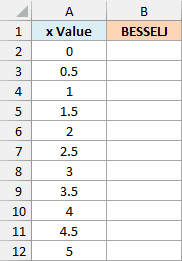
Below is a list of x values, and I want to get the order 0 Bessel function (J0) of each one in column B.
Here is the formula:
=BESSELJ(+A2:A12,0)
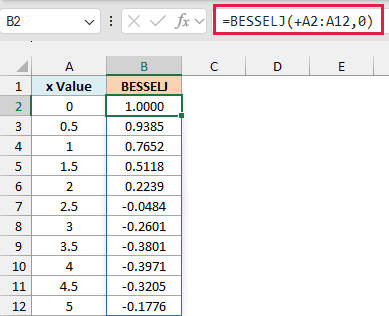
Important: BESSELJ does not accept a range of cells directly, so =BESSELJ(A2:A12,0) returns #VALUE!. The + sign in front of the range turns it into a list of values that BESSELJ accepts, which is why it spills normally.
The order is 0, so BESSELJ returns J0 for every x in column A.
The results start at 1 for an x of 0, fall to about 0 near x = 2.4, and then go negative, which is how this function wobbles up and down as x grows.
Press Enter once and the results spill into B2:B12 on their own.
If you are using Excel 2019 or earlier, enter the below formula in cell B2 and then copy it down the range:
=BESSELJ(A2,0)
Example 2: Change the Order and Try Negative Numbers
Now let’s see what the second argument does.
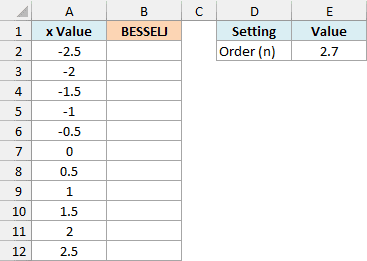
Below is a list of x values from -2.5 to 2.5, and I want to get the Bessel function of each one in column B, using the order stored in cell E2.
Here is the formula:
=BESSELJ(+A2:A12,$E$2)
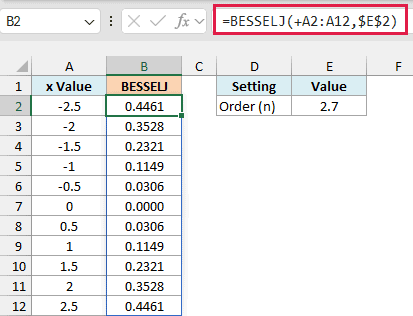
I typed 2.7 in E2 on purpose. Excel drops the decimal part and uses an order of 2, so you get the same results as with a 2 in that cell.
Look at the results for -2.5 and 2.5, and you’ll see they match. That’s because for an even order like 2, a negative x gives the same value as the positive one.
For an odd order like 1 or 3, the sign flips instead, so BESSELJ(-2.5,1) is -0.4971 while BESSELJ(2.5,1) is 0.4971. Change E2 to 1 and watch the negative rows turn upside down.
Example 3: Drumhead Movement from Center to Edge
Here is something closer to where Bessel functions come from.
When you hit a round drum, the skin vibrates in patterns, and the height of the skin at each spot follows a Bessel function. The simplest pattern is the one where the whole skin moves up and down together, and that pattern uses order 0.
The rim of the drum is held still, so the pattern has to reach zero at the edge.
The first number that makes J0 equal 0 is about 2.404826, so I use it as the edge number.
I scale the distances from the center (0 to 15 cm) to x values from 0 to 2.404826, so the curve ends at zero right at the rim.
Below is a list of distances from the center of a drum with a 15 cm radius, and I want to find how much the skin moves at each distance in column B.
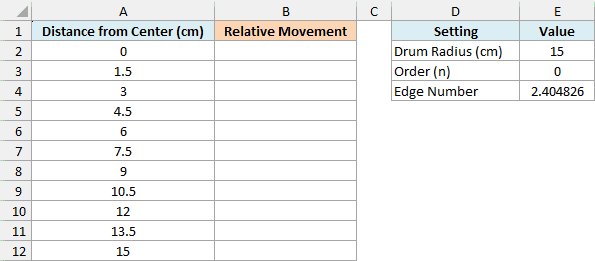
Here is the formula:
=BESSELJ($E$4*A2:A12/$E$2,$E$3)
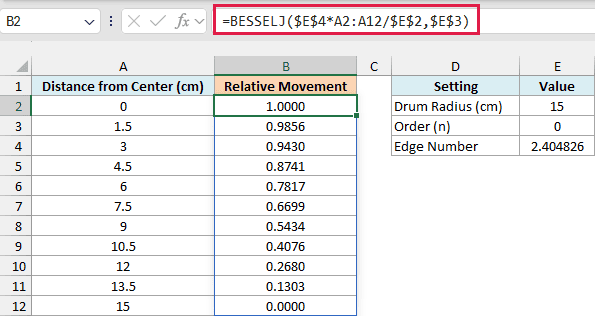
Dividing each distance by the radius (E2) tells us how far we are from the center to the rim, with 0 at the center and 1 at the rim.
Multiplying that by the edge number in E4 scales the drum onto the first part of the Bessel curve, from 0 to 2.404826.
The order in E3 is 0, which is the pattern where the whole skin moves up and down together.
The result is 1 at the center, which is where the skin moves the most, and it falls to 0 at the rim. The numbers are relative movement, not centimeters, so 1 simply means the biggest movement of this pattern.
The rim shows 0.0000, but the actual value is a tiny -0.0000002. That’s because the edge number is rounded to six decimals, so it isn’t exactly the zero of J0.
Here the formula multiplies and divides A2:A12 before BESSELJ sees it, and any math on a range gives BESSELJ a plain list of values, so you don’t need the + sign.
Example 4: Compare Three Drum Modes
A drum can vibrate in more ways than one, and each pattern uses a higher order.
Order 0 is the basic thump from Example 3, order 1 rocks the skin like a seesaw, and order 2 makes a saddle shape.
Each pattern has its own edge number, which is the first zero of its Bessel function.
Below I have these three patterns with their order and edge number, and I want to find how much the skin moves halfway out from the center in column D.

Here is the formula:
=BESSELJ(C2:C4*$G$2,+B2:B4)

Cell G2 holds 0.5, the halfway point. Multiplying the edge numbers in C2:C4 by it gives the x value for each pattern, and the orders in B2:B4 go in as the second argument.
The order needs the + sign here because BESSELJ rejects a plain range for n as well, not just for x.
The results are 0.6699 for the basic thump, 0.5807 for the rocking pattern, and 0.4551 for the saddle. Each order has its own scale, so these numbers describe the shape within one pattern, not which pattern moves more.
The formula gives only the radial part of each pattern, which is how strong it is at a given distance from the center, without the part that depends on the direction around the drum.
Example 5: Check Excel’s Result with the Series
Let’s step it up and check how accurate BESSELJ really is.
Behind the scenes, a Bessel function is a sum of terms that goes on forever. If you add up enough of them yourself, you get a value you can compare against Excel’s.
Below is a list of x values, and I want to get BESSELJ in column B, my own series sum in column C, and the difference between them in column D, using the order in G2 and the number of terms in G3.
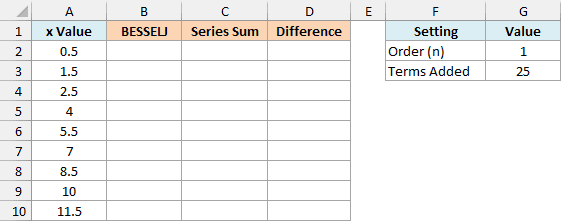
First, here is the BESSELJ formula:
=BESSELJ(+A2:A10,$G$2)
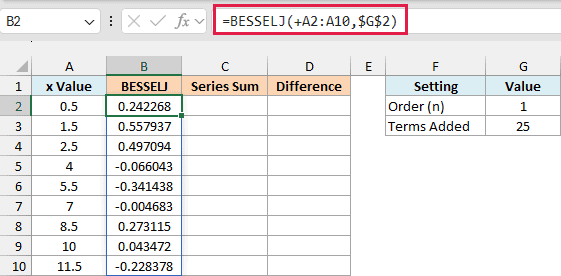
Now here is the series sum, which uses the MAP function to run the calculation for each x. MAP works in Excel 365 and Excel 2024, so earlier versions can skip this check:
=MAP(A2:A10,LAMBDA(x,LET(k,SEQUENCE($G$3,,0),SERIESSUM(x/2,$G$2,2,(-1)^k/(FACT(k)*FACT(k+$G$2))))))
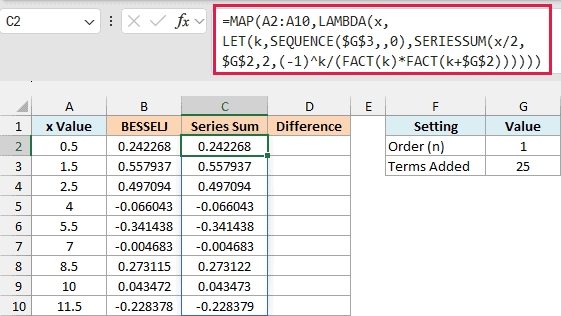
How this formula works:
- The LET function gives the name k to the term numbers, which the SEQUENCE function creates from 0 up to one less than the number of terms in G3.
- The coefficient for each term is (-1)^k divided by two factorials multiplied together: the factorial of k and the factorial of k plus the order. The FACT function calculates a factorial, so FACT(4) is 4 × 3 × 2 × 1, which is 24.
- SERIESSUM multiplies each coefficient by (x/2) raised to the power of the order plus 2k, and adds the results.
- The LAMBDA function holds the recipe for one value (x), and MAP runs it for every x in A2:A10.
Finally, here is the difference between the two columns:
=B2:B10-C2:C10
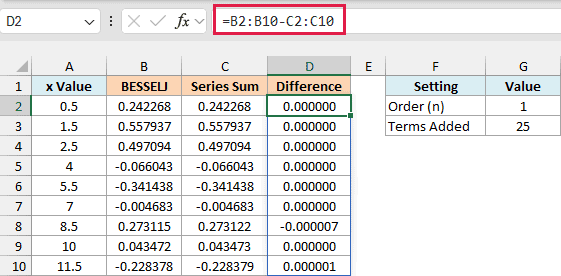
For most of these x values the difference is 0.000000. At x = 8.5 it is about -0.000007, which means BESSELJ is slightly off while the series is right.
So Excel’s Bessel values are approximations. In a wider check of orders 0, 1, 2, 3, 5, and 10 with x values up to 5,000, the largest absolute difference was about 0.000007, at x = 8.5.
Important: Use the series only as a check. With 25 terms it stays accurate up to about x = 12, but at x = 20 it is badly wrong, so you’d need more terms for larger x values.
So these are a few examples of how to use the BESSELJ function in Excel. I hope you found this tutorial useful.
Other Excel Articles You May Also Like:
