

The FACTDOUBLE function in Excel returns the double factorial of a number. That’s what you get when you multiply a number by every second whole number below it.
A double factorial is written with two exclamation marks, so 8!! is 8 × 6 × 4 × 2 = 384, and 7!! is 7 × 5 × 3 × 1 = 105.
It’s a niche function, but it comes in handy for math work and for counting the number of ways to split a group of people into pairs.
One thing to know upfront: if you point FACTDOUBLE at a whole range of cells, you get a single #VALUE! error instead of one result per number. I’ll show you the small fix for that in Example 2.
Follow along with the example file
FACTDOUBLE Function Examples.xlsx
FACTDOUBLE Function Syntax
Here is the syntax of the FACTDOUBLE function:
=FACTDOUBLE(number)
- number is the number you want the double factorial of. This argument is required.
When the number is even, FACTDOUBLE multiplies all the even numbers from it down to 2. When it’s odd, it multiplies all the odd numbers from it down to 1.
If the number has a decimal part, FACTDOUBLE drops it before calculating. So 7.9 is treated as 7, not rounded up to 8.
The FACTDOUBLE function works in Microsoft 365, Excel 2024, Excel 2021, Excel 2019, and Excel 2016. The formulas in this tutorial that fill several cells at once need Microsoft 365, Excel 2024, or Excel 2021.
When to Use the FACTDOUBLE Function
Use this function when you need to:
- Multiply every second number below a value, like 9 × 7 × 5 × 3 × 1.
- Count how many different ways a group of people can be split into pairs.
- Check math work that uses the double factorial (!!) notation.
Let me show you a few practical examples of how to use FACTDOUBLE.
Example 1: Calculate the Double Factorial of a Number
Let’s start with a simple example.
Below is a list of numbers from 1 to 10, and I want the double factorial of each one in column B.
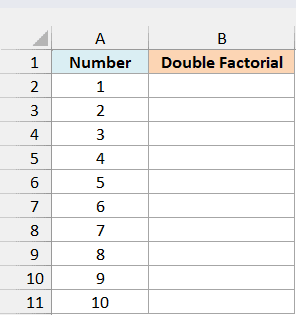
Here is the formula, entered in cell B2 and copied down to B11:
=FACTDOUBLE(A2)
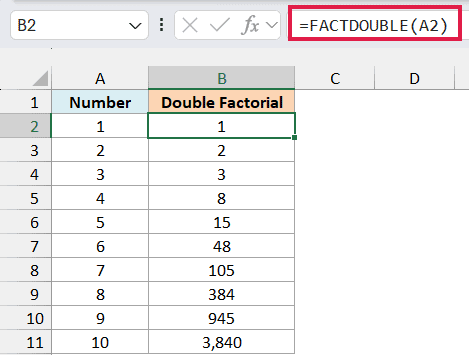
For 8, which is even, FACTDOUBLE multiplies 8 × 6 × 4 × 2 and returns 384. For 7, which is odd, it multiplies 7 × 5 × 3 × 1 and returns 105.
Double factorials are closely tied to regular factorials. If you multiply the double factorials of two numbers next to each other, you get the regular factorial of the larger one.
For example, =FACTDOUBLE(10)*FACTDOUBLE(9) returns 3,628,800, which is the same result the FACT function gives with =FACT(10). You can use this to check a result.
I’ve started with one formula per row because it’s the simplest form, and it works in every Excel version. In the next example, I’ll show you how to get the whole list with one formula.
Example 2: Get Double Factorials for a Whole List With One Formula
Now let’s do the same thing with a single formula.
Below is another list of numbers, and I want the double factorial of each one in column B using just one formula.
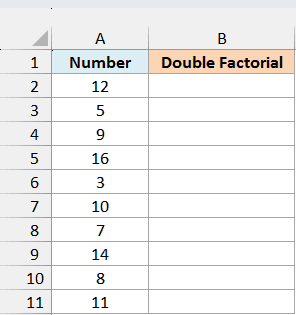
Here is the formula:
=FACTDOUBLE(+A2:A11)
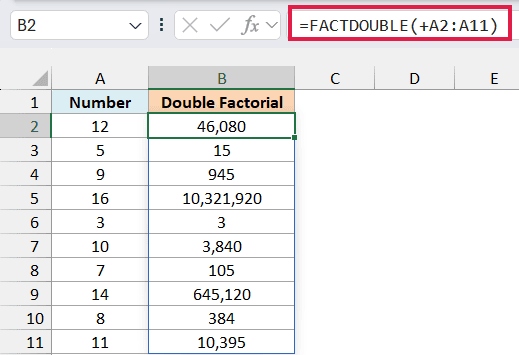
This gives the double factorial for all ten numbers, and the results spill down from B2 (Excel fills the cells below automatically). For 16, you get 10,321,920, which is 16 × 14 × 12 × 10 × 8 × 6 × 4 × 2.
The plus sign in front of A2:A11 is the important part. To show you why, I’ve entered the same formula without the plus sign in cell D2:
=FACTDOUBLE(A2:A11)
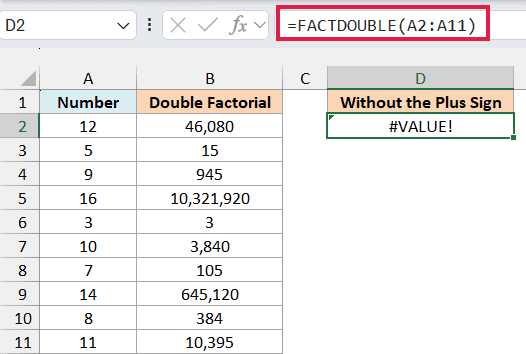
Instead of ten results, you get a single #VALUE! error. Like the EOMONTH function and a few other older functions, FACTDOUBLE doesn’t accept a range of cells as its input, even in Microsoft 365.
The plus sign is a calculation, even though it doesn’t change any number. Any calculation on a range makes Excel read the values in those cells first.
So FACTDOUBLE gets a list of numbers instead of a cell range, and it returns one result for each row.
You can read more about this trick in my article on Excel functions that won’t spill.
A double minus (--A2:A11) or multiplying by 1 (A2:A11*1) would also work. The plus sign is just the shortest way to do it.
If you are using Excel 2019 or earlier, enter the below formula in cell B2 and then copy it down to B11:
=FACTDOUBLE(A2)
Example 3: How FACTDOUBLE Handles Decimals, Negatives, Text, and Big Numbers
Before we get to the practical uses, let’s see how FACTDOUBLE handles some unusual inputs.
Below is a list with a decimal, zero, two negative numbers, a word, and two very large numbers, and I want to see what FACTDOUBLE returns for each one in column B.
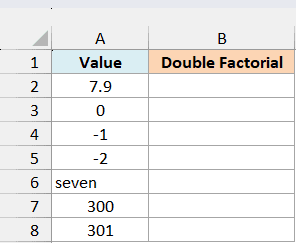
Here is the formula:
=FACTDOUBLE(+A2:A8)
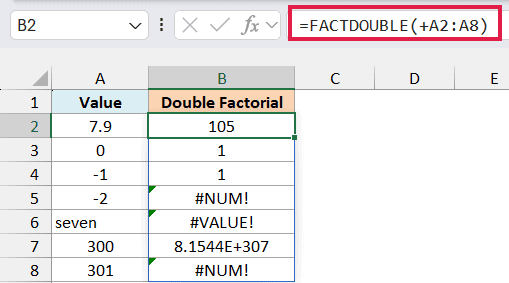
Here is what comes back:
- 7.9 returns 105. FACTDOUBLE drops the decimal part, so this is the same as 7!!.
- 0 and -1 both return 1. That’s how the double factorial of these two numbers is defined in math.
- -2 returns the
#NUM!error, and so does any number below -1. Microsoft’s documentation says negative numbers return#NUM!, but -1 is the exception. - The word “seven” returns the
#VALUE!error because it’s text. A number stored as text, like “7”, still works and returns 105. - 300 returns 8.1544E+307, which is Excel’s short way of writing 8.1544 × 10 to the power of 307 (a number with 308 digits). This is the largest double factorial Excel can handle.
- 301 returns the
#NUM!error, because its double factorial is bigger than the largest number Excel can store.
Also note that Excel keeps only 15 significant digits, so a longer double factorial can show rounded digits at the end. For example, 29!! is 6,190,283,353,629,375, but Excel shows 6,190,283,353,629,370.
If you are using Excel 2019 or earlier, enter the below formula in cell B2 and then copy it down to B8:
=FACTDOUBLE(A2)
Example 4: Count the Ways to Split a Group Into Pairs
Now let’s look at where double factorials show up in real life.
Below is a list of school clubs with the number of members in each, and I want to know how many different ways each club can split its members into pairs, in column C.
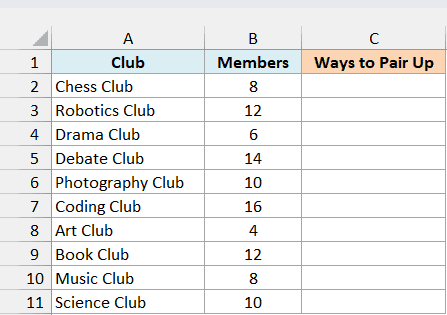
Here is the formula:
=FACTDOUBLE(B2:B11-1)
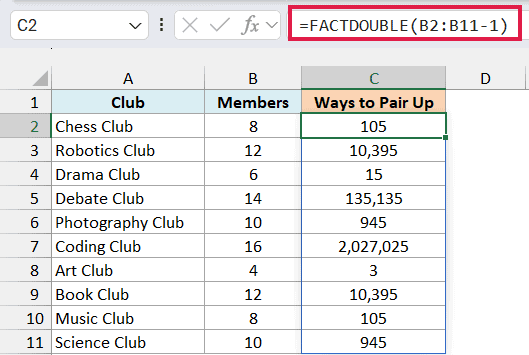
Take the Chess Club with 8 members. The first member can be paired with any of the other 7.
Of the 6 people left, the next one has 5 choices, then 3, and then the last two get paired with each other.
That’s 7 × 5 × 3 × 1 = 105, which is 7!!. So the number of ways to pair up a group is the double factorial of one less than the group size, which is why the formula subtracts 1.
The numbers get big fast. The Coding Club, with 16 members, can be split into pairs in 2,027,025 different ways.
Subtracting 1 from B2:B11 is already a calculation, so Excel hands FACTDOUBLE the values, and this formula doesn’t need the plus sign from Example 2.
If you are using Excel 2019 or earlier, enter the below formula in cell C2 and then copy it down to C11:
=FACTDOUBLE(B2-1)
Example 5: Count Pairings When the Group Size Is Odd
The formula in Example 4 only works when everyone can be paired, which needs an even number of people.
Below is the turnout for a weekly badminton practice, where some weeks have an odd number of players, and I want the number of ways to pair them up for singles matches in column C (when the count is odd, one player sits out).
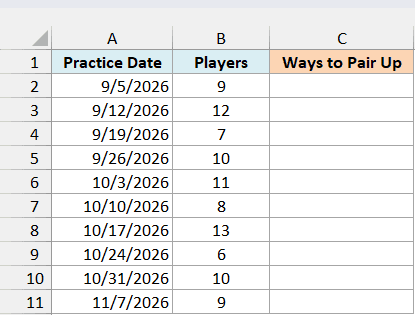
If you used the formula from Example 4 here, 9 players would give you 8!!, which is 384. That’s wrong, because with 9 players someone has to sit out, and the choice of who sits out adds more possibilities.
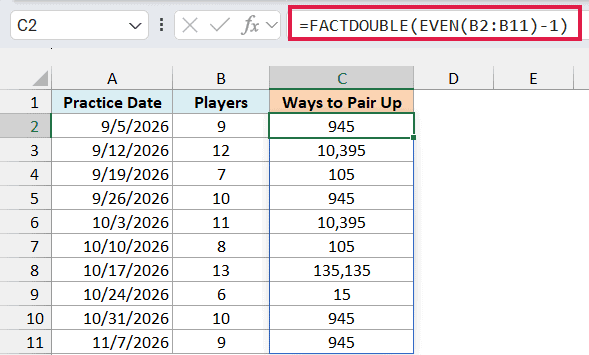
Here is the formula that handles both odd and even counts:
=FACTDOUBLE(EVEN(B2:B11)-1)
How this formula works:
- The EVEN function rounds an odd number up to the next even number, so 9 becomes 10. An even number like 12 stays as it is.
- Subtracting 1 gives 9 for both 9 and 10 players, so FACTDOUBLE returns 9!!, which is 945.
- This works because you can think of the player who sits out as being paired with an empty spot. Nine players plus the empty spot makes 10, and 10 people can be paired in 9!! ways.
That’s why 9 and 10 players both give 945, and 7 and 8 players both give 105. With 9 players, there are 9 choices for who sits out, and 105 ways to pair the other 8, which is also 945.
If you are using Excel 2019 or earlier, enter the below formula in cell C2 and then copy it down to C11:
=FACTDOUBLE(EVEN(B2)-1)
Example 6: Show the Multiplication Behind a Double Factorial
Let’s end with something that’s useful when you’re teaching or checking this math.
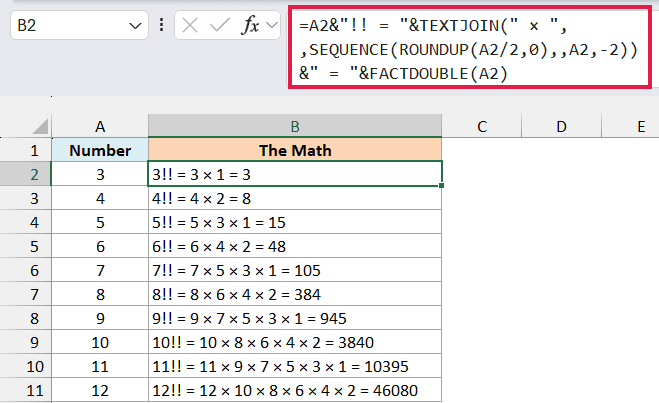
Below is a list of numbers from 3 to 12, and I want to show each double factorial written out in full in column B, like 9!! = 9 × 7 × 5 × 3 × 1 = 945.
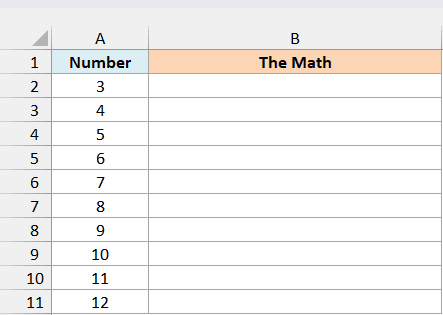
Here is the formula, entered in cell B2 and copied down to B11 (it uses the SEQUENCE function, so it needs Microsoft 365, Excel 2024, or Excel 2021):
=A2&"!! = "&TEXTJOIN(" × ",,SEQUENCE(ROUNDUP(A2/2,0),,A2,-2))&" = "&FACTDOUBLE(A2)
How this formula works:
- The SEQUENCE function builds the list of numbers to multiply. It starts at the number in A2 and steps down by 2, and ROUNDUP(A2/2,0) tells it how many numbers to create. For 9, that’s 5 numbers: 9, 7, 5, 3, 1.
- The TEXTJOIN function joins those numbers with ” × ” between them.
- FACTDOUBLE(A2) adds the final result at the end, and the & operator joins all the pieces into one line of text.
I’ve kept this as one formula per row because SEQUENCE builds a list of a different length for each number. A single formula for the whole column would need the MAP function, which makes it a lot harder to read.
If the × symbol is hard to type, you can use a lowercase x instead.
In this tutorial, I showed you how the FACTDOUBLE function works, how to use it on a whole list with the plus-sign trick, and what it returns for decimals, negatives, text, and very large numbers.
I also showed you how to use it to count the ways to split a group into pairs, even when one person has to sit out. I hope you found this tutorial useful.
Other Excel Articles You May Also Like:
