

The CUBEMEMBER function returns one item from your workbook’s Data Model and shows you whether that item exists, because a missing item returns #N/A. It can also read an OLAP cube on a server, though I only tested the Data Model.
The Data Model is where Excel keeps your tables so PivotTables and cube formulas can query them. An item in the Data Model, such as one flavor or one shop, is called a member.
You will mostly use CUBEMEMBER to hand a member to the CUBEVALUE function, which returns a number from the model. Excel also writes these formulas for you when you use Convert to Formulas on a Data Model PivotTable.
Each CUBEMEMBER formula returns one member, so it doesn’t spill a list the way the FILTER function does.
In this tutorial, I’ll show you how to look up a member, check names that someone typed, use members as report headings, and combine two members into one.
The example file has a working Data Model, so you can follow along without connecting to a server.
Follow along with the example file
CUBEMEMBER Function Examples.xlsx
CUBEMEMBER Function Syntax
Here is the syntax of the CUBEMEMBER function:
=CUBEMEMBER(connection, member_expression, )
- connection is the name of the Data Model or cube connection, entered in double quotes or taken from a cell. In any workbook that has a Data Model, Excel names that connection
ThisWorkbookDataModel. - member_expression is text that identifies one member using the cube’s naming syntax (called MDX), or a tuple, which combines members from different columns, such as a shop and a flavor.
- caption is optional. It is the text the cell shows instead of the member’s own name.
For a column in the Data Model, the member expression looks like [Table].[Column].&[Value], for example [IceCream].[Flavor].&[Mint]. The square brackets and the ampersand belong to the naming syntax, so this isn’t a reference to worksheet cells.
The caption only changes what you see in the cell. Other cube functions that use that cell still work with the member behind it, so changing a caption never changes a result.
The CUBEMEMBER function works in Excel 365, 2024, 2021, 2019, and 2016. I tested the examples with the file’s built-in Data Model in Microsoft 365 for Windows.
When to Use the CUBEMEMBER Function
Use this function when you need to:
- Check that a member exists in the Data Model before you use it
- Pick a member from a typed cell so one report works for any selection
- Use members as the row and column headings of a CUBEVALUE report
- Combine members from different columns into one tuple
If all you need is a total from an ordinary worksheet table, the SUMIFS function is simpler. Cube formulas make sense when the calculations already live in a Data Model or cube.
Let’s work through the examples using the model in the download.
Example 1: Return a Member From the Data Model
Let’s start by asking the model for a single item.
Below is the sales table of an ice cream chain with three shops, and I want to return the Mint flavor and the Total Sales measure as members in column F.
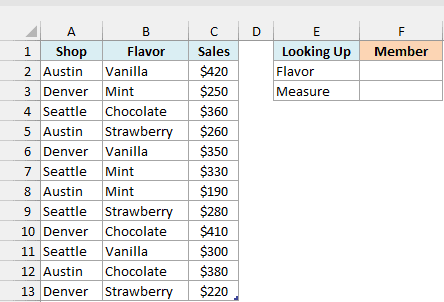
The table is named IceCream, and it’s already in the workbook’s Data Model.
The model also has a measure called Total Sales that adds up the Sales column. If you copy the formulas into another workbook, the connection, table, and measure names need to match.
Enter this formula in F2:
=CUBEMEMBER("ThisWorkbookDataModel","[IceCream].[Flavor].&[Mint]")
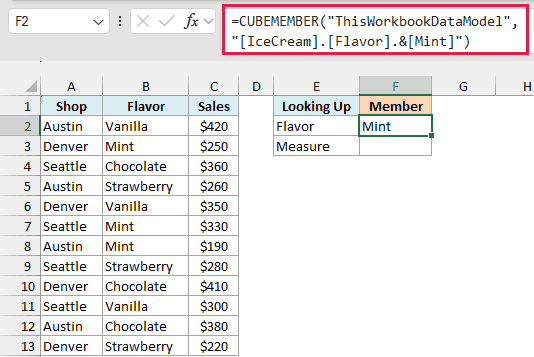
The cell shows Mint. The first argument names the model, and the second picks the Mint item from the Flavor column of the IceCream table.
What comes back is a member, not just the word Mint. That is why other cube functions can use this cell later, as you’ll see in Example 3.
You may see #GETTING_DATA for a moment while Excel retrieves the member. Give it time to finish before treating it as an error.
Now enter this formula in F3 to return the measure:
=CUBEMEMBER("ThisWorkbookDataModel","[Measures].[Total Sales]")
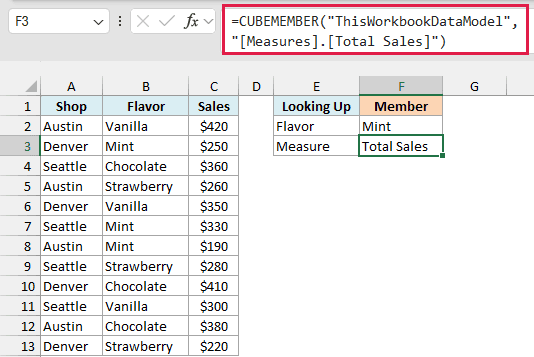
The cell shows Total Sales. Measures are members too, and in the naming syntax they sit under [Measures].
This returns the name of the measure, not its number, but it does confirm that the measure exists. The CUBEVALUE function is the one that returns the actual total.
Example 2: Check That a Member Exists
Now let’s see what happens with names that someone typed.
Below I have a few flavors typed in column A, and I want to return each one as a member in column B and label it in column C.
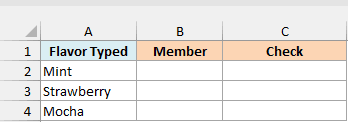
Enter this formula in B2 and copy it down to B4:
=CUBEMEMBER("ThisWorkbookDataModel","[IceCream].[Flavor].&["&A2&"]")
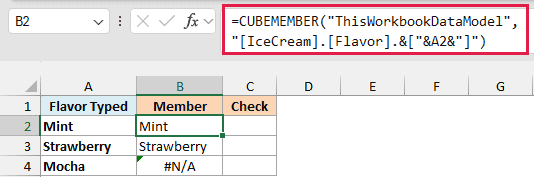
Mint and Strawberry come back as members, but Mocha returns #N/A because there is no Mocha in the model. That error is the reason to use CUBEMEMBER here, because it tells you a member is missing before you build anything on it.
The ampersands outside the quotes join the fixed text to the flavor in column A. With Mint in A2, the finished expression is [IceCream].[Flavor].&[Mint].
Capital letters don’t matter, so mint still finds Mint. A stray space does matter, and a leading space before Mint returns #N/A.
Important: Each CUBEMEMBER formula returns one member. When I passed the range A2:A4 into the member text, Excel returned #N/A instead of spilling three members, so copy the formula down as shown.
Now enter this formula in C2 and copy it down to turn the result into a plain label:
=IF(ISNA(B2),"Not in the model","In the model")
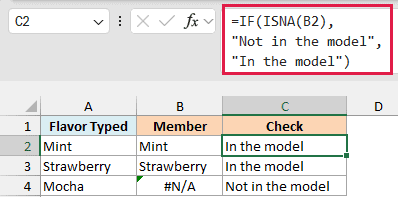
The ISNA function returns TRUE only for #N/A, which is the error a missing member produces, so the IF function can label each row.
Microsoft’s documentation lists #NAME? for a connection name that isn’t in the workbook. In my test, a made-up connection name also returned #N/A, so if every row fails, check the connection name first.
Example 3: Use Members as Report Headings
Now let’s use CUBEMEMBER the way you’ll see it most often, as the headings of a report.
Below I want a small sales report by shop and flavor, with the headings coming from the Data Model just like the sales figures.
Start with the row headings. Enter this formula in A2:
=CUBEMEMBER("ThisWorkbookDataModel","[IceCream].[Shop].&[Austin]","Austin shop")
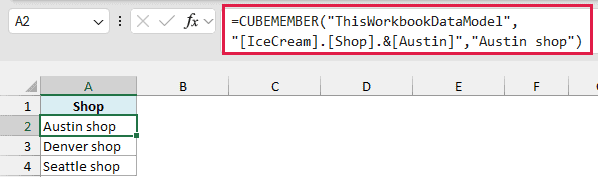
The cell shows Austin shop. That is the caption from the third argument, while the member underneath is still Austin.
Use the same formula in A3 and A4 with Denver and Seattle in place of Austin, and with captions to match. Every heading in this report is a CUBEMEMBER formula, not typed text.
Next come the column headings. Enter this formula in B1:
=CUBEMEMBER("ThisWorkbookDataModel","[IceCream].[Flavor].&[Vanilla]")
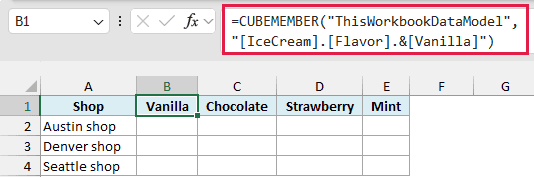
Do the same in C1, D1, and E1 with Chocolate, Strawberry, and Mint. I left out the caption here, so each heading simply shows the flavor name.
Finally, enter this CUBEVALUE formula in B2, and copy it across to E2 and down to row 4:
=CUBEVALUE("ThisWorkbookDataModel","[Measures].[Total Sales]",$A2,B$1)
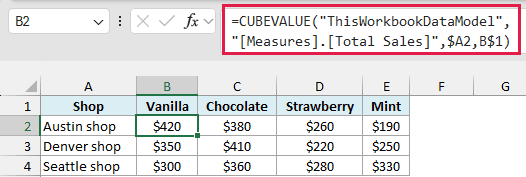
The first argument is the connection and the second is the measure to add up. The last two are members that narrow the total, with $A2 as the shop heading and B$1 as the flavor heading.
B2 returns $420, the sales of Vanilla at the Austin shop. The formula reads the member behind each heading, not the words you see, which is why the caption “Austin shop” doesn’t get in the way.
The dollar signs lock column A and row 1 so the same formula works in every cell of the grid. CUBEVALUE also returns one value per formula, so you copy it across and down instead of letting it spill.
Example 4: Combine Two Members Into a Tuple
Let’s finish with a single member that combines two columns.
Below I have a shop and a flavor typed in column B, and I want one member in B6 that stands for both of them together.
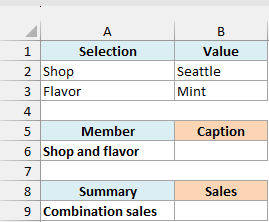
Enter this formula in B6:
=CUBEMEMBER("ThisWorkbookDataModel","([IceCream].[Shop].&["&B2&"],[IceCream].[Flavor].&["&B3&"])",B2&" "&B3)
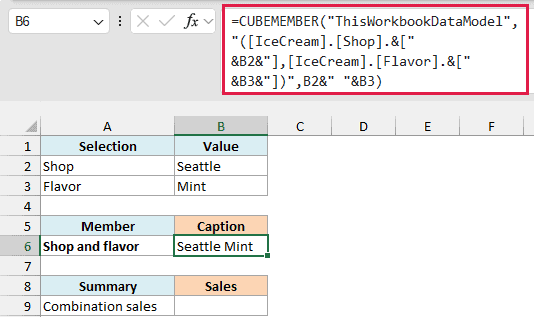
The cell shows Seattle Mint. The parentheses and the comma turn the two members into a tuple, which points at the sales that belong to both Seattle and Mint.
The caption comes from B2 and B3, so it follows whatever you type there. Without the third argument, a tuple shows the caption of its last member, which here would be just Mint.
Important: A tuple can hold only one member from each column. When I put two shops in the same tuple, Excel returned #N/A, because no single row belongs to both.
Now enter this formula in B9 to get the sales for that tuple:
=CUBEVALUE("ThisWorkbookDataModel","[Measures].[Total Sales]",B6)
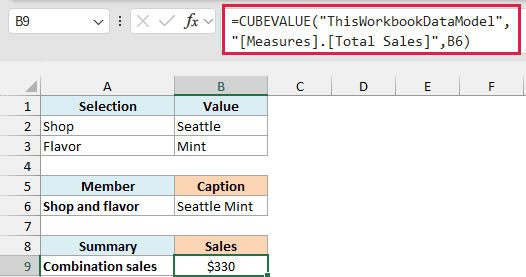
The result is $330, the sales of Mint at the Seattle shop. Change the shop or the flavor in B2 and B3, and both B6 and B9 follow.
That’s how the CUBEMEMBER function checks that a member exists, builds members from typed text, supplies report headings, and combines two members into a tuple.
Pair it with the CUBEVALUE function to pull the numbers, and with the CUBESET function when you need a group of members rather than one.
I hope you found this Excel tutorial useful.
Other Excel Articles You May Also Like:
