

The Table.ToList function in Power Query turns a table into a list, with one item for each row. By default, it joins the values in each row into one text value, separated by commas.
In this article, I’ll show you how to use Table.ToList with practical examples, including using your own separator, handling numbers and blank cells, and running a custom calculation on each row.
Follow along with the example file
Table.ToList Function Examples.xlsx
Table.ToList Function Syntax
= Table.ToList(table as table, optional combiner as nullable function) as list
- table – the table you want to convert. Each row becomes one item in the list.
- combiner (optional) – a function that turns the values of one row into a single value. Power Query passes it each row as a list of values, in column order. If you leave it out, the values are joined with a comma, and any value that contains a comma is wrapped in double quotes.
What it returns – a list with one item for each row of the table.
The Table.ToList function works in Power Query in Excel for Microsoft 365, 2024, 2021, 2019, 2016, and Excel for Mac (Microsoft 365), as well as in Power BI.
When to Use the Table.ToList Function
Use this function when you need to:
- Join the values of each row into one text value, like a full name or an address line
- Build product codes or labels from several columns
- Create comma-separated (CSV) lines from a table
- Run your own calculation across each row, like a row total, and get the results as a list
- Turn a whole table into one summary text value
Example 1: Combine Each Row into a Comma-Separated Text
Let’s start with the basic use, where you don’t give a combiner at all.
Below is a Staff table with each employee’s name, department, and city, and I want a list where each row becomes one text value.
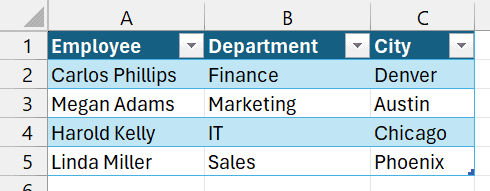
In the example file, each example’s table is on its own sheet, and the finished queries are under Data > Queries & Connections.
To follow along, select any cell in the table and go to Data > From Table/Range to open it in the Power Query Editor. If Power Query adds a Changed Type step, use #"Changed Type" in place of Source in the formulas in this article.
Add a new step (by clicking on the fx icon next to the formula bar) and use this formula:
= Table.ToList(Source)
Result: a list of four text values, starting with Carlos Phillips,Finance,Denver
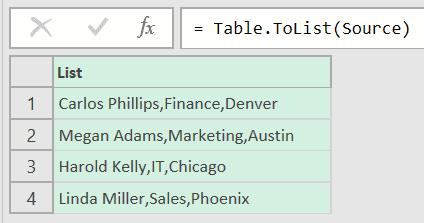
Here, Table.ToList goes through the table one row at a time. Since I didn’t give a combiner, it joins the three values in each row with a comma, with no space after it.
The result is a list, not a table, so the Power Query Editor shows it with a List header and the List Tools tab. If you need it back as a table, the Table.FromList function does the reverse.
If your table has only one text column, Table.ToList simply returns those values as a list. For that case, though, Source[Employee] is the simpler way to get a column as a list.
Example 2: Use Your Own Separator
The comma is only the default. You can join the values with any separator you like.
Below is a ProductCodes table with a short code for the category (like TSH for T-shirt), the size, and the color of each product, and I want to build SKU codes like TSH-M-BLU from them.
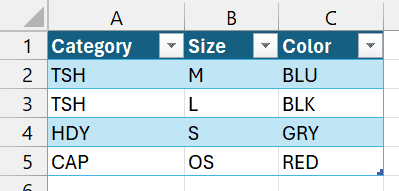
Add a new step and use this formula:
= Table.ToList(Source,Combiner.CombineTextByDelimiter("-"))
Result: a list with TSH-M-BLU, TSH-L-BLK, HDY-S-GRY, and CAP-OS-RED
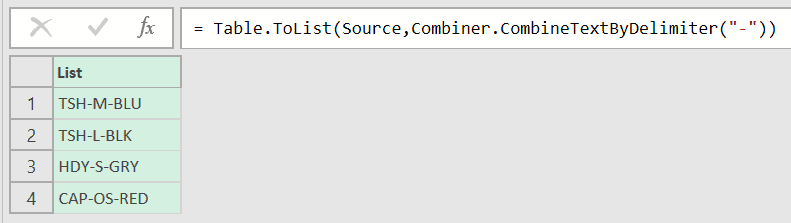
Here, the second argument is Combiner.CombineTextByDelimiter("-"). The Combiner.CombineTextByDelimiter function creates a combiner that joins text values with the separator you give it, which is a hyphen here.
The values are joined in the same order as the columns. So if you want the color first, reorder the columns before this step.
If a code already has a hyphen in it, like T-SH, this combiner wraps that value in double quotes and gives “T-SH”-M-BLU. To join the values without any quotes, use Combiner.CombineTextByDelimiter("-",QuoteStyle.None) as the combiner, which gives T-SH-M-BLU.
Also, this gives you a separate list of SKUs. If you want the SKU as a new column inside the table, use Merge Columns (Add Column > Merge Columns) instead.
Example 3: Combine Rows That Have Numbers
This next one trips up a lot of people.
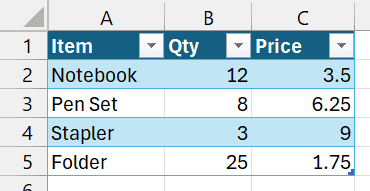
Below is an OrderLines table with the item, quantity, and price for each order line, and I want each row as one text value, like Notebook, 12, 3.5.
If you try the same approach as before, with a comma and a space as the separator:
= Table.ToList(Source,Combiner.CombineTextByDelimiter(", "))
Result: the list shows Error instead of the text values

Here, the Qty and Price columns hold numbers, but Combiner.CombineTextByDelimiter only joins text. Click the Error cell, and you see “We cannot convert the value 12 to type Text.”
The preview shows just one Error row, because Power Query stops at the first item that fails. Every row here has numbers, so all four items fail the same way.
The default combiner works the same way. So Table.ToList(Source) gives the same errors on this table, and so would a column with dates.
To fix it, use a custom combiner that converts every value to text first:
= Table.ToList(Source,each Text.Combine(List.Transform(_,Text.From),", "))
Result: a list with Notebook, 12, 3.5, then Pen Set, 8, 6.25, Stapler, 3, 9, and Folder, 25, 1.75
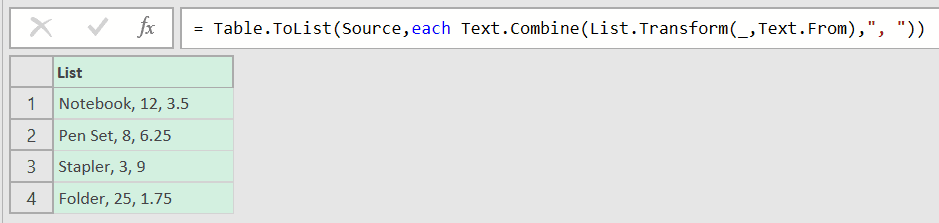
Here, each creates a function, and _ is the current row, as a list of its values. The List.Transform function runs the Text.From function on each value to turn it into text, and the Text.Combine function joins them with a comma and a space.
The Text.From function uses your computer’s regional settings. So on a machine that uses a comma as the decimal separator, 3.5 comes out as 3,5, which is hard to tell apart from the comma separator.
To always get a decimal point, give Text.From a fixed culture. In the formula above, replace List.Transform(_,Text.From) with List.Transform(_,each Text.From(_,"en-US")).
Inside that inner each, the _ stands for one value from the row, not the whole row.
Example 4: Skip Blank Cells When You Combine
Blank cells cause a different problem. They don’t give an error, but they leave gaps in the result.
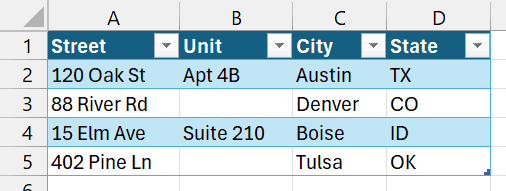
Below is an Addresses table with the street, unit, city, and state for each address, where two addresses have no unit, and I want each one as a single address line.
Add a new step and use this formula:
= Table.ToList(Source,Combiner.CombineTextByDelimiter(", "))
Result: a list of four addresses, where the two without a unit show an extra comma, like 88 River Rd, , Denver, CO
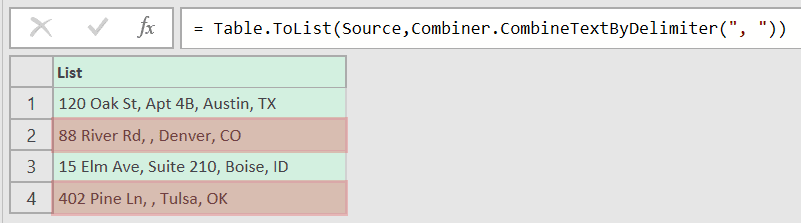
Here, the blank Unit cells come into Power Query as null. Combiner.CombineTextByDelimiter treats a null as empty text, but it still adds the separator around it, so you get two commas in a row.
To skip the blanks, use Text.Combine as the combiner instead:
= Table.ToList(Source,each Text.Combine(_,", "))
Result: a list of four clean addresses, like 88 River Rd, Denver, CO for the ones without a unit
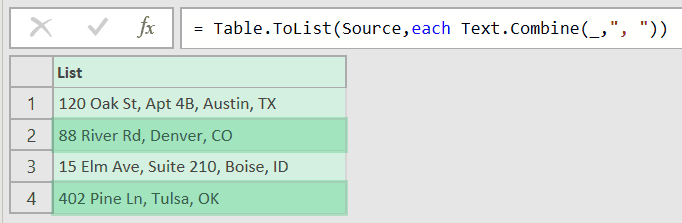
Here, Text.Combine joins the values of each row but leaves out any null, so no extra separator gets added.
Note that this only skips null values. If a cell holds empty text (“”), for example after a Replace Values step, Text.Combine still adds a separator for it.
Follow along with the example file
Table.ToList Function Examples.xlsx
Example 5: Create CSV Lines from a Table
Sometimes you need each row as a line of comma-separated values, for example to paste into another system. The default combiner already does this, and it even handles values that contain a comma.
Below is a Vendors table with the vendor name, city, and payment terms, where some vendor names have a comma in them, and I want each row as a CSV line.
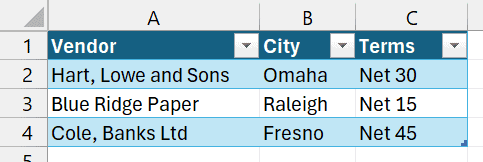
Add a new step and use this formula:
= Table.ToList(Source)
Result: a list of three CSV lines, where the first one is “Hart, Lowe and Sons”,Omaha,Net 30
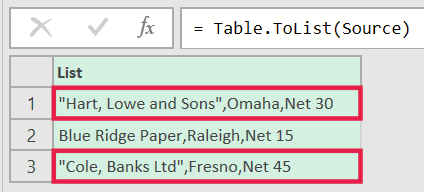
Here, the default combiner wraps any value that contains a comma in double quotes. That’s how the CSV format keeps “Hart, Lowe and Sons” as one value, instead of splitting it into two.
Blue Ridge Paper has no comma, so it isn’t quoted.
If the system you’re sending this to doesn’t want quotes, you can use Combiner.CombineTextByDelimiter(",",QuoteStyle.None) as the combiner. Just remember that “Hart, Lowe and Sons” would then read as two separate values.
Note that Table.ToList only gives you the data rows, not the column names, so the list has no header line. Also, every value has to be text, or you get the errors from Example 3.
Example 6: Get the Total of Each Row as a List
A combiner doesn’t have to return text. It can be any function that takes the row’s values, so you can use it to calculate something for every row and get the results as a list.
Below is a RepSales table with the sales for each rep in January, February, and March, and I want a list with each rep’s total for the quarter.
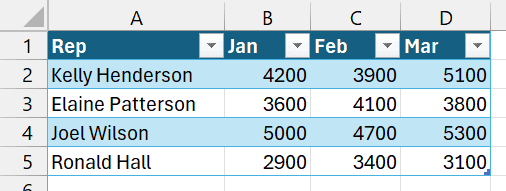
Add a new step and use this formula:
= Table.ToList(Source,each List.Sum(List.Skip(_)))
Result: a list of four numbers: 13200, 11500, 15000, and 9400
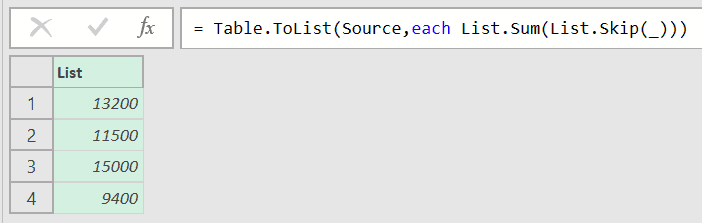
Here, _ is each row as a list, like {“Kelly Henderson”,4200,3900,5100}. The List.Skip function drops its first item (the rep’s name), and the List.Sum function adds up the three monthly numbers.
List.Skip works by position, so this only works because the Rep column comes first. If you add a column before it, the formula would try to add up a name and give an error.
The list has only the totals, not the rep names. If you want the totals next to each rep in the table, add a custom column with List.Sum({[Jan],[Feb],[Mar]}) instead.
Example 7: Turn a Whole Table into One Text Value
You can also wrap Table.ToList inside Text.Combine to squeeze an entire table into one text value. This is handy for a summary line or a label.
Below is a TeamLeads table with each team and its lead, and I want one text value that lists them all, like Payroll: Samantha Kennedy; Audit: Travis King.
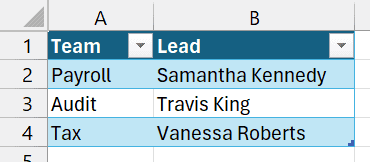
Add a new step and use this formula:
= Text.Combine(Table.ToList(Source,Combiner.CombineTextByDelimiter(": ")),"; ")
Result: Payroll: Samantha Kennedy; Audit: Travis King; Tax: Vanessa Roberts

Here, Table.ToList first joins each row with a colon and a space, which gives a list like {“Payroll: Samantha Kennedy”,”Audit: Travis King”,”Tax: Vanessa Roberts”}. Text.Combine then joins those three items into one text value, with a semicolon and a space between them.
The result is a single text value, so the query returns just that one value instead of a list or a table.
Other Excel Articles You May Also Like:
- Table.CombineColumns – Use Table.CombineColumns in Power Query M to merge columns into one.
- List.Combine – Use List.Combine in Power Query M to join lists into one.
- Table.ExpandListColumn – Use Table.ExpandListColumn in Power Query M to turn lists into rows.
- Table.FromRows – Use Table.FromRows in Power Query M to build a table from rows.
- Table.FromColumns – Use Table.FromColumns in Power Query M to build a table from lists.
- Text.Split – Use Text.Split in Power Query M to split text into a list.
- Table.Combine – Use Table.Combine in Power Query M to stack multiple tables into one by appending rows.
- Splitter.SplitTextByDelimiter – Use Splitter.SplitTextByDelimiter in Power Query M to split text.
