

The INFO function tells you about the setup your workbook is running in. It can return the Excel version, the operating system, the calculation mode, the default folder, and the number of sheets you have open.
That’s useful when you build a file that other people open on their own computers. You can show a version check, pick the right instructions for Windows or Mac, or collect system details when someone needs help.
Since INFO reads the computer it runs on, the results in my screenshots come from my Windows PC with Microsoft 365. Yours may look a little different, and that’s expected.
In this tutorial, I’ll show you how INFO works, what each of its options returns, and a few practical ways to use it.
Follow along with the example file
INFO Function Examples.xlsx
INFO Function Syntax
Here is the syntax of the INFO function:
=INFO(type_text)
- type_text – The kind of information you want, as text. It has to be one of seven values: “directory”, “numfile”, “origin”, “osversion”, “recalc”, “release”, or “system”. Example 2 shows what each one returns.
The value must be in double quotes when you type it in the formula, but the case doesn’t matter. INFO(“RELEASE”) and INFO(“release”) give the same result.
If you use any text other than those seven values, INFO returns a #VALUE! error. Even a small slip like a misspelling or an extra space inside the quotes will do this.
Older versions of Excel also had “memavail”, “memused”, and “totmem” for memory details. These no longer work, and using any of them now returns #N/A.
The INFO function works in all desktop versions of Excel, including Microsoft 365, Excel 2024, 2021, 2019, and 2016, on both Windows and Mac. It’s not available in Excel for the web.
When to Use the INFO Function
Use this function when you need to:
- Find out which Excel version and operating system a workbook is open in
- Show a message when someone opens your file in an Excel version that’s too old
- Show different instructions or shortcuts for Windows and Mac users
- Count the sheets across all the workbooks you have open
- Collect system details to share when you ask for help with a file
Let me show you a few practical examples of how to use the INFO function.
Example 1: Find Your Excel Version Number
Let’s start with a simple example.
Below I have a small sheet with a label for the Excel version, and I want the version number in cell B2.
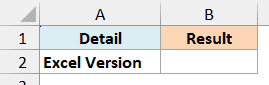
Here is the formula:
=INFO("release")
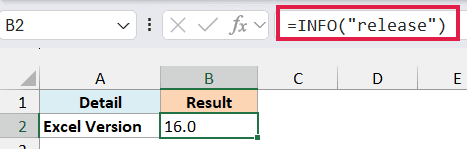
On my computer, this returns 16.0.
Notice that the result sits on the left side of the cell. That’s because INFO returns the version as text, not as a number, which matters when you want to compare it (Example 3).
Also, 16.0 isn’t just one version. Excel 2016, 2019, 2021, 2024, and Microsoft 365 all report 16.0, so INFO can’t tell them apart.
Older versions have their own numbers, such as 15.0 for Excel 2013 and 14.0 for Excel 2010. If you need the exact version and build, check File > Account instead, as covered in this guide on how to find the version of Excel you have.
Example 2: Get All System Details With One Formula
Here’s where INFO gets more interesting.
Below is a list of all seven type_text values in column B, with a plain-English name for each one in column A, and I want what each value returns in column C.
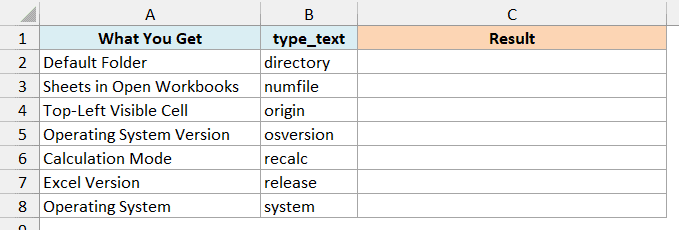
Here is the formula:
=INFO(B2:B8)
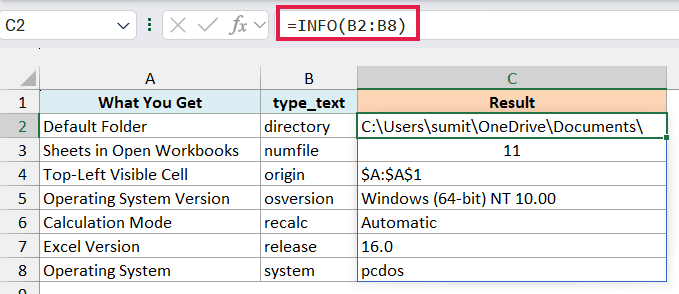
Instead of one value in double quotes, I gave INFO the range B2:B8. It returns one result for each value in that range, and the results spill into C2:C8 from a single formula.
Here is what each value gives you:
- directory – The default folder Excel uses for opening and saving files. On my PC, it’s my OneDrive Documents folder. This is not the folder your workbook is saved in. For that, use the CELL function with “filename”, which returns the file’s full path.
- numfile – The total number of sheets in all open workbooks. Example 5 covers this one.
- origin – The top-left cell you can see on the screen, as $A:$A$1. The $A: part is a leftover from Lotus 1-2-3 that Excel kept for compatibility.
- osversion – The version of your operating system. Windows 11 still reports NT 10.00, so this can’t tell Windows 10 and 11 apart.
- recalc – The calculation mode, either Automatic or Manual. INFO only refreshes when Excel recalculates, and switching to Manual doesn’t trigger a recalculation, so it keeps showing Automatic until you press F9.
- release – The Excel version, as text.
- system – The operating system type. It’s pcdos on Windows and mac on a Mac.
If you are using Excel 2019 or earlier, enter the below formula in cell C2 and then copy it down to C8:
=INFO(B2)
Example 3: Check If the Excel Version Is New Enough
Now let’s turn the version number into something useful.
Say you share a template that needs Excel 2016 or later. Below I have the minimum version number in cell B2, and I want a check in cell B4 that tells people whether their Excel is new enough.
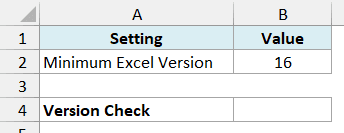
Here is the formula:
=IF(VALUE(INFO("release"))>=B2,"Supported","Please upgrade Excel")
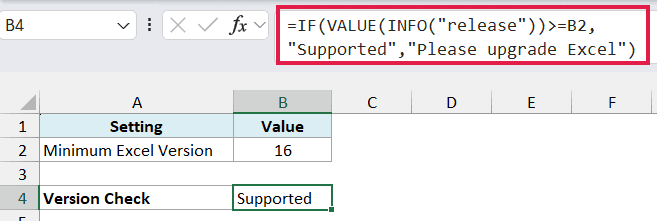
On my computer, this shows Supported.
The VALUE function turns the text 16.0 into the number 16. That number then goes to the IF function, which compares it with the 16 in B2 and shows the matching message.
Someone on Excel 2013 would get 15 from VALUE(INFO(“release”)), and the check would ask them to upgrade.
Important: Don’t skip the VALUE part. INFO returns the version as text, and Excel treats any text as bigger than any number, so =INFO("release")>=17 returns TRUE even though there’s no version 17.
And since every version from Excel 2016 onward reports 16.0 (as you saw in Example 1), this check can only catch Excel 2013 and older.
Example 4: Show the Right Shortcut for Windows or Mac
Here’s another practical scenario.
Below is a list of common Excel shortcuts with the Windows and Mac version of each, and I want column D to show the right one for whoever opens the file.
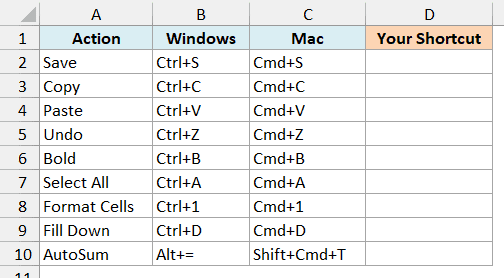
Here is the formula:
=IF(INFO("system")="mac",C2:C10,B2:B10)
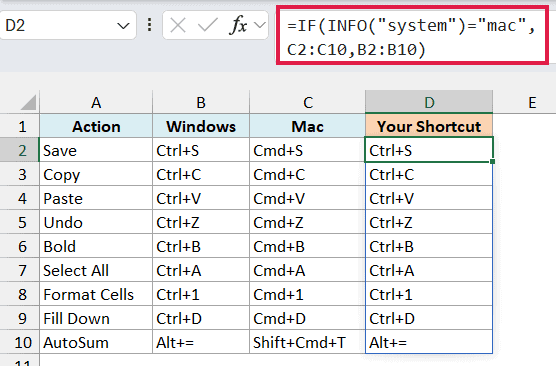
Since I’m on Windows, column D shows the Windows shortcuts. On a Mac, the same formula would show the Mac shortcuts instead.
In the above formula, the IF function checks whether INFO(“system”) returns mac. If it does, you get the whole Mac column (C2:C10), and if not, you get the Windows column (B2:B10), spilled into D2:D10.
You can use the same idea anywhere your file needs different text for each system, like setup steps in an instructions sheet.
And if you want more shortcuts for both systems, here is a big list of Excel keyboard shortcuts for Windows and Mac.
If you are using Excel 2019 or earlier, enter the below formula in cell D2 and then copy it down to D10:
=IF(INFO("system")="mac",C2,B2)
Example 5: Count Sheets in All Open Workbooks
Let’s end with the “numfile” option.
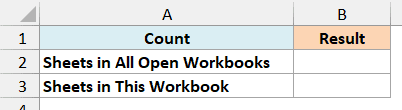
Below I have two labels, and I want the number of sheets in all open workbooks in cell B2 and the number of sheets in just this workbook in cell B3.
Here is the formula for all open workbooks:
=INFO("numfile")
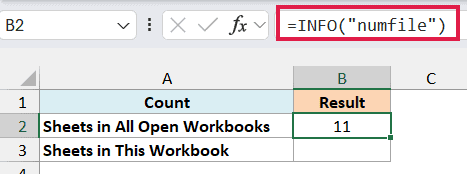
This counts every sheet in every workbook you have open, not just the one with the formula. Hidden sheets count too, and so do sheets in hidden workbooks, such as your Personal Macro Workbook if you use one.
And here is the formula for just this workbook:
=SHEETS()
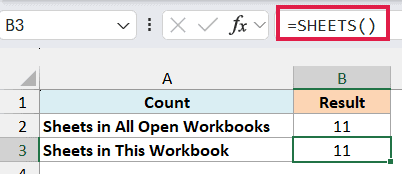
The SHEETS function with nothing inside the brackets counts only the sheets in the current workbook.
If this is the only file you have open (and you have no hidden workbooks), both numbers will be the same.
To see the difference, open another workbook and press F9. The INFO count goes up by the number of sheets in that workbook, while the SHEETS count stays where it was.
Pressing F9 makes Excel recalculate, and since INFO is a volatile function, it gets a fresh count on every recalculation.
In Automatic mode, volatile formulas recalculate after every change you make in the workbook. A few INFO cells won’t matter, but thousands of them can slow down a big file.
So these are some practical ways to use the INFO function in Excel. I covered how to get the Excel version, read all seven values at once, check for an old version, show Windows or Mac shortcuts, and count sheets across open workbooks.
I hope you found this Excel tutorial useful.
Other Excel Articles You May Also Like:
