

The LEFTB function returns the first part of a text string, but it counts in bytes instead of characters. It’s the byte-counting version of the LEFT function.
That only makes a difference when Japanese, Chinese, or Korean is your default editing language in Office. Then each of those characters counts as 2 bytes, so LEFTB returns fewer characters than LEFT would.
On any other setup, including the English Excel I used for this tutorial, LEFTB returns exactly what LEFT returns. I’ll show you how it works, what it gives you on Japanese text, and how to check which behavior your Excel has.
Follow along with the example file
LEFTB Function Examples.xlsx
LEFTB Function Syntax
Here is the syntax of the LEFTB function:
=LEFTB(text,[num_bytes])
- text is required. It’s the text you want to take the first part from, or a reference to the cell that has it.
- num_bytes is optional. It’s how many bytes you want to take from the start of the text.
The important word is bytes. Microsoft’s documentation says that when Japanese, Chinese, or Korean is your default editing language in Office, each character in those languages counts as 2 bytes, and every other character counts as 1.
If you leave out num_bytes, it’s assumed to be 1. That gives you the first character as long as it’s a single byte, like the letters in the English examples below.
If num_bytes is more than the text has, LEFTB returns all of the text.
A num_bytes of 0 returns empty text, and a negative number returns a #VALUE! error.
Microsoft lists the LEFTB function for Excel 365, 2024, 2021, 2019, and 2016, but marks it as deprecated, though it still works. The range formulas below use dynamic arrays, which need Excel 365, 2024, or 2021.
When to Use the LEFTB Function
Use the LEFTB function when you need to:
- Pull a short code or prefix from the start of a name, ID, or number.
- Cut text down to a set number of bytes, such as a preview with a length limit.
- Work with Japanese, Chinese, or Korean text on a setup where length is counted in bytes.
- Check whether your Excel counts bytes or characters.
Let me show you a few practical examples of how to use the LEFTB function.
Example 1: Get the First 3 Characters of Text
Let’s start with a simple example.
Below is a list of cities, and I want to get a three-letter route code for each one in column B.
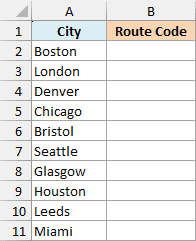
Here is the formula:
=LEFTB(A2:A11,3)
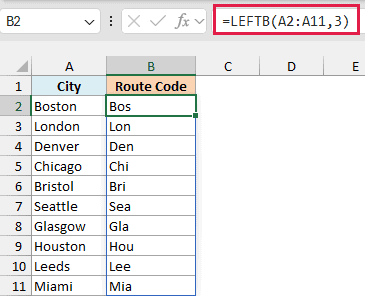
In the above formula, LEFTB looks at each city name and returns the first 3 bytes. Every character here is a single byte, so that’s the first 3 letters, and Boston becomes Bos.
Since I gave LEFTB the whole range A2:A11, the formula spills one result per row. You only enter it once, in cell B2.
If you are using Excel 2019 or earlier, enter the below formula in cell B2 and then copy it down the range:
=LEFTB(A2,3)
The same goes for the other spilling formulas in this article. Use the first cell instead of the range, and copy the formula down.
Example 2: Get the First Letter by Skipping num_bytes
Now let’s use the function with just one argument.
Below is a sign-up list for a running club, and I want the first letter of each member’s name in column B.
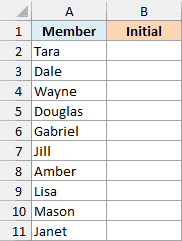
Here is the formula:
=LEFTB(A2:A11)
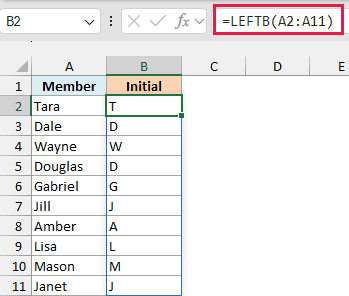
I left out num_bytes here, so LEFTB falls back to its default of 1 and returns the first letter of each name.
It’s a quick way to build initials for name badges, or to group a list by its first letter.
Example 3: Get the First 3 Digits of a ZIP Code
Here’s another practical scenario, this time with numbers.
Below is a delivery list with each customer’s ZIP code, and I want the first three digits of each ZIP code in column C.
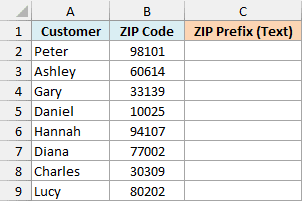
Here is the formula:
=LEFTB(B2:B9,3)
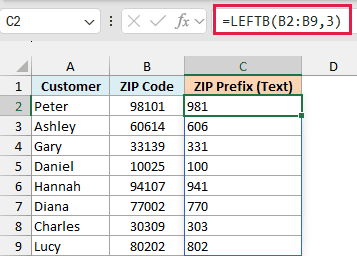
The ZIP codes are numbers, but LEFTB works on text, so Excel turns each number into text first. For 98101, you get 981.
Important: LEFTB always returns text, even when it pulls out digits. That’s why the results sit on the left of the cells, and why a lookup or calculation on them can fail.
To get real numbers, wrap LEFTB in the VALUE function and enter the below formula in cell D2, next to the text results:
=VALUE(LEFTB(B2:B9,3))
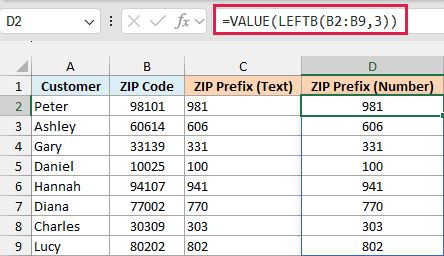
VALUE turns each text result back into a number, so column D works in calculations and in lookups against a list of numeric prefixes.
A ZIP code like 02134 stored as a number loses its leading zero, so LEFTB would return 213 for it. Store such ZIP codes as text and you get 021.
Dates behave the same way, because Excel stores a date as a serial number and LEFTB works on that number, not on what the cell displays.
For example, 15-Mar-2026 is stored as 46096, so =LEFTB(A1,3) returns 460 if that date is in cell A1. That quick test isn’t in the example file.
Example 4: Cut Product Titles to a 20-Byte Preview
Let’s step it up with a more practical use case.
Below is a list of product titles from an online store, and I want a preview in column B that keeps the first 20 bytes of each title, with three dots added after the ones that get cut.
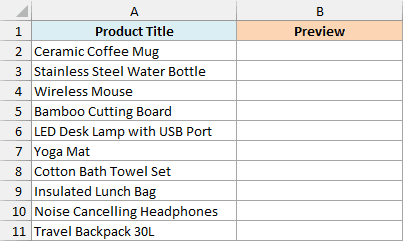
Here is the formula:
=LEFTB(A2:A11,20)&IF(LENB(A2:A11)>20,"...","")
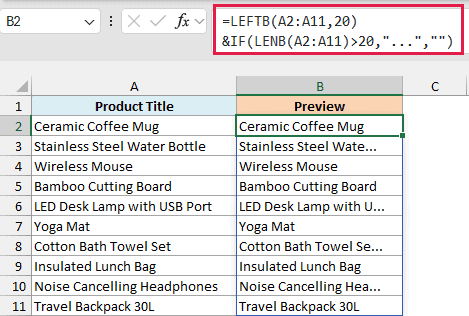
How this formula works:
LEFTB(A2:A11,20)takes the first 20 bytes of each title.LENB(A2:A11)>20checks whether the title is longer than 20 bytes. LENB is the byte version of the LEN function.IF(...,"...","")returns three dots for a longer title and nothing for a shorter one.- The
&joins the cut title and the dots.
Bamboo Cutting Board is exactly 20 bytes, so it stays as it is with no dots.
LEFTB cuts at a byte count, not at a word boundary, which is why you see Stainless Steel Wate… in the result.
Important: Use LENB, not LEN, for the length check. LEFTB cuts by bytes, so on a double-byte setup LEN would count a different unit and some titles could be cut without the dots.
Example 5: Compare LEFTB and LEFT on Japanese Text
Finally, let’s see how your Excel counts Japanese text.
Below is a list of Japanese cities written in English followed by the Japanese name, and I want the first 8 bytes of each in column B using LEFTB.
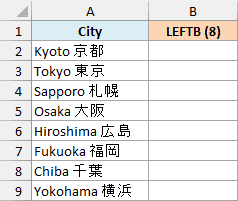
Here is the formula:
=LEFTB(A2:A9,8)
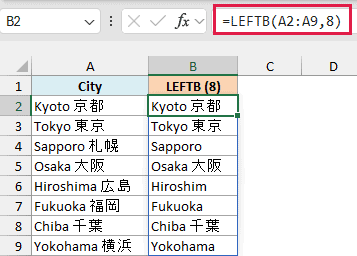
Now here is the LEFT function on the same text in column C. It takes the first 8 characters, so we can compare the two:
=LEFT(A2:A9,8)
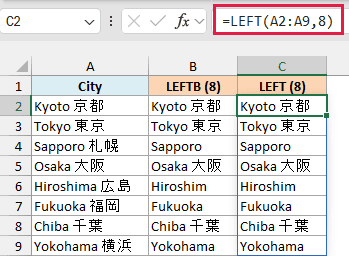
On my screen the two columns match. LEFT always counts characters, and on this English installation LEFTB did too, so Kyoto 京都 comes back whole in both.
Sapporo and Fukuoka end with a space because LEFTB keeps whatever character it lands on, a space included.
Microsoft’s documentation says this changes when Japanese, Chinese, or Korean is your default editing language. LEFTB would then count each of those characters as 2 bytes.
So Kyoto 京都 would be 10 bytes, 6 for “Kyoto ” and 2 for each Japanese character. Cutting it at 8 bytes would return Kyoto 京.
I couldn’t test that on my PC, so treat it as what the documentation says, not something I saw. The example file uses the same formulas, so recalculating it on such a setup should show the difference between the two columns.
That also gives you a way to check your own Excel. If column B differs from column C, your Excel counts bytes, and if they match, like mine, LEFTB and LEFT are interchangeable.
In this article, I showed you how the LEFTB function works, from short codes and initials to a byte-limited preview, and how to tell whether your Excel counts bytes or characters.
Since LEFTB is deprecated, use the LEFT function for everyday text work and keep LEFTB for when you specifically need a byte count.
I hope you found this article helpful.
Other Excel Articles You May Also Like:
