

The MIDB function in Excel extracts a piece of text from the middle of a text string, starting at a position you choose. It works like the MID function, except that it counts bytes instead of characters.
That only makes a difference when Excel’s default editing language is a double-byte one, such as Japanese, Chinese, or Korean. With any other language, every character counts as one byte, so MIDB returns exactly what the MID function returns.
In this article, I’ll show you how to use MIDB, what changes with double-byte text, what it returns when the arguments don’t fit the text, and how to split fixed-width records with it.
Follow along with the example file
MIDB Function Examples.xlsx
MIDB Function Syntax
Here is the syntax of the MIDB function:
=MIDB(text, start_num, num_bytes)
- text – The text you want to pull a piece from. This is usually a cell reference, or a range of cells.
- start_num – The position of the first byte you want. The first byte in the text is 1.
- num_bytes – How many bytes you want back.
Both the starting position and the length are counted in bytes, not characters. With English letters, digits, and symbols, one character is one byte, so counting bytes feels the same as counting characters.
The difference shows up when a double-byte language (Japanese, Chinese, or Korean) is Excel’s default editing language, which you choose in the Office language settings. Each such character then counts as two bytes, while single-byte characters still count as one.
If your default editing language is English or any other single-byte language, which is the case for most people, MIDB behaves exactly like MID.
All three arguments are required, so Excel won’t accept the formula if you leave out num_bytes.
The MIDB function works in Excel for Microsoft 365, Excel 2024, 2021, 2019, and 2016. Microsoft lists it as a deprecated function, but it still works in Excel 365.
When to Use the MIDB Function
Use this function when you need to:
- Pull a fixed-position piece out of a code, ID, or reference number
- Split fixed-width text records into separate columns
- Cut up Japanese, Chinese, or Korean text where positions are counted in bytes
Let me show you a few practical examples of how to use the MIDB function.
Example 1: Extract Text From the Middle of a Code
Let’s start with a simple example.
Below is a list of car rental reservation codes, and I want to get the pickup airport code for each one in column B.
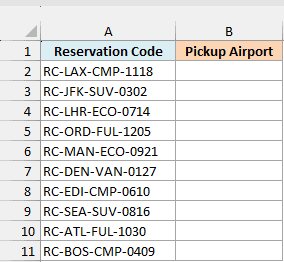
Here is the formula:
=MIDB(A2:A11,4,3)
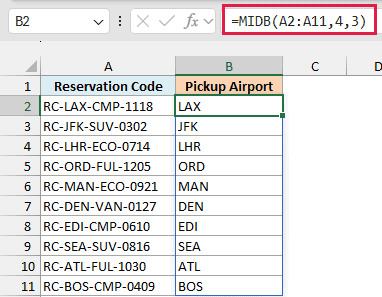
In the above formula, MIDB starts at the 4th byte of each reservation code, which is the first letter after “RC-“, and returns 3 bytes. That gives the airport code, such as LAX for RC-LAX-CMP-1118.
I’ve given MIDB the whole range A2:A11 instead of one cell, so it returns one result for each code and the results spill into B2:B11 by themselves.
If you are using Excel 2019 or earlier, enter the below formula in cell B2 and then copy it down to B11:
=MIDB(A2,4,3)
Example 2: MIDB vs MID With Japanese Text
Now let’s see where bytes and characters start to matter.
Below is a list of Japanese cities with their names written in Japanese, and I want to get the first two characters with MID in column C and the first two bytes with MIDB in column D.
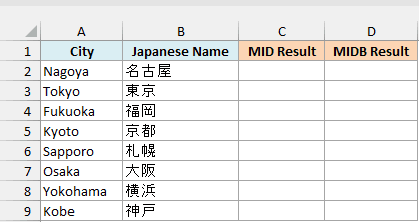
Here is the MID formula:
=MID(B2:B9,1,2)
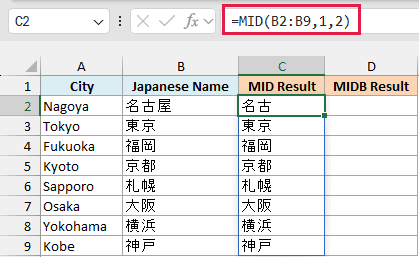
And here is the MIDB formula:
=MIDB(B2:B9,1,2)
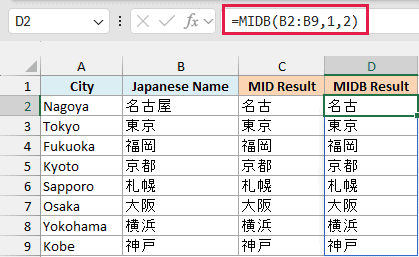
Both columns match in the screenshot, because this Excel has English as its default editing language. MIDB counts every character as one byte there, so 2 bytes means 2 characters, and 名古屋 comes back as 名古 in both columns.
If the default editing language were Japanese, Chinese, or Korean, MIDB would count each of these characters as two bytes. Then 2 bytes would cover only the first character, so MIDB would return just 東 for Tokyo, while MID would still return 東京.
If you are using Excel 2019 or earlier, enter the below MIDB formula in cell D2 and then copy it down to D9 (do the same with the MID formula in column C):
=MIDB(B2,1,2)
Important: The same MIDB formula can return different results on different computers, because the byte count depends on the default editing language of the Excel that opens the file. If your file travels between setups, use MID instead.
Example 3: MIDB With Start and Bytes That Don’t Fit
Let’s look at what happens when start_num or num_bytes doesn’t fit the text.
Below is a list of promo codes with a start position and a number of bytes for each, and I want to get the matching piece of each code in column D.
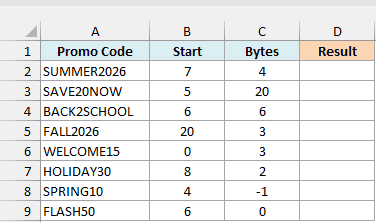
Here is the formula:
=MIDB(A2:A9,B2:B9,C2:C9)
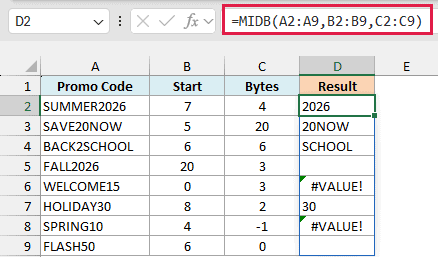
In the above formula, the start position and the number of bytes come from columns B and C, so each row gets its own pair of values. Here is what each row shows:
- SUMMER2026 starts at byte 7 and asks for 4 bytes, so it returns 2026. BACK2SCHOOL and HOLIDAY30 work the same way, returning SCHOOL and 30.
- SAVE20NOW asks for 20 bytes, but only 5 are left from byte 5. MIDB returns what is there (20NOW) and adds no spaces to fill the gap.
- FALL2026 starts at byte 20, which is past the end of the 8-byte code, so MIDB returns empty text (not an error, which is why the cell looks blank).
- WELCOME15 starts at 0, and SPRING10 asks for -1 bytes. Both return #VALUE!, because the first byte is 1 and the length can’t be negative.
- FLASH50 asks for 0 bytes, so MIDB returns empty text.
If start_num or num_bytes has a decimal, MIDB drops the decimal part, so a start_num of 4.9 is treated as 4.
If you are using Excel 2019 or earlier, enter the below formula in cell D2 and then copy it down to D9:
=MIDB(A2,B2,C2)
Example 4: Split Fixed-Width Records Into Columns
Here’s a more practical use of MIDB.
Below I have fixed-width order records, where the customer, city, and item each take a set number of bytes, padded with spaces. I want to split them into columns C to E using the start and byte counts in the table on the right.
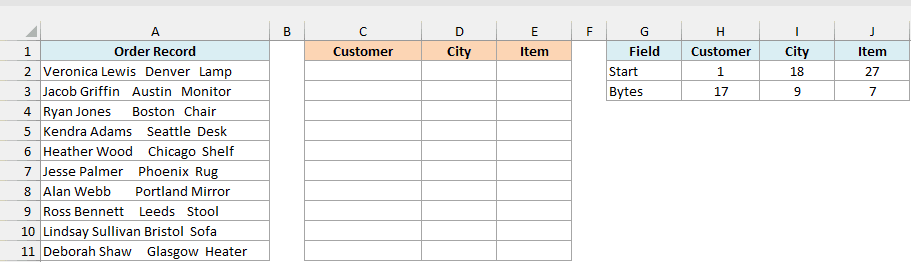
Here is the formula:
=TRIM(MIDB(A2:A11,H2:J2,H3:J3))
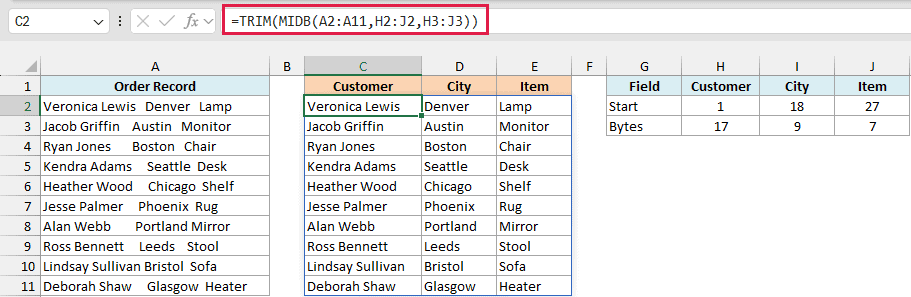
How this formula works:
- A2:A11 holds the 10 records, which run down the sheet.
- H2:J2 and H3:J3 hold the start positions (1, 18, 27) and byte counts (17, 9, 7) of the three fields, which run across.
- MIDB pairs every record with every field, so one formula returns a 10-row by 3-column block.
- TRIM removes the spaces that pad each field to its fixed width.
Without the TRIM function, “Austin” would come back with the three trailing spaces that fill its 9 bytes.
Pro Tip: To work out a field’s start position, add the previous field’s start position and byte count. The city starts at 18 because the customer starts at 1 and takes 17 bytes.
If you are using Excel 2019 or earlier, enter the below formula in cell C2 and then copy it across to E2 and down to E11:
=TRIM(MIDB($A2,H$2,H$3))
Example 5: Get Part of a Number With MIDB
One more thing: MIDB works on numbers too.
Below is a list of orders with the order date stored as an eight-digit number (year, month, day), and I want to get the month in column B.
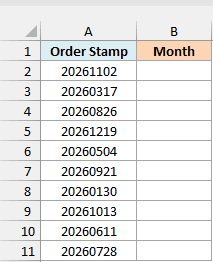
Here is the formula:
=MIDB(A2:A11,5,2)
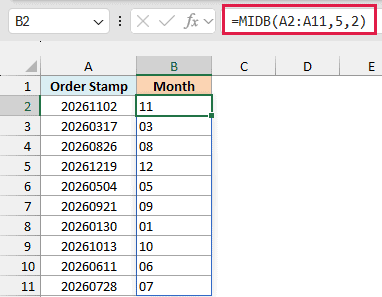
In the above formula, MIDB treats each number as text, so 20261102 is read as the digits 2, 0, 2, 6, 1, 1, 0, 2. The 5th and 6th bytes are 1 and 1, which gives 11 for the month.
The results are left-aligned because MIDB always returns text, even when the piece is made of digits. If you need a real number you can calculate with, wrap the formula in the VALUE function.
If you are using Excel 2019 or earlier, enter the below formula in cell B2 and then copy it down to B11:
=MIDB(A2,5,2)
Important: This works because 20261102 is just a number. A real Excel date such as 2-Nov-2026 is stored as the serial number 46328, so MIDB would cut pieces of 46328 instead of the date you see.
So these are the ways you can use the MIDB function. With English or any other single-byte text, it gives the same result as MID.
It only counts differently when a double-byte language is Excel’s default editing language, so for plain text, the MID function is usually all you need.
I hope you found this Excel tutorial useful.
Other Excel Articles You May Also Like:
