

The RIGHTB function in Excel returns the last few characters of a text, but it counts them in bytes instead of characters. It works like the RIGHT function, and the two only differ when your Excel is set up for Japanese, Chinese, or Korean.
When one of those languages is your default editing language, each Japanese, Chinese, or Korean character counts as 2 bytes. Letters, digits, and punctuation still count as 1, so RIGHTB can give you fewer characters than the number you ask for.
On any other setup, RIGHTB returns exactly what the RIGHT function returns. The default editing language is the language Office uses for editing text, so an English setup isn’t affected.
Every result in this tutorial comes from an Excel with English as the default editing language. Microsoft also lists RIGHTB as deprecated, which means it still works but the RIGHT function is the better pick for new work.
Here I’ll show you how RIGHTB works on text and numbers, how to pair it with the LENB and FINDB functions, and what it returns on Japanese text.
Follow along with the example file
RIGHTB Function Examples.xlsx
RIGHTB Function Syntax
Here is the syntax of the RIGHTB function:
=RIGHTB(text,[num_bytes])
- text is the text you want to pull characters from. It can be a cell, a range of cells, or text typed in double quotes.
- [num_bytes] is optional. It’s how many bytes you want from the right end of the text.
If you leave out num_bytes, RIGHTB returns 1 byte from the end of the text, which is the last character when it’s a letter, digit, or other single-byte character.
If num_bytes is bigger than the text, RIGHTB returns the whole text. A 0 gives you empty text, and a negative number returns a #VALUE! error.
RIGHTB counts a Japanese, Chinese, or Korean character as 2 bytes only when that language is enabled and set as the default editing language in Office. Everywhere else, every character counts as 1 byte, and RIGHTB matches the RIGHT function.
The RIGHTB function works in Excel 365, 2024, 2021, 2019, and 2016. The range formulas in this article spill their results, which needs Excel 365, 2024, or 2021.
When to Use the RIGHTB Function
Use the RIGHTB function when you need to:
- Take a fixed number of bytes from the end of a text, like the sequence number at the end of an ID
- Get the last character of a code
- Get the last few digits of a number
- Pull out the text after a character, together with the LENB and FINDB functions
- Work with Japanese, Chinese, or Korean text where the length is counted in bytes
Most of these jobs work the same with the RIGHT function. RIGHTB is the one to use when the count has to be in bytes, which only changes the result on a Japanese, Chinese, or Korean setup.
Let me show you a few practical examples of how to use the RIGHTB function.
Example 1: Get the Last 4 Characters of a Text
Let’s start with the basic job of taking a fixed number of characters from the end of a text.
Below is a list of receipt numbers, and I want to get the 4-character sequence number at the end of each one in column B.
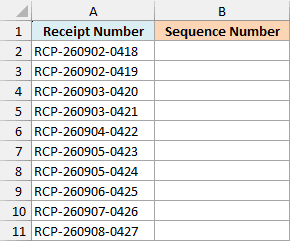
Here is the formula:
=RIGHTB(A2:A11,4)
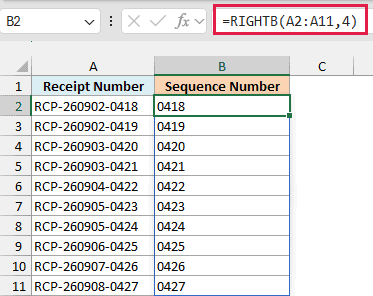
RIGHTB looks at each receipt number and returns the last 4 bytes. Every character in these receipt numbers is a letter, a digit, or a hyphen, so 1 byte is 1 character, and RCP-260902-0418 gives 0418.
Since I gave RIGHTB the whole range A2:A11, the formula spills the results down to B11. You only enter it once, in cell B2.
If you are using Excel 2019 or earlier, enter the below formula in cell B2 and then copy it down the range:
=RIGHTB(A2,4)
The same works for the other formulas in this article. Use the first cell instead of the range, enter the formula in the first result cell, and copy it down.
Example 2: Get the Last Character (Skip num_bytes)
Now let’s leave out the second argument.
Below is a list of flight passengers with their seat numbers, and I want to get the seat letter of each one in column C.
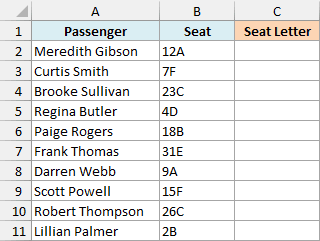
Here is the formula:
=RIGHTB(B2:B11)
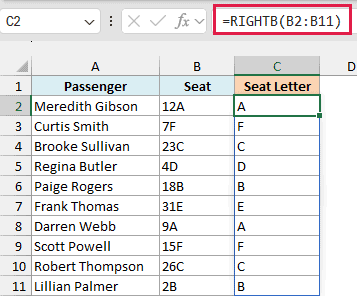
Without num_bytes, RIGHTB returns just 1 byte from the end, which is the last character here. So 12A gives A and 7F gives F.
The seat numbers here have one or two digits before the letter, and the formula doesn’t care. It never counts the digits, it only takes what sits at the very end.
Example 3: Get the Last 4 Digits of a Number
Next, let’s use RIGHTB on numbers instead of text.
Below is a list of contacts with their phone numbers stored as numbers, and I want to get the last 4 digits of each number in column C.
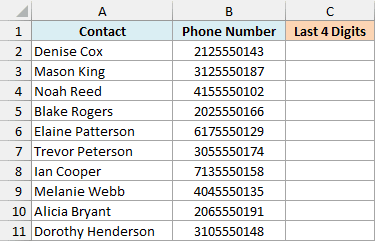
Here is the formula:
=RIGHTB(B2:B11,4)
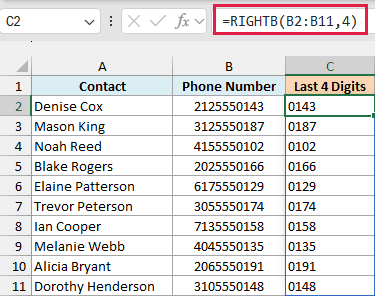
RIGHTB treats the digits of each number as text and returns the last 4. For Denise Cox’s 2125550143, you get 0143.
The result is text, not a number, and that’s why the leading zero in 0143 stays. If you need a real number, put the formula inside the VALUE function, and 0143 becomes 143.
Important: RIGHTB reads what is stored in the cell, not what you see, so a date like 9-Mar-2026 (stored as 46090) returns 090 for RIGHTB(cell,3). Convert it to text with the TEXT function first.
Example 4: Extract the File Extension with RIGHTB, LENB, and FINDB
Let’s step it up to a case where the number of bytes is different on every row.
Below is a list of file names, and I want to get the file extension of each one in column B.
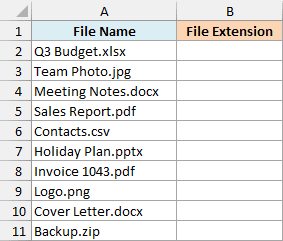
Here is the formula:
=RIGHTB(A2:A11,LENB(A2:A11)-FINDB(".",A2:A11))
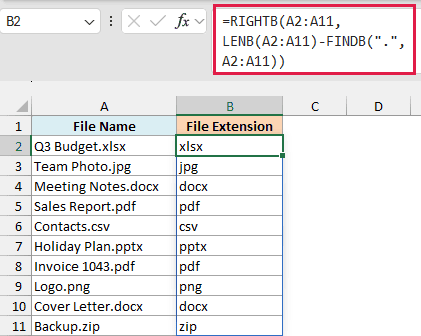
How this formula works:
FINDB(".",A2:A11)finds the position of the dot in each name. For Q3 Budget.xlsx, that’s 10.LENB(A2:A11)gives the length of each name in bytes, which is 14 for Q3 Budget.xlsx.- Subtracting 10 from 14 leaves 4, the number of bytes after the dot, so RIGHTB returns xlsx.
I used LENB and FINDB here instead of the LEN function and the FIND function on purpose. RIGHTB counts in bytes, so the length and the position you give it should be in bytes too.
On a Japanese, Chinese, or Korean default setup, each of those characters counts as 2 bytes, while letters and digits count as 1. Mixing a character count with RIGHTB could cut the text in the wrong place, so keep RIGHTB, LENB, and FINDB together.
The formula finds the first dot in each name, so it’s meant for names with one dot. A name like Report.v2.pdf would return v2.pdf.
Pro Tip: In Excel 365 or 2024, the TEXTAFTER function does this in one step. The formula =TEXTAFTER(A2:A11,".",-1) returns the extension even when a name has several dots.
Example 5: RIGHTB vs RIGHT on Japanese Text
Finally, let’s look at the kind of text RIGHTB was built for.
Below is a list of drinks written in Japanese, and I want to get the last 2 bytes of each name in column B.
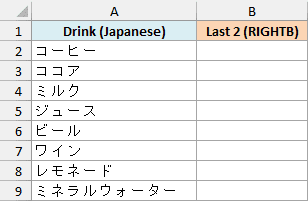
Here is the formula:
=RIGHTB(A2:A9,2)
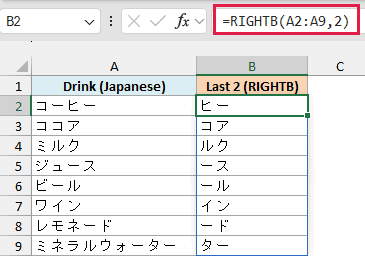
For コーヒー, RIGHTB returns ヒー. That’s 2 characters, because on this Excel every Japanese character counts as 1 byte.
Now here is the RIGHT function on the same drinks, asking for the last 2 characters in column C:
=RIGHT(A2:A9,2)
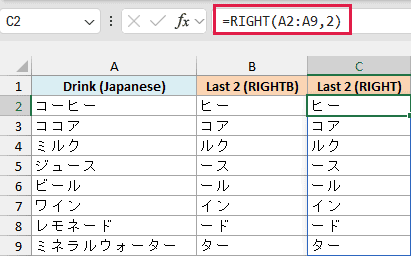
RIGHT returns exactly the same text. English is the default editing language here, so RIGHTB has no reason to count any character as 2 bytes.
According to Microsoft’s rule for double-byte characters, each of these characters would count as 2 bytes with Japanese as the default editing language.
Asking for 2 bytes would then return only the last character, such as ー for コーヒー, while RIGHT would still return 2 characters.
I haven’t shown that result because it needs Japanese set as the default editing language, and this Excel isn’t set up that way.
Important: A RIGHTB formula can return different text on a computer with a different default editing language. If you share a workbook and want characters no matter who opens it, use the RIGHT function.
So that’s how the RIGHTB function works. It returns the same text as the RIGHT function on most setups, and it only counts in bytes when Japanese, Chinese, or Korean is the default editing language.
If you do use RIGHTB, pair it with the LENB and FINDB functions so the counts always agree. I hope you found this tutorial useful.
Other Excel Articles You May Also Like:
