

The TEXTAFTER function returns the text that comes after a specific character or word in a cell. You tell it what to look for, such as a comma, a dash, or a word, and it gives you everything to the right of it.
It’s useful whenever the part you need sits after a known marker. You can also pick which occurrence to use, count from the end, ignore case, and decide what shows up when the marker isn’t there.
TEXTAFTER is only available in Microsoft 365 and Excel 2024, so I’ve also included a formula you can use in older versions.
Follow along with the example file
TEXTAFTER Function Examples.xlsx
TEXTAFTER Function Syntax
Here is the syntax of the TEXTAFTER function:
=TEXTAFTER(text, delimiter, [instance_num], [match_mode], [match_end], [if_not_found])
- text – The text you want to extract from. This can be a cell, a range of cells, or text in double quotes.
- delimiter – The character or text that marks where the extraction starts. It can be more than one character, such as “, ” or ” with “.
- instance_num – (optional) Which occurrence of the delimiter to use. The default is 1, and a negative number counts from the end of the text.
- match_mode – (optional) Use 0 for a case-sensitive match (the default) or 1 to ignore case.
- match_end – (optional) Use 1 to treat the end of the text as a delimiter. The default is 0.
- if_not_found – (optional) The value to return when the delimiter isn’t found. The default is the #N/A error.
Only the first two arguments are required. With just those, TEXTAFTER finds the first match of the delimiter and returns everything after it.
The TEXTAFTER function works in Excel for Microsoft 365 (Windows and Mac), Excel 2024, and Excel for the web. It isn’t available in Excel 2021 or earlier.
When to Use the TEXTAFTER Function
Use this function when you need to:
- Pull out the part of a cell that comes after a comma, dash, colon, or word
- Get the text after the second or third occurrence of a delimiter
- Grab the last item in a list when each cell has a different number of items
- Extract text when the delimiter is typed in different cases
- Handle cells that use different delimiters for the same thing
- Get the text between two characters, together with the TEXTBEFORE function
Let me show you some practical examples of how to use the TEXTAFTER function.
Example 1: Extract Text After a Character (Comma)
Let’s start with a simple example.
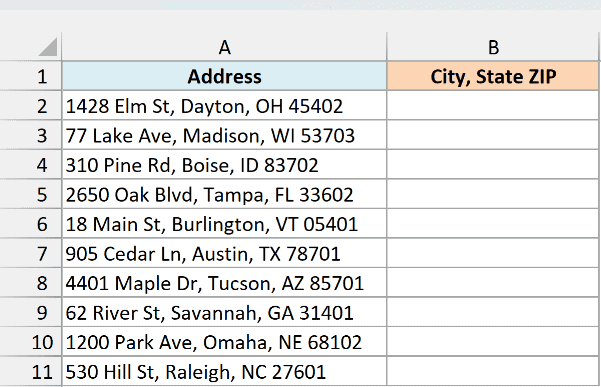
Below is a list of addresses, and I want to get everything after the first comma (the city, state, and ZIP code) in column B.
Here is the formula:
=TEXTAFTER(A2:A11,", ")
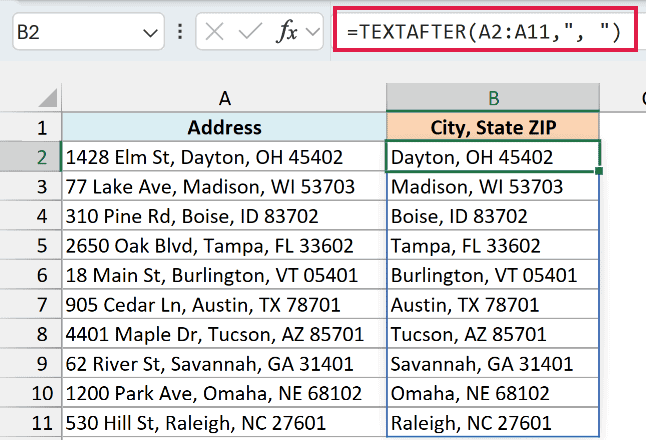
This formula finds the first comma and space in each address and returns everything after it. So “1428 Elm St, Dayton, OH 45402” gives you “Dayton, OH 45402”.
Since I gave the formula the whole range A2:A11, it returns ten results that spill down column B. You enter it once in B2 and don’t copy anything down (just make sure B3:B11 are empty, or you’ll get a #SPILL! error).
Notice that the delimiter is “, ” (a comma followed by a space). If you use just “,” instead, every result starts with a space, because the space after the comma becomes part of the extracted text.
If you are using Excel 2021 or earlier, enter the below formula in cell B2 and then copy it down the range:
=MID(A2,FIND(", ",A2)+2,LEN(A2))
Here, the FIND function gets the position of the first comma and space. The MID function then returns everything that starts two characters after it.
Example 2: Get Text After the Second Comma
Now let’s say each cell has more than one comma, and you need what comes after the second one.
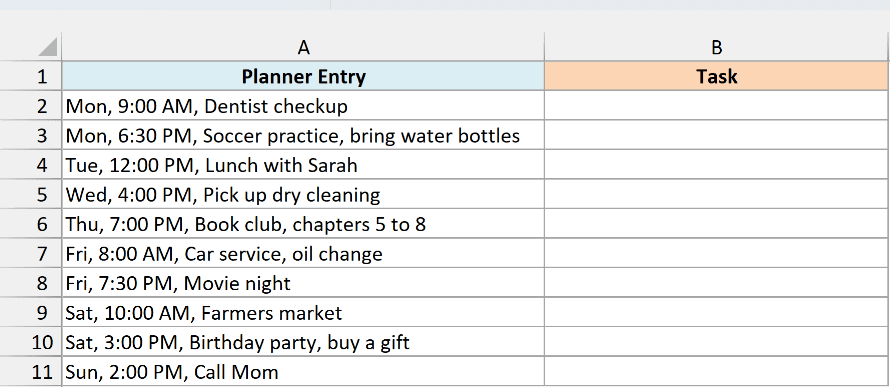
Below is a weekly planner with the day, time, and task in each cell, and I want to get just the task in column B.
Here is the formula:
=TEXTAFTER(A2:A11,", ",2)
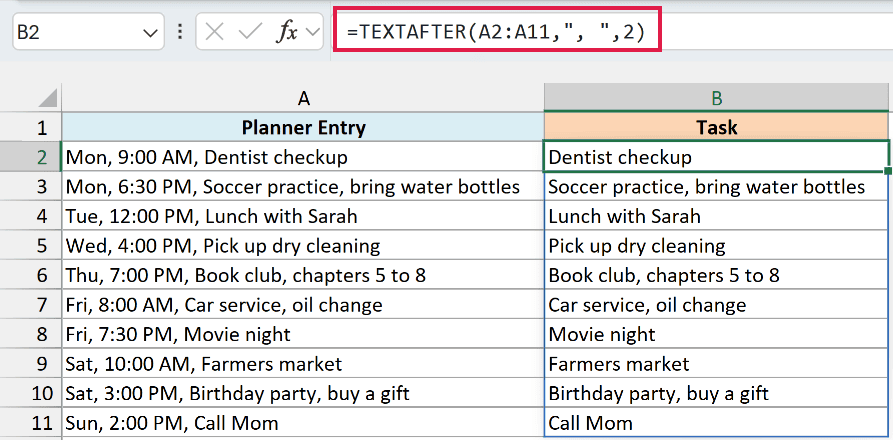
The 2 in the third argument (instance_num) tells TEXTAFTER to skip the first comma and return everything after the second one. So “Mon, 9:00 AM, Dentist checkup” gives you “Dentist checkup”.
This also keeps tasks that have their own commas in one piece. “Mon, 6:30 PM, Soccer practice, bring water bottles” returns “Soccer practice, bring water bottles”, because everything after the second comma is kept.
If an entry had fewer than two commas, the formula would return #N/A for that cell, since there’s no second comma to find.
Example 3: Get Text After the Last Occurrence of a Delimiter
Counting from the left works when every cell has the same structure. But sometimes the number of delimiters changes from one cell to the next.
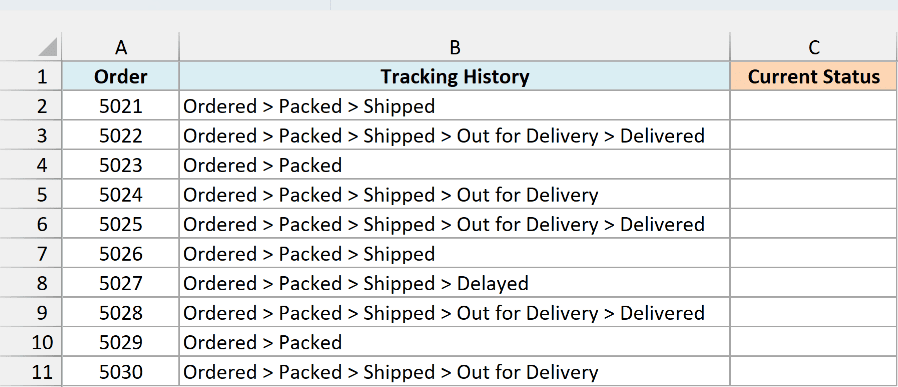
Below is a list of online orders with their tracking history, and I want the current (latest) status of each order in column C.
Here is the formula:
=TEXTAFTER(B2:B11," > ",-1)
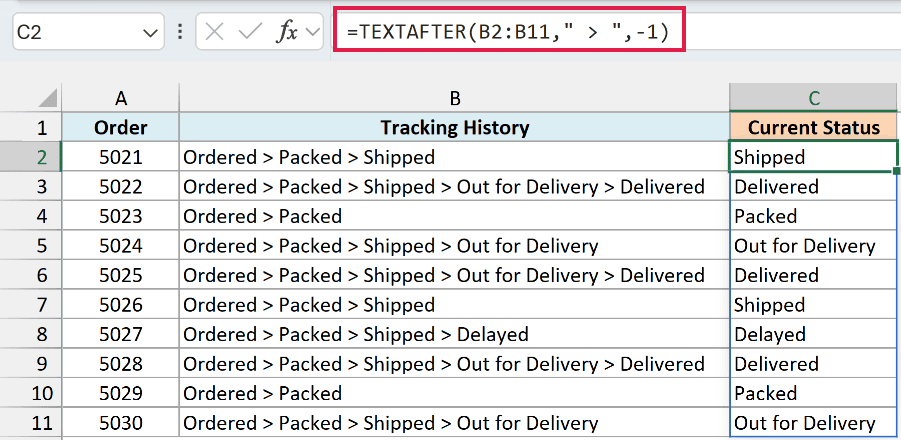
The -1 makes TEXTAFTER count from the end, so it returns the text after the last ” > ” in each cell.
That’s why it works here even though order 5023 has two steps and order 5022 has five. With a positive number, you’d need a different instance_num for each row, but -1 always gives you the last one.
Similarly, -2 gives you the text after the second-to-last delimiter. For order 5022, that would return “Out for Delivery > Delivered”.
Example 4: Ignore Upper and Lower Case With match_mode
Here’s one that catches a lot of people out.
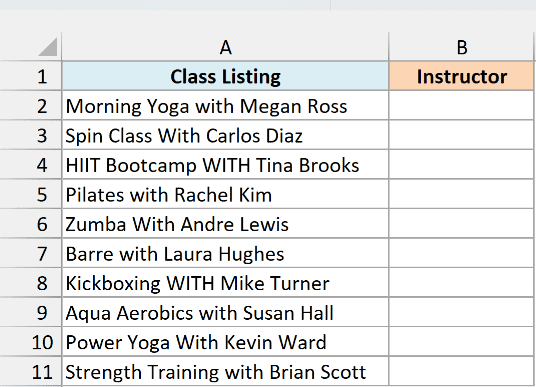
Below is a gym class schedule where the word “with” was typed as with, With, and WITH, and I want to get the instructor’s name in column B.
Here is the formula:
=TEXTAFTER(A2:A11," with ",,1)
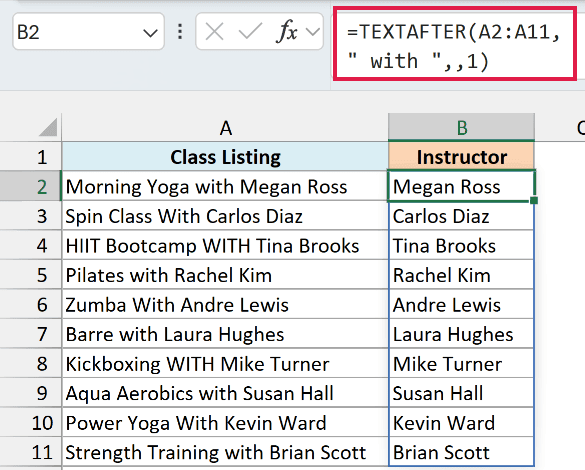
By default, TEXTAFTER is case-sensitive, so ” with ” doesn’t match ” With ” or ” WITH “. Without the 1 at the end, half of these rows would return #N/A.
Setting match_mode (the fourth argument) to 1 makes the match case-insensitive, so all three spellings count.
The empty spot between the two commas skips instance_num, which then uses its default of 1. You can skip any optional argument this way, as long as you keep its comma.
Example 5: Show a Custom Value When the Delimiter Isn’t Found
So far, every cell has had the delimiter in it. Real data isn’t always that tidy.
Below is a list of restaurant reservations where only some notes have a special request after a dash, and I want to get the special request in column C.
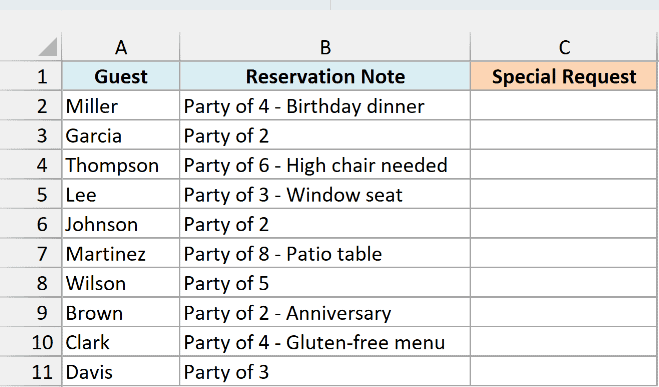
Here is the formula:
=TEXTAFTER(B2:B11," - ",,,,"None")
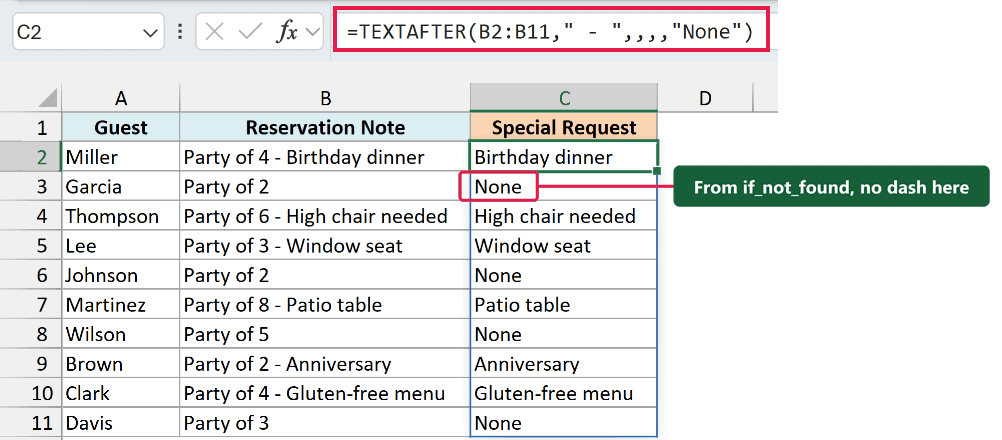
When TEXTAFTER can’t find the delimiter, it returns #N/A by default. Here, the last argument (if_not_found) replaces that error with “None”, so a reservation like “Party of 2” shows None instead of #N/A.
The three empty spots skip instance_num, match_mode, and match_end.
Pro Tip: If you’d rather leave these cells empty, use “” (two double quotes) as the if_not_found value instead of “None”.
Example 6: Return the Whole Text When There’s No Delimiter (match_end)
This next one uses match_end, an argument that makes a lot more sense once you see it in action.
Below is a list of folder paths, some several levels deep and some just a single folder, and I want to get the name of the last folder in column B.
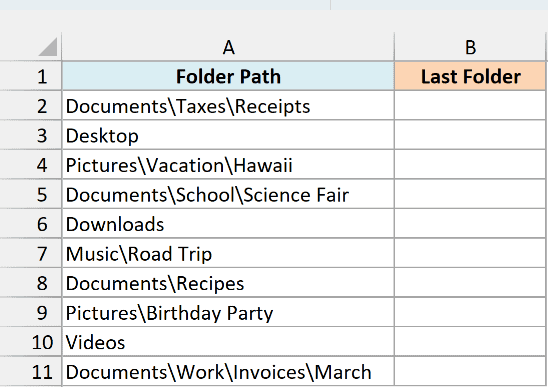
Here is the formula:
=TEXTAFTER(A2:A11,"\",-1,,1)
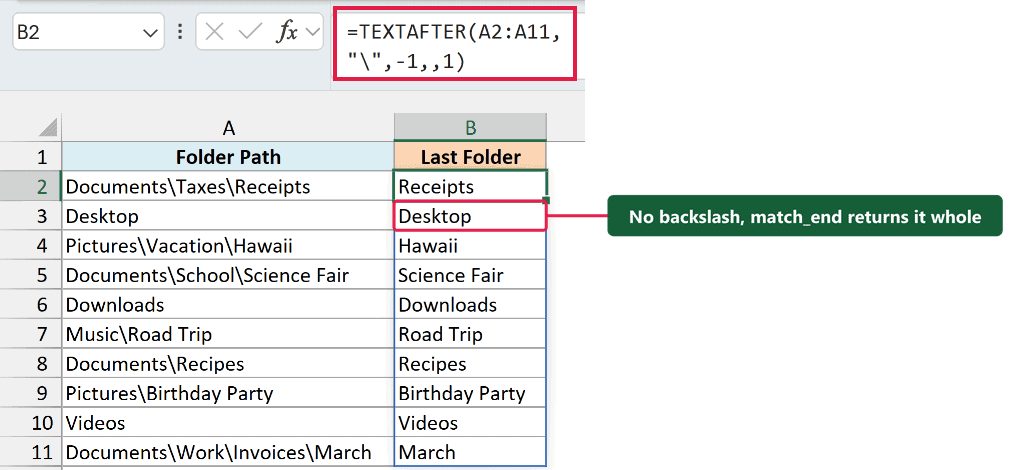
The -1 gets the text after the last backslash, just like in Example 3. But Desktop, Downloads, and Videos have no backslash at all, so without match_end, those three would return #N/A.
Setting match_end (the fifth argument) to 1 lets TEXTAFTER treat the edge of the text as a delimiter. Because -1 counts from the right, the start of the text counts as that delimiter, so a single folder name comes back whole.
You could also get this result by using the same range as the if_not_found value. Both work, but match_end saves you from typing the range a second time.
Example 7: Use Multiple Delimiters at Once
Now let’s look at text where the delimiter isn’t the same in every cell.
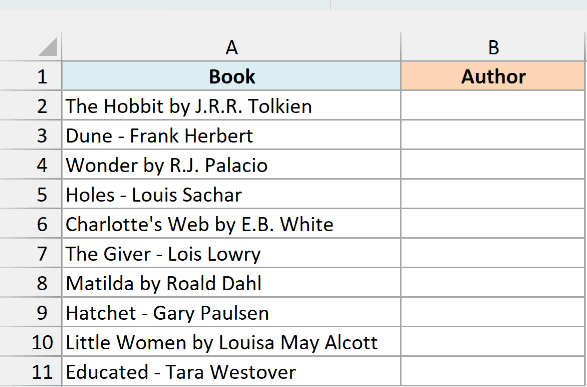
Below is a reading list where some books are written as “Title by Author” and others as “Title – Author”, and I want to get the author’s name in column B.
Here is the formula:
=TEXTAFTER(A2:A11,{" by "," - "})
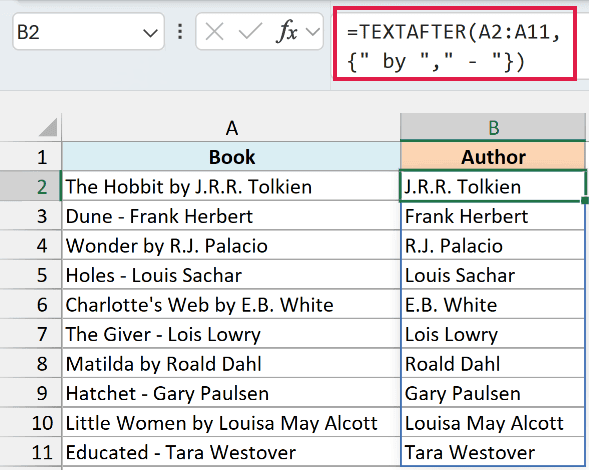
The curly brackets create an array constant, which lets you give TEXTAFTER more than one delimiter. It looks for both ” by ” and ” – ” and uses whichever one it finds first in each cell.
You can add as many delimiters as you need inside the brackets, separated by commas. That’s simpler than chaining two TEXTAFTER formulas with the IFNA function, one for each style.
Example 8: Extract Text Between Two Characters
Let’s finish with a combination you’ll probably use a lot.
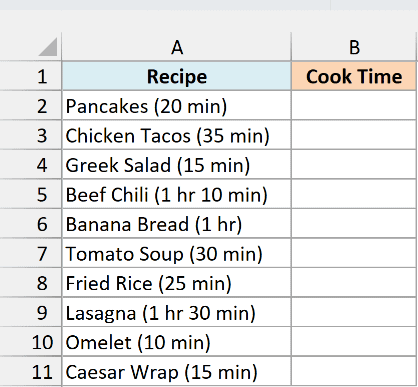
Below is a list of recipes with the cook time in parentheses, and I want to get just the cook time in column B.
Here is the formula:
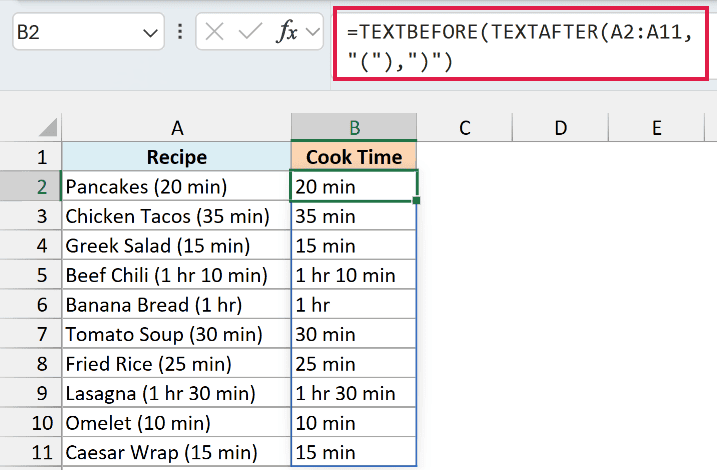
=TEXTBEFORE(TEXTAFTER(A2:A11,"("),")")
How this formula works:
- TEXTAFTER(A2:A11,”(“) returns everything after the opening parenthesis, like “20 min)”.
- TEXTBEFORE(…,”)”) then keeps only what comes before the closing parenthesis, which gives “20 min”.
The same pattern works for any text that sits between two markers, such as text inside square brackets or between two dashes. It’s one of several ways to extract a substring in Excel.
Important: TEXTAFTER always returns text, so if the parentheses held just a number like (20), you’d get the text “20”. To add up those results, wrap the formula in the VALUE function first, or the SUM will return 0.
So these are some of the ways you can use the TEXTAFTER function in Excel. Start with just the text and the delimiter, then add instance_num, match_mode, match_end, or if_not_found as your data needs them.
I hope you found this tutorial useful.
Other Excel Articles You May Also Like:
- TEXTSPLIT Function in Excel
- How To Remove Text Before Or After a Specific Character In Excel
- Extract Numbers from a String in Excel
- RIGHT Function in Excel
- SEARCH Function in Excel
- 20 Advanced Excel Functions and Formulas (for Excel Pros)
- Separate Text and Numbers in Excel (4 Easy Ways)
- REGEXEXTRACT function
