

TEXTBEFORE gives you the part of a cell that comes before a character or word you choose, like everything before a comma or a dash. Before it existed, you had to combine LEFT and FIND to do the same thing.
It also lets you pick which occurrence of the delimiter to use, ignore upper and lower case, and decide what to show when the delimiter isn’t there. I’ll cover all of that below with nine examples.
Follow along with the example file
TEXTBEFORE Function Examples.xlsx
TEXTBEFORE Function Syntax
Here is the syntax of the TEXTBEFORE function:
=TEXTBEFORE(text,delimiter,[instance_num],[match_mode],[match_end],[if_not_found])
- text – the text (or cell, or range of cells) you want to extract from.
- delimiter – the character or text that marks where the extraction stops. It can be one character, a word, or a list of options in curly braces.
- instance_num – (optional) which occurrence of the delimiter to use. The default is 1 (the first one). A negative number counts from the end of the text.
- match_mode – (optional) 0 makes the delimiter match case-sensitive (the default), and 1 ignores case.
- match_end – (optional) 1 treats the end of the text as a delimiter, so a cell without the delimiter returns its whole text. The default is 0.
- if_not_found – (optional) the value to return when the delimiter isn’t found. If you leave it out, you get #N/A.
Only the first two arguments are required, so in most formulas you’ll give TEXTBEFORE just the text and the delimiter.
An instance_num of 0 gives a #VALUE! error. A number bigger than the count of delimiters in the cell (asking for the third comma when there are only two) gives #N/A.
The TEXTBEFORE function works in Excel for Microsoft 365 (Windows and Mac) and Excel 2024. It isn’t available in Excel 2021 or earlier versions.
When to Use the TEXTBEFORE Function
Use this function when you need to:
- Pull a name, title, or code out of a longer text string
- Get the first word, or the first few words, from a cell
- Remove everything after the last comma, dash, or other separator
- Clean up data where different rows use different separators
- Extract the text between two characters, together with TEXTAFTER
Let me show you some practical examples of how to use the TEXTBEFORE function.
Example 1: Extract Text Before a Character
Let’s start with a simple example.
Below I have a list of movies with the release year in parentheses after each title, and I want just the movie title in column B.
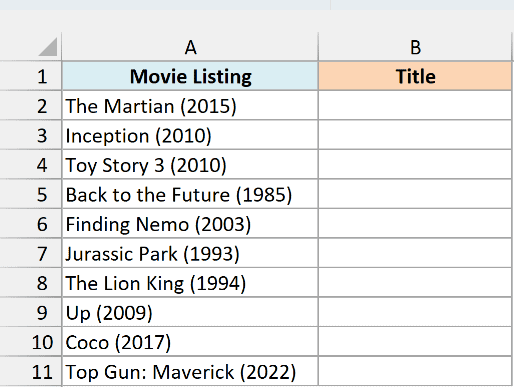
Here is the formula:
=TEXTBEFORE(A2:A11," (")
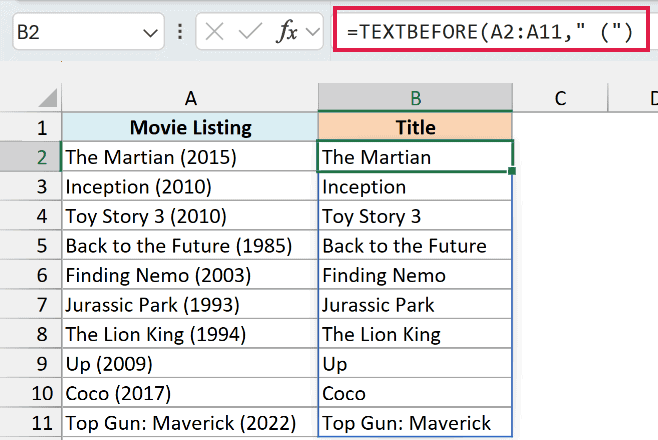
In the above formula, the delimiter is a space followed by an opening parenthesis. TEXTBEFORE returns everything to the left of it, so “Inception (2010)” becomes “Inception”.
I included the space in the delimiter on purpose. With just “(” as the delimiter, every title would end with a space you can’t see, and that hidden space can make lookups and comparisons fail later.
Since A2:A11 is a whole range, this one formula in B2 returns all ten titles, and they spill down to B11. If any cell in B3:B11 already has something in it, you get a #SPILL! error instead, so keep that range empty.
If you are using Excel 2021 or earlier, where TEXTBEFORE isn’t available, you can combine LEFT with FIND instead. Enter the below formula in cell B2 and then copy it down the range:
=LEFT(A2,FIND(" (",A2)-1)
Here, FIND returns the position of ” (” in the cell, and LEFT keeps everything before that position. It returns the same titles as the TEXTBEFORE formula above.
Example 2: Get the First Two Words (Using instance_num)
Now let’s use the third argument, instance_num.
Below I have a list of recipe ingredients, and I want just the quantity and the unit (like “2 cups”) in column B.
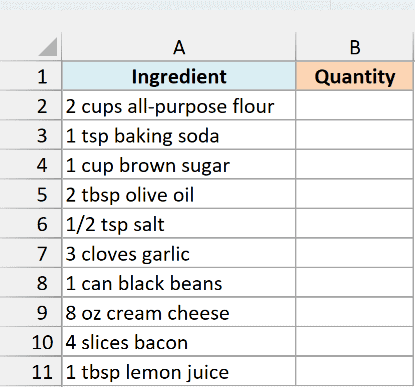
Here is the formula:
=TEXTBEFORE(A2:A11," ",2)
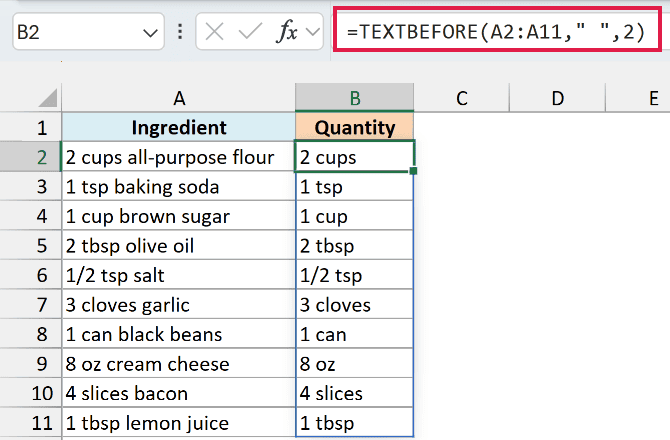
Here, the delimiter is a single space, and the 2 tells TEXTBEFORE to stop at the second space instead of the first. So “2 cups all-purpose flour” gives “2 cups”, and “1/2 tsp salt” gives “1/2 tsp”.
If you leave instance_num out, TEXTBEFORE stops at the first space and returns only the number. That’s also the easiest way to get the first word of any cell: use a space as the delimiter and skip instance_num.
If a cell has fewer spaces than the instance number (say, an ingredient listed as a single word), TEXTBEFORE returns #N/A for that cell. Examples 5 and 6 show two ways to handle that.
Example 3: Get Text Before the Last Occurrence of a Comma
Here’s a case where the text you want has the delimiter inside it too.
Below I have a list of local events, each followed by a comma and the city it’s in, and I want the event name without the city in column B.
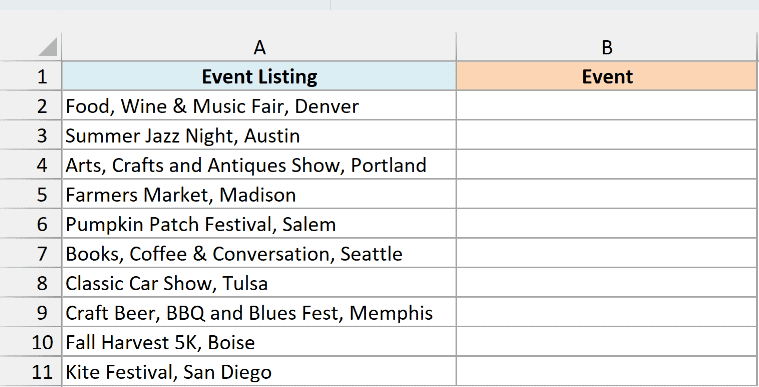
Here is the formula:
=TEXTBEFORE(A2:A11,",",-1)
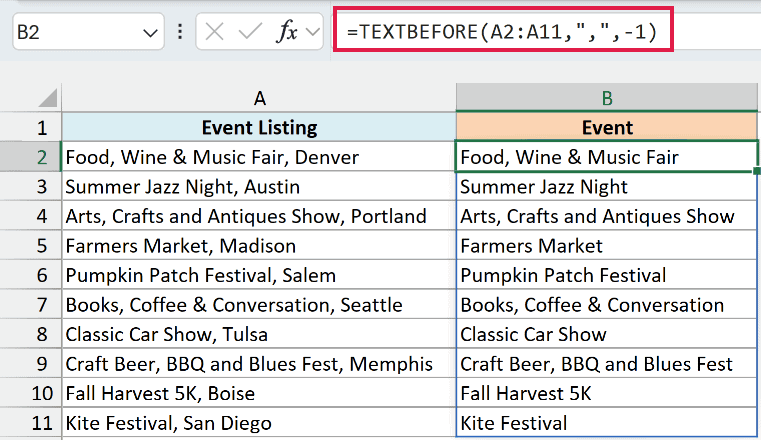
A negative instance_num counts the commas from the end of the text, so -1 means the last one. TEXTBEFORE returns everything before it, which turns “Food, Wine & Music Fair, Denver” into “Food, Wine & Music Fair”.
Some of these event names have commas of their own. Splitting at the first comma would return just “Food”, but the last comma is always the one right before the city, so -1 gets the full name every time.
Pro Tip: The same idea removes a trailing comma, so for a cell like “apples, pears, plums,”, =TEXTBEFORE(A2,",",-1) returns “apples, pears, plums”. Use it only on cells that really end with a comma, or it cuts off the last item instead.
Example 4: Make TEXTBEFORE Case-Insensitive
Now let’s look at what happens when the same word is typed in different ways.
Below I have a game schedule where the two teams are separated by “vs”, typed as vs, VS, or Vs, and I want the name of the first team in each game in column B.
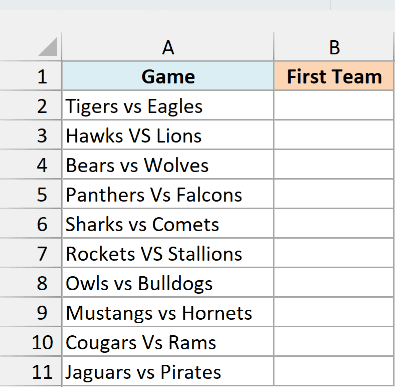
Here is the formula:
=TEXTBEFORE(A2:A11," vs ",,1)
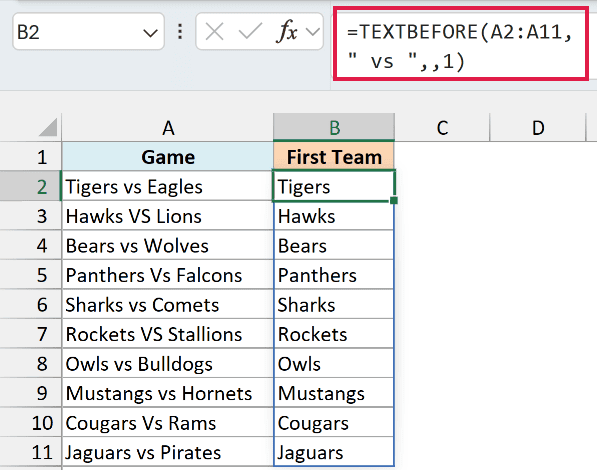
The 1 in the fourth argument (match_mode) tells TEXTBEFORE to ignore case, so ” vs ” also matches ” VS ” and ” Vs “. The empty spot before it skips instance_num, so the formula still uses the first match.
Without match_mode, TEXTBEFORE looks for ” vs ” in lowercase only. Cells like “Hawks VS Lions” don’t contain that exact text, so they would return #N/A.
Example 5: TEXTBEFORE If Delimiter Not Found (Return Custom Text)
Now let’s deal with cells that don’t have the delimiter at all.
Below I have a to-do list where most tasks start with a category and a colon, and I want the category in column B, with “General” for tasks that don’t have one.
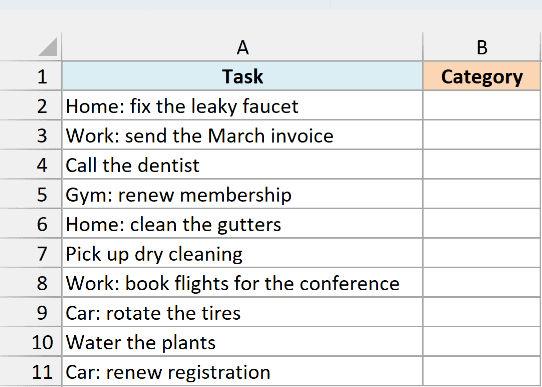
Here is the formula:
=TEXTBEFORE(A2:A11,":",,,,"General")
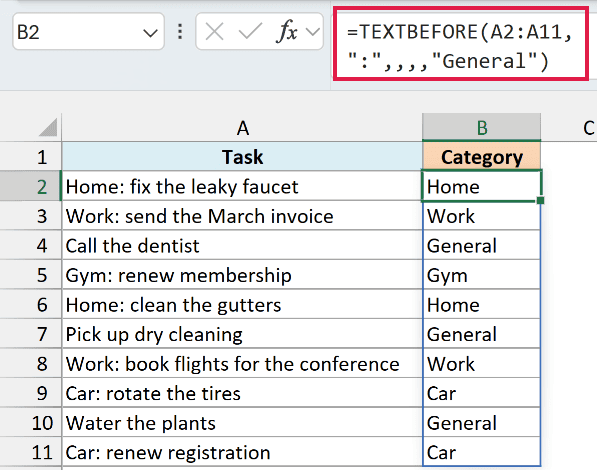
The sixth argument, if_not_found, is what TEXTBEFORE returns when the delimiter isn’t in the cell. “Call the dentist” has no colon, so it gets “General” instead of #N/A.
The four commas in a row skip instance_num, match_mode, and match_end, so those keep their default values.
If you’d rather leave those cells blank, use a pair of double quotes (“”) as if_not_found.
You could also wrap TEXTBEFORE in IFERROR, but IFERROR hides every error, including real problems in your data. The if_not_found argument only steps in when the delimiter is missing.
Example 6: Return the Full Text When the Delimiter Is Missing
Sometimes, when a cell doesn’t have the delimiter, the whole cell is exactly what you want.
Below I have a list of coffee orders where some drinks have a note after a dash and some don’t, and I want just the drink name in column B.
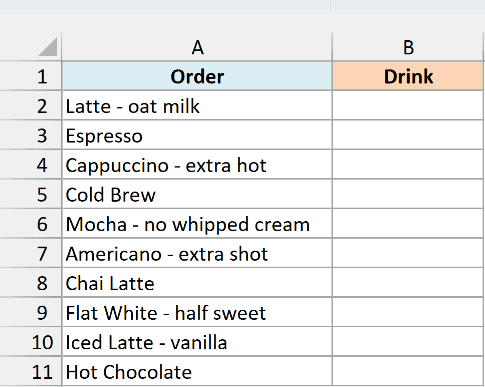
Here is the formula:
=TEXTBEFORE(A2:A11," - ",,,1)
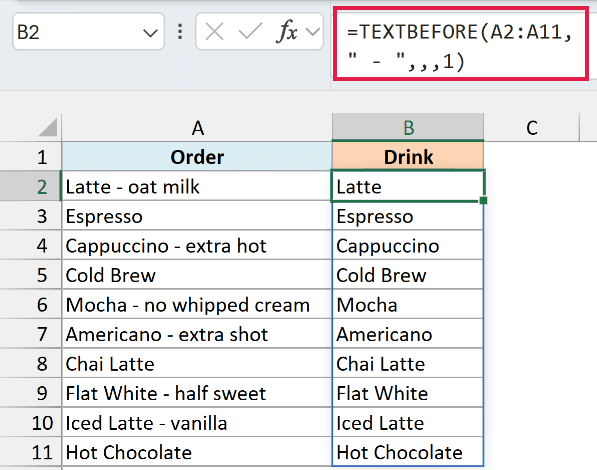
Setting match_end (the fifth argument) to 1 makes TEXTBEFORE treat the end of the text as a delimiter. “Espresso” has no dash, so TEXTBEFORE reads to the end of the cell and returns the whole thing, while “Latte – oat milk” still gives “Latte”.
You could get the same result by pointing if_not_found at the same range (A2:A11), so a missing dash returns the original text. The match_end argument does that job without repeating the range.
If you use both arguments, match_end wins, so don’t expect your if_not_found value to show up. With match_end on, the end of the text always counts as a match.
Example 7: TEXTBEFORE with Multiple Delimiters
Real data doesn’t always use the same separator in every row.
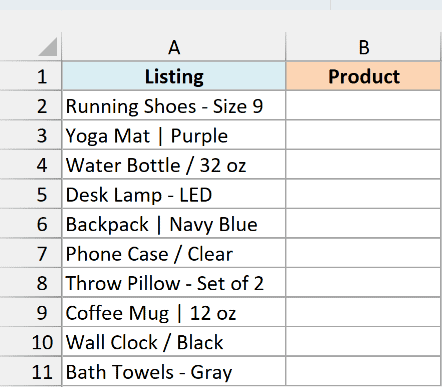
Below I have product listings from an online store where sellers separated the product name from the details with a dash, a pipe, or a slash, and I want just the product name in column B.
Here is the formula:
=TEXTBEFORE(A2:A11,{" - "," | "," / "})
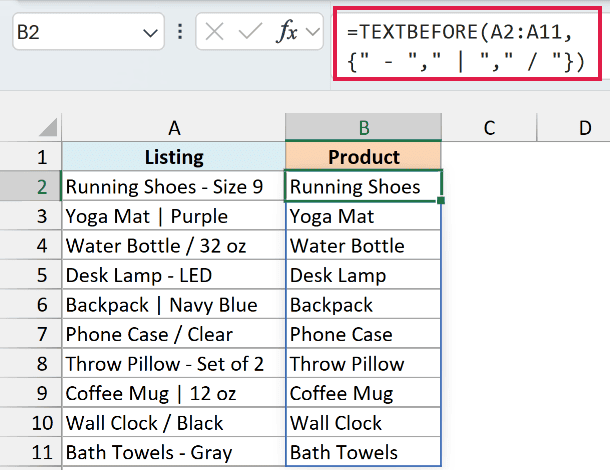
The curly braces hold a list of delimiters (called an array constant). TEXTBEFORE stops at whichever of them it finds first in each cell, so one formula handles all three styles.
You type these curly braces yourself as part of the formula and then press Enter as usual.
Example 8: Convert TEXTBEFORE Results to Numbers and Add Them
TEXTBEFORE always returns text, even when the result looks like a number.
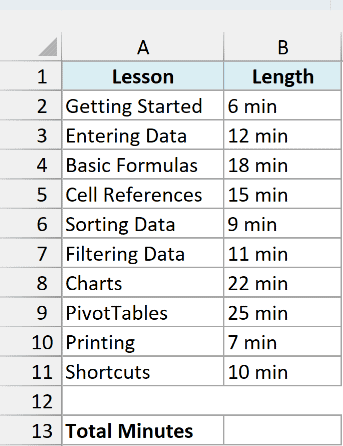
Below I have the lessons in an online Excel course, with each lesson’s length written as text (like “12 min”), and I want the total length of the course in minutes in cell B13.
Here is the formula:
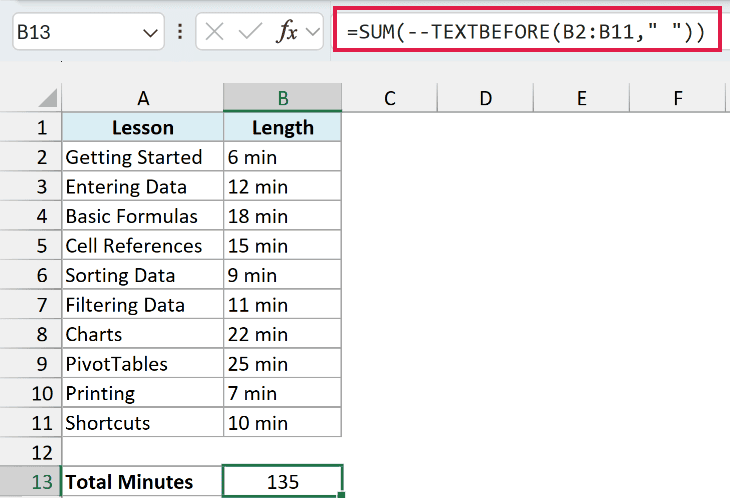
=SUM(--TEXTBEFORE(B2:B11," "))
How this formula works:
TEXTBEFORE(B2:B11," ")returns the part before the space in each cell, which gives “6”, “12”, “18”, and so on. These are text values, not numbers.- The double minus (
--) turns each of those text values into a real number. - SUM then adds them up and returns 135.
Important: Without the double minus, =SUM(TEXTBEFORE(B2:B11," ")) returns 0, because SUM skips text. So whenever you do math with a TEXTBEFORE result, convert it first with -- or the VALUE function.
Example 9: Combine TEXTBEFORE and TEXTAFTER to Get Text Between Two Characters
Let’s finish by pairing TEXTBEFORE with TEXTAFTER to get the text between two characters.
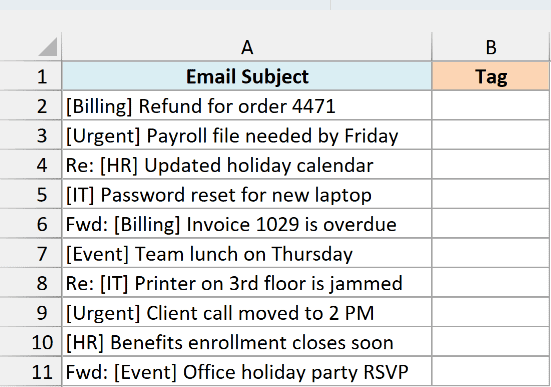
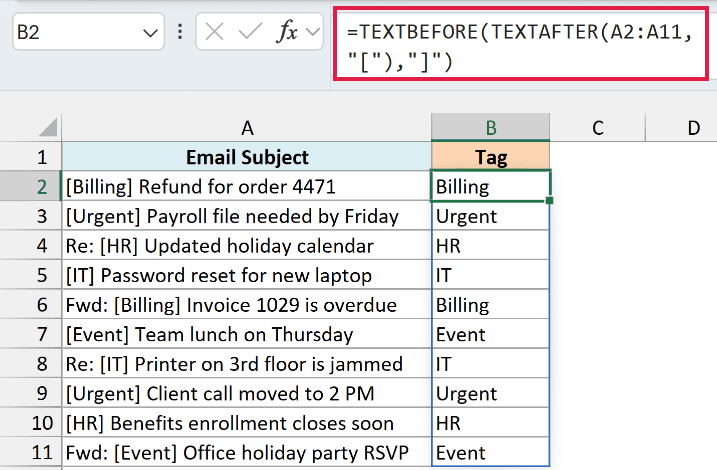
Below I have a list of email subject lines, each with a tag in square brackets, and I want just the tag (without the brackets) in column B.
Here is the formula:
=TEXTBEFORE(TEXTAFTER(A2:A11,"["),"]")
How this formula works:
TEXTAFTER(A2:A11,"[")returns everything after the opening bracket. So “Re: [HR] Updated holiday calendar” becomes “HR] Updated holiday calendar”.TEXTBEFORE(...,"]")then keeps everything before the closing bracket, which leaves just “HR”.
This works no matter where the tag sits in the subject. Some of these start with “Re:” or “Fwd:”, and the formula still finds the brackets because it looks for the bracket characters, not a fixed position.
TEXTAFTER takes the same arguments as TEXTBEFORE, so you can add instance_num or if_not_found to either part when your data needs it. It also works in the same versions (Excel for Microsoft 365 on Windows and Mac, and Excel 2024).
So these are nine examples of how you can use the TEXTBEFORE function in Excel, including working from the last delimiter, handling cells where the delimiter is missing, and pairing it with TEXTAFTER.
I hope you found this article helpful.
Other Excel Articles You May Also Like:
- TEXTSPLIT Function in Excel
- How to Extract a Substring in Excel (Using TEXT Formulas)
- How To Remove Text Before Or After a Specific Character In Excel
- MID Function in Excel
- How to Extract the First Word from a Text String in Excel (3 Easy Ways)
- Remove Characters From Left in Excel (Easy Formulas)
- Separate Text and Numbers in Excel (4 Easy Ways)
- Separate First and Last Name in Excel (Split Names Using Formulas)
