

The N function in Excel converts a value into a number. Numbers stay as they are, TRUE becomes 1, and text becomes 0.
Excel already converts most values on its own, so you won’t need N every day. But it’s handy when text breaks a calculation, when you want to add up TRUE and FALSE results, or when you want a note inside a formula.
Also, keep in mind that if you give N a whole range, it doesn’t spill a result for each cell. It returns only the first cell’s value, and I’ll show you a simple way around that.
Follow along with the example file
N Function Examples.xlsx
N Function Syntax
Here is the syntax of the N function:
=N(value)
- value is the value you want to convert to a number. It can be a cell reference, a number, text, TRUE or FALSE, or a calculation.
When the value is a calculation like a comparison (for example, D2>C2), N converts its TRUE or FALSE result into 1 or 0. That’s what makes N useful for counting, as you’ll see in Example 3.
The N function works in all Excel versions, including Microsoft 365, 2024, 2021, 2019, 2016, Excel for Mac, and Excel for the web.
When to Use the N Function
Use this function when you need to:
- Treat text entries like “TBD” as zero, so a calculation doesn’t return a #VALUE! error.
- Turn TRUE and FALSE results into 1 and 0 so you can add them up.
- Write a running balance formula that works the same way in every row, including the first one.
- Leave a note inside a formula without changing its result.
- See the serial number Excel stores behind a date or time.
Let me show you a few practical examples of how to use the N function.
Example 1: What the N Function Returns for Different Values
Let’s start with a simple example.
Below is a list of different kinds of values (a number, some text, TRUE and FALSE, a date, a blank cell, an error, and a few more), and I want to see what N returns for each one in column C.
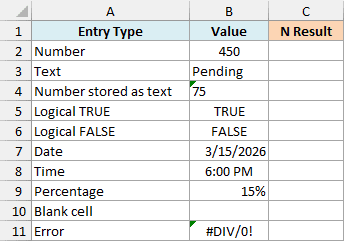
As I mentioned at the start, N reads only the first cell of a range, so here it works on one cell at a time.
Here is the formula to enter in cell C2 and then copy down to C11:
=N(B2)
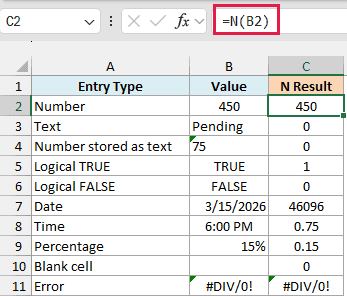
Here is what N did with each value:
- 450 comes back as 450, since numbers pass through unchanged.
- “Pending” returns 0. Any text returns 0.
- The 75 in B4 also returns 0. It looks like a number, but it’s stored as text (that’s why it sits on the left of the cell).
- TRUE returns 1 and FALSE returns 0.
- The date 3/15/2026 returns 46096. Excel stores every date as a serial number, counting January 1, 1900 as 1, and N shows you that number.
- The time 6:00 PM returns 0.75, because a time is stored as a fraction of a day.
- 15% returns 0.15, since the percent sign is only formatting.
- The blank cell returns 0.
- The #DIV/0! error comes back as #DIV/0!, because N passes errors through instead of hiding them.
Example 2: Treat Text as Zero in a Calculation
Here’s a practical scenario where N saves you from errors.
Below is a bake sale sheet with the price and quantity sold for each item, and I want the revenue for each item in column D.
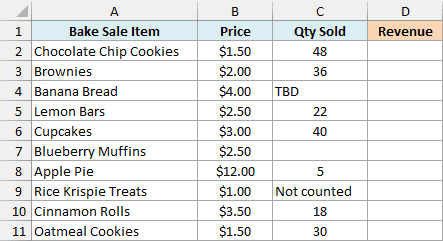
A few quantity cells say TBD or Not counted, and one is blank. If you multiply the price by those text entries directly, you get a #VALUE! error in those rows.
Here is the formula to enter in cell D2 (the results spill down to D11 on their own):
=B2:B11*N(+C2:C11)
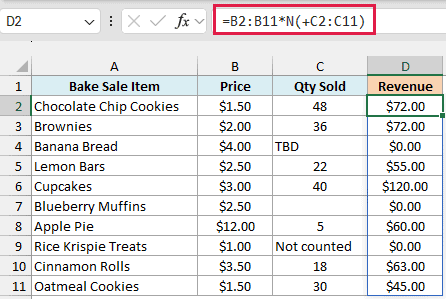
How this formula works:
- The plus sign in front of C2:C11 turns the range into a list of values. Without it, N would read only the first cell (as you saw in Example 1).
- N then converts each quantity. Numbers like 48 stay as they are, while TBD, Not counted, and the blank cell become 0.
- Each converted quantity is multiplied by its price in B2:B11, so the Banana Bread and Rice Krispie Treats rows show $0.00 instead of #VALUE!.
Since N passes errors through, a quantity cell with an error like #N/A would still show that error in column D. That’s a good thing, because a real problem in the data doesn’t get hidden behind a 0.
Important: N treats a number stored as text as text, so it returns 0 for it. If a quantity like 8 was typed as text, this formula silently gives $0.00 for that row, so convert such entries to real numbers first.
Spilling formulas need Excel for Microsoft 365 or Excel 2021 and later. If you are using Excel 2019 or earlier, enter the below formula in cell D2 and then copy it down to D11:
=B2*N(C2)
Example 3: Count Late Deliveries with SUM and N
Now let’s use N to count rows that pass a test.
Below is a list of online orders with the date each one was promised and the date it was delivered, and I want to count the late deliveries in cell F2.
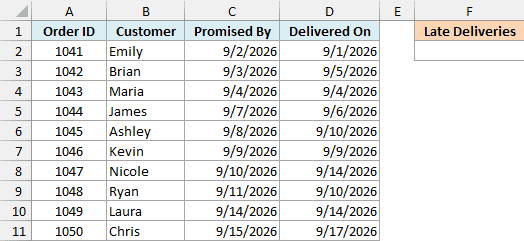
You might think a plain SUM of the comparison would do it, but SUM skips TRUE and FALSE values. So =SUM(D2:D11>C2:C11) returns 0, even though some orders were late.
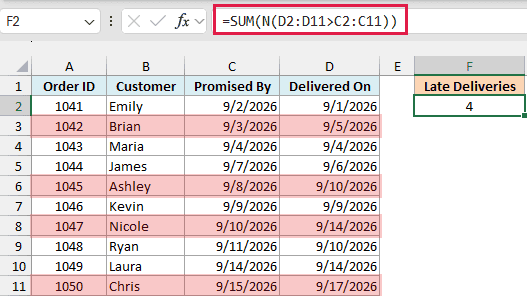
Here is the formula to enter in cell F2:
=SUM(N(D2:D11>C2:C11))
How this formula works:
D2:D11>C2:C11compares each delivery date with its promised date. It returns TRUE for an order that arrived late and FALSE for the rest.- N turns each TRUE into 1 and each FALSE into 0. Here N gets a list of results (not a range), so it converts every one of them.
- SUM adds up the 1s, which gives 4 late deliveries (orders 1042, 1045, 1047, and 1050).
COUNTIFS can’t help with this one, because it can’t compare two columns row by row.
If you are using Excel 2019 or earlier, enter the below formula in cell F2:
=SUMPRODUCT(N(D2:D11>C2:C11))
In those versions, the SUM version only works if you enter it with Control + Shift + Enter, while SUMPRODUCT handles the comparison on its own.
You may also see the SUMPRODUCT version written as =SUMPRODUCT(--(D2:D11>C2:C11)). The double minus there does the same job as N.
Example 4: Running Balance with the Same Formula in Every Row
This next one is a handy trick for running totals.
Below is a savings log with the money added and taken out on each date, and I want a running balance in column D.
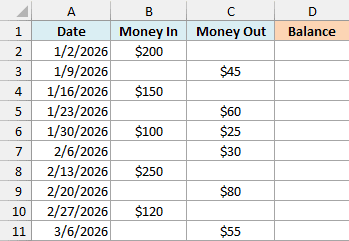
Since each row needs the balance from the row above it, enter this formula in cell D2 and then copy it down to D11:
=N(D1)+B2-C2
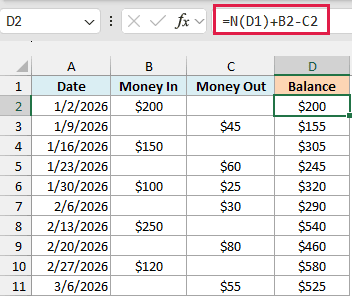
Each row takes the balance from the row above, adds the Money In amount, and subtracts the Money Out amount. Excel treats the blank Money In and Money Out cells as 0, so a row with only a deposit or only a withdrawal works fine.
The interesting part is the first row. In D2, the cell above is the header “Balance”, which is text, so N turns it into 0 and the first balance is simply $200.
Without N, =D1+B2-C2 returns a #VALUE! error in D2, because Excel can’t add text to a number. You’d then need a different formula for the first row, and N saves you from that.
This trick depends on D1 holding text. If the cell above the first balance has a number, N passes it through and the balance starts from that number instead of 0.
Example 5: Add a Note Inside a Formula
Let’s finish with a fun one that you can use in almost any workbook.
Below is a list of costs for a kid’s birthday party, and I want the total cost in cell B13, with a note inside the formula saying the cake deposit isn’t included.
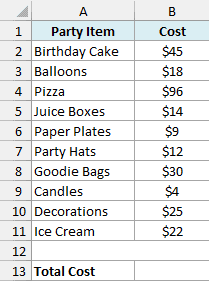
Here is the formula to enter in cell B13:
=SUM(B2:B11)+N("Excludes the $40 cake deposit paid in advance")
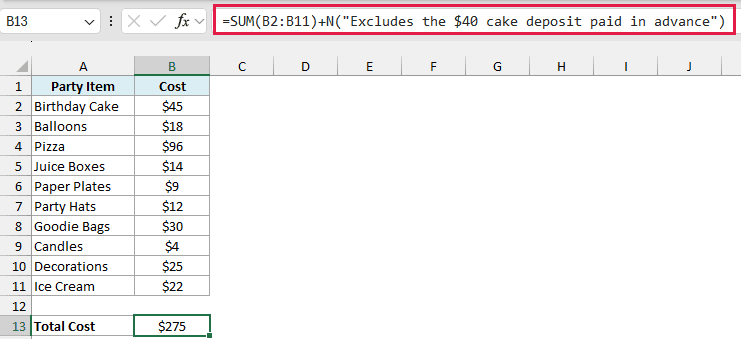
Since the note is text, N returns 0 for it, and adding 0 doesn’t change the total. So the cell still shows $275, but anyone who clicks on B13 can read the note in the formula bar.
Unlike a cell comment, which shows up only when you hover over the cell, the note is part of the formula itself.
This only works in formulas that return a number. If your formula returns text, joining N’s 0 to it adds a 0 at the end (="Total: "&N("note") returns “Total: 0”).
So these are a few ways you can use the N function in Excel. It’s a small function, but it comes in handy whenever text, blanks, or TRUE and FALSE values get in the way of a calculation.
I hope you found this tutorial useful.
Other Excel Articles You May Also Like:
