

The SKEW.P function in Excel measures how unevenly a complete set of numbers is spread around its average. Its result helps you spot a distribution that stretches farther toward high values or low values.
The .P stands for population, meaning the entire group you want to describe. That might be every item in one batch or every completed job in a particular month, even if the group is small.
In this tutorial, I’ll show you how to interpret the result, combine ranges, handle missing entries, and calculate population skewness for one group in a larger list.
Follow along with the example file
SKEW.P Function Examples.xlsx
SKEW.P Function Syntax
Here is the syntax of the SKEW.P function:
=SKEW.P(number1, [number2], ...)
- number1 is required. Supply a number, a cell reference, a range, or an array containing the values you want to analyze.
- number2, … are optional additional numbers, references, ranges, or arrays. Excel combines their numeric values into the same calculation.
One range can contain your entire dataset, so you don’t need a separate argument for each observation. You can also use a defined name that refers to the data.
Numbers stored as text and TRUE/FALSE values behave differently depending on how you supply them. Excel counts them when you type them directly as arguments, but ignores them inside referenced cells or arrays, as we’ll discuss in Example 4.
SKEW.P is available in Excel 2013 and later, including Microsoft 365, Excel 2024, 2021, 2019, and 2016. The FILTER example below requires Microsoft 365, Excel 2021 or later, or Excel for the web.
When to Use the SKEW.P Function
Use this function when you need to:
- Describe the shape of all observations in a defined population, such as every bag in a storage room.
- Check whether a few unusually high or low values make a completed group’s data uneven.
- Calculate one skewness value from observations stored in several ranges.
- Analyze a complete subgroup, such as all bike repairs in a monthly repair log.
Let’s start with a single range so you can see what the answer means.
Example 1: Calculate Population Skewness
Below are the weights of all ten bags in a storage room, and I want to calculate their population skewness in cell B13.
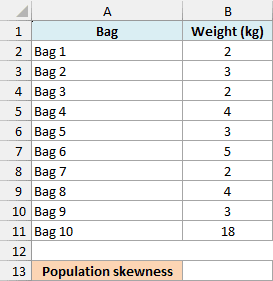
Enter this formula in cell B13:
=SKEW.P(B2:B11)
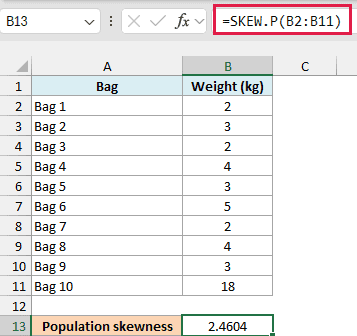
The result is 2.4604, shown to four decimal places. SKEW.P takes all ten weights in B2:B11 and returns one number, so you don’t copy the formula down the column.
Most bags weigh between 2 and 5 kg, but one weighs 18 kg. That heavier bag stretches the data toward the high end, which is why the skewness is positive (also called right skewness).
Skewness has no units. The result 2.4604 isn’t a weight or a percentage; it describes the distribution’s shape.
Important: These ten bags are the complete population being described. If you measured only some bags to estimate skewness for a larger group, use the SKEW function, which applies an adjustment for sample size.
SKEW.P and SKEW answer different statistical questions, so don’t choose between them just because one returns a smaller number. Whether you have the whole group matters more than how many rows you have.
Example 2: Interpret Negative Skewness
Now let’s look at a group with one unusually low value.
Below is attendance for all ten workshops in a completed program, and I want to calculate the population skewness in cell B13.
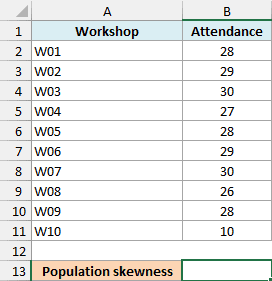
Use this formula in cell B13:
=SKEW.P(B2:B11)
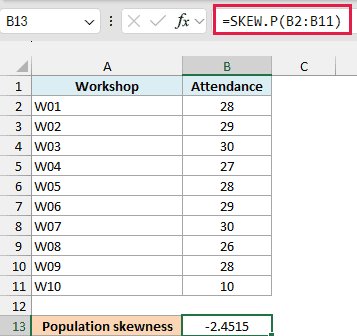
This returns -2.4515. Nine workshops had between 26 and 30 attendees, while one had just 10, so the data stretches farther toward the low end.
That’s negative skewness, also called left skewness. The negative sign describes the direction of the tail; it doesn’t mean any attendance count is negative.
A symmetric set of values has zero skewness, provided the values aren’t all identical. But a result near zero alone doesn’t prove that your data follows a normal distribution, so look at a histogram when the overall shape matters.
If every attendance count is identical, SKEW.P returns #DIV/0! because the standard deviation is zero. It also returns #DIV/0! when fewer than three numeric observations remain in the input.
Example 3: Combine Two Ranges
You can give SKEW.P more than one range when your observations are stored in separate places.
Below are book counts for all six positions on each of two shelves, and I want one population skewness value for the twelve positions in cell B9.
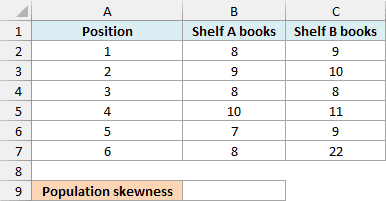
Enter this formula in cell B9:
=SKEW.P(B2:B7,C2:C7)
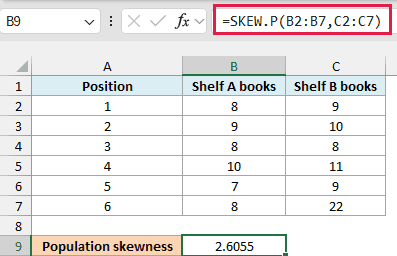
The result is 2.6055. The first argument supplies the six counts from Shelf A, and the second supplies the six from Shelf B.
Excel treats those twelve numbers as one population. It doesn’t calculate a result for each shelf and then average the two results.
The two columns happen to be adjacent here, but separate arguments also work when the ranges aren’t next to each other. Make sure the ranges contain the same kind of measurement and don’t overlap, or you’ll count shared cells more than once.
Example 4: Handle Blanks, Text, and Zeros
A missing entry and a recorded zero can mean very different things, and SKEW.P treats them differently too.
Below is a ten-day rental-return log with an unrecorded day and a closed day, and I want the population skewness of the recorded numeric counts in cell B13.
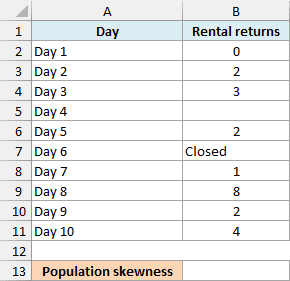
Here is the formula for cell B13:
=SKEW.P(B2:B11)
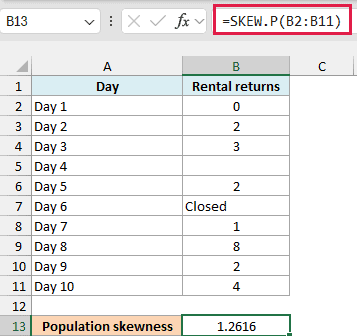
This returns 1.2616. Excel ignores the blank for Day 4 and the text Closed for Day 6, leaving eight numeric observations.
The zero for Day 1 stays in the calculation because it is a recorded number. A blank isn’t converted to zero.
Important: This result describes the eight recorded counts, not all ten days. If you want the whole period’s population skewness, recover the missing count and decide whether a closed day belongs in your population before calculating it.
The same reference-handling rule applies to numbers stored as text and TRUE/FALSE values in cells: SKEW.P ignores them. If an imported count looks like a number but Excel stored it as text, convert it to a real number before relying on the result.
An error value in the range is different from ordinary text. SKEW.P passes the error through, so fix the source error rather than assuming Excel skipped that observation.
Example 5: Find Skewness for One Group
If your list contains several groups, the FILTER function can select the observations you want before SKEW.P calculates the result.
Below is the complete log of repairs finished during a month, and I want the population skewness of bike-repair durations in cell B13.
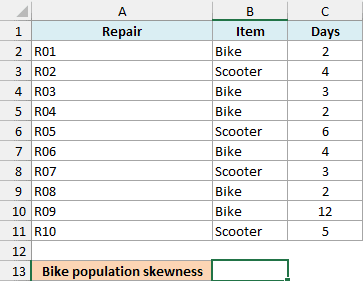
In Microsoft 365, Excel 2021 or later, or Excel for the web, enter this formula in cell B13:
=SKEW.P(FILTER(C2:C11,B2:B11="Bike"))
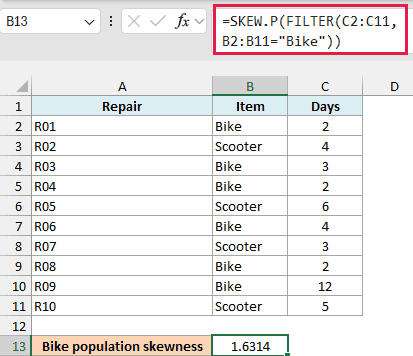
The result is 1.6314. The six bike repairs took 2, 3, 2, 4, 2, and 12 days, so the longer repair gives this group a positive skew.
How this formula works:
B2:B11="Bike"checks which records belong to the Bike group.FILTER(C2:C11,B2:B11="Bike")returns the durations for those matching records.- SKEW.P calculates one population skewness value from the returned durations.
Although the FILTER function returns an array, the complete formula still produces one result cell. SKEW.P reduces those matching values to a single number.
If there are no matching records, this formula returns #CALC! because the FILTER function has no values to return. Check the group spelling and whether the log contains that group; zero would be a misleading substitute for missing data.
In older Excel versions without the FILTER function, copy the matching durations into a separate range and apply SKEW.P to that range. Simply hiding the other rows won’t exclude them from a normal SKEW.P range calculation.
SKEW.P lets you describe a complete group’s skewness with a single formula, including when its values sit in multiple ranges or need filtering first. The population you define is what gives that number its meaning.
Other Excel Articles You May Also Like:
