

If you have created a table in Excel, you may have noticed that it picks up a generic name like Table1 or Table2 on its own.
That name tells you nothing about what is inside, and it makes your formulas harder to read later.
The good news is that renaming a table takes only a few seconds. In this article, I’ll show you a couple of easy ways to name a table in Excel, the rules you need to follow, and why a good name is worth the effort.
Before You Start: You Need a Table First
Naming only works on an actual Excel Table, not a plain range of cells. So if you haven’t converted your data into a table yet, do that first.
Select any cell in your data and press Control + T (or go to the Insert tab and click Table). Confirm the range in the dialog box and click OK.
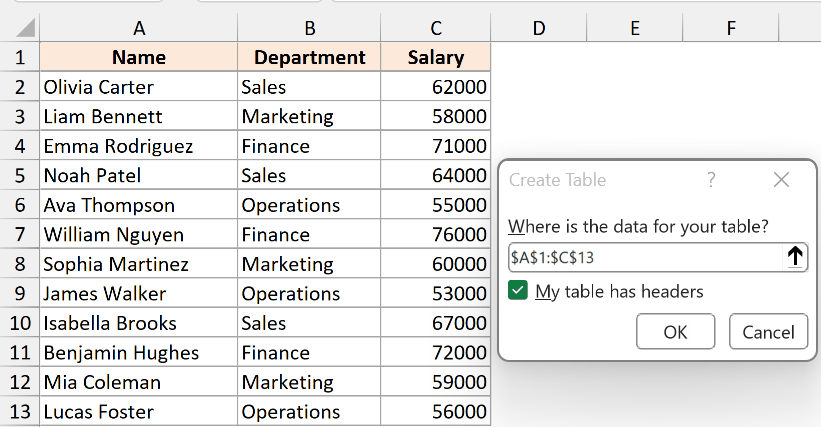
The moment you do this, Excel turns your range into a table and gives it an automatic name like Table1. That is the name we are going to change.
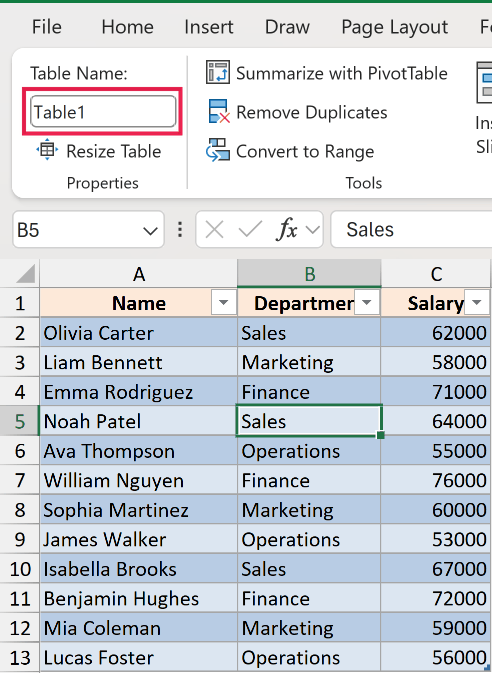
Method 1: Using the Table Name Box
This is the fastest way to name a table, and it is the one I use almost every time. Everything happens right on the ribbon, so there is nothing extra to open.
Here are the steps to name a table using the Table Name box:
- Click anywhere inside the table you want to name.
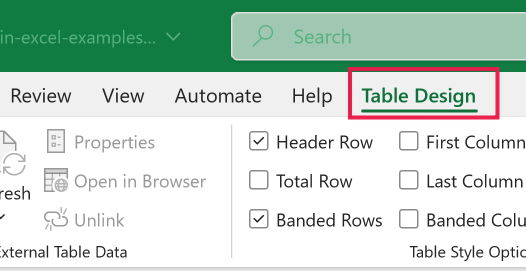
- Click the Table Design tab that appears on the ribbon. On a Mac this tab is simply called Table.
- In the Table Name box at the far left (inside the Properties group), select the existing name and type the new one, such as EmployeeData.
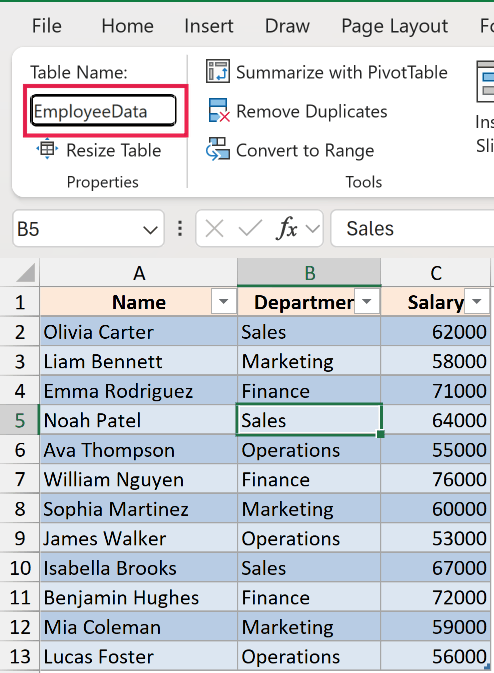
- Press Enter.
That’s it. Your table now has a clear, meaningful name, and every formula that refers to it updates automatically.
Pro Tip: You can jump straight to the Table Name box with the keyboard shortcut Alt, J, T, A. The current name gets selected, so you can type the new one right away and press Enter.
Method 2: Using the Name Manager
Here’s another way to do this, and it is handy when you want to see everything at once.
The Name Manager lists every table name and every named range in the workbook in a single place.
I’m working with the same employee table that has Name, Department, and Salary columns, and the goal here is to rename it to EmployeeData from the Name Manager.
Here are the steps to name a table using the Name Manager:
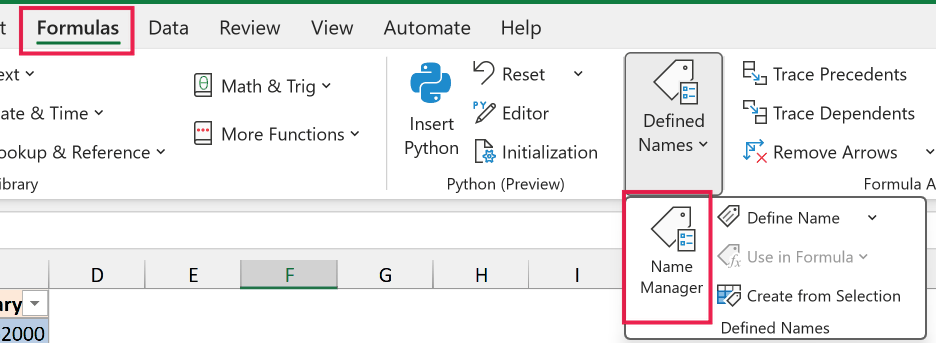
- Go to the Formulas tab and click Name Manager.
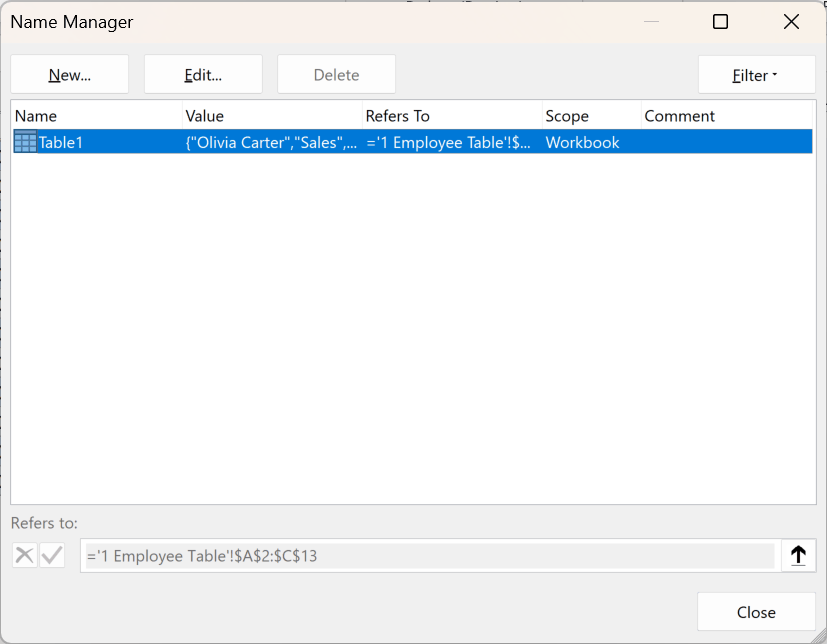
- In the Name Manager dialog box, select the table name you want to change. Table names show a small table icon next to them, which helps you tell them apart from named ranges.
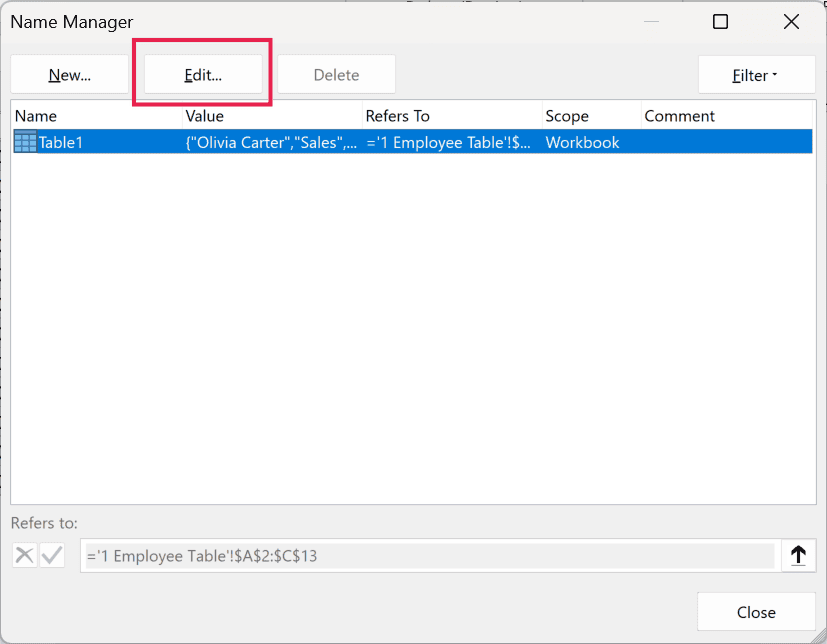
- Click the Edit button.
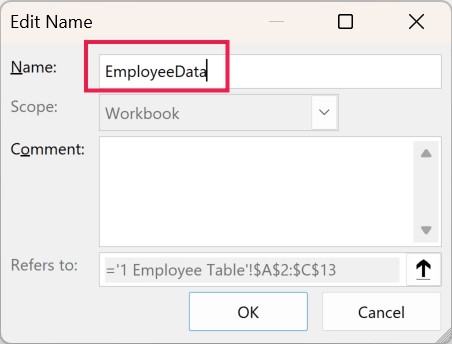
- In the Name box of the Edit Name dialog, type the new name and click OK.
Close the Name Manager when you are done. The table now carries the new name everywhere it is used.
This route takes a few more clicks than Method 1, but it is useful when you are cleaning up a workbook and want to review all your names together.
Why Naming a Table Actually Matters
A name like Table1 works, but it makes your formulas a guessing game. Compare these two formulas that add up a Salary column.
With the default name:
=SUM(Table1[Salary])
With a proper name:
=SUM(EmployeeData[Salary])
The second one reads almost like a sentence. Anyone opening your file can tell what it does without hunting around the sheet.
These references in square brackets are called structured references, and they are one of the best things about Excel tables. A clear table name makes them readable in formulas, charts, PivotTables, and data validation lists alike.
Rules for Naming a Table in Excel
Excel won’t let you save just any name, so it helps to know the rules before you start typing. Here is what Microsoft allows.
- The name must start with a letter, an underscore (_), or a backslash (\). It cannot start with a number.
- After the first character you can use letters, numbers, periods, and underscores.
- Spaces are not allowed. Use an underscore or a period as a separator (Sales_Data) or join the words together (SalesData).
- The name cannot look like a cell reference such as A1 or R1C1, since Excel would confuse it with an actual cell.
- You cannot use C, c, R, or r on their own. Excel reserves these as shortcuts.
- A table name can be up to 255 characters long, though short and descriptive is always better.
- Each name must be unique in the workbook. Excel ignores case, so Sales and SALES count as the same name.
If you type something Excel does not like, it shows an error and keeps the old name until you fix it.
Things to Keep in Mind
- Renaming a table updates all of its structured references automatically. So if you have formulas pointing to Table1 and you rename it to EmployeeData, those formulas keep working without any manual edits.
- You can rename a table at any time, not just when you first create it. Pick a name once your data has a clear purpose so it actually describes what is inside.
- Keep names short but descriptive. A name like Q1SalesData is far easier to read in a formula than something long, and much clearer than the default Table1.
- The Name Manager shows table names and regular named ranges side by side. The small table icon next to a name is how you spot which entries are tables.
In this article, I showed you two simple ways to name a table in Excel, the rules to follow, and why a good name makes your formulas so much easier to read.
I hope you found this article helpful.
Other Excel Articles You May Also Like:
