

Excel has some really smart features that can be really useful in many cases (and sometimes it could be frustrating).
One such area is when you enter numbers in Excel. Sometimes, Excel automatically changes these numbers to dates.
For example, if you enter 1/2 in Excel, Excel will automatically change this to 2-Jan (or 1-Feb if your computer uses the day/month date order).
Similarly, if you enter 6/30/2026 (or 30-06-2026 if you use the day/month order), Excel assumes you want to enter a date, and it changes this to a date (as shown below).
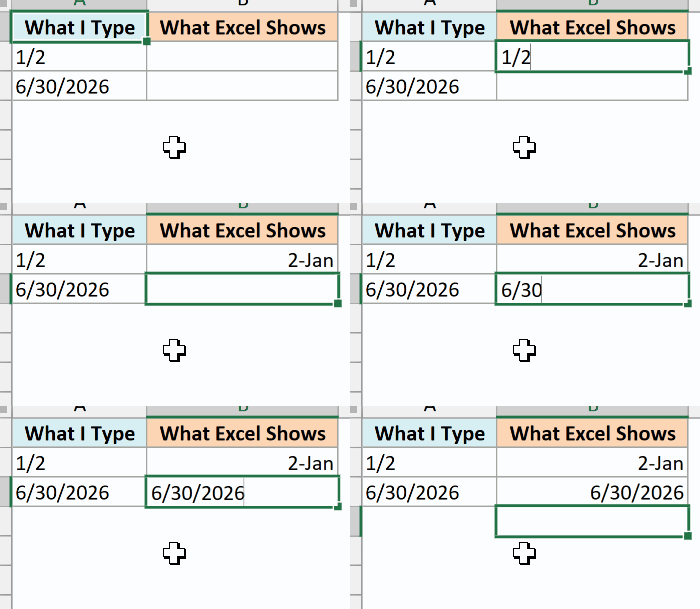
While this may be what you want in most cases, but what if I don’t want this. What if I simply want the exact text 6/30/2026 or the fraction 1/2.
How do I stop Excel from changing numbers to dates?
That’s what this tutorial is about.
In this Excel tutorial, I will show you two really simple ways to stop Excel from changing numbers to dates.
I’ll also cover fractions you want to calculate with, CSV files that convert values as they open, and an Excel setting for codes like JAN1.
But before I show you methods, let me quickly explain why Excel does this.
Follow along with the example file
Stop Excel From Changing Numbers to Dates.xlsx
Why Does Excel Change Numbers to Dates?
While it can be frustrating when Excel does this, it’s trying to help.
In most cases, when people enter numbers that can also represent valid date formats in Excel, it will automatically convert these numbers into dates.
And this just doesn’t mean that it changes the format, it actually changes the underlying value.
For example, if you enter 6/30/2026 (or 30/6/2026 if your computer uses the day/month date order), Excel changes the cell value to 46203, which is the numerical value of the date.
What counts as a date depends on your computer’s regional settings. On a US computer, 30-06-2026 stays as you typed it (there is no 30th month), but on a UK computer it becomes 30 June 2026.
It also catches entries you would never think of as dates. If you type a score like 2-1, Excel shows 1-Feb (on a US computer), and if you type 5-50, it reads it as May 1950 and shows May-50.
Also read: How to Convert Numbers to Text in Excel
The way to stop Excel from changing these numbers (or text strings) into dates is by clearly letting it know that these are not numbers.
Let’s see how to do this.
Stop Excel from Auto Formatting Dates by Changing the Format to Text
The easiest way to make sure Excel understands that it’s not supposed to change a number to date is by specifying the format of the cell as Text.
Since dates are stored as numbers, when you make the format of a cell text, Excel will understand that the entered number is supposed to be in the text format and not to be converted into a date.
Below I have a list of match results, and I want to enter the scores (like 2-1) in column C without Excel turning them into dates.
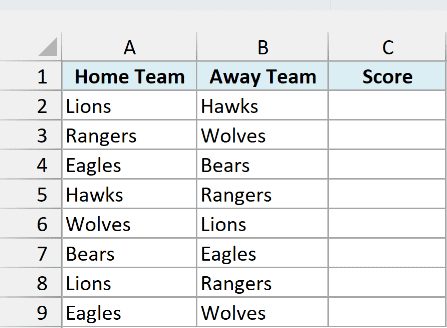
Below is how you can stop Excel from changing numbers to dates:
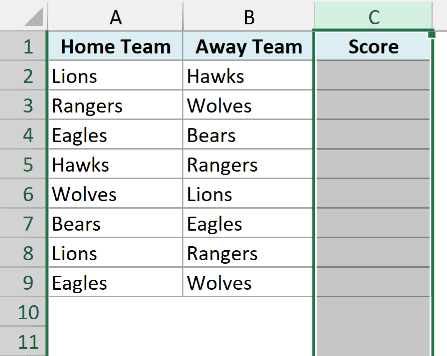
- Select the cell or range of cells where you want to make the format as Text (column C in this example)
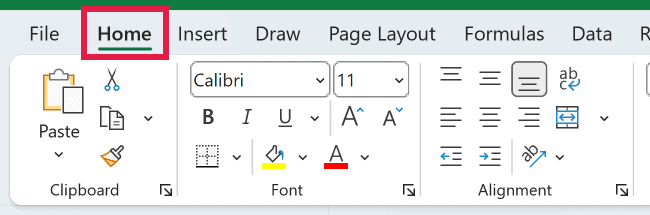
- Click the Home tab
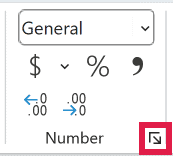
- In the Number group, click on the dialog box launcher icon (or you can use the keyboard shortcut Control + 1, or Command + 1 on a Mac)
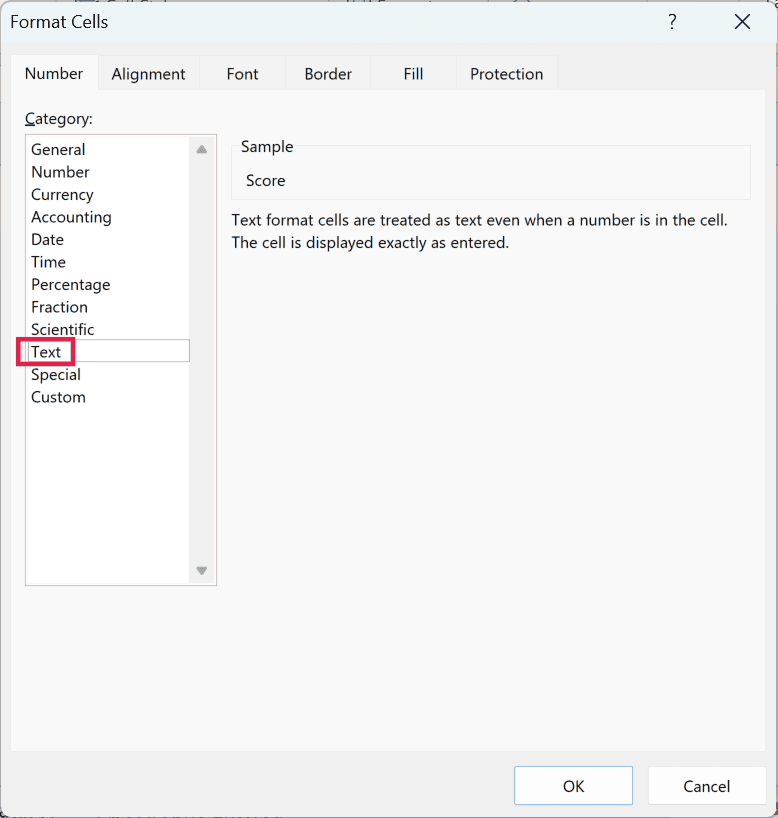
- In the Format Cells dialog box, in the Category list, click on Text
- Click OK
- Type the scores in the cells
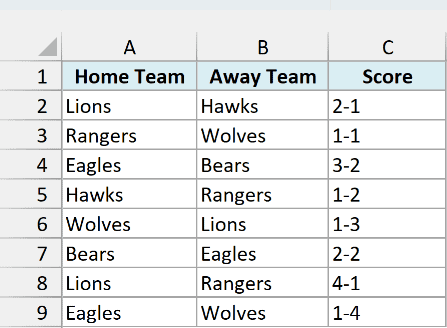
The above steps would change the cell format to text. Now when you enter any number such as 2-1 or 1/2, Excel will not convert these into date format.
You can also open the Format Cells dialog box by selecting the cell, right-clicking on it and then clicking on the Format Cells option.
And if you want to skip the dialog box, go to the Home tab and pick Text from the Number Format drop-down in the Number group.
Important: You need to change the format before you enter the number. If you do this after the number has been entered, you would get the numeric value of the date (such as 46203) and not the exact number/text string you entered.
This also works for data you paste from a plain text file (like one open in Notepad). Format the destination cells as Text first, and the pasted values stay exactly as they were.
But if you copy from a web page or an email, a regular paste (Control + V) can still turn the values into dates, even in Text cells.
In that case, press Control + Alt + V to open Paste Special, choose Text, and click OK.
This method is best suited when you have to change the format of a range of cells. If you only have to do this for a couple of cells, it’s best to use the apostrophe method covered next.
Also read: How to Convert Serial Numbers to Dates in Excel (2 Easy Ways)
Add an Apostrophe Before the Number
If you only have to enter a number in a few cells and you don’t want Excel to change it to date, you can use this simple technique.
Below I have a list of hardware items, and I want to enter their sizes (like 3/8) in column B without Excel changing them to dates.
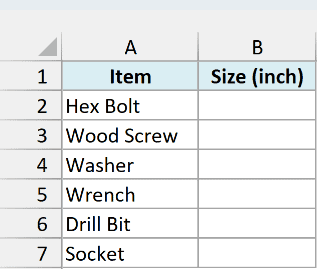
Just add an apostrophe sign before you enter the number. So instead of 3/8, type ‘3/8 and press Enter.
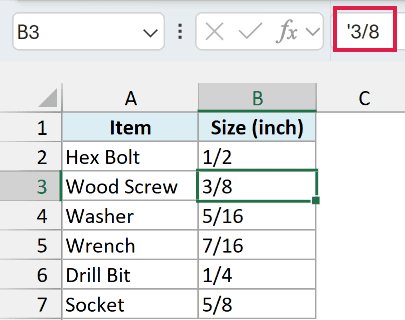
When you add an apostrophe at the very beginning, Excel considers that cell as text.
While you would not see the apostrophe sign in the cell, you can visually see that the numbers would be aligned to the left (indicating that it’s text). The apostrophe still shows in the formula bar when you select the cell.
By default, all numbers align to the right and all text values align to the left.
Another benefit of using the apostrophe sign is that you can still use the lookup formulas (such as XLOOKUP or MATCH) using the value in the cell. The apostrophe is not a part of the value, so these functions ignore it.
Just make sure the value you look up is also text. For example, =XLOOKUP("3/8",B2:B7,A2:A7) returns Wood Screw, but if the lookup value is a cell where you typed 3/8 without the apostrophe, you get #N/A (because that cell now holds a date).
You can also use this method to change existing dates into text. For example, if you have 6/30/2026 in a cell, you can simply add an apostrophe (‘) at the beginning and it will change the date to text.
If the value you enter looks like a plain number (such as ‘00123), you may see a green triangle at the top-left part of the cell, which indicates that numbers have been stored as text in those cells.
But since that’s exactly what we want in this case, you can ignore those green triangles, or click on it and then select the Ignore Error option to make it go away. Values like 1/2 or 2-1 don’t get this triangle.
Enter Fractions as Numbers (Not Dates)
Both methods above store the value as text, which is what you want for scores and sizes. But if you’re entering fractions that you want to calculate with, text causes trouble.
For example, SUM ignores text, so it returns 0 for a column of text fractions. And a formula like =A2*2, where A2 holds the text 1/2, gives a huge number (such as 92048), because Excel reads the text as a date first.
To enter a fraction as a real number, type a 0 and a space before it. So for half, type 0 1/2, and Excel stores it as 0.5 and shows it as 1/2.
For a mixed number, type it as it is (such as 1 1/2), and Excel stores it as 1.5.
Below I have a pancake recipe with the cups of each ingredient in column B (entered this way), and I want to double them in column C.
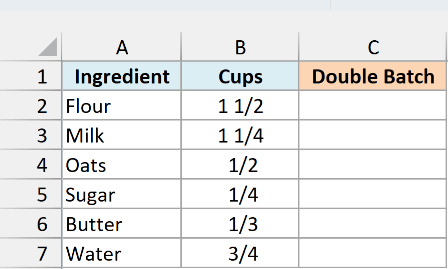
Here is the formula:
=B2:B7*2
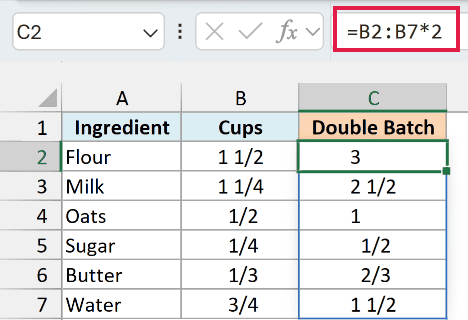
Since the values in B2:B7 are real numbers, the formula doubles each one. You only need to enter it in cell C2, and it spills down automatically to fill C2:C7.
If you are using Excel 2019 or earlier, enter the below formula in cell C2 and then copy it down the range:
=B2*2
If you want to learn more about showing decimals as fractions, see this guide on how to display numbers as fractions in Excel.
Stop Excel from Converting Numbers to Dates in a CSV File
When you open a CSV file by double-clicking it, Excel converts values like 1/2 or 2-1 into dates as the file opens. Since there are no cells to format before that happens, the methods above can’t help here.
Instead, open a blank workbook, go to Data > From Text/CSV, and select your file. In the preview window, set Data Type Detection to Do not detect data types, and then click Load.
This brings every column in as text, so nothing gets turned into a date. For the full walkthrough and other CSV gotchas, see CSV vs XLSX.
Turn Off Automatic Date Conversion for Codes Like JAN1
In Excel 365 and Excel 2024, there is also a setting that stops one specific kind of conversion. By default, if you type a code like JAN1 or MAR1, Excel turns it into a date (1-Jan or 1-Mar).
To turn it off, go to File > Options > Data, and under Automatic Data Conversion, uncheck the option that converts continuous letters and numbers to a date. On a Mac, the same options are under Excel > Preferences > Edit.
After that, when you type JAN1, it stays as JAN1.
But not every Excel 365 setup shows this section. There are reports on Microsoft’s support forum of it going missing, so if you don’t see Automatic Data Conversion in your Excel Options, use the Text format or the apostrophe instead.
Note that this setting is only for letters and numbers typed together, and Microsoft says entries like JAN-1 may still be treated as dates.
None of these conversion options is meant for number entries like 1/2 or 2-1, so for those, use the Text format or the apostrophe.
While these methods are great, what if you have a column full of dates that you want to use as a text and not as dates. Here are some simple methods you can use to convert date to text in Excel.
I hope you found this Excel tutorial useful!
You may also like the following Excel tutorials:
- How to Remove Cell Formatting in Excel
- How to Remove Time from Date/Timestamp in Excel
- How to Wrap Text in Excel
- Convert Time to Decimal Number in Excel (Hours, Minutes, Seconds)
- How to Stop Excel from Rounding Numbers
- How to Compare Dates in Excel (Greater/Less Than, Mismatches)
- How to Convert Text to Date in Excel
- Convert Text to Numbers in Excel

This is fine for creating new documents but does not work if you are opening a file that already contains data that could be construed as a date.
example 91 06 27 ,for my system, becomes ’27/06/2091 using the apostrophe or 69941 by formatting as text. I will get the same DATE value if the data is 27 06 91 or 06 27 91 but they are obviously different.
You cannot parse this data or perform any text functions on it.
However if I save the sheet as a CSV file and use a text editor to open it, the value remains 90 06 27 , so the original data has not been modified.
All of the solutions which suggest changing the format to text miss the point that you can then no longer use the data for calculations. Anything pasted into excel from say a web site will change numbers to text and they can no longer be used in calculations.
it is an annoying and ridiculous (and time consuming feature to cope with) of the latest excel software. None of the suggested solutions I have found actually work apart from time wasting manual changing.
These can reverse the format, but it doesn’t give the original value. How can you simply prevent Excel from doing this?
Entering extra spaces etc. helps if you are enetring values manually. However, there’s a bigger problem if you are importing data from a text- or .csv-file.
I have no solution for preventing excel chancing numerical values with decimal points to dates. How can I do that??
another way, which avoids the apostrophe, is to enter =”1/2″, then copy that and paste as values; no need to format anything – useful if you have many values to enter which can be formularised (you can’t enter a formula in a cell formatted as text)