
If you just tried to open an Excel file and got the message “We found a problem with some content in [filename].xlsx. Do you want us to try to recover as much as we can?”, Excel thinks the workbook is damaged.
It’s offering to repair the file, and in most cases you can still get your data back.
In this article, I’ll show you how to fix it, starting with the quickest option and ending with a last resort for a badly corrupted file.
Why You See This Message
Excel shows this message when it opens a workbook whose internal structure looks broken or incomplete. Something inside the file is not the way Excel expects it to be.
The usual triggers are a file that didn’t finish downloading or emailing, a workbook saved to a failing USB drive, or Excel crashing while it was saving. A file created by another program or a very different Excel version can do it too.
The important part is that this message is about the file itself, not your formulas. If your formulas are showing errors or not calculating, that is a separate problem with its own fixes.
Fix 1: Click Yes and Let Excel Recover the File
The message box has a Yes button, and clicking it is the fastest thing to try. It tells Excel to open the file and repair whatever it can on its own.
Here are the steps to let Excel recover the file:
- On the message box, click Yes.
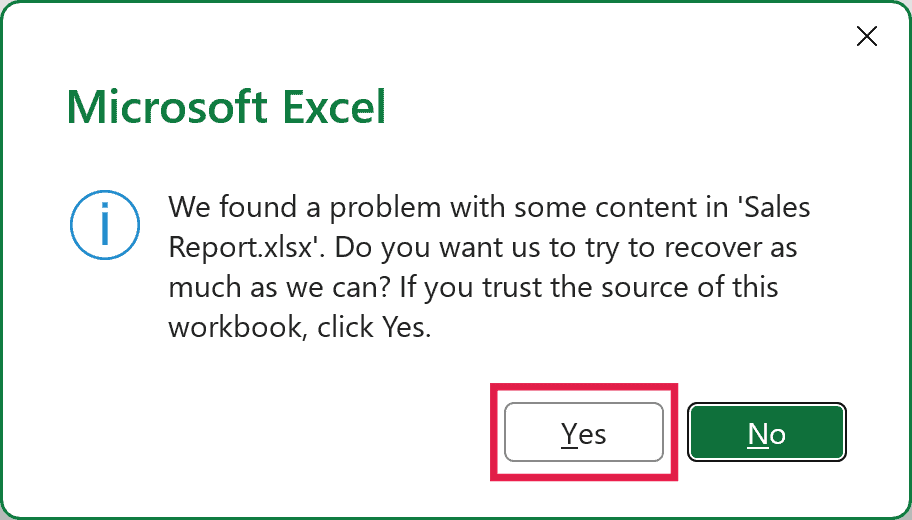
Excel now opens whatever it can read. If it removed or repaired anything, it tells you what it changed so you can check that part of the workbook.
- Once the file opens, save it as a fresh copy with File > Save As and a new name.
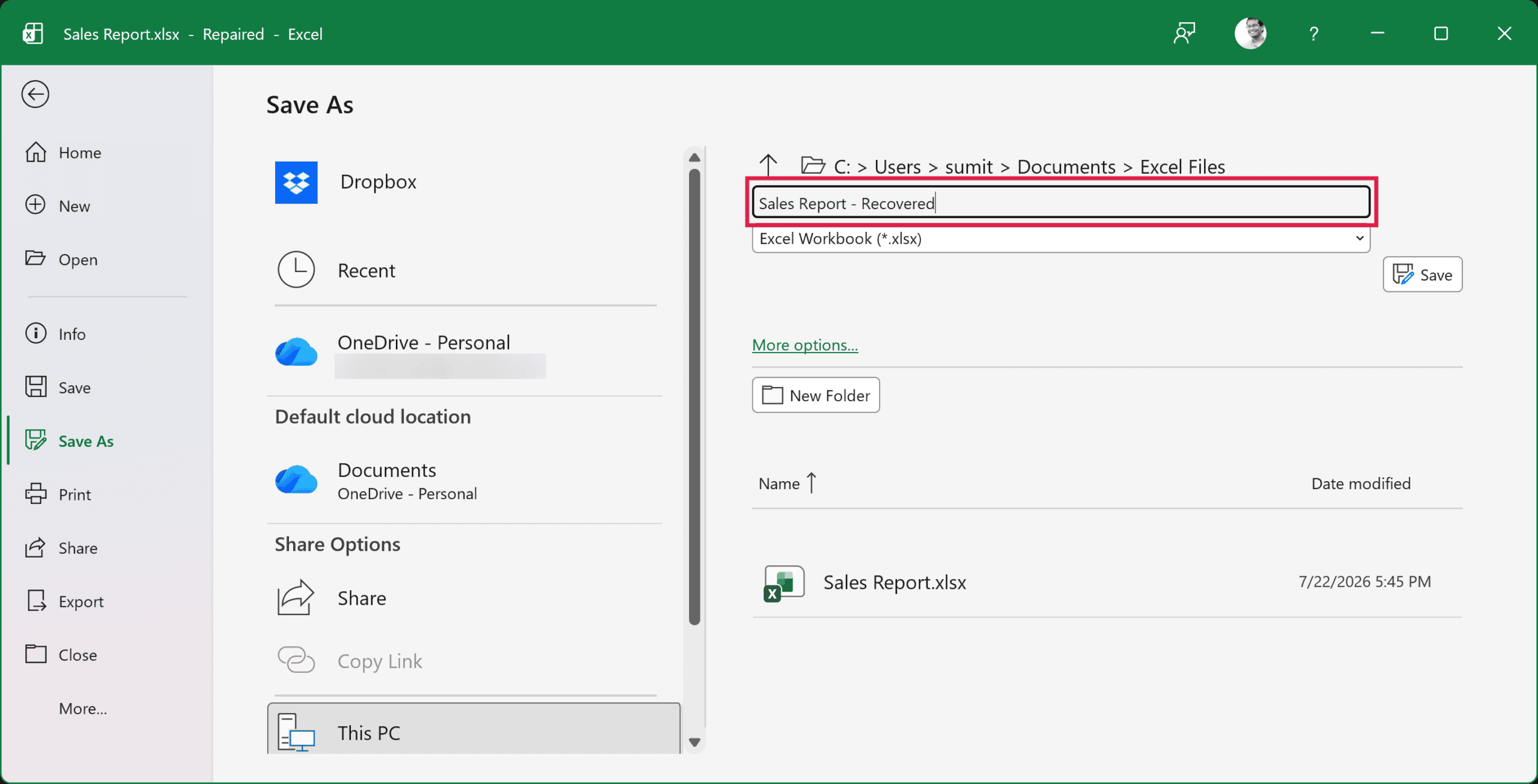
From here on, work in this new copy. That way the original stays untouched in case you need to try another fix.
Fix 2: Use Open and Repair
If clicking Yes didn’t help, or you clicked No and the file won’t open at all, use Open and Repair. It’s Excel’s manual repair tool, and it also gives you an Extract Data option if a full repair fails.
Here are the steps to use Open and Repair:
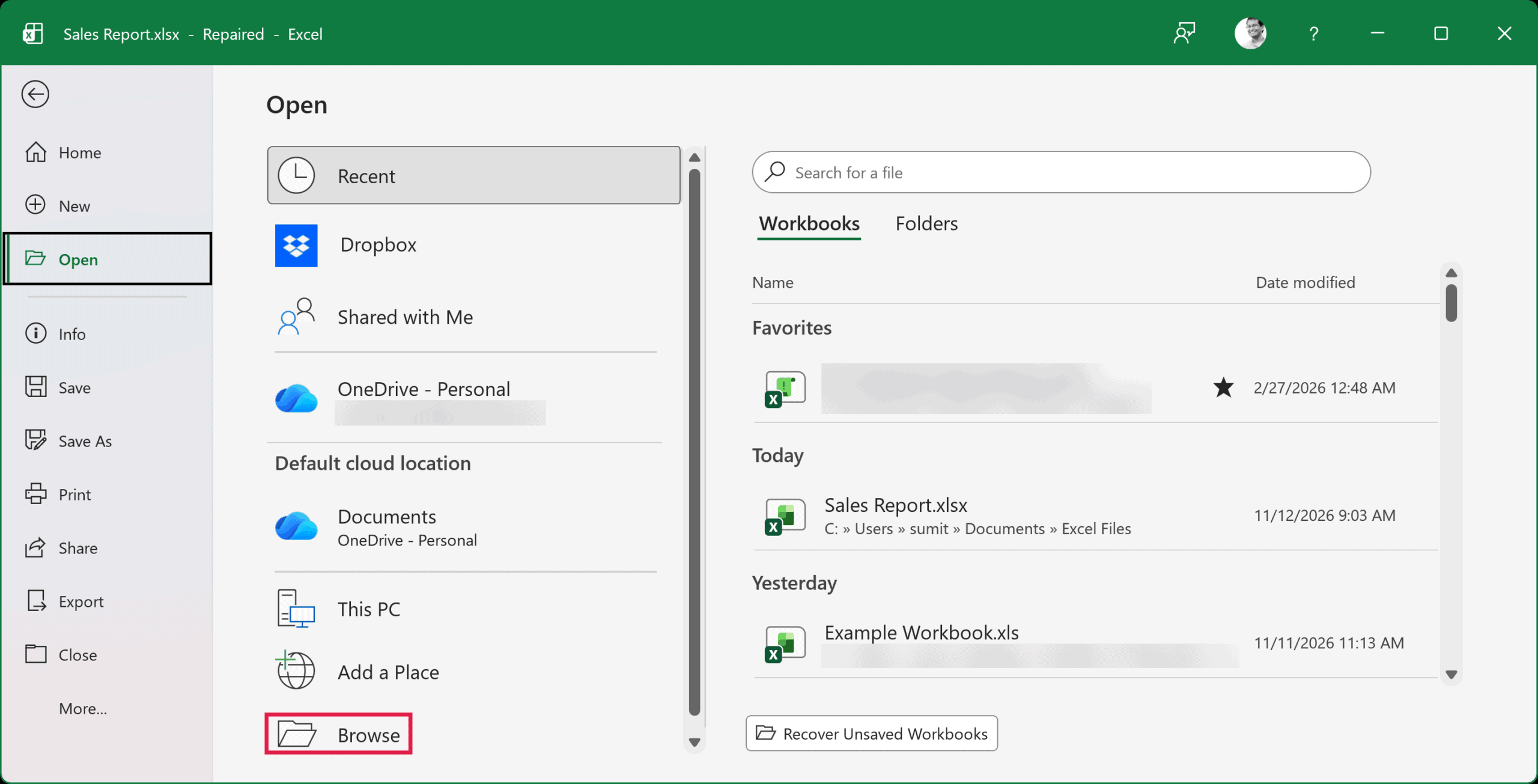
- Open Excel and go to File > Open > Browse.
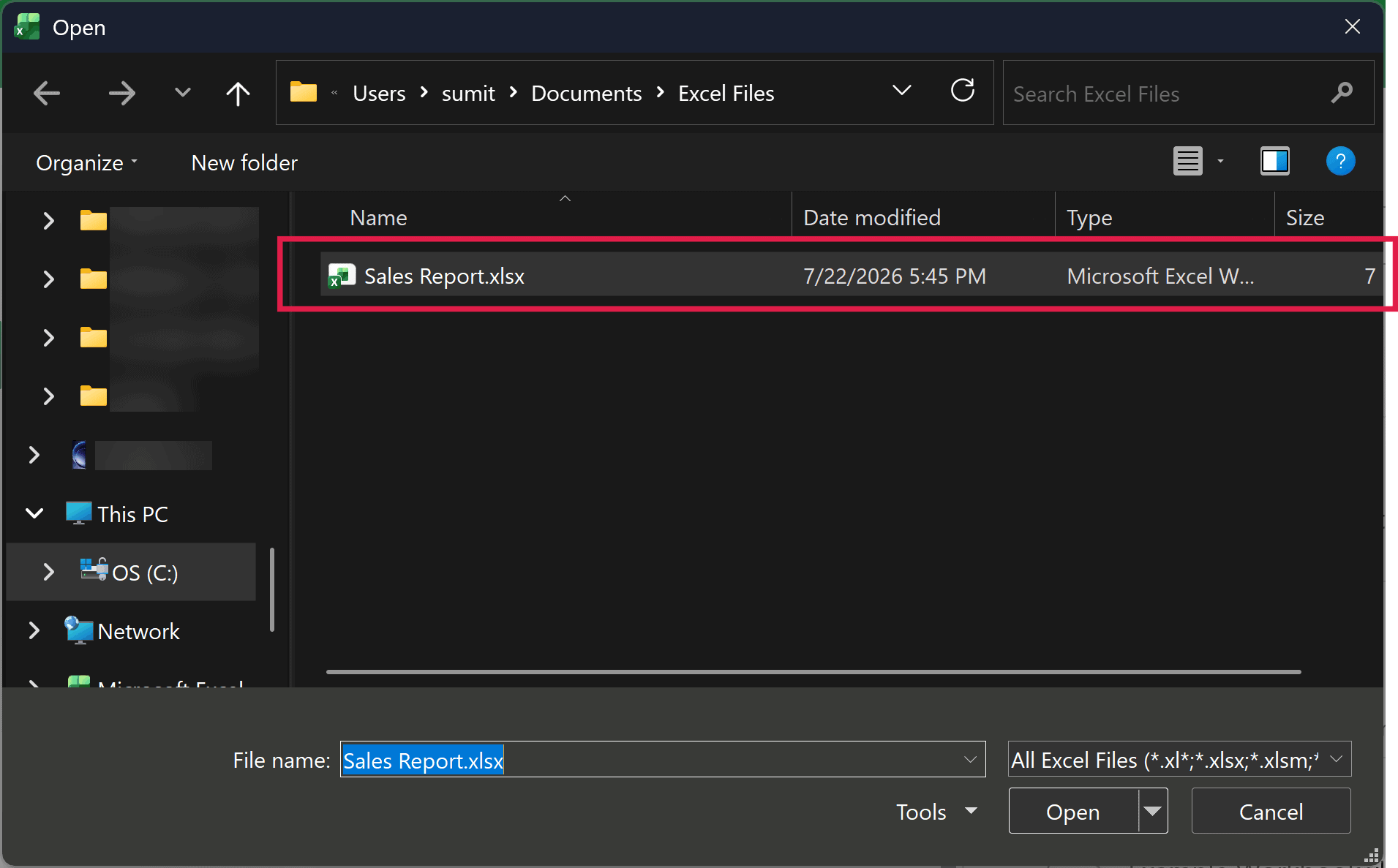
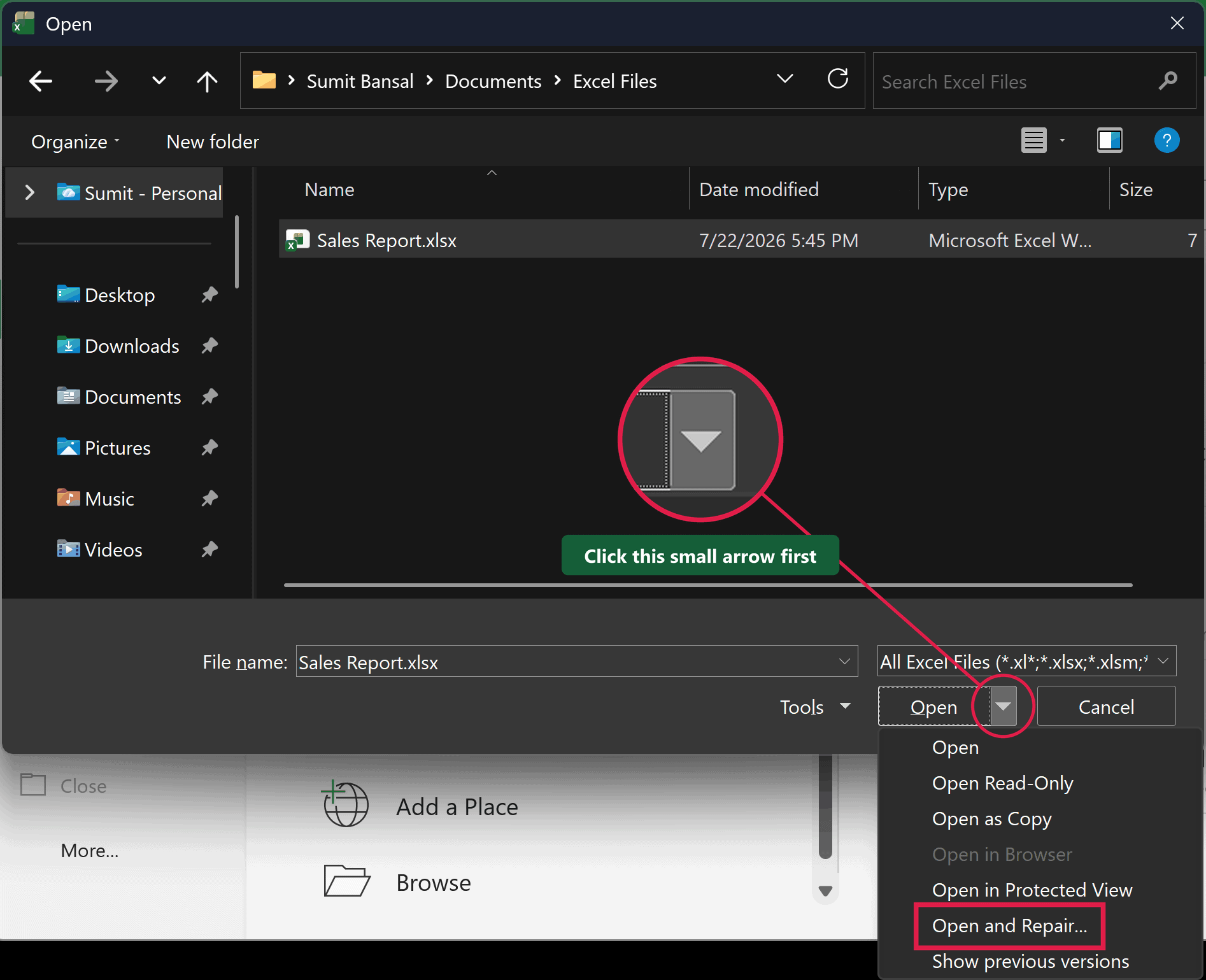
- In the Open dialog box, single-click your file to select it (don’t double-click it, as that opens it the normal way).
- Click the small arrow next to the Open button, then choose Open and Repair.
- In the prompt, click Repair to recover as much as possible.
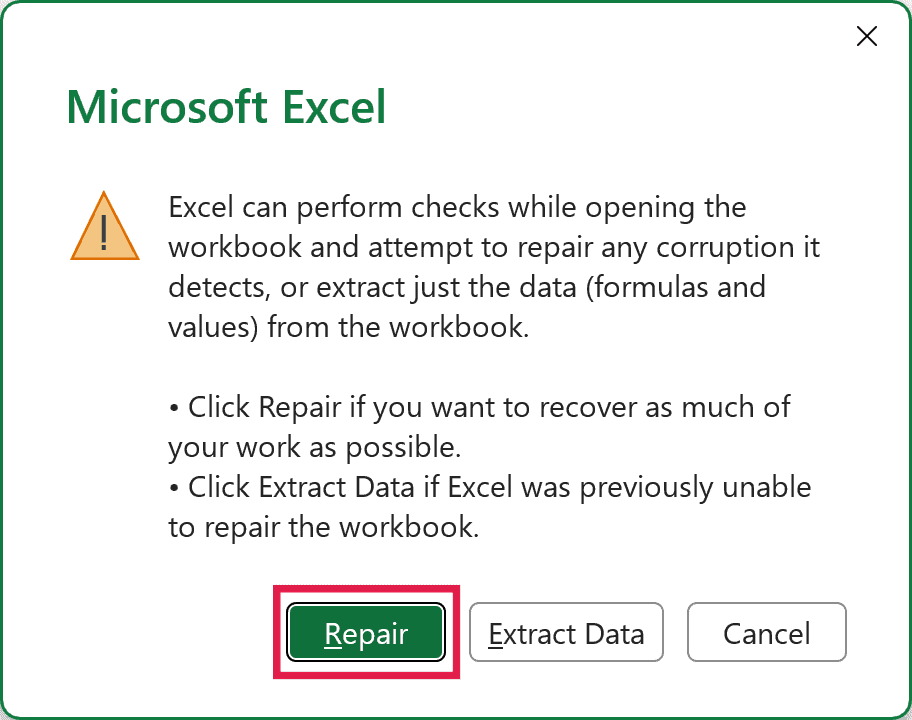
If Repair still can’t open the file, run Open and Repair again and choose Extract Data instead. This only tries to get your values and formulas back.
Excel then asks you to pick Convert to Values or Recover Formulas. Convert to Values keeps only the results, while Recover Formulas tries to keep the formulas too.
Whichever option opens the file, save it as a new file, just like in Fix 1.
Fix 3: Unblock a File From the Internet or Email
If the file came from a download or an email attachment, Windows may have marked it as blocked. Excel then opens it in Protected View, a read-only mode that keeps files from outside sources from harming your computer, and that can trigger this message.
You have two ways to deal with a blocked file. You can unblock the file itself, or turn off Protected View.
Unblock the File
Only do this for a file you trust, since the block is what keeps it in Protected View. Here are the steps to unblock the file:
- Close the file in Excel, then find it in File Explorer.

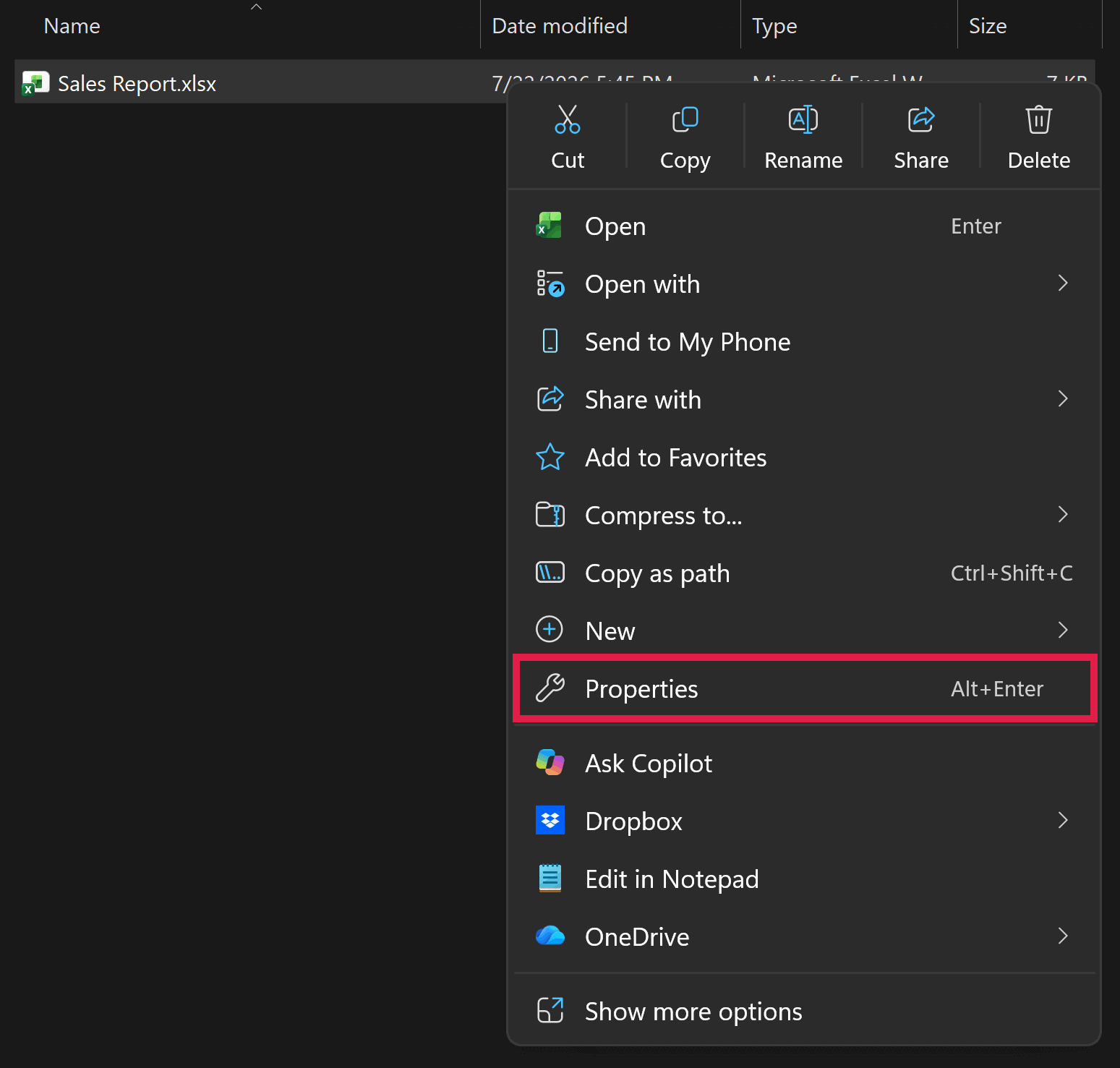
- Right-click the file and choose Properties.
- On the General tab, tick the Unblock checkbox at the bottom, then click OK.
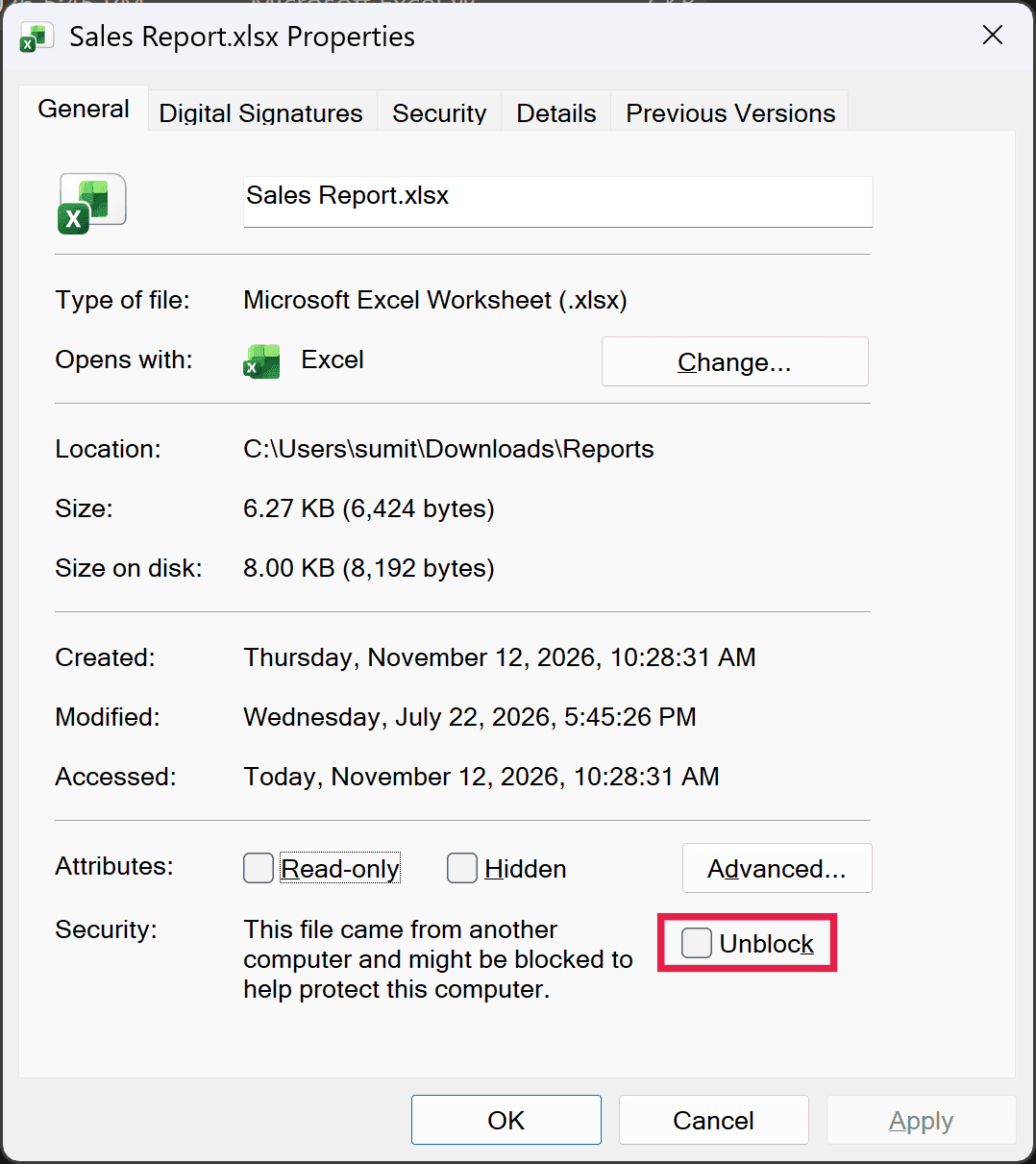
Now open the file again. With the block removed, Excel often opens it without a fuss.
If you don’t see an Unblock checkbox, the file isn’t blocked, so skip ahead to Fix 4.
Turn Off Protected View
If you’d rather not unblock files one at a time, you can turn off Protected View in Excel’s settings instead. This drops that protection for every file you open, so only do it if you trust where your files come from.
Here are the steps to turn off Protected View:
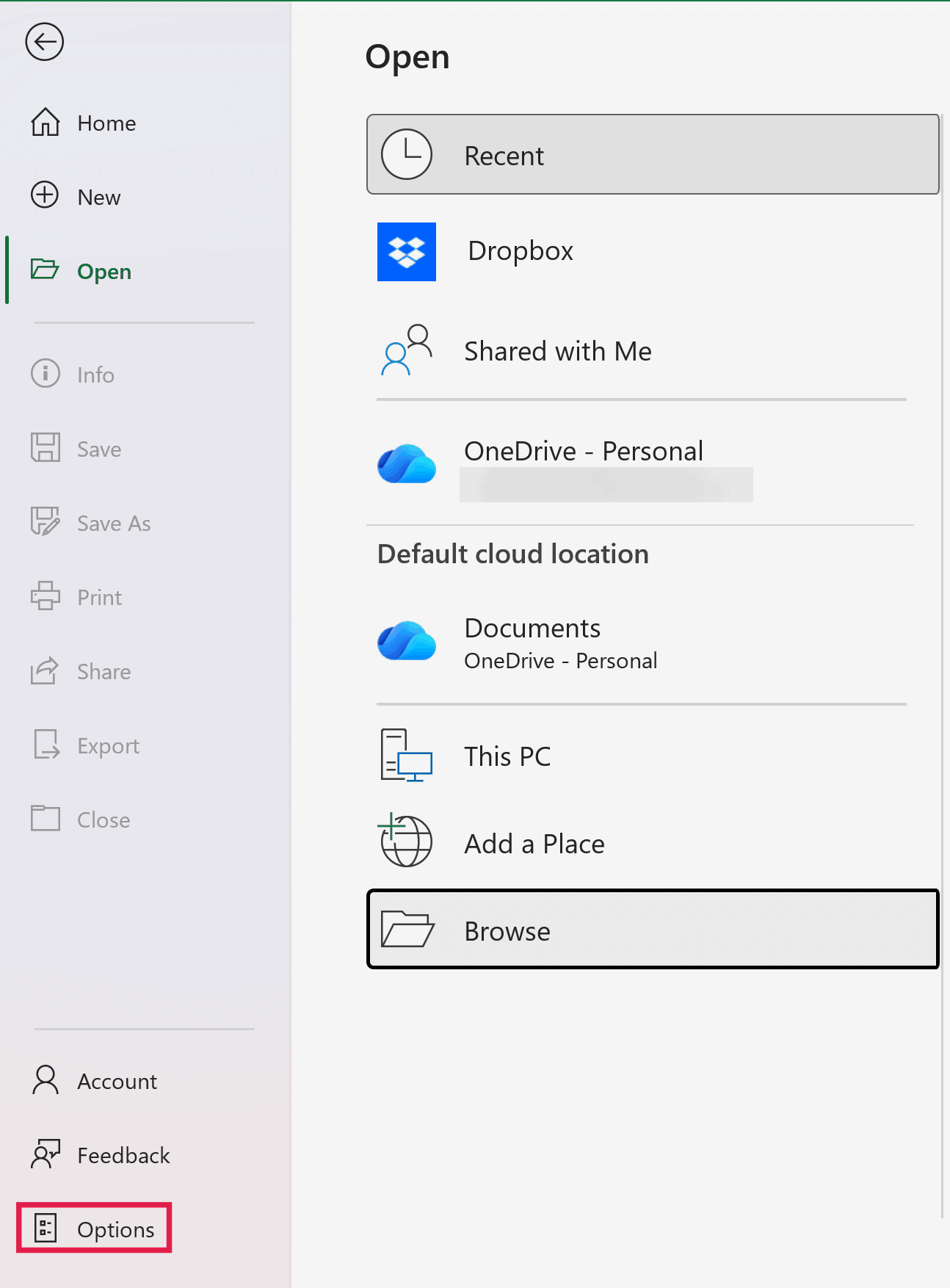
- In Excel, go to File > Options.
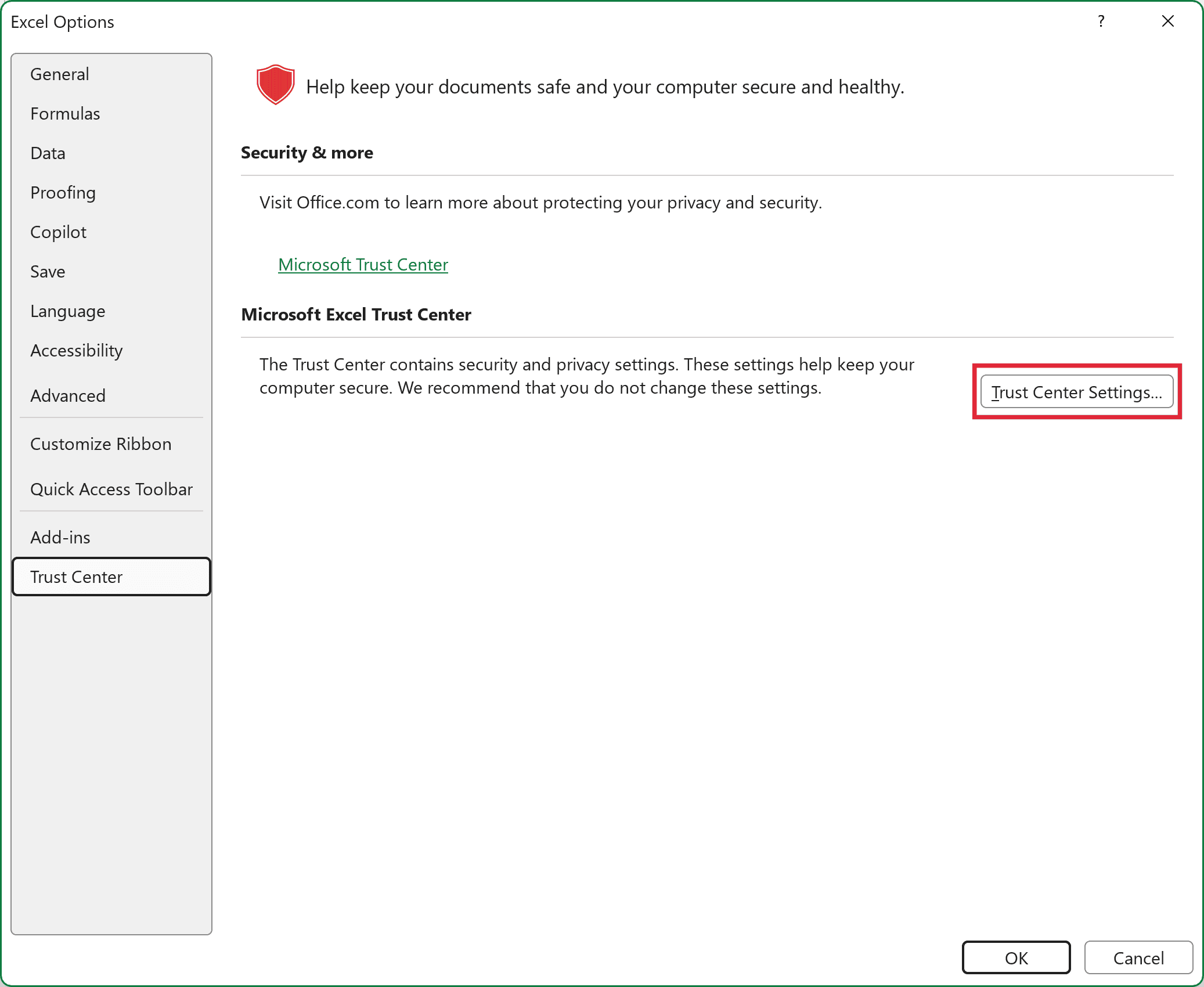
- Select Trust Center, then click Trust Center Settings.
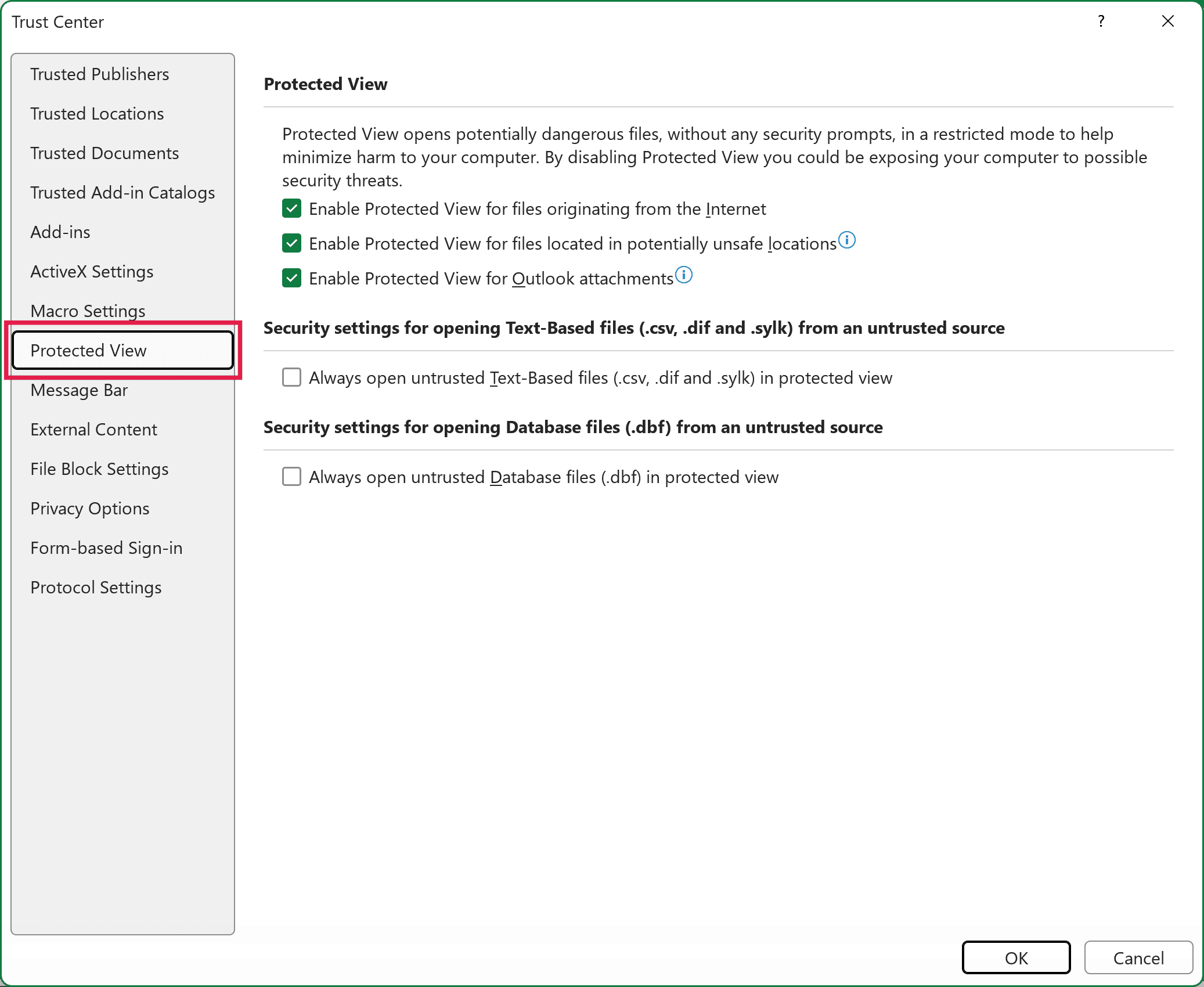
- Choose Protected View in the left pane.
- Uncheck the three boxes (for files from the internet, files in unsafe locations, and Outlook attachments), then click OK.
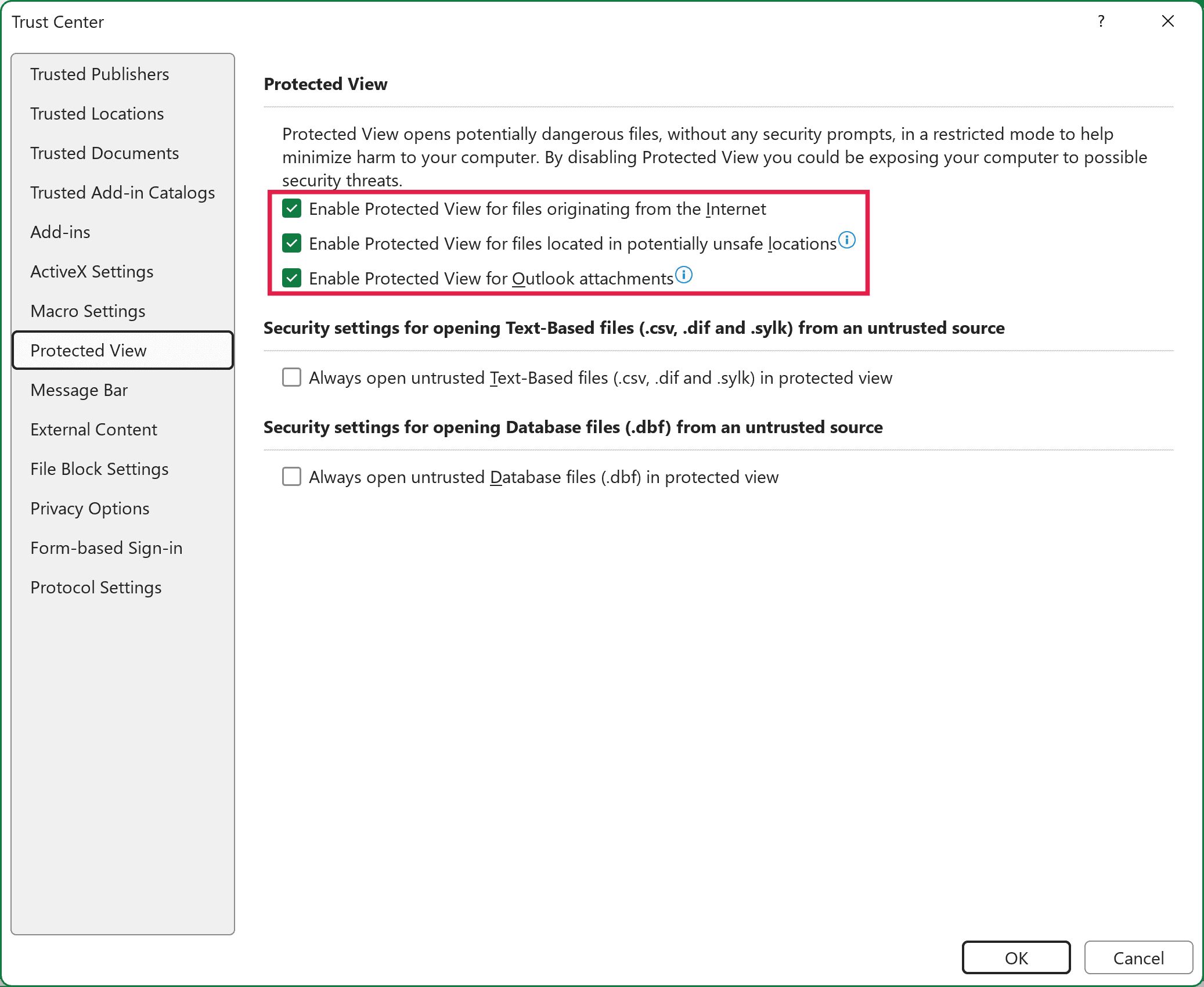
Now open your file again. Once it opens, tick these boxes again to turn Protected View back on.
Fix 4: Restore From AutoRecover or a Previous Version
If the file is too damaged to repair, the next best thing is to go back to an earlier working copy. Depending on where the file is saved, Excel, OneDrive, or Windows may have kept one.
If Excel crashed while you had this file open, the Document Recovery pane may show an AutoRecover copy the next time you start Excel. I cover that and the other recovery options in my guide on how to recover unsaved Excel files.
Restore a Previous Version of the File
If you saved the file before it got corrupted, you can roll back to that earlier version.
Here are the steps if the file is stored on OneDrive or SharePoint:
- Go to your OneDrive folder, or OneDrive online, and right-click the file.
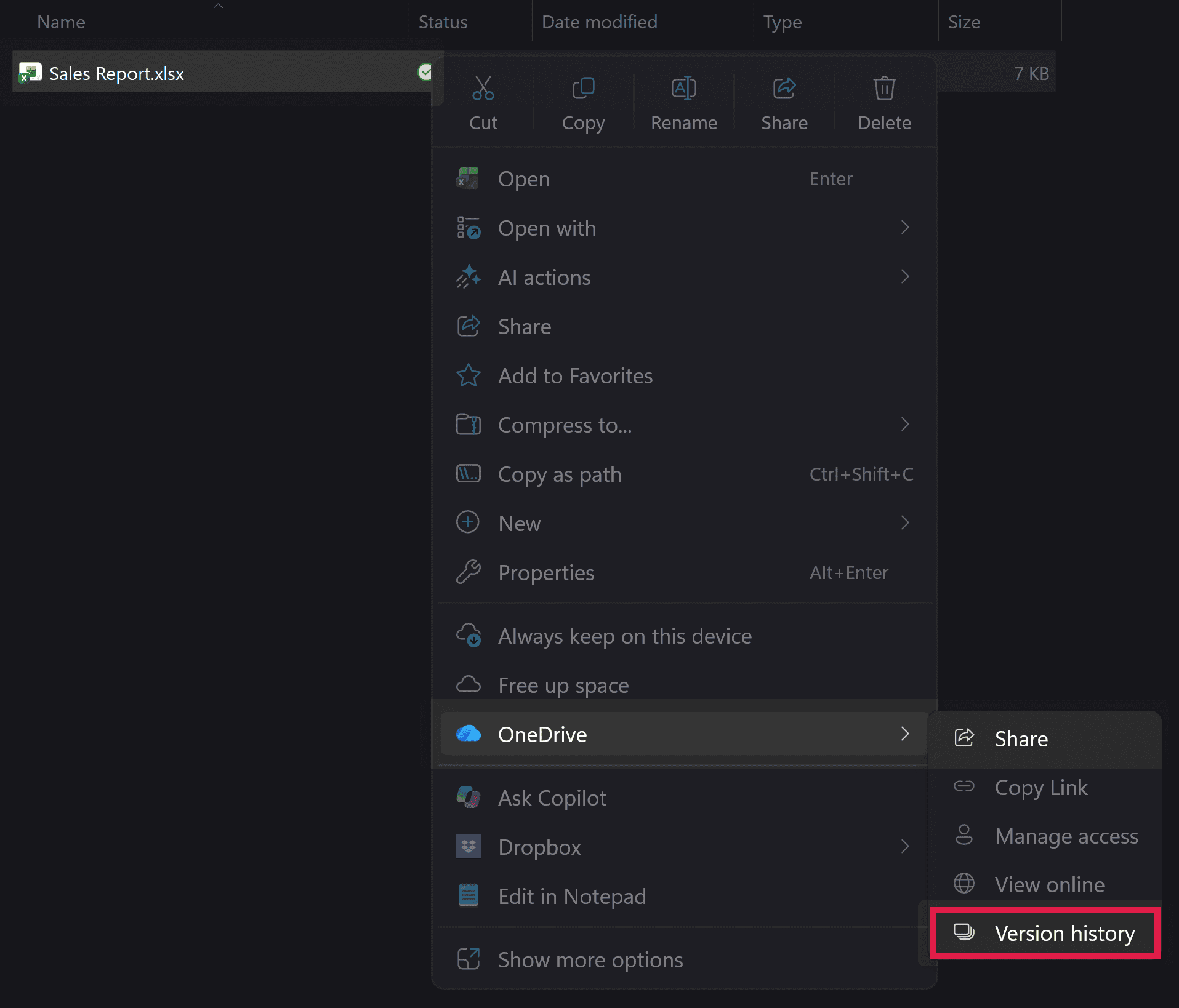
- Choose OneDrive > Version history, then open a version from before the problem started.
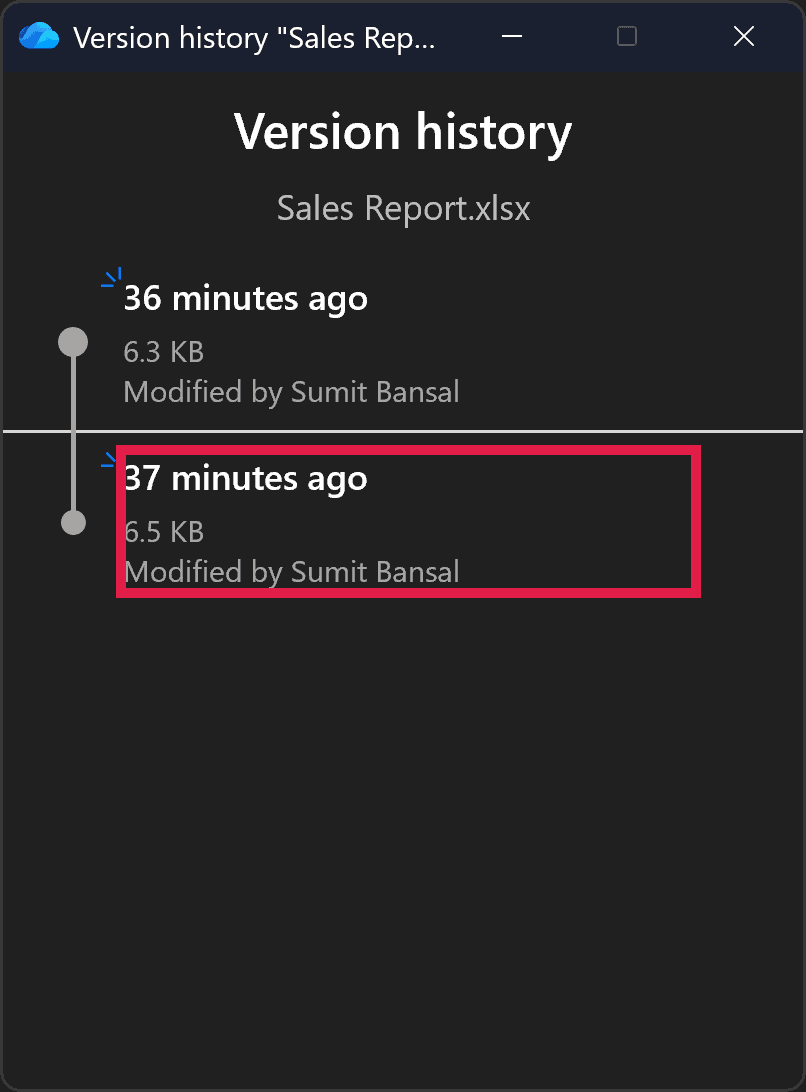
To make this easier next time, turn on AutoSave for files on OneDrive or SharePoint, so version history always has a recent copy. AutoSave doesn’t work for files saved only on your PC, so back those up yourself.
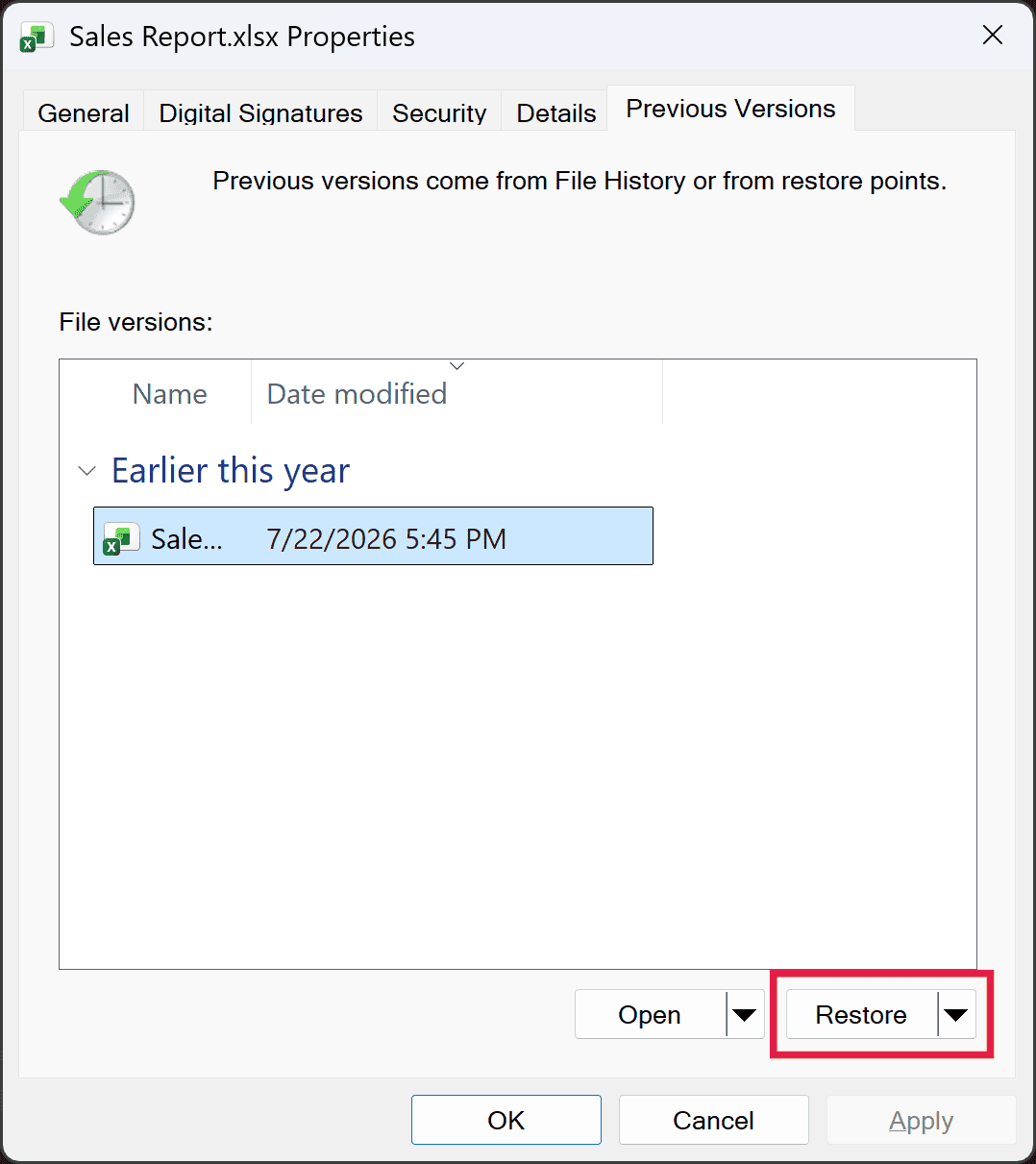
If the file lives on your PC instead, Windows may have an earlier copy, but only if File History or System Protection was turned on before the problem started.
Restoring replaces the current file, so copy it somewhere safe first if you want to keep it. Here are the steps to restore it:
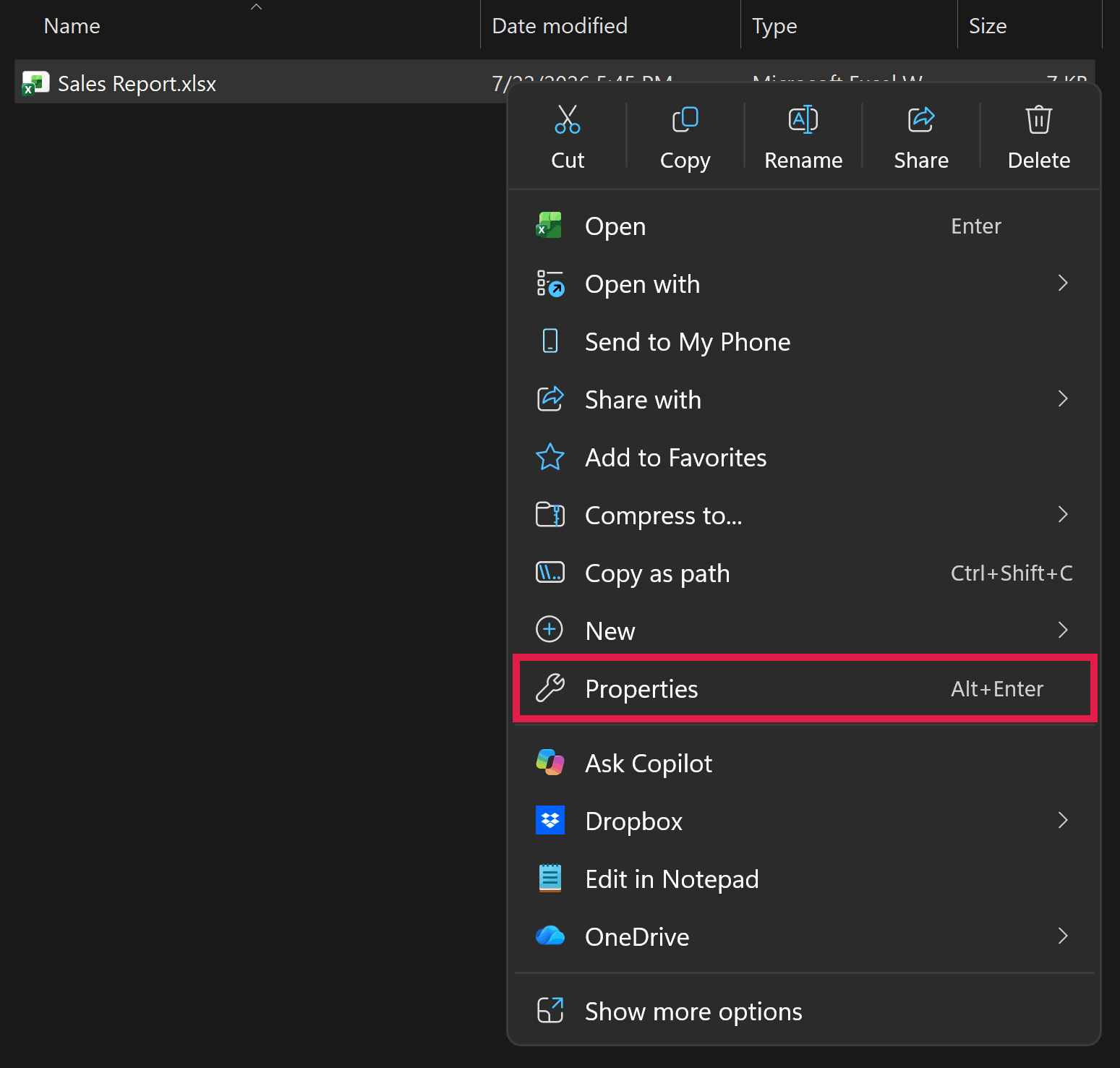
- Right-click the file and choose Properties.
- Open the Previous Versions tab and select a version from before the problem started.
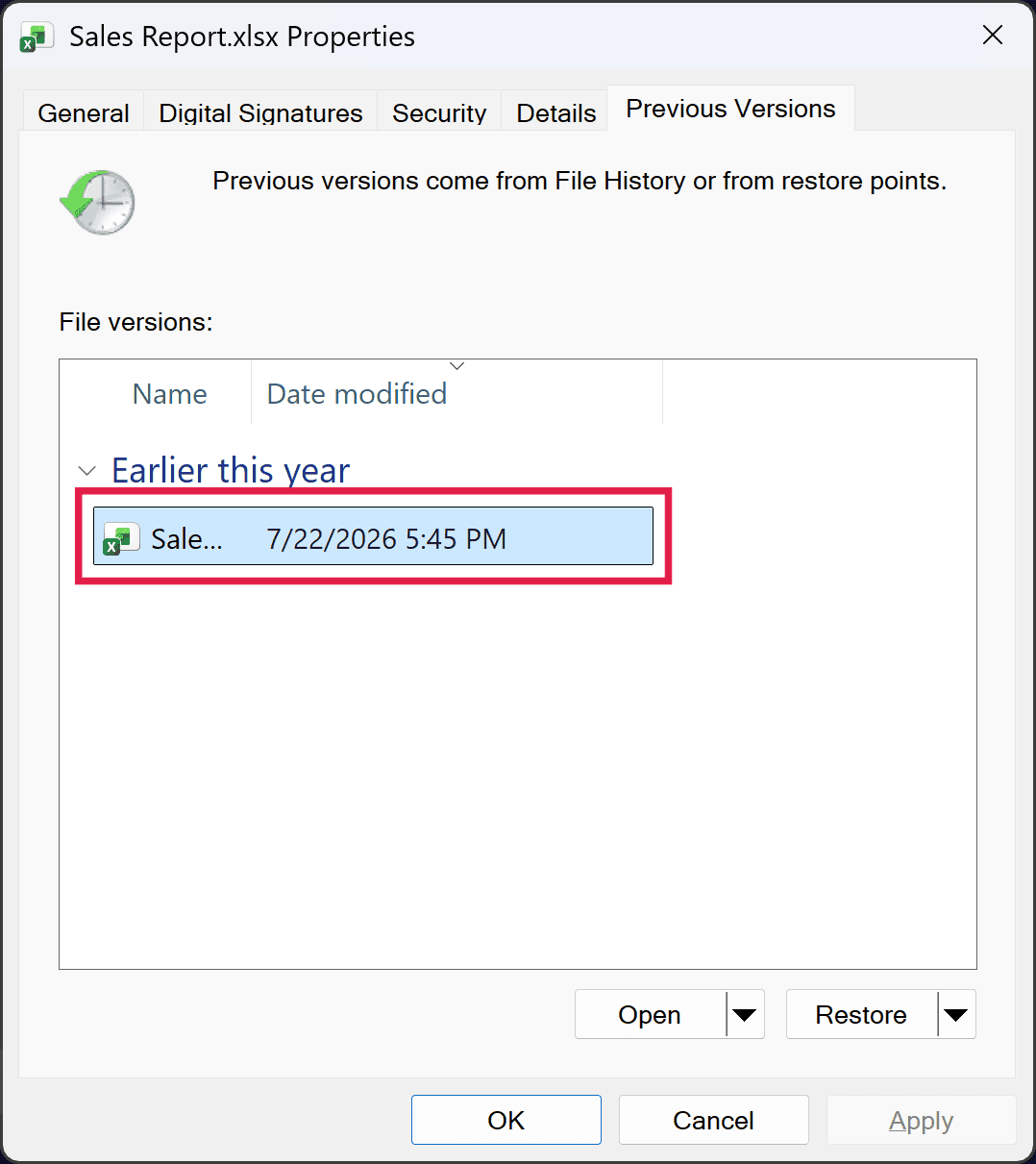
- Click Restore, then confirm.
Fix 5: Open the File in Google Sheets (Last Resort)
If Excel still won’t open the file, try opening it in Google Sheets. Google reads the file a little differently and can sometimes recover data that Excel gives up on.
Here are the steps to try it:
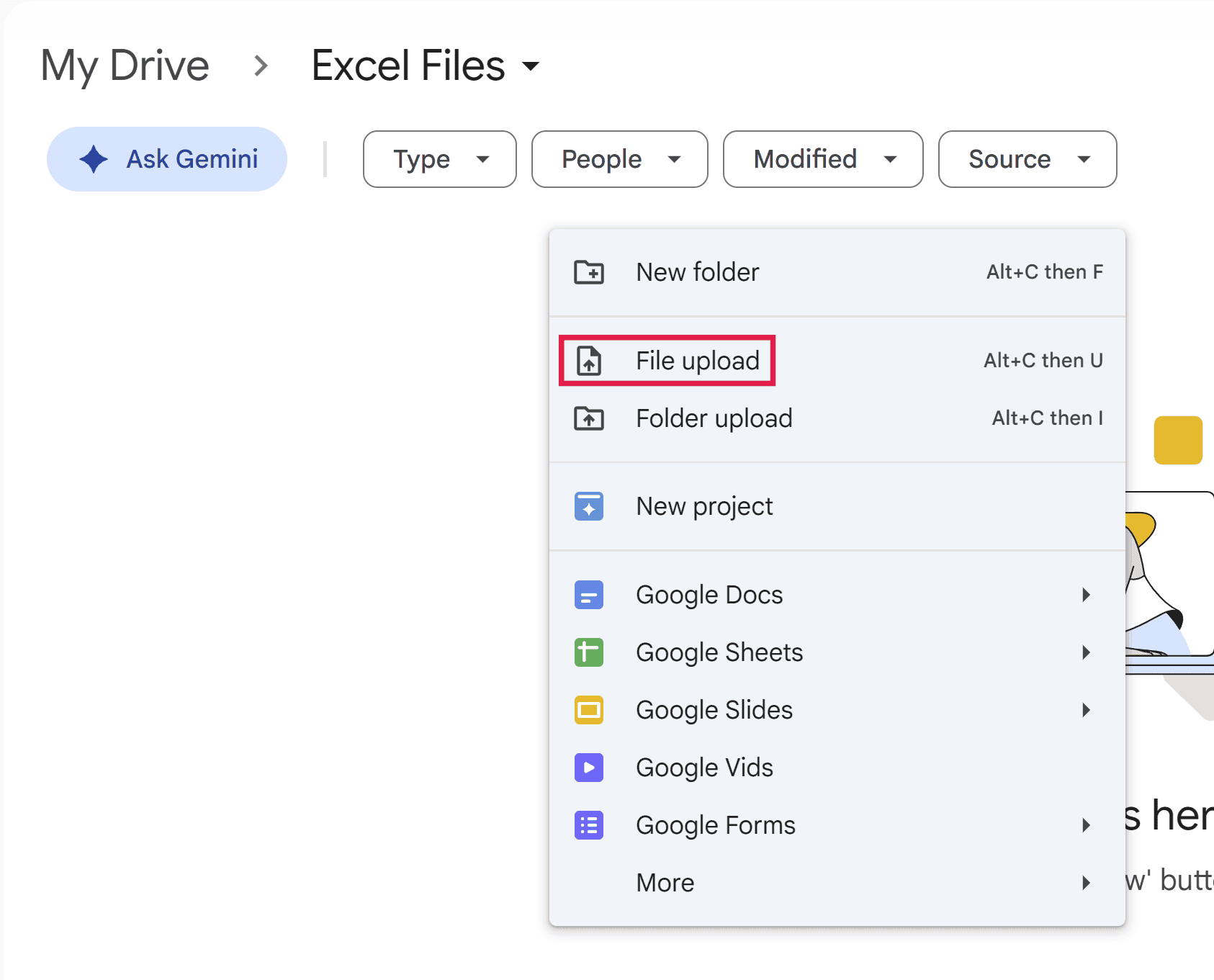
- Go to Google Drive and upload the .xlsx file.
- Double-click the uploaded file to open it in Google Sheets.
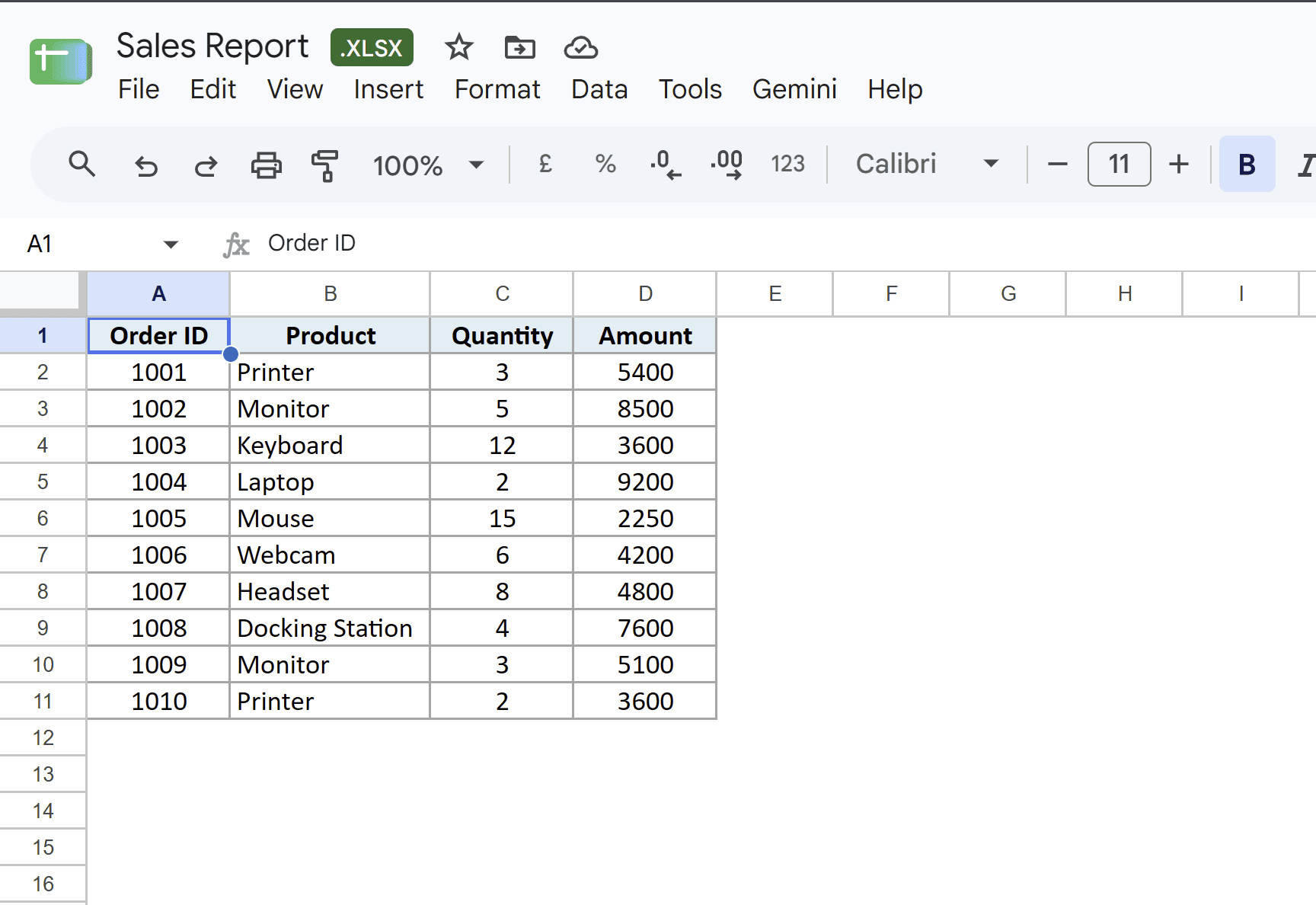
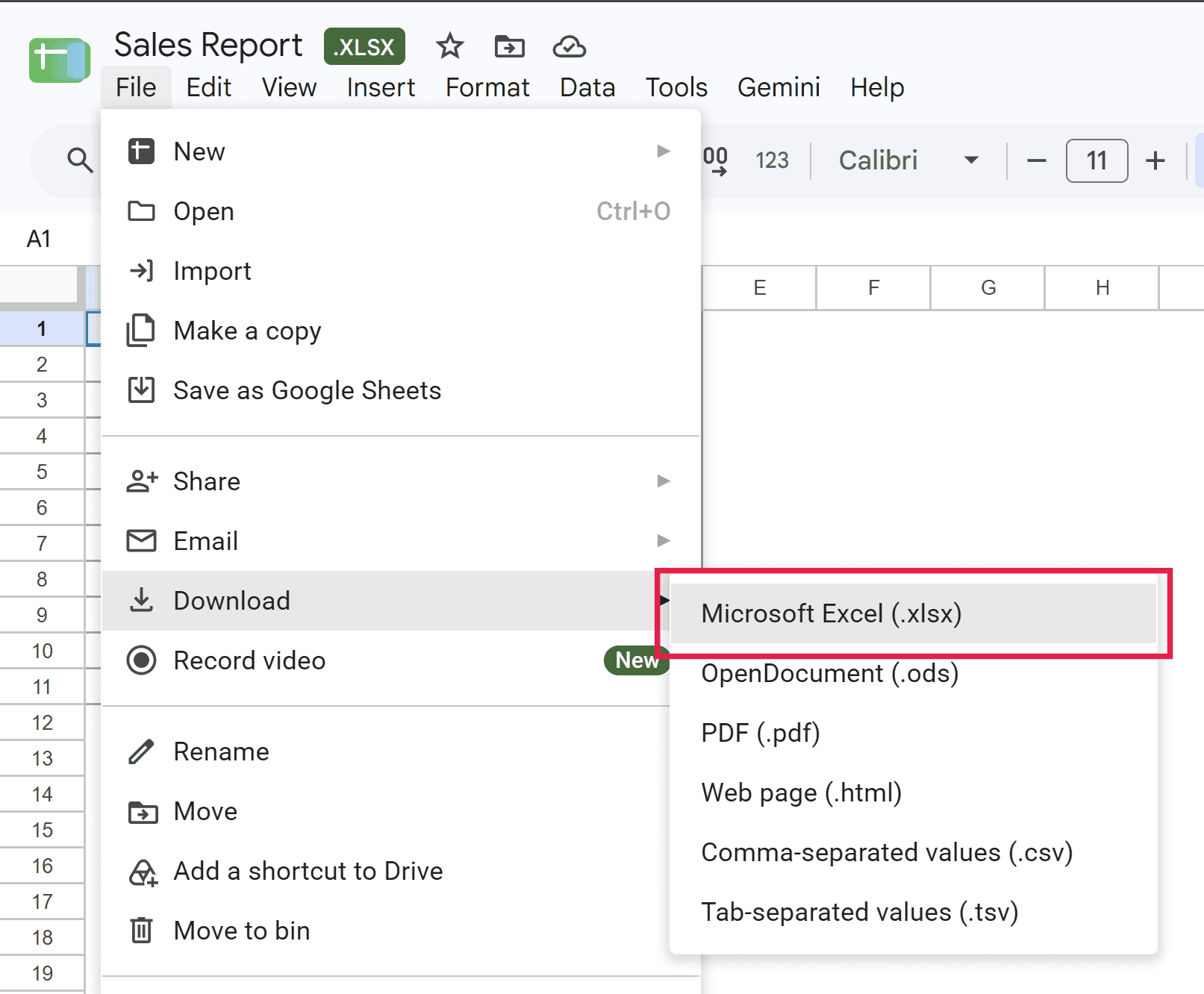
- If your data appears, go to File > Download > Microsoft Excel (.xlsx) to save it back as an Excel file.
Check that copy before you rely on it, since Google Sheets doesn’t support every Excel feature.
If even Google Sheets can’t read it, the file is likely too badly corrupted to recover with free tools.
That covers the main ways to handle the “We found a problem with some content” message, from the quick Yes prompt to opening the file in Google Sheets. Start at the top and work your way down, and you’ll usually get your data back.
I hope you found this article helpful.
Other Excel Articles You May Also Like: