

If you want to join text from several cells, including a whole row or column, into one cell, the CONCAT function can do that.
Unlike the older CONCATENATE function, it accepts a whole range, but it has no separator option, so you add any spaces or commas yourself.
The examples below show how to add those separators and when the TEXTJOIN function is a better choice.
The CONCAT function always returns a single result, so when you want one result per row, you copy the formula down. I’ll show you how in the examples.
Follow along with the example file
CONCAT Function Examples.xlsx
CONCAT Function Syntax
Here is the syntax of the CONCAT function:
=CONCAT(text1, [text2], ...)
- text1 (required): The first item to join. This can be text in double quotes, a cell reference, or a range.
- text2, … (optional): More items to join. Each item can also be a range.
A whole range counts as one argument, so you don’t need to list its cells separately.
If that range spans rows and columns, the CONCAT function reads across each row from left to right, then moves down to the next row.
When you join two words, they run together because there’s no separator argument. Add a space or comma in double quotes, such as " ", as Example 2 shows.
CONCAT works in Excel 2019, 2021, 2024, Microsoft 365 (Windows and Mac), and Excel for the web. Older versions return #NAME?.
When to Use the CONCAT Function
Use this function when you need to:
- Join a whole row or range into one value without listing every cell.
- Turn a column into one line of text with separators you add yourself.
- Add words, spaces, or punctuation between values to build labels or titles.
- Build a sentence that includes a date or an amount.
- Stack values on separate lines inside one cell.
- Combine pieces returned by another formula, such as the letters in someone’s initials.
Let me show you how this works, starting with a whole row joined into one code.
Example 1: Join a Whole Row with One Range
Let’s start with a code that doesn’t need any spaces between its pieces.
Below is a list of coupon campaigns with a discount and an ending word, and we want the full coupon code for each row in column D.
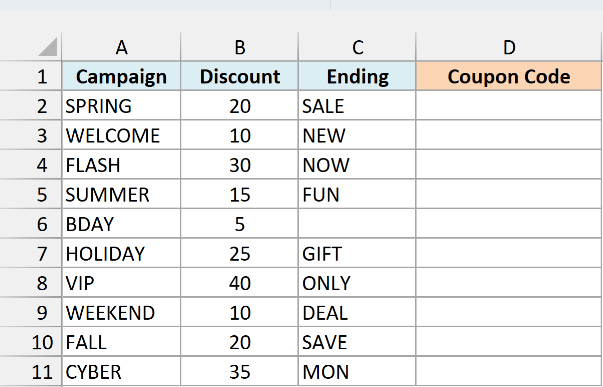
Here is the formula:
=CONCAT(A2:C2)
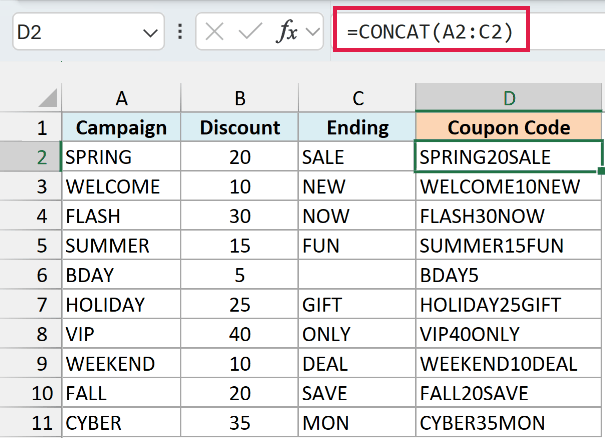
The CONCAT function joins SPRING, 20, and SALE to give us SPRING20SALE.
Here, A2:C2 is one argument covering the whole row of inputs. You don’t need to supply A2, B2, and C2 separately, which sets it apart from the CONCATENATE function.
The discount in B2 is a number, but it becomes text as part of the code.
For the BDAY campaign, the ending cell is empty, so the result is BDAY5. An empty cell adds nothing to the result, so there’s no gap or stray character.
Since each formula returns one value, enter it in D2 and copy it down to D11 to get a code for every row.
Example 2: Add Spaces or Text Between Two Values
Now let’s add some punctuation so the joined text is easier to read.
Below is a movie list with each movie’s release year, and we want a title like “Inception (2010)” in column C.
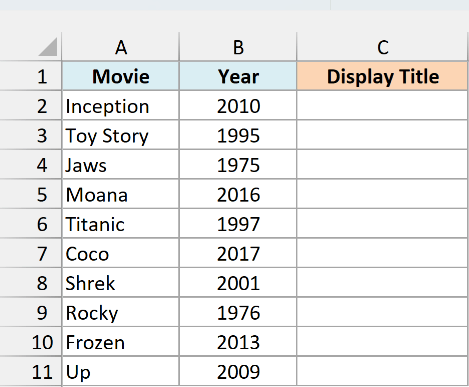
Here is the formula:
=CONCAT(A2," (",B2,")")
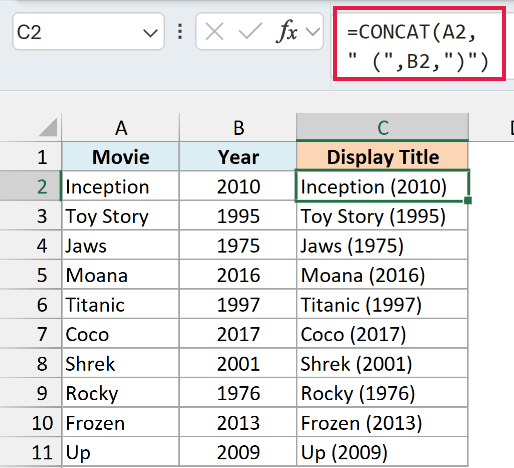
This joins four pieces in order: the movie name, " (", the year, and ")". The space is inside " (", so the result is Inception (2010).
Both typed text pieces are separate arguments in double quotes. That’s how you put your own spaces or punctuation between cell values.
Enter the formula in C2 and copy it down to C11 to get a title for every movie.
You might try giving the CONCAT function both full ranges to fill all ten rows at once: =CONCAT(A2:A11," (",B2:B11,")").
But this gives one long result: InceptionToy StoryJaws and the rest of the movie names, followed by all the years run together inside one pair of parentheses.
That’s because it joins everything in the first range before moving to the next argument, rather than pairing each movie with its year.
Important: CONCAT doesn’t pair up values row by row, so give it single cells and copy the formula down.
If you’re using Excel 365 or Excel 2021 or later, the & operator can do this in one go because it works cell by cell, which makes it handy for combining columns. Enter this in C2:
=A2:A11&" ("&B2:B11&")"
It spills a title for every row, with no copying down needed.
Example 3: CONCAT with a Delimiter and Extra Comma
Joining a column into one line brings up a problem you don’t get with coupon codes: where to put the commas.
Below is a list of people signed up for a weekend hike, and we want all the names in one comma-separated line in column D.
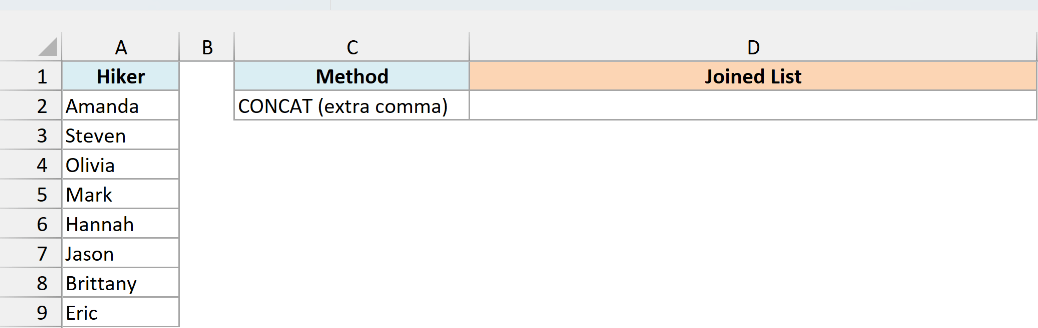
Here is the formula:
=CONCAT(A2:A9&", ")
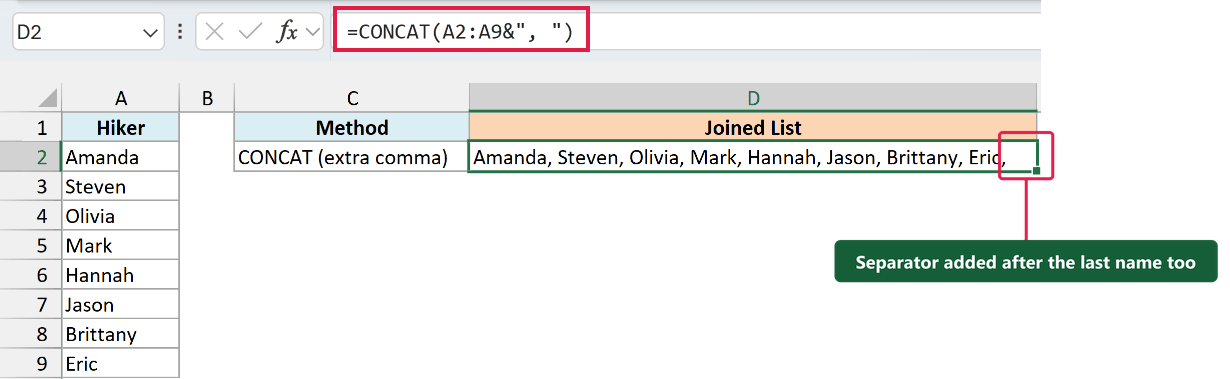
In D2, this returns Amanda, Steven, Olivia, Mark, Hannah, Jason, Brittany, Eric, .
The A2:A9&", " part adds a comma and a space after every name, and the CONCAT function joins those eight pieces into one line.
Notice the end of the result: Eric, . The last name gets a comma and a space too, so there’s an extra separator at the end.
If a cell in the list were blank, it would still get its comma and space, leaving a doubled separator, , , , in the middle.
Both problems come from attaching the separator to each item yourself, because the CONCAT function has no separator argument.
For a separator only between names, use the TEXTJOIN function in D3:
=TEXTJOIN(", ",TRUE,A2:A9)
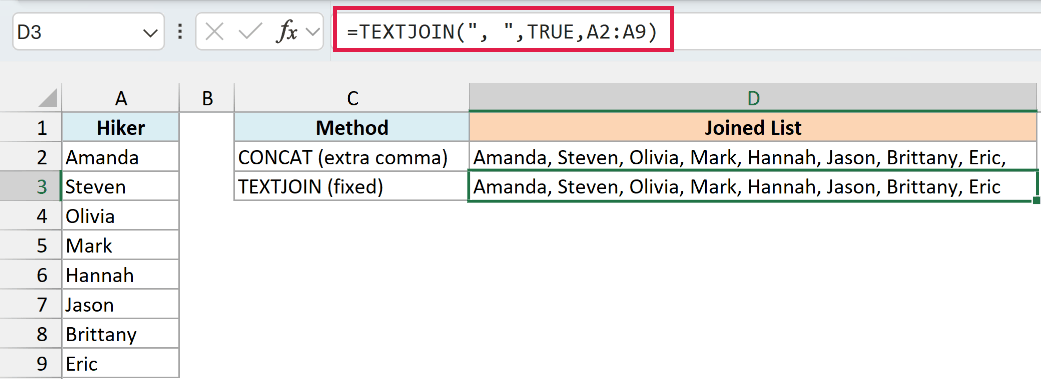
This returns Amanda, Steven, Olivia, Mark, Hannah, Jason, Brittany, Eric, with no comma after Eric.
Here, ", " is the separator, and TRUE tells the function to skip blank cells. Because the separator goes between items, it never gets added after the last name.
The TEXTJOIN function works in every version that has the CONCAT function, so it’s the one to use when you want to combine a range with a separator.
Example 4: Combine Text with Dates and Numbers
Dates and amounts need a little more care because their cell formatting doesn’t carry over into the joined text.
Below is a fitness studio schedule with each class’s date and fee, and we want a one-line reminder for each class in column D.
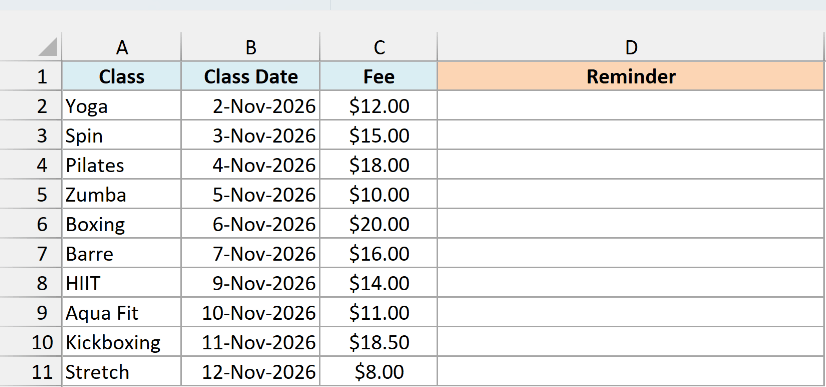
If you join the cells directly with =CONCAT(A2," on ",B2," costs ",C2), the result is Yoga on 46328 costs 12.
This happens because the CONCAT function uses the value stored in each cell, not the way that value is displayed.
Excel stores the date as a serial number, so you get 46328. The dollar sign and decimal places are display formatting, so the fee comes out as 12.
The TEXT function turns each value into text in the format you choose, so we can use it for the date and fee before joining them.
Here is the formula:
=CONCAT(A2," on ",TEXT(B2,"ddd, mmm d")," costs ",TEXT(C2,"$0.00"))
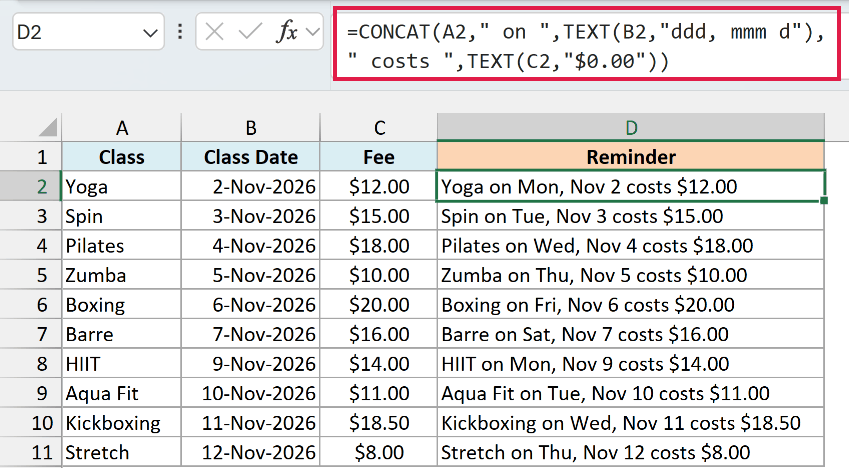
This gives us Yoga on Mon, Nov 2 costs $12.00.
Here is how this formula works:
TEXT(B2,"ddd, mmm d")turns the date intoMon, Nov 2.TEXT(C2,"$0.00")turns the fee into$12.00and keeps two decimal places. The Kickboxing reminder shows$18.50.- The CONCAT function joins the class name, the words
" on "and" costs ", and the two formatted text values.
Enter the formula in D2 and copy it down to D11 to get a reminder for each class.
Example 5: Add Line Breaks to a Gift Tag
The joined text doesn’t have to stay on a single line.
Below is a gift list with who each gift is for, who it’s from, and a message, and we want a three-line gift tag in column D.
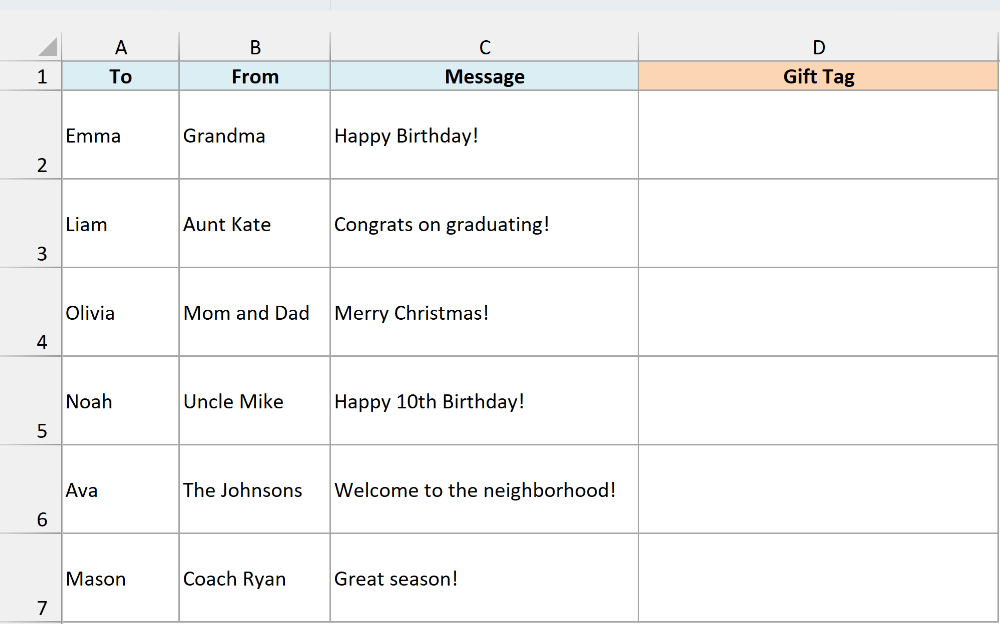
Here is the formula:
=CONCAT("To: ",A2,CHAR(10),"From: ",B2,CHAR(10),C2)
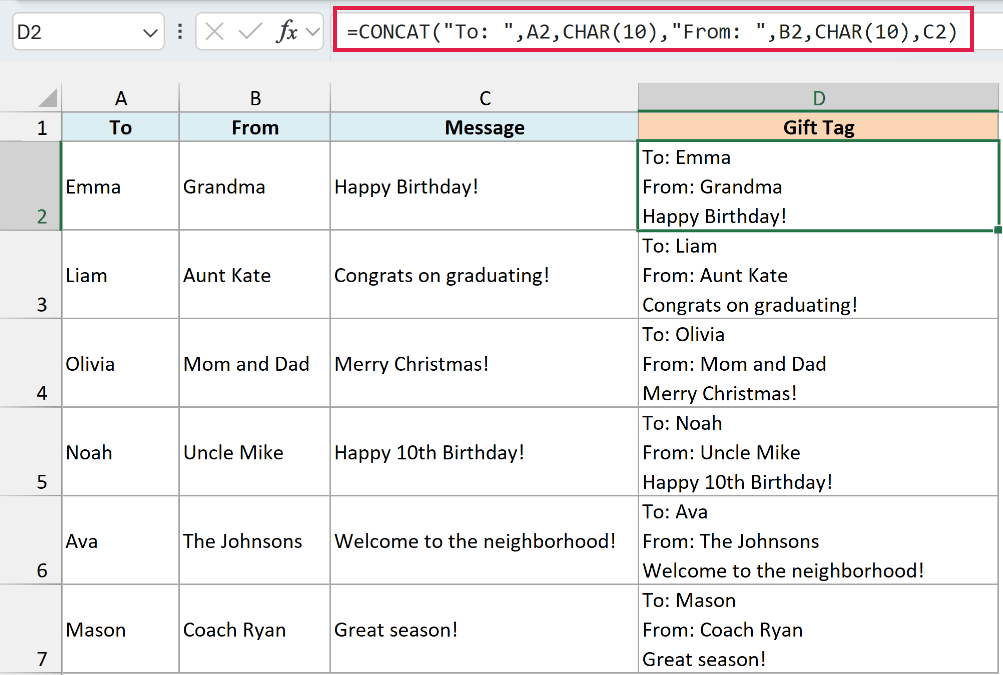
The first tag shows To: Emma on the first line, From: Grandma on the second, and Happy Birthday! on the third, all inside D2.
Here, "To: " and "From: " are typed labels, while CHAR(10) adds a line-break character. Each CHAR(10) starts a new line inside the cell.
Important: Turn on Wrap Text (Home tab) for the result cells, or each tag shows on one line. It’s already on in the example file.
Enter the formula in D2 and copy it down to D7 to create the remaining tags.
Example 6: Get Initials from Names with Middle Names
The CONCAT function can also join pieces returned by another formula, such as the first letter of each word in a name.
Below is a list of full names, some with a middle name, and we want each person’s initials in column B.
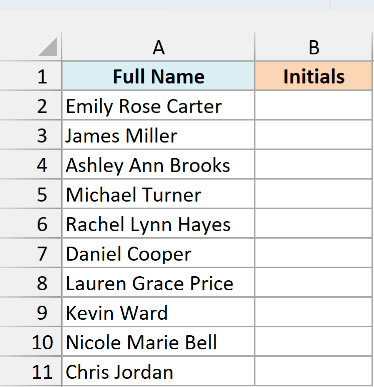
Here is the formula:
=CONCAT(LEFT(TEXTSPLIT(A2," "),1))
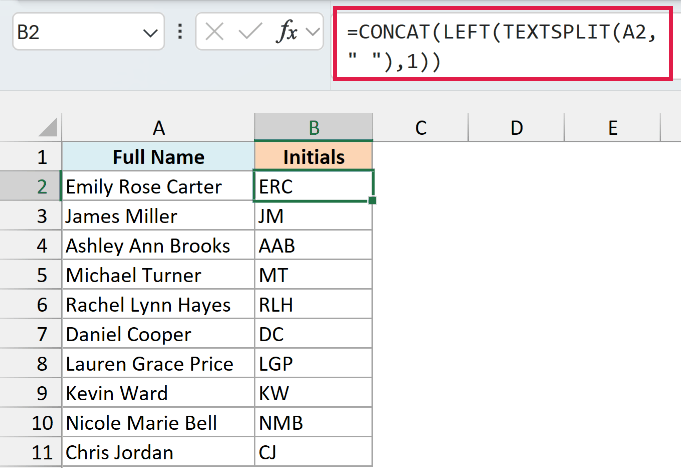
This gives us ERC for Emily Rose Carter and JM for James Miller, so it handles both two-word and three-word names.
Here is how this formula works:
- The TEXTSPLIT function splits the name in A2 at each space into separate words.
LEFT(...,1)takes the first letter of each of those words because its second argument is1.CONCAT(...)then joins those letters into one value, giving us the initials.
Notice that TEXTSPLIT and LEFT return several letters, but CONCAT joins them into one value, so the result stays in one cell.
Because the final result is one value per name, enter the formula in B2 and copy it down to B11.
The TEXTSPLIT function works in Microsoft 365, Excel for the web, and Excel 2024. In older versions, this formula returns #NAME?.
CONCAT vs CONCATENATE (and TEXTJOIN)
The choice depends on whether you want to join a whole range and whether you need a separator between items.
| Feature | CONCAT | CONCATENATE | TEXTJOIN | & operator |
|---|---|---|---|---|
| Joins a whole range into one cell | ✅ | ❌ | ✅ | ❌ |
| Has a separator (delimiter) argument | ❌ | ❌ | ✅ | ❌ |
| Available in | Excel 2019 and later | Every version | Excel 2019 and later | Every version |
The CONCAT function replaces the older CONCATENATE function, which doesn’t join a whole range into one value.
With the coupon data from Example 1, =CONCATENATE(A2:C2) in Excel 365 spills SPRING, 20, and SALE into three cells instead of returning SPRING20SALE.
When you need a separator between items or want to skip blanks, the TEXTJOIN function handles both.
The & operator works in every Excel version, but you add each piece and separator separately. By itself, it can’t join a whole range into one cell.
These examples show how the CONCAT function joins cells, ranges, and typed text into one value, whether you need a compact code or a longer label.
For lists, add separators yourself or use the TEXTJOIN function to put them between items.
When your text includes dates or amounts, use the TEXT function to keep the format you want.
Other Excel Articles You May Also Like:
