

The CHAR function in Excel takes a code number and returns the character that goes with it. For example, 65 gives you the letter A, and 169 gives you the © symbol.
It’s handy when you need a character you can’t easily type into a formula, such as a line break, a double quote, or a symbol like ° or €.
In this article, I’ll show you how to use the CHAR function with six practical examples, including symbols, line breaks, and cleaning up text copied from a website.
Follow along with the example file
CHAR Function Examples.xlsx
CHAR Function Syntax
Here is the syntax of the CHAR function:
=CHAR(number)
- number – Required. The code of the character you want, from 1 to 255. It can be a number, a cell reference, or a formula that returns a number.
If number is 0, negative, or bigger than 255, CHAR returns the #VALUE! error. The same happens when number points to an empty cell, because Excel reads the empty cell as 0.
If number has decimals, Excel drops the decimal part, so =CHAR(65.7) still returns A.
The characters come from your computer’s character set, which is different on Windows and Mac. So some codes, mostly between 128 and 255, can return a different character on a Mac.
The CHAR function works in all Excel versions, including 365, 2024, 2021, 2019, 2016, Mac, and the web. Excel for the web only supports codes 9, 10, 13, and 32 to 255.
When to Use the CHAR Function
Use this function when you need to:
- Insert symbols like ©, °, €, or • without hunting for them in the Symbol dialog box
- Add a line break inside a cell with a formula
- Put a double quote (or an inch mark) in a formula result
- Create a list of letters from A to Z
- Remove hidden characters, such as line breaks or non-breaking spaces, from text you imported or copied
Let me show you six examples of how this works.
Example 1: Insert Special Symbols Using CHAR Codes
Let’s start with the simplest use, turning code numbers into symbols.
Below I have a list of symbols with their CHAR codes in column B, and I want to get the actual symbol for each code in column C.
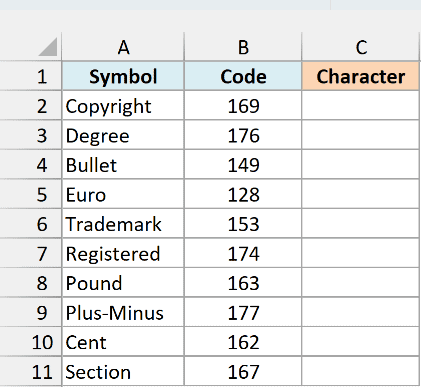
Here is the formula:
=CHAR(B2:B11)
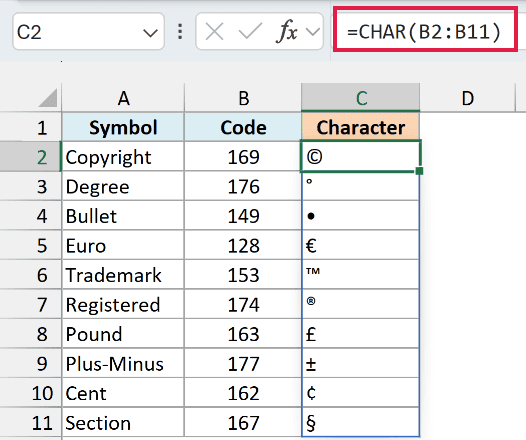
CHAR reads each code in B2:B11 and returns the matching character, so 169 becomes ©, 176 becomes °, and 149 becomes a bullet (•).
Since I gave CHAR a whole range, the results spill into C2:C11 on their own. If any cell in that range already has something in it, you’ll get a #SPILL! error until you clear it.
If you are using Excel 2019 or earlier, enter the below formula in cell C2 and then copy it down the range:
=CHAR(B2)
The same goes for the spilling formulas in Examples 2, 3, 5, and 6 (Example 4 has its own older-version formula). In older versions, point the formula at the first cell of each range (B2 instead of B2:B11) and copy it down.
CHAR only goes up to 255, so symbols like the check mark (✓) or the arrow (→) aren’t on this list. For those, use the UNICHAR function, which accepts much larger codes.
Pro Tip: If you’re not sure what code a character has, use the CODE function. It does the reverse of CHAR and returns the code number of any character you give it.
Example 2: Add Inch Marks (Double Quotes) With CHAR(34)
Now let’s use CHAR to put a double quote in a formula result.
Below I have a list of products with their width and height in inches, and I want to create a size label like 8″ x 10″ in column D.
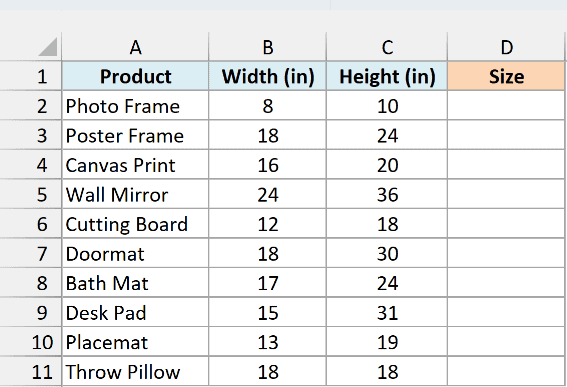
Here is the formula:
=B2:B11&CHAR(34)&" x "&C2:C11&CHAR(34)
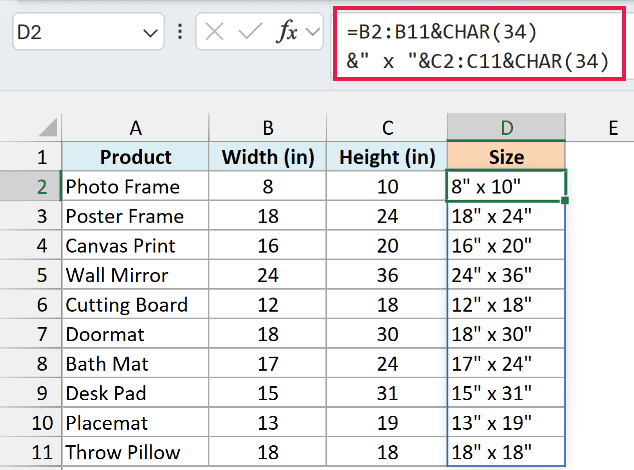
CHAR(34) returns the double quote character (“), which here works as the inch mark. The & operator joins the width, an inch mark, the ” x ” text, the height, and another inch mark.
You could also type the double quote straight into the formula, but Excel needs it written as four quotes in a row (“”””) for that to work. That’s hard to read and easy to get wrong, so CHAR(34) is much cleaner.
Example 3: Add a Line Break in a Cell With CHAR(10)
Now let’s use CHAR to add a line break inside a cell.
Below I have a class schedule with the class, teacher, and room, and I want to combine all three into one cell, each on its own line, in column D.
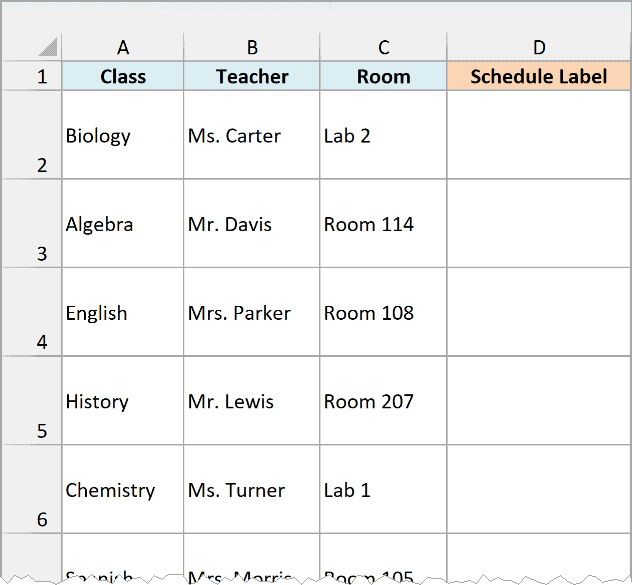
Here is the formula:
=A2:A11&CHAR(10)&B2:B11&CHAR(10)&C2:C11
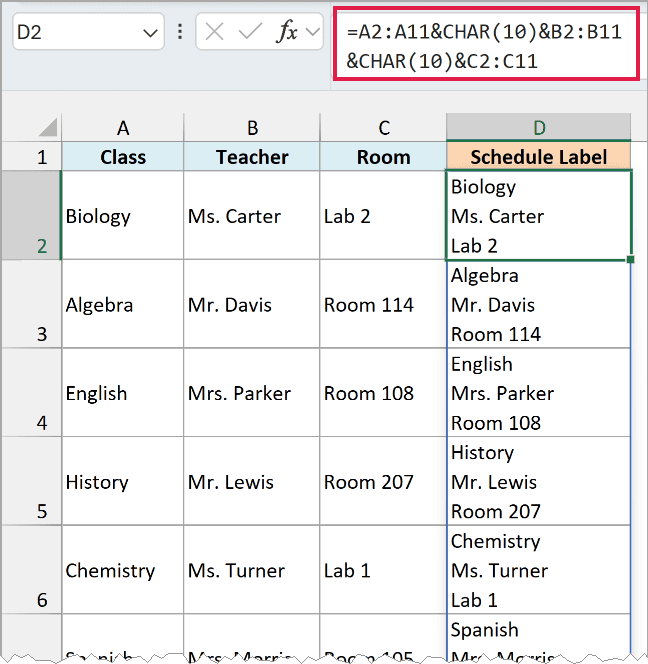
CHAR(10) is the line break character in Excel, the same one you get when you press Alt + Enter while typing in a cell. Putting it between the class, teacher, and room pushes each one onto a new line.
Important: The line breaks only show up when Wrap Text is turned on for the result cells (Home tab, Alignment group). Without it, you’ll see all three values run together on one line.
If you want to add line breaks by hand instead of with a formula, here is how to start a new line in an Excel cell.
Example 4: Create a List of Letters A to Z
Here’s a fun one that uses CHAR with the SEQUENCE function.
I want a list of the capital letters A to Z in column A, starting in cell A1.
The capital letters have the codes 65 to 90, so all CHAR needs is those 26 numbers.
Here is the formula:
=CHAR(SEQUENCE(26,1,65))
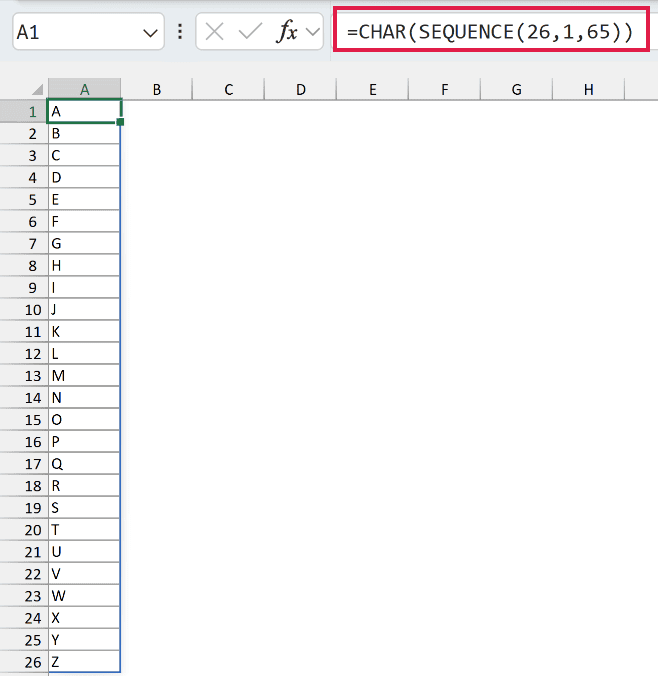
SEQUENCE(26,1,65) creates 26 numbers in one column, starting at 65. CHAR turns each of them into a letter, so the result spills from A1 down to A26.
If you need lowercase letters, change the 65 to 97, which is the code for a lowercase a.
The SEQUENCE function is only available in Excel 365 and Excel 2021 or later. If you are using Excel 2019 or earlier, enter the below formula in cell A1 and then copy it down to cell A26:
=CHAR(ROW(A1)+64)
Example 5: Replace Line Breaks With Commas
Now let’s go the other way and get rid of line breaks.
Below I have a list of grocery orders where each item sits on its own line inside the cell, and I want the items as one comma-separated line in column C.
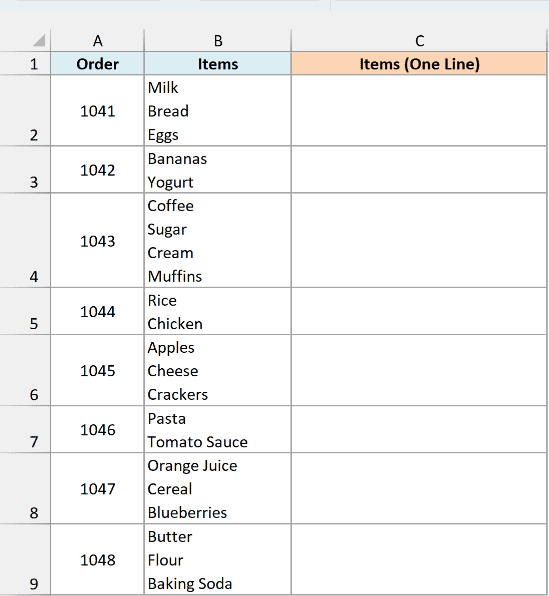
Here is the formula:
=SUBSTITUTE(B2:B9,CHAR(10),", ")
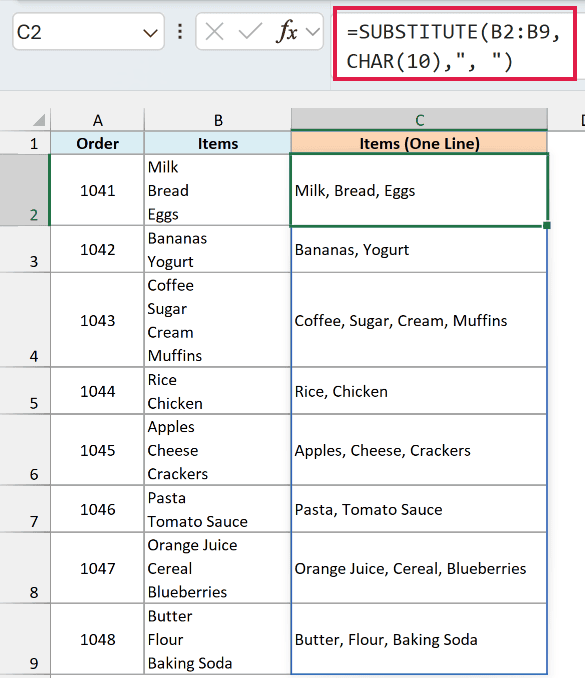
The SUBSTITUTE function looks for every CHAR(10) line break in B2:B9 and replaces it with a comma and a space. So “Milk”, “Bread”, and “Eggs” on three lines become Milk, Bread, Eggs.
For more ways to do this, see how to remove line breaks in Excel.
Example 6: Remove Non-Breaking Spaces Copied From a Website
Let’s finish with a cleanup problem that often shows up when you copy data from a web page.
Below I have product prices I copied from a website, and Excel treats them as text, so they can’t be added up. I want them as real numbers in column C.
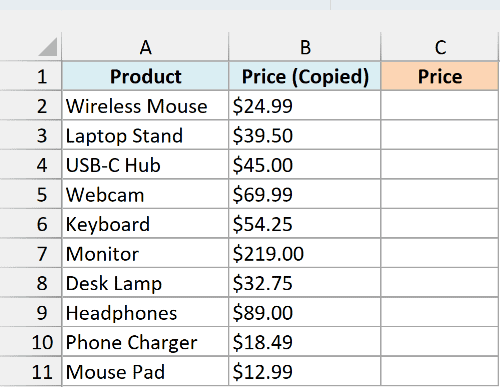
The culprit here is a non-breaking space at the end of each price. Web pages use it a lot, and you can’t spot it because it looks exactly like a normal space.
Its code is 160, so CHAR(160) lets a formula find it and remove it.
Here is the formula:
=VALUE(SUBSTITUTE(B2:B11,CHAR(160),""))
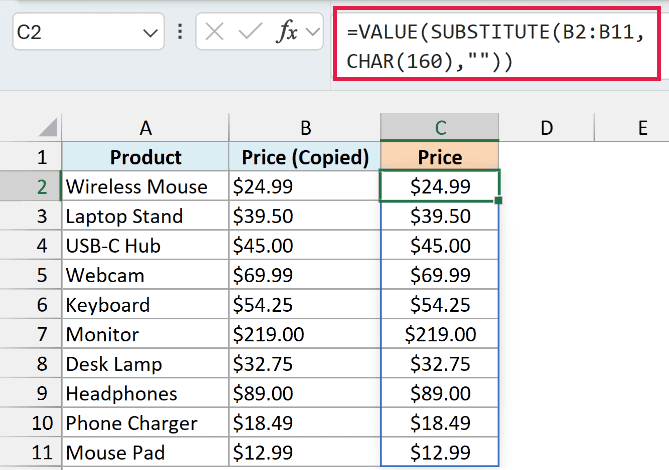
SUBSTITUTE replaces every CHAR(160) with nothing, which leaves text like $24.99. The VALUE function then converts that text into a number you can sum and format.
Important: The TRIM and CLEAN functions don’t remove the non-breaking space (code 160). TRIM only removes regular spaces (code 32), so you need SUBSTITUTE with CHAR(160) for this.
So these are six ways to use the CHAR function in Excel. The three codes worth remembering are 10 for a line break, 34 for a double quote, and 160 for the non-breaking space that comes in with web data.
I hope you found this article helpful.
Other Excel Articles You May Also Like:
- How to Insert Symbols in Excel
- TEXTJOIN Function in Excel
- MAKEARRAY in Excel
- CONCATENATE Function in Excel
- How to Insert Line Break in Excel (Quick and Easy)
- 20 Advanced Excel Functions and Formulas (for Excel Pros)
- 10 Super Neat Ways to Clean Data in Excel Spreadsheets
- Count Characters in a Cell (or Range of Cells) Using Formulas in Excel
