

The ADDRESS function in Excel gives you the address of a cell, like $D$7, when you give it a row number and a column number. It’s useful when a formula has worked out a position and you want to know which cell that is.
Note that ADDRESS returns text, not a link to the cell. It tells you where a cell is, and when you need the value in that cell, you pair it with another function (I’ll show you how).
In this article, I’ll show you how to use the ADDRESS function with six examples, including converting a column number to its letter and listing every blank cell in a range.
Follow along with the example file
ADDRESS Function Examples.xlsx
ADDRESS Function Syntax
Here is the syntax of the ADDRESS function:
=ADDRESS(row_num,column_num,[abs_num],[a1],[sheet_text])
- row_num – The row number of the cell, like 7 for row 7.
- column_num – The column number of the cell. Column A is 1, column B is 2, and so on, so column D is 4.
- abs_num – (Optional) A number from 1 to 4 that decides where the dollar signs go. If you leave it out, you get an absolute address like $D$7.
- a1 – (Optional) TRUE, or leaving it out, gives you the usual A1 style. FALSE gives you the R1C1 style.
- sheet_text – (Optional) The name of a sheet to put in front of the address.
The row_num and column_num values have to point to a cell that exists. A row number of 0, or a column number above 16,384, gives you a #VALUE! error.
The a1 argument only changes how the address is written, so =ADDRESS(7,4,1,FALSE) returns R7C4 instead of $D$7.
Unless you work with R1C1 references, you can leave this one out.
The ADDRESS function works in all Excel versions, including 365, 2024, 2021, 2019, 2016, Mac, and the web.
When to Use the ADDRESS Function
Use this function when you need to:
- Turn a row number and a column number into a cell address
- Find out which cell holds a specific value in a list
- Convert a column number, like 27, into its column letter (AA)
- Point to the same cell on several sheets when the sheet names are in cells
- Check a range and list the addresses of blank or problem cells
Let me show you a few practical examples of how to use the ADDRESS function.
Example 1: Get a Cell Address from Row and Column Numbers
Let’s start with the simplest case.
Below I have a list of row numbers and column numbers, and I want the cell address for each pair in column C.
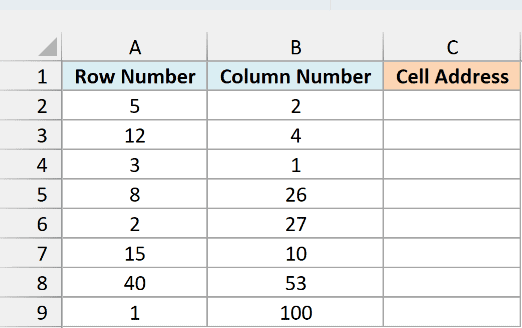
Here is the formula:
=ADDRESS(A2:A9,B2:B9)
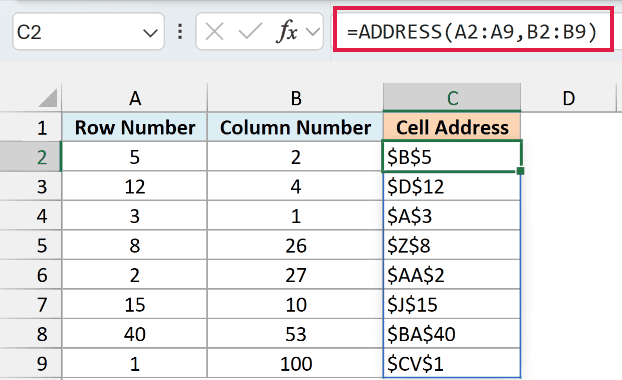
This one formula, entered in cell C2, gives you all eight addresses. ADDRESS pairs each row number with the column number next to it, so 5 and 2 become $B$5, and the results spill down to C9.
Since I left out abs_num, every address is absolute, with a dollar sign before both the column letter and the row number.
Since the results spill, the cells below the formula need to be empty. If any cell in C3:C9 already has something in it, the formula returns a #SPILL! error instead.
If you are using Excel 2019 or earlier, enter the below formula in cell C2 and then copy it down the range:
=ADDRESS(A2,B2)
Example 2: Change the Reference Type with abs_num
The third argument, abs_num, lets you control the dollar signs in the address.
Below I have a row number in cell B1 and a column number in cell B2, along with the four abs_num codes, and I want the address in each reference type in column C.
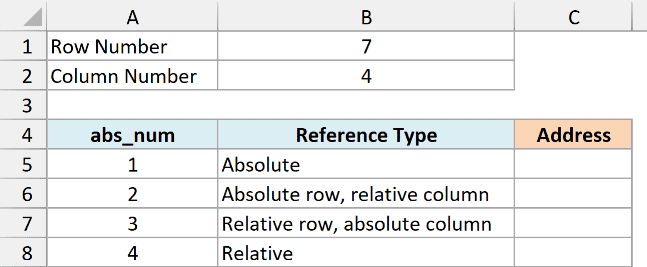
Here is the formula:
=ADDRESS(B1,B2,A5:A8)
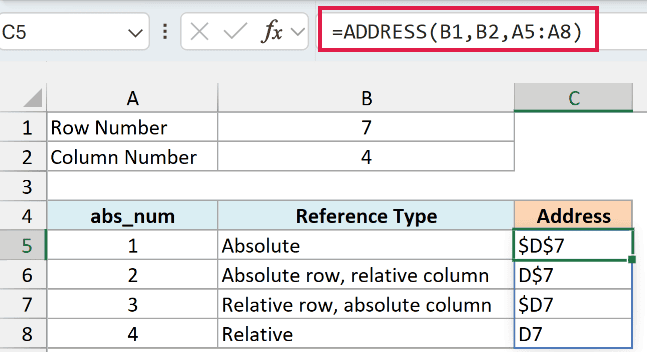
Row 7 and column 4 always point to cell D7. The only thing that changes is abs_num, which comes from A5:A8, so you get the same cell four times, each written a different way:
- 1 returns $D$7, where both the column and the row are locked
- 2 returns D$7, where only the row is locked
- 3 returns $D7, where only the column is locked
- 4 returns D7, a plain relative address with no dollar signs
When you just want to show a clean address in a report or a message, use 4.
If the dollar signs are new to you, here’s my guide on absolute, relative, and mixed cell references.
If you are using Excel 2019 or earlier, enter the below formula in cell C5 and then copy it down to C8 (the dollar signs keep B1 and B2 fixed as you copy):
=ADDRESS($B$1,$B$2,A5)
Example 3: Add a Sheet Name and Get the Value with INDIRECT
Here’s a more practical scenario.
Below I have the four locations of a coffee shop, and each one has its own sheet (Downtown, Airport, Riverside Mall, and University) with the week’s total sales in cell B10.
I want to build the address of each location’s total in column B, then use it to pull the amount into column C.
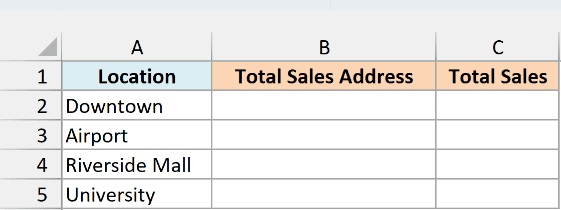
Here is the formula that builds the addresses:
=ADDRESS(10,2,1,TRUE,A2:A5)
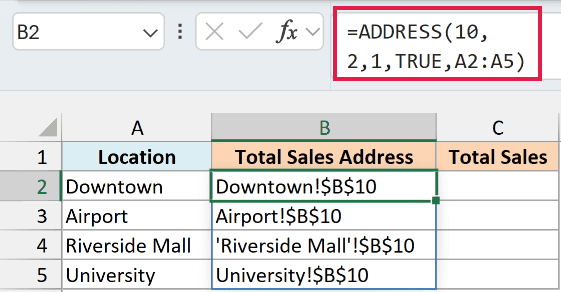
Row 10 and column 2 point to cell B10, and the last argument (sheet_text) puts each location’s name in front of it. Since A2:A5 has four names, you get four addresses.
Look at the Riverside Mall result. The name has a space in it, so ADDRESS wraps it in single quotes (‘Riverside Mall’!$B$10), which is exactly how Excel needs such a sheet name written in a reference.
If you are using Excel 2019 or earlier, enter the below formula in cell B2 and then copy it down the range:
=ADDRESS(10,2,1,TRUE,A2)
The addresses in column B are just text. To get the actual sales figure from each sheet, you need the INDIRECT function, which turns a text address into a real reference.
Here is the formula that pulls the total sales:
=INDIRECT(B2)
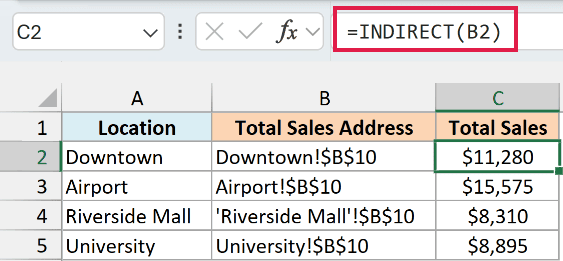
Enter it in cell C2 and copy it down to C5. INDIRECT reads the text in B2 (Downtown!$B$10), goes to that cell, and returns its value, so each row gets the total from its own sheet.
INDIRECT needs one formula for each address. If you give it the whole list of addresses at once, you get a #CALC! error, which is why this formula is copied down instead of spilling.
Important: The names in column A must match the sheet names exactly. If you rename a sheet and don’t update its name in column A, INDIRECT returns a #REF! error.
INDIRECT is a volatile function, so these four formulas recalculate every time anything in the workbook changes. That’s not a problem for a few cells like these, but on thousands of rows it can slow your file down.
Example 4: Convert a Column Number to a Column Letter
Let me show you a handy trick next.
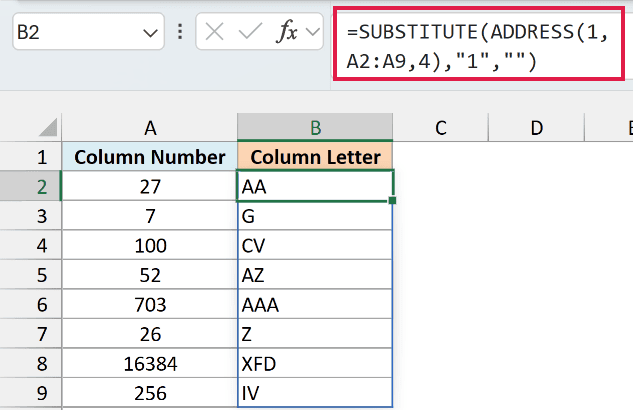
Below I have a list of column numbers, and I want the matching column letter for each one in column B.
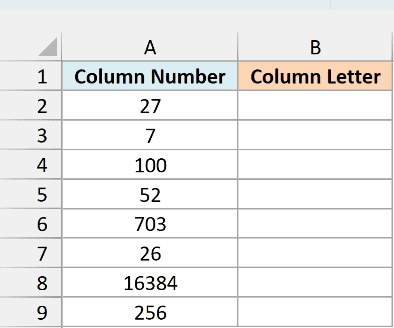
Here is the formula:
=SUBSTITUTE(ADDRESS(1,A2:A9,4),"1","")
How this formula works:
- ADDRESS(1,A2:A9,4) builds a relative address in row 1 for each column number, so 27 becomes AA1 and 703 becomes AAA1.
- SUBSTITUTE(…,”1″,””) replaces the 1 with nothing, which leaves only the column letters.
This works because the row is always 1, and column letters never contain digits, so the only 1 in the address is the row number. Column 16384 returns XFD, which is the last column in Excel.
If you are using Excel 2019 or earlier, enter the below formula in cell B2 and then copy it down the range:
=SUBSTITUTE(ADDRESS(1,A2,4),"1","")
To go the other way, from a column letter back to its number, use the COLUMN function.
Example 5: Find the Cell Address of a Value
ADDRESS also comes in handy when you want to know where something is in a list.
Below I have a grocery list with the item, aisle, and price. I’ve typed the item I’m looking for (Peanut Butter) in cell F1, and I want its cell address in F2.
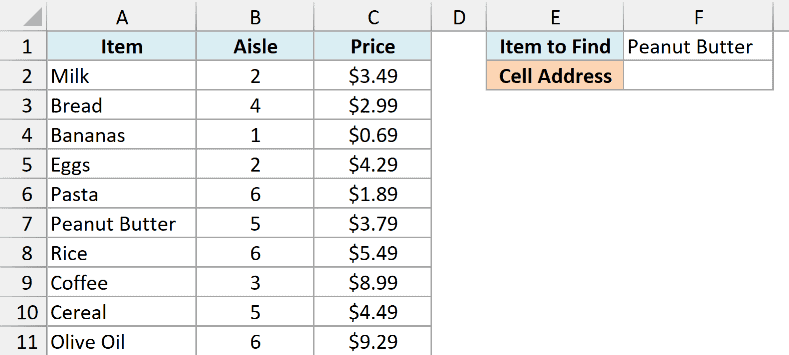
Here is the formula:
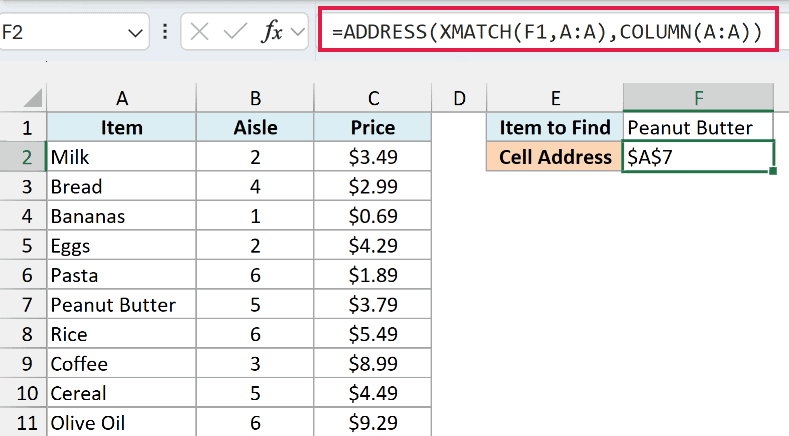
=ADDRESS(XMATCH(F1,A:A),COLUMN(A:A))
How this formula works:
- XMATCH(F1,A:A) looks for Peanut Butter in column A and returns its position, 7. Since the lookup range starts at row 1, that position is also the row number.
- COLUMN(A:A) returns 1, the column number of column A.
- ADDRESS turns row 7 and column 1 into $A$7.
If the item isn’t in the list, XMATCH returns a #N/A error, and so does ADDRESS.
The XMATCH function works in Excel 365, 2024, and 2021. If you are using Excel 2019 or earlier, use the below formula, which swaps in MATCH with 0 for an exact match:
=ADDRESS(MATCH(F1,A:A,0),COLUMN(A:A))
If you want more ways to do this, I have a separate guide on how to return the cell address instead of the value.
Example 6: Find the Address of Every Blank Cell in a Range
Let’s step it up with a more advanced use case.
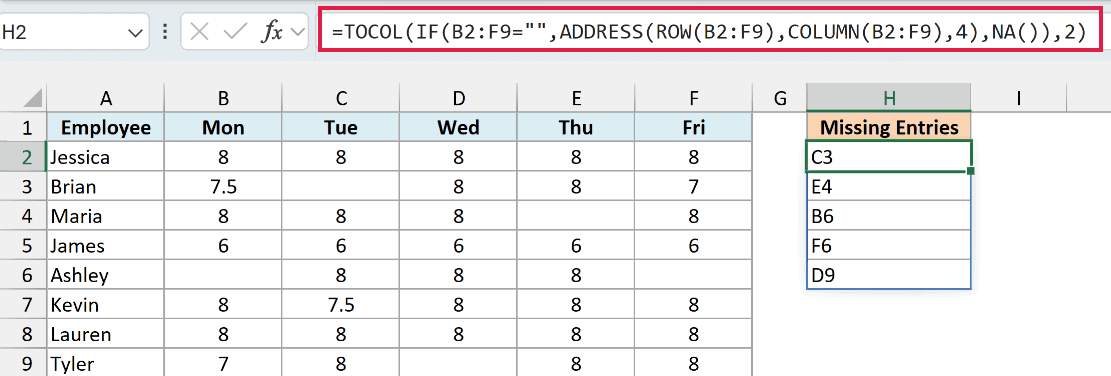
Below I have a weekly timesheet with the hours each employee worked from Monday to Friday, and I want a list of every missing entry (blank cell) in column H.
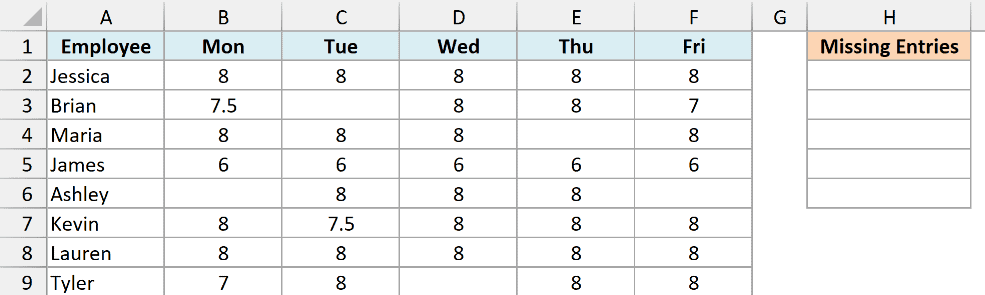
Here is the formula:
=TOCOL(IF(B2:F9="",ADDRESS(ROW(B2:F9),COLUMN(B2:F9),4),NA()),2)
How this formula works:
- ROW(B2:F9) returns the row numbers 2 to 9, and COLUMN(B2:F9) returns the column numbers 2 to 6. Together, they give ADDRESS every row and column pair in the timesheet, so it returns the address of every cell (B2, C2, D2, and so on).
- IF(B2:F9=””,…,NA()) keeps the address only where the cell is blank, and puts a #N/A error everywhere else.
- TOCOL(…,2) turns the grid of results into a single column, and the 2 tells it to skip the errors. So only the addresses of the blank cells are left.
The result is C3, E4, B6, F6, and D9, the five missing entries, listed row by row. I used 4 for abs_num here, since plain addresses are easier to read in a list like this.
If you’d rather list them column by column (all the Monday blanks first, then Tuesday, and so on), add TRUE as the third argument of TOCOL.
This formula needs the TOCOL function, which is only available in Excel 365 and Excel 2024.
So these are six ways to use the ADDRESS function in Excel, from getting a simple address out of a row and column number to listing every blank cell in a timesheet.
Just remember that ADDRESS gives you text, so pair it with INDIRECT when you need the value in that cell.
I hope you found this article helpful.
Other Excel Articles You May Also Like:
