

The TOCOL function takes a range of cells and returns all its values as a single column. It’s useful when your data is spread across rows and columns, but you need it as one simple list.
That could be names in a grid, items entered across several columns, or a report laid out by quarter. In this article, I’ll show you how TOCOL works, how to skip blanks and errors, and a few practical ways to use it.
Follow along with the example file
TOCOL Function Examples.xlsx
TOCOL Function Syntax
Here is the syntax of the TOCOL function:
=TOCOL(array,[ignore],[scan_by_column])
- array – The range or array you want to turn into a single column.
- ignore – (Optional) Tells TOCOL which values to leave out. Use 0 to keep everything (the default), 1 to skip blank cells, 2 to skip errors, or 3 to skip both blanks and errors.
- scan_by_column – (Optional) The order in which TOCOL reads the values. FALSE (the default) reads row by row, and TRUE reads column by column.
The TOCOL function works in Excel for Microsoft 365 and Excel 2024, on both Windows and Mac. It’s not available in Excel 2021 or earlier versions.
When to Use the TOCOL Function
Use this function when you need to:
- Turn a grid of names, items, or values into one list
- Pull all the entries from several columns into one column while skipping the empty cells
- Get a unique, sorted list of values that are spread across multiple columns
- Find every place a value appears in a grid and list the matching row and column labels
- Convert a cross-tab report into a flat table you can filter, sort, or use in a PivotTable
Let me show you a few practical examples of how to use the TOCOL function.
Example 1: Convert a Range to a Single Column
Let’s start with a simple example.
Below I have a class split into four study groups with three members each, and I want one list of all the students in column F.
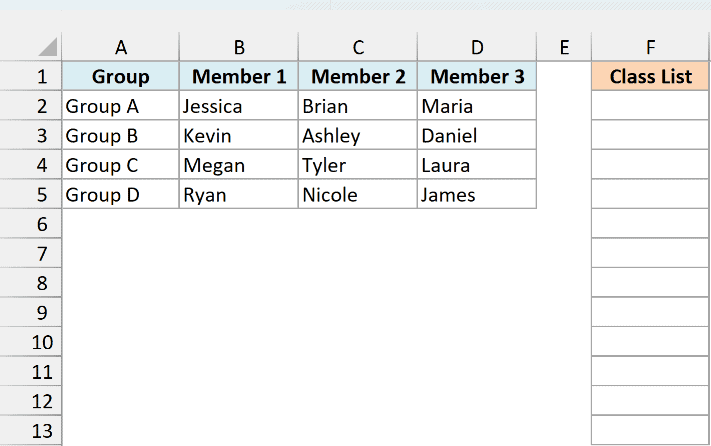
Here is the formula that will do this:
=TOCOL(B2:D5)
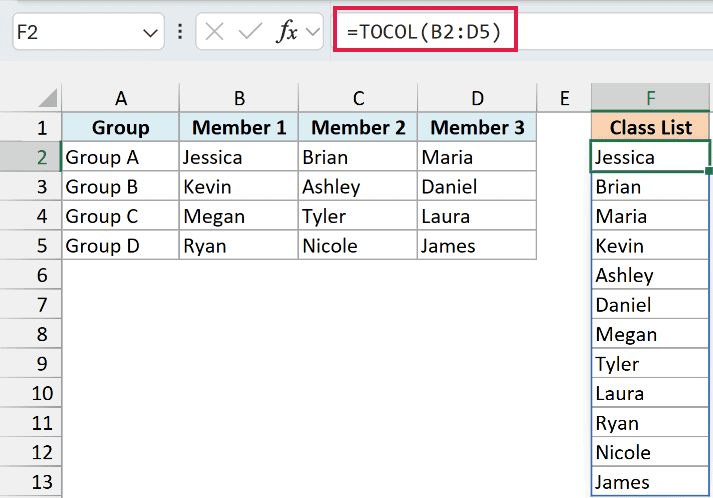
In the above formula, TOCOL reads the range B2:D5 one row at a time. It takes the three members of Group A first, then the three members of Group B, and so on, and returns all 12 names in one column.
You only enter the formula in cell F2, and the results spill into the cells below it. If any of those cells already has something in it, you’ll see a #SPILL! error, so make sure there are enough empty cells below the formula.
If you are using Excel 2021 or an earlier version, enter the below formula in cell F2 and then copy it down to cell F13:
=INDEX($B$2:$D$5,QUOTIENT(ROWS($F$2:F2)-1,COLUMNS($B$2:$D$5))+1,MOD(ROWS($F$2:F2)-1,COLUMNS($B$2:$D$5))+1)
This formula works out which row and column to pick for each cell as you copy it down. It returns the names in the same order as TOCOL, but you need to copy it down to exactly as many cells as there are names.
Example 2: Skip Blank Cells with TOCOL
Here’s a scenario where the ignore argument matters.
Below I have a potluck sign-up sheet where some of the slots are still empty, and I want a list of all the dishes people have signed up for in column E.
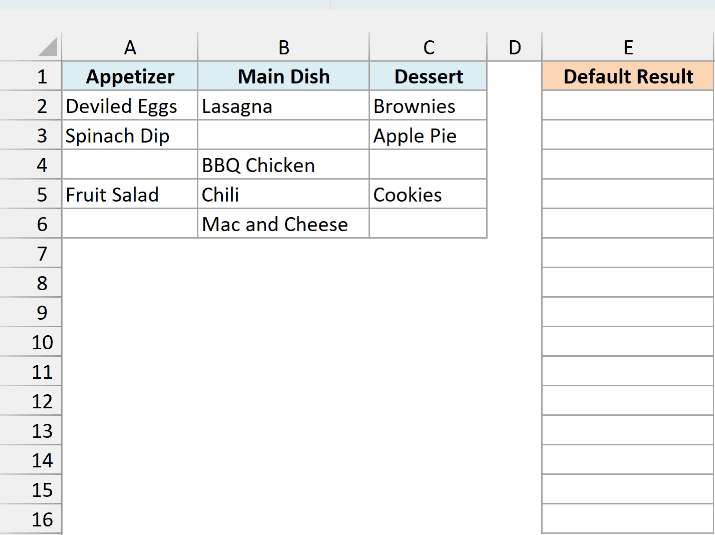
Let me first show you what happens when you use TOCOL without the ignore argument. Here is the formula in cell E2:
=TOCOL(A2:C6)
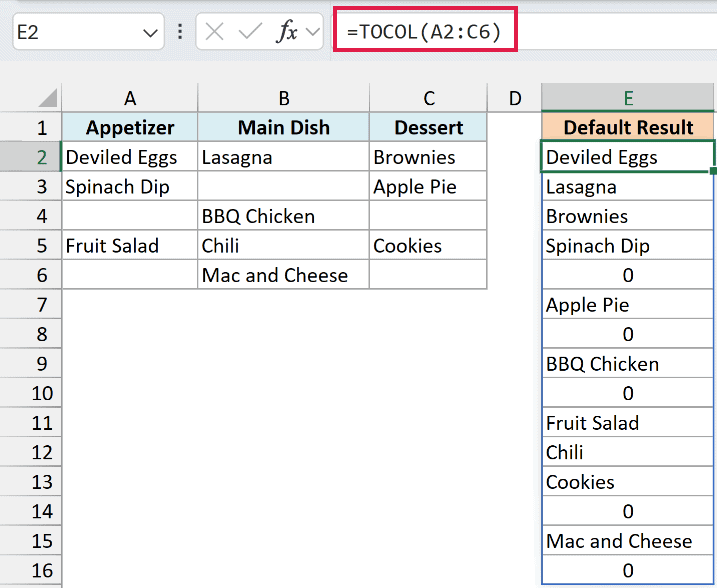
The dishes are all there, but so are five zeros. TOCOL keeps every cell in the range by default, and an empty cell comes through as a 0.
To get rid of those zeros, set the ignore argument to 1. Here is the formula in cell G2:
=TOCOL(A2:C6,1)
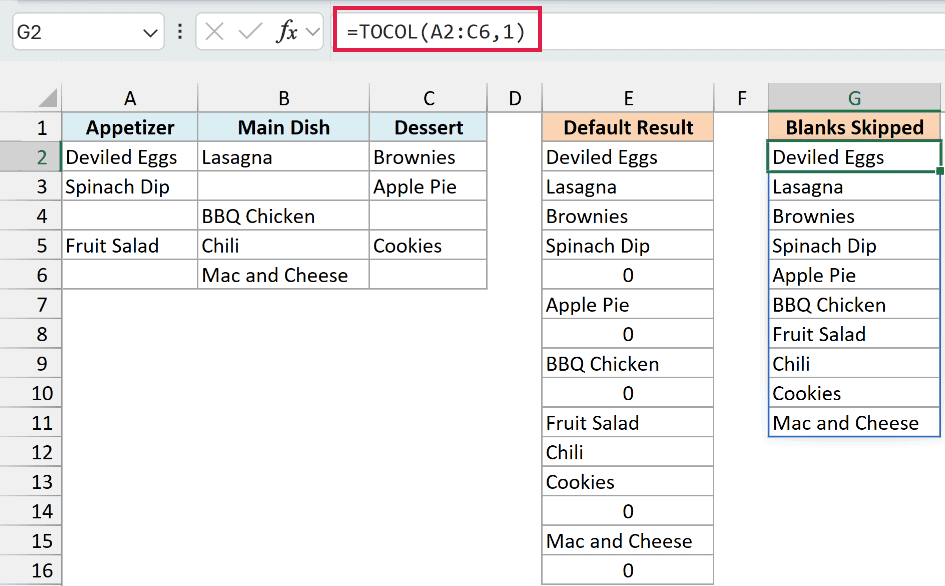
Now TOCOL skips the empty cells completely, and you get a clean list of the 10 dishes.
Example 3: Scan by Column Instead of by Row
By default, TOCOL reads your data row by row. Sometimes that’s not the order you want, and that’s where the third argument comes in.
Below I have a weekly meal plan with lunch and dinner for each weekday, and I want all the meals in a single column, starting in column H.
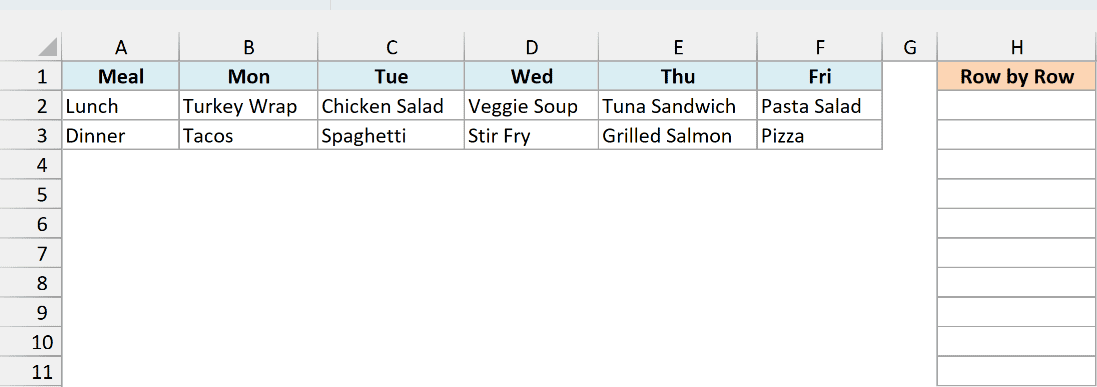
Let me first show you what you get with the default order. Here is the formula in cell H2:
=TOCOL(B2:F3)
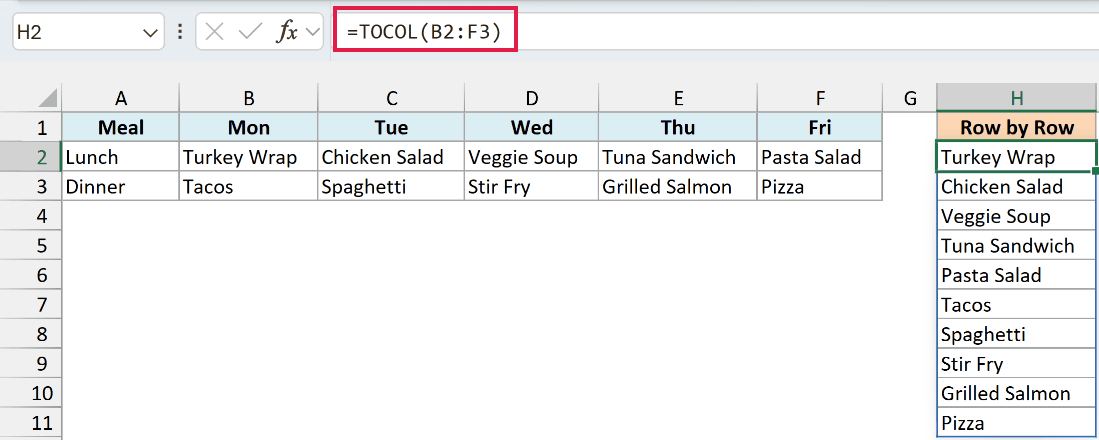
Since TOCOL reads row by row, it lists all five lunches first and then all five dinners. That’s fine if you just want a list of meals, but it doesn’t follow the days of the week.
To get the meals day by day (Monday’s lunch and dinner, then Tuesday’s, and so on), set the scan_by_column argument to TRUE. Here is the formula in cell J2:
=TOCOL(B2:F3,,TRUE)
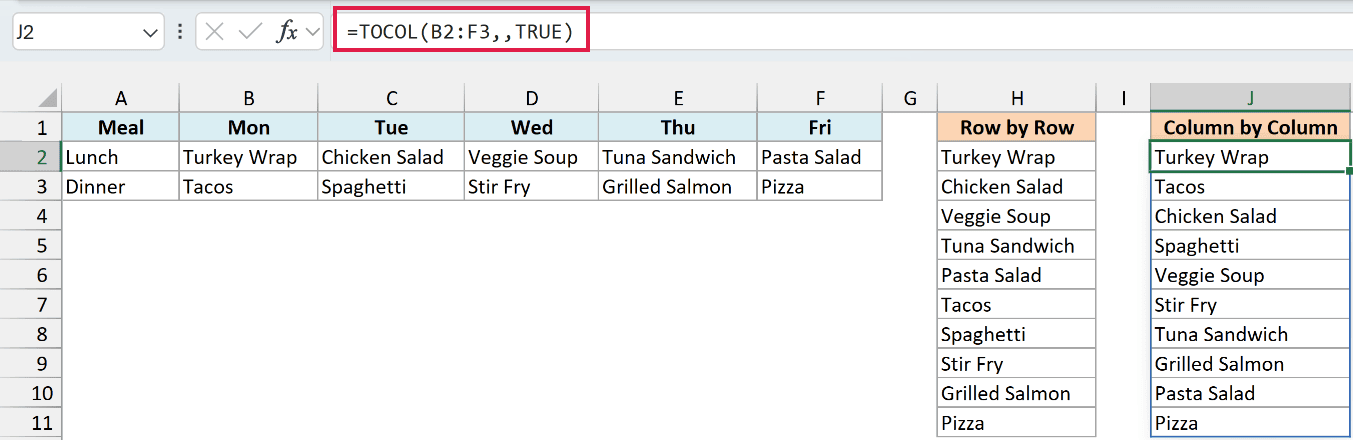
Now TOCOL goes down the Mon column first, then the Tue column, and so on. So the list follows the week, with each day’s lunch followed by its dinner.
Note the two commas in the formula. I’m not using the ignore argument here, so I’ve left it empty, and TRUE goes in the third position.
Example 4: Get Unique Values from Multiple Columns
Now let’s look at something more interesting.
Below I have a list of pizza orders where each order has up to three toppings in columns B to D, and I want a sorted list of every topping that was ordered in column F.
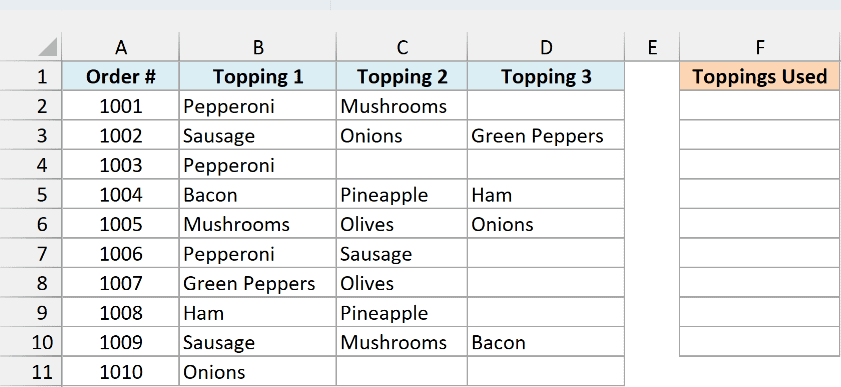
Here is the formula that will do this:
=SORT(UNIQUE(TOCOL(B2:D11,1)))
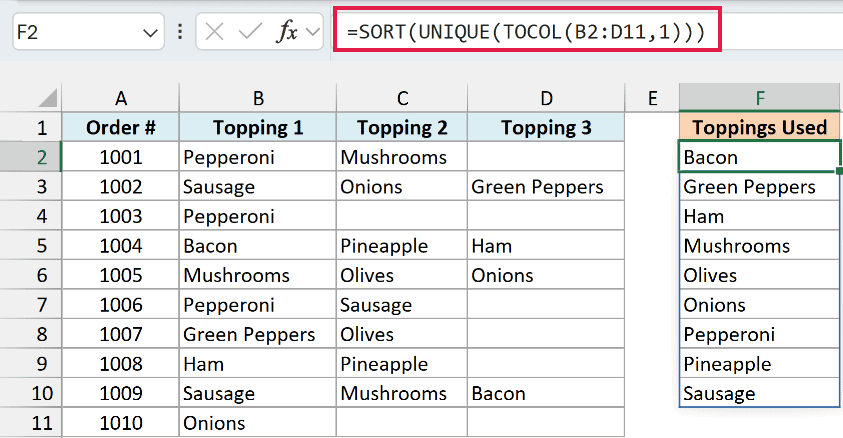
How this formula works:
- TOCOL(B2:D11,1) stacks all the toppings from the three columns into one column. The 1 skips the empty topping cells, so they don’t show up as a 0 in the list.
- UNIQUE then removes the repeats. Pepperoni appears in three orders, but it only shows up once.
- SORT puts the final list of nine toppings in alphabetical order.
You need TOCOL here because the UNIQUE function on its own works on rows. If you use UNIQUE(B2:D11), it looks for duplicate rows (orders with the same three toppings), not duplicate toppings.
Important: Don’t use whole-column references such as B:D in this formula. With ignore set to 1, the header cells (Topping 1, Topping 2, Topping 3) end up in your list, and without it, TOCOL returns a #NUM! error.
Example 5: List Every Shift for One Employee
Let’s step it up with a more advanced use case, where TOCOL helps you find a value in a grid.
Below I have a weekly shift roster, and I want to list every shift for the employee named in cell H2 (Emma), with the list starting in column J.

Here is the formula that will do this:
=TOCOL(IF(B2:F4=H2,B1:F1&" "&A2:A4,NA()),2,TRUE)
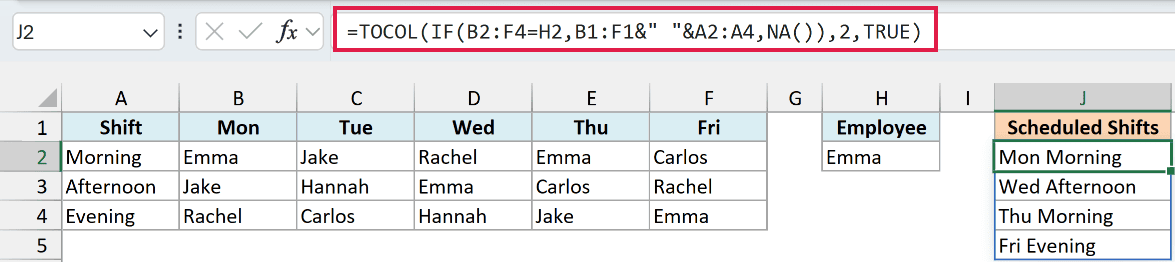
How this formula works:
- B2:F4=H2 checks every cell in the roster and returns TRUE wherever the name is Emma.
- B1:F1&” “&A2:A4 joins the day from the header row with the shift name from column A, so each cell in the grid gets a label like “Thu Morning”.
- IF returns that label for each cell where Emma is working, and a #N/A error (from the NA function) for every other cell.
- TOCOL with 2 as the ignore argument skips all those #N/A errors, and TRUE makes it read column by column, so Emma’s shifts come out in day order.
You might wonder why I used NA() instead of an empty string (“”). TOCOL doesn’t treat “” as a blank cell, so setting ignore to 1 would keep all those empty strings in the result.
Change the name in cell H2 to any other employee, and the list updates to show that person’s shifts.
Important: If the name in H2 isn’t anywhere in the roster, every cell becomes an error and TOCOL has nothing left to return. In that case, you get a #CALC! error instead of a list.
Example 6: Turn a Cross-Tab Report into a Flat Table
Here’s a practical use case if you work with reports.
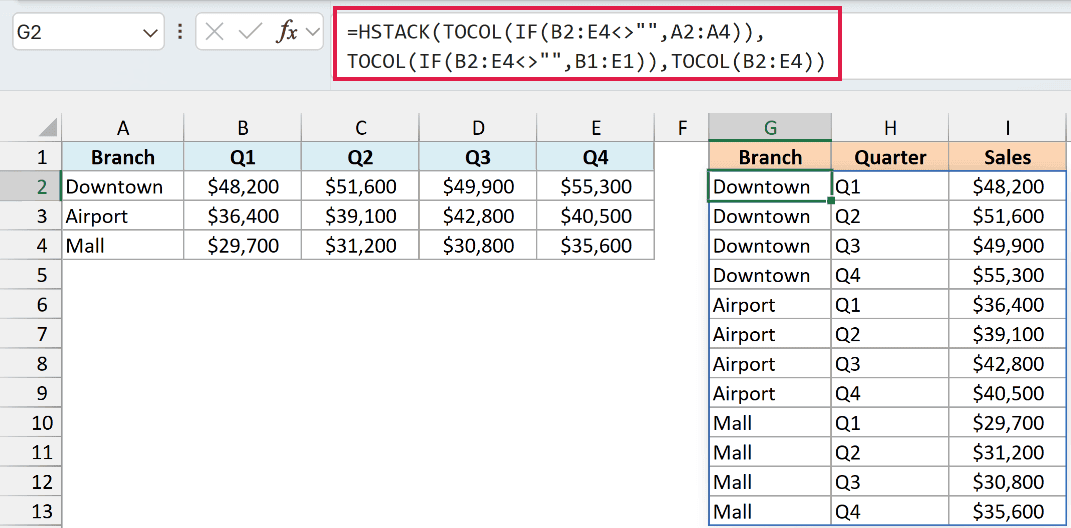
Below I have quarterly sales for three branches, with each quarter in its own column, and I want to turn it into a flat table with Branch, Quarter, and Sales columns starting in column G.
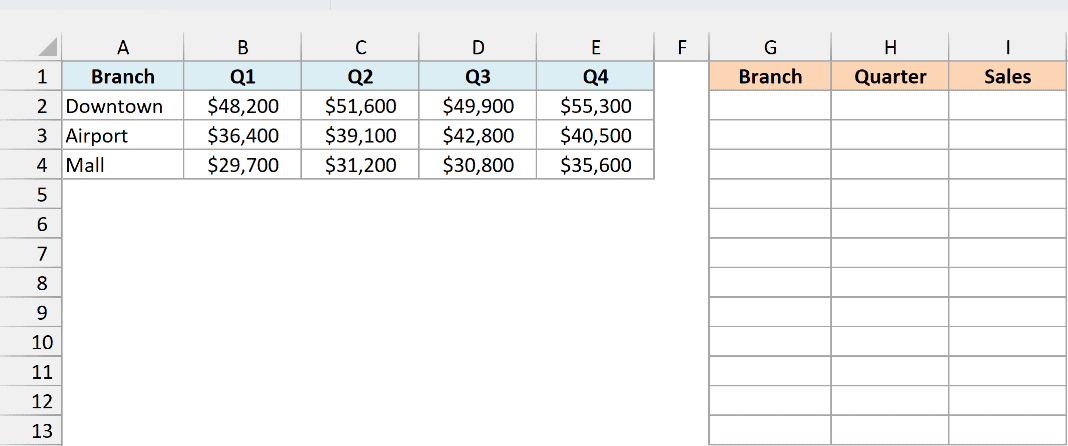
Here is the formula that will do this:
=HSTACK(TOCOL(IF(B2:E4<>"",A2:A4)),TOCOL(IF(B2:E4<>"",B1:E1)),TOCOL(B2:E4))
How this formula works:
- TOCOL(B2:E4) turns the 12 sales numbers into one column, reading row by row (all of Downtown’s quarters first, then Airport, then Mall).
- IF(B2:E4<>””,A2:A4) repeats each branch name across its row, so you get a grid of branch names the same size as the sales data. TOCOL then turns that grid into a column.
- IF(B2:E4<>””,B1:E1) does the same with the quarter names in the header row, repeating them down each column.
- HSTACK puts the three columns side by side, so you get the Branch, Quarter, and Sales table in one go.
The B2:E4<>”” check in both IF functions isn’t filtering anything. It’s only there to give IF the shape of the sales grid.
All three TOCOL functions read their grids in the same row-by-row order, and that’s what keeps every sales number next to the right branch and quarter.
A flat table like this is much easier to work with than the cross-tab layout. You can filter it, sort it, or use it as the source for a PivotTable.
So these are some practical examples of how to use the TOCOL function in Excel. You can use it to turn any range into a single column, skip blanks and errors, and combine it with functions like UNIQUE, SORT, and HSTACK.
If you need the values in a single row instead of a column, the TOROW function works the same way with the same arguments.
I hope you found this article helpful.
Other Excel Articles You May Also Like:
