

The WEEKNUM function in Excel tells you which week of the year a date falls in. You give it a date, and it gives you back a week number, like 1 for the first week of January.
This comes in handy when you want to group dates by week, for things like weekly sales totals or class schedules. You can also pick the day your week starts on, or switch to ISO week numbers.
One catch is that WEEKNUM won’t take a whole range of dates the way most functions do in Excel 365. It gives a #VALUE! error instead, and I’ll show you the simple fix for that in this article.
Follow along with the example file
WEEKNUM Function Examples.xlsx
WEEKNUM Function Syntax
Here is the syntax of the WEEKNUM function:
=WEEKNUM(serial_number,[return_type])
- serial_number – The date you want the week number for. This is usually a cell with a date in it, but it can also be a date built with the DATE function.
- return_type – Optional. A number that tells WEEKNUM which day your week starts on. If you leave it out, weeks start on Sunday.
Here are the values you can use for return_type:
- 1 or 17 (or omitted) – Week starts on Sunday
- 2 or 11 – Week starts on Monday
- 12 – Week starts on Tuesday
- 13 – Week starts on Wednesday
- 14 – Week starts on Thursday
- 15 – Week starts on Friday
- 16 – Week starts on Saturday
- 21 – Week starts on Monday, with ISO week numbering
With every return_type except 21, week 1 is the week that contains January 1. So the first week of the year can be just a few days long, and the next week starts on your chosen start day.
Return type 21 uses the ISO system instead. Week 1 is the week that contains the first Thursday of the year, which means a few days in early January can belong to the last week of the previous year.
If you use a return_type that isn’t in the list above, like 3 or 99, WEEKNUM returns the #NUM! error.
The WEEKNUM function works in all Excel versions, including 365, 2024, 2021, 2019, 2016, Mac, and the web.
When to Use the WEEKNUM Function
Use this function when you need to:
- Group dates by week, so you can total sales, hours, or orders for each week
- Match dates to the week numbers on a planner, payroll calendar, or school timetable
- Get ISO week numbers for reports that follow the ISO standard used across much of Europe
- Find which week of the month a date falls in
Let me show you a few practical examples of how to use this function.
Example 1: Get the Week Number From a Date
Let’s start with a simple example.
Below is a list of dentist appointments with the date of each visit, and I want to get the week number for each appointment in column C.
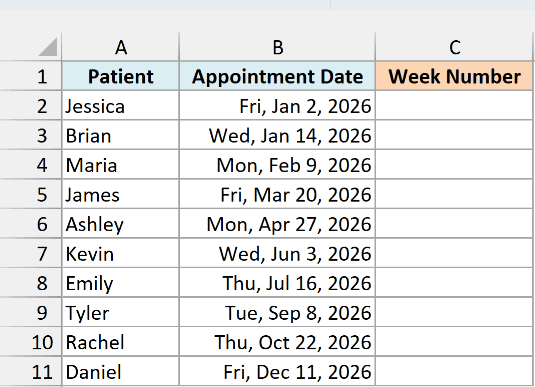
Here is the formula:
=WEEKNUM(B2)
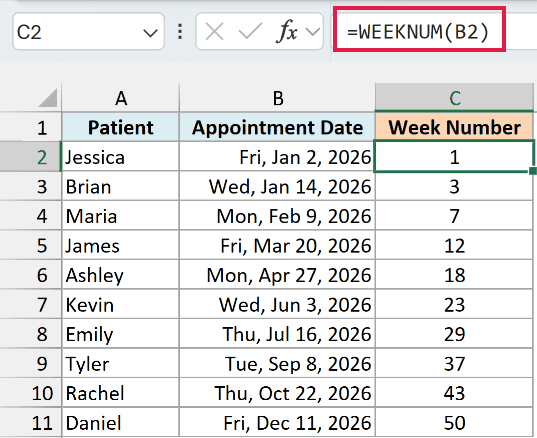
Enter this formula in cell C2 and copy it down to C11. WEEKNUM looks at the date in column B and returns the week of the year that date falls in.
Since I left out return_type, the weeks run from Sunday to Saturday. Jessica’s appointment on Friday, January 2, 2026 is in week 1, because with the default return_type, week 1 is the week that contains January 1.
Brian’s appointment on January 14 lands in week 3, and Daniel’s appointment on December 11 is in week 50.
I’m copying the formula down here because WEEKNUM doesn’t spill with a plain range, and Example 3 shows how to fix that.
Example 2: Week Numbers When Your Week Starts on Monday
Many offices and gyms think of a week as Monday to Sunday, so the default Sunday start won’t match their calendar.
Below is a gym’s class schedule for March 2026, and I want the week number for each class in column C, with weeks running from Monday to Sunday.
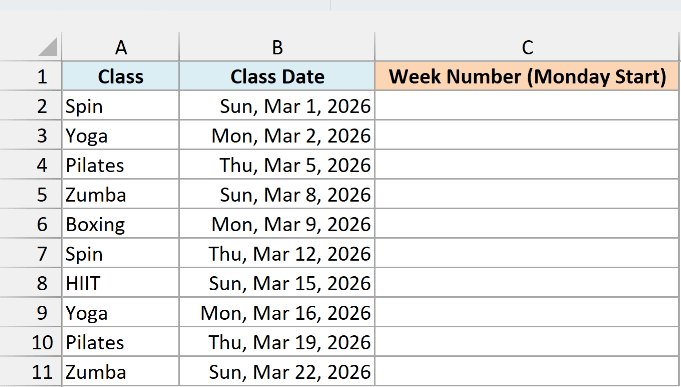
Here is the formula:
=WEEKNUM(B2,2)
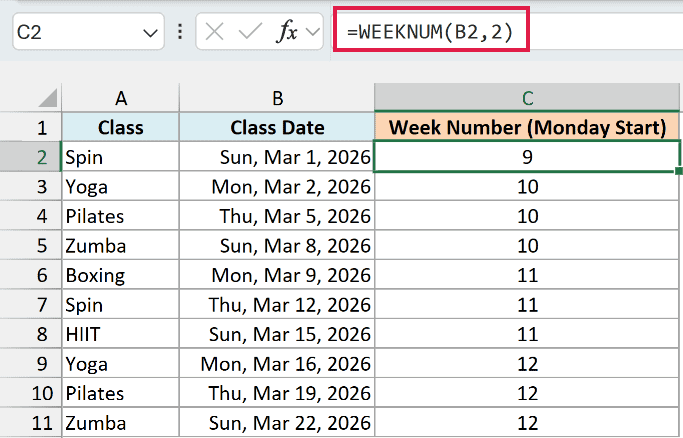
The 2 in the second argument tells WEEKNUM that each week starts on Monday. So the Yoga class on Monday, March 2 starts week 10, and every class up to Sunday, March 8 stays in week 10.
Look at the Sunday classes to see the difference. With a Monday start, Sunday is the last day of the week, so the Spin class on Sunday, March 1 closes the week that began on Monday, February 23 and gets week 9.
If you used the default formula =WEEKNUM(B2) here, that same Sunday would start a new week and return 10. So pick the return_type that matches how your team or business counts weeks.
Return type 11 gives the same results as 2. For a week that starts on another day, use the matching code from the list in the syntax section.
Example 3: Get Week Numbers for a Whole Column With One Formula
In Excel 365, most functions let you give them a whole range, and the results spill into the cells below. WEEKNUM doesn’t do that on its own, and this example shows you what happens and how to fix it.
Below is a list of school assignments with their due dates, and I want the week number for every due date with one formula in column D.
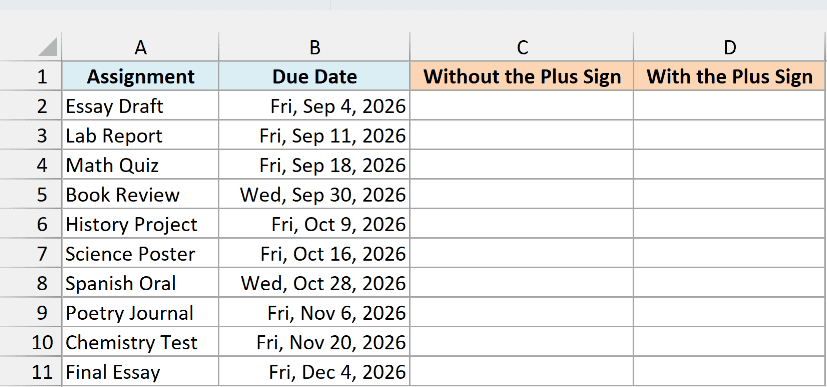
Column C is for a formula that uses the range as it is, and column D is for the version that works. First, let’s give WEEKNUM the whole range in cell C2:
=WEEKNUM(B2:B11)
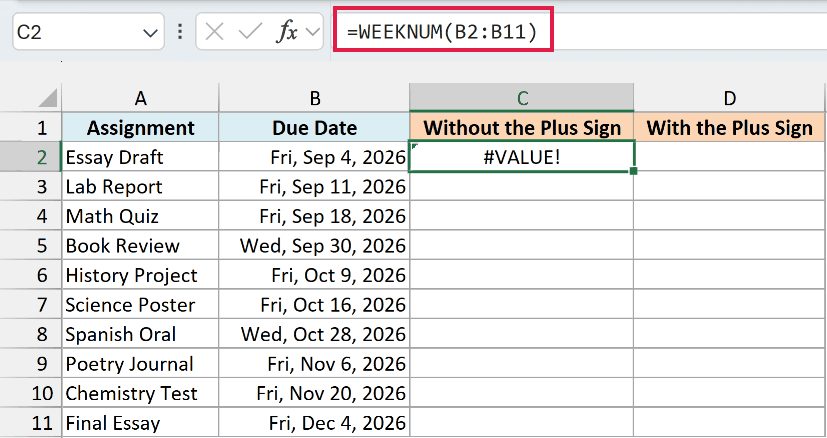
Instead of spilling ten week numbers, this formula returns the #VALUE! error.
This happens because WEEKNUM started life in the Analysis ToolPak, an old Excel add-in. It became a regular Excel function later, but it still expects one cell, so it can’t work with a range reference like B2:B11.
The fix is to add a plus sign before the range. Here is the formula in cell D2:
=WEEKNUM(+B2:B11)
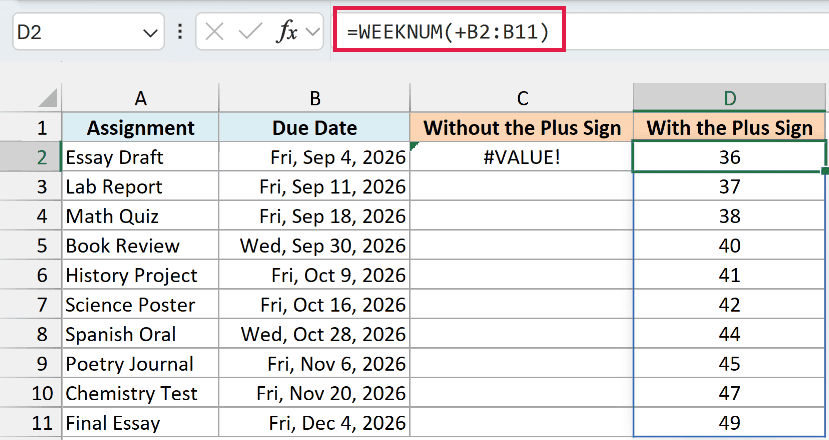
Now the formula spills the week numbers into D2:D11, one for each due date.
The plus sign is a math operator, so Excel has to work out +B2:B11 before passing anything to WEEKNUM. That turns the range reference into a list of date values, and WEEKNUM is happy to work with a list.
The same trick works when you add a return_type, like =WEEKNUM(+B2:B11,2) for weeks that start on Monday.
Other functions from the old Analysis ToolPak have the same problem, and I’ve covered them in this guide on fixing Excel functions that won’t spill.
Spilling needs Excel 365 or Excel 2021 and later. If you are using Excel 2019 or earlier, enter the below formula in cell D2 and then copy it down to D11:
=WEEKNUM(B2)
Example 4: Get ISO Week Numbers With Return Type 21
The difference between regular and ISO week numbers shows up at the start and end of the year, so this example uses dates around New Year.
Below is a list of guest arrivals at a vacation rental from December 2026 to January 2027, and I want the regular week number in column C and the ISO week number in column D.
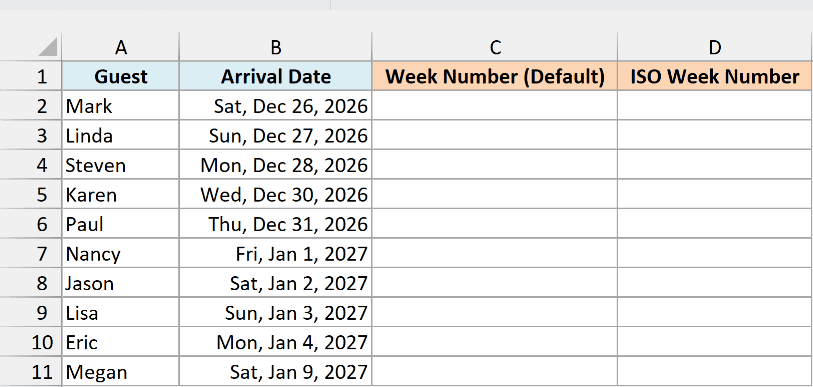
Here is the formula for the regular week number in cell C2, copied down to C11:
=WEEKNUM(B2)
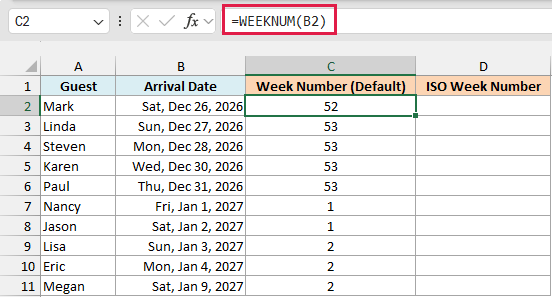
With the default numbering, December 27 to 31, 2026 are in week 53. Then the count starts over, so Friday, January 1, 2027 is week 1, even though that week is only two days long.
Sunday, January 3, 2027 then starts week 2.
In some years, the count even reaches week 54. That happens when a leap year starts on a Saturday, so December 31, 2028 is week 54 with the default numbering.
Now here is the formula for the ISO week number in cell D2, copied down to D11:
=WEEKNUM(B2,21)
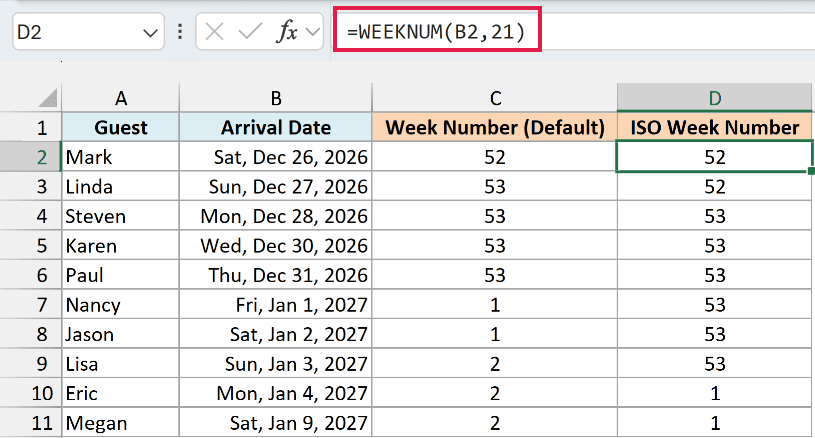
ISO weeks always run Monday to Sunday, and week 1 is the week that contains the first Thursday of the year. The first Thursday of 2027 is January 7, so ISO week 1 runs from Monday, January 4 to Sunday, January 10.
That leaves January 1 to 3, 2027 in ISO week 53, the same week as Monday, December 28, 2026. This is the main reason the two systems can disagree for a few days at the start of a year.
Pro Tip: Excel also has an ISOWEEKNUM function that only needs the date. =ISOWEEKNUM(B2) gives the same result as =WEEKNUM(B2,21), and it works in Excel 2013 and later.
Example 5: Sum Values by Week Number
Now let’s use week numbers to build a weekly summary.
Below is a food truck’s daily revenue for April 2026, and I want the total revenue for each week in column F.
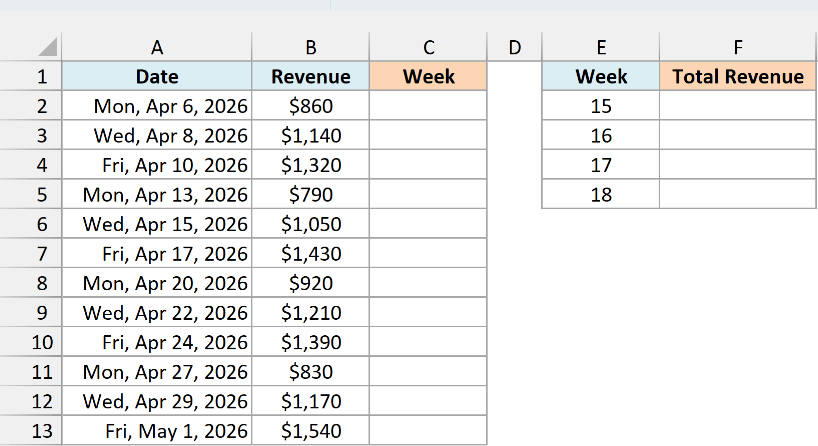
First, I’ll get the week number for each date in column C. Here is the formula in cell C2, copied down to C13:
=WEEKNUM(A2,2)
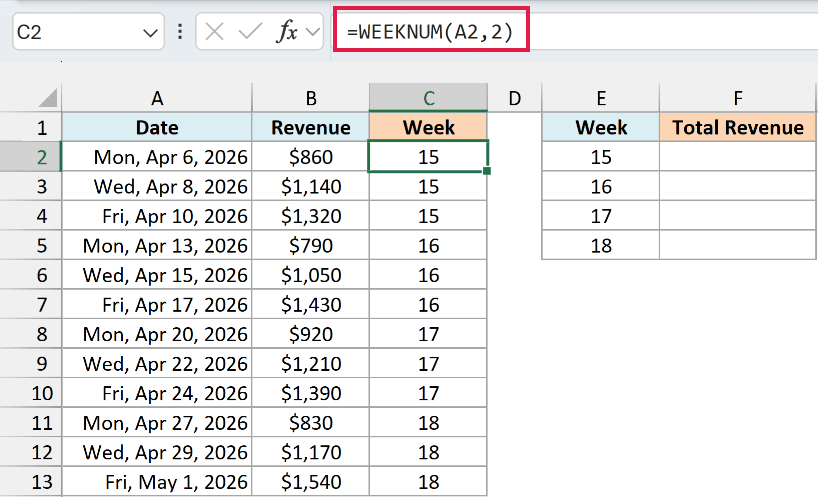
I’ve used 2 as the return_type so each week runs Monday to Sunday, which is how the food truck plans its weeks. The dates from April 6 to April 10 are in week 15, and April 13 to April 17 are in week 16.
With these dates, the default return_type would give the same week numbers, because the truck has no Sunday sales. The 2 makes sure that any Sunday sales you add later stay in the same week as the Monday before them.
With the week numbers in place, here is the formula in cell F2 that adds up the revenue for each week listed in E2:E5:
=SUMIFS(B2:B13,C2:C13,E2:E5)
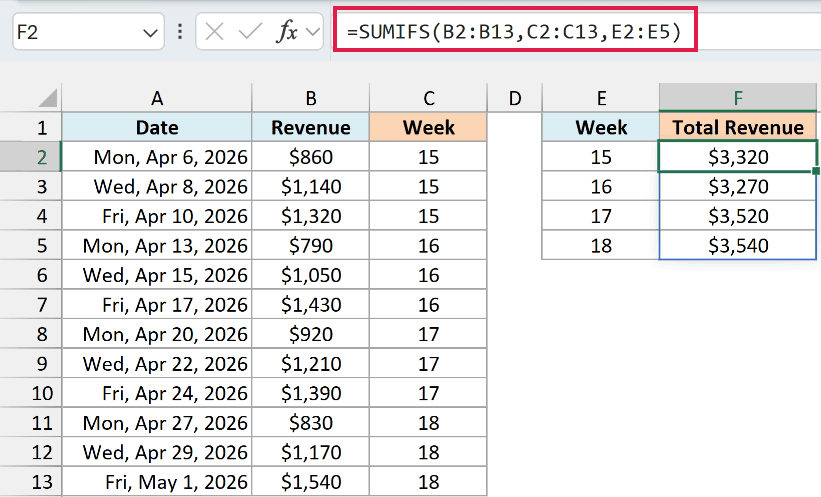
The SUMIFS function checks the week numbers in C2:C13 and adds the revenue in B2:B13 for each week in E2:E5. Since E2:E5 has four week numbers, the formula spills four totals, so week 15 comes to $3,320 and week 18 to $3,540.
The helper column matters here because SUMIFS only accepts an actual range for its criteria_range. You can’t put a WEEKNUM calculation inside SUMIFS, so the week numbers need to sit in a column first.
In Excel 2019 or earlier, the SUMIFS formula won’t spill. If that’s your version, enter the below formula in cell F2 and then copy it down to F5:
=SUMIFS($B$2:$B$13,$C$2:$C$13,E2)
Example 6: Find the Week Number of the Month
WEEKNUM counts weeks across the whole year, but sometimes you need the week within a month instead, like “the second week of May”.
Below is a list of household bills with their due dates in April and May 2026, and I want to find which week of the month each bill is due in column C.
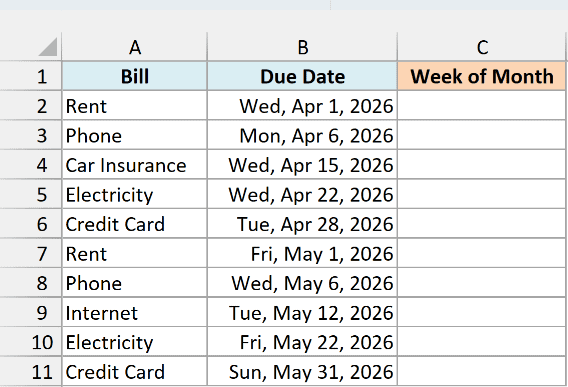
Here is the formula:
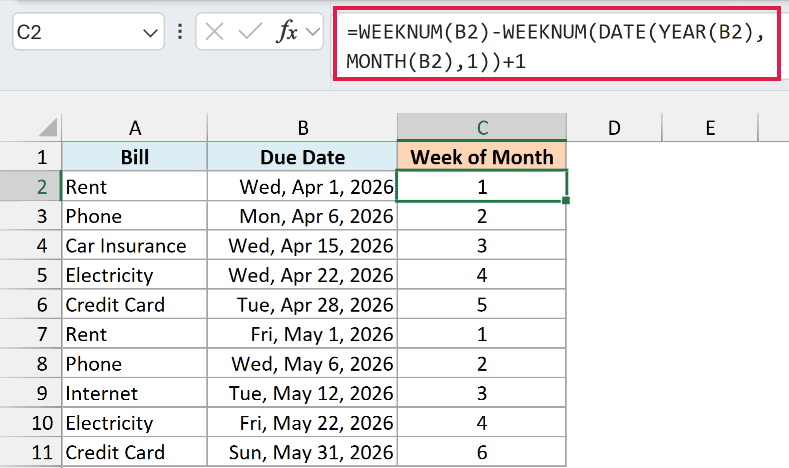
=WEEKNUM(B2)-WEEKNUM(DATE(YEAR(B2),MONTH(B2),1))+1
How this formula works:
WEEKNUM(B2)gives the week of the year for the due date.DATE(YEAR(B2),MONTH(B2),1)builds the first day of the same month, and WEEKNUM gives the week of the year that day falls in.- Subtracting the second week number from the first tells you how many weeks into the month the due date is. Adding 1 makes the first week of the month week 1 instead of week 0.
So the Rent on April 1 is in week 1, and the Car Insurance on April 15 is in week 3.
The Credit Card bill on Sunday, May 31 returns 6. May 2026 starts on a Friday, so its first week is only two days long and May 31 lands in a sixth week.
This formula counts weeks from Sunday. If your weeks start on Monday, add 2 as the return_type in both WEEKNUM functions.
So these are six practical ways to use the WEEKNUM function in Excel, from a simple week number to weekly totals and the week of the month.
Just remember to pick the return_type that matches how your weeks are counted, and use the plus sign trick when you want the results to spill.
I hope you found this article helpful.
Other Excel Articles You May Also Like:
