

The STOCKHISTORY function pulls historical prices for a stock, fund, or currency pair straight into your worksheet. You give it a ticker and a date range, and it returns the dates and closing prices (or the open, high, low, and volume).
The catch is that it only works in Microsoft 365. It’s also end-of-day data, so it’s great for looking back at prices, but it won’t give you live quotes.
In this article, I’ll show you how to use the STOCKHISTORY function with eight examples, from a simple list of daily prices to comparing how several stocks did over a quarter.
Follow along with the example file
STOCKHISTORY Function Examples.xlsx
STOCKHISTORY Function Syntax
Here is the syntax of the STOCKHISTORY function:
=STOCKHISTORY(stock,start_date,[end_date],[interval],[headers],[property0],[property1],[property2],[property3],[property4],[property5])
- stock – The ticker of the stock, fund, or currency pair, in double quotes (like “WMT”) or as a reference to a cell that holds it.
- start_date – The first date you want data for.
- end_date – (Optional) The last date you want data for. If you leave it out, it’s the same as the start_date, so you get one day.
- interval – (Optional) How far apart the data points are. 0 is daily (the default), 1 is weekly, and 2 is monthly.
- headers – (Optional) 0 shows no header row, 1 shows the headers (the default), and 2 shows the instrument identifier above the headers.
- property0 to property5 – (Optional) The columns you want, as numbers. 0 is Date, 1 is Close, 2 is Open, 3 is High, 4 is Low, and 5 is Volume. If you leave them out, you get Date and Close.
The stock argument uses the stock’s default exchange. If a company trades on more than one exchange, you can pick one by putting its four-character market code and a colon before the ticker, such as “XNAS:MSFT” for Microsoft on the Nasdaq.
The dates can be typed in cells, built with the DATE function, or come from another formula.
You can also type a date in quotes right in the formula, like “9/14/2026”. But Excel reads that text using your computer’s regional settings, so it can mean a different day on another machine, which is why the examples below keep the dates in cells.
The STOCKHISTORY function works only in Excel for Microsoft 365 (Windows and Mac) with a Microsoft 365 Personal, Family, Business Standard, or Business Premium subscription. It’s not available in Excel 2024, 2021, or earlier versions.
When to Use the STOCKHISTORY Function
Use this function when you need to:
- Get daily, weekly, or monthly closing prices for a stock over a period
- Pull the open, high, low, close, and volume for your own analysis or chart
- Look up a stock’s closing price on a specific date
- Track an exchange rate, like US dollars to euros, over time
- Find the highest or lowest price a stock reached in a period
- Compare how several stocks did over the same quarter
All the prices in this article were pulled on October 16, 2026. Since every date is in the past, you should get the same values when you try these formulas.
The one exception is a stock split. STOCKHISTORY adjusts older prices for splits, so if a company splits its stock later, its older prices will change when the file recalculates.
Let me show you eight practical examples of how to use the STOCKHISTORY function.
Example 1: Get Daily Stock Prices for a Date Range
Let’s start with the simplest use.
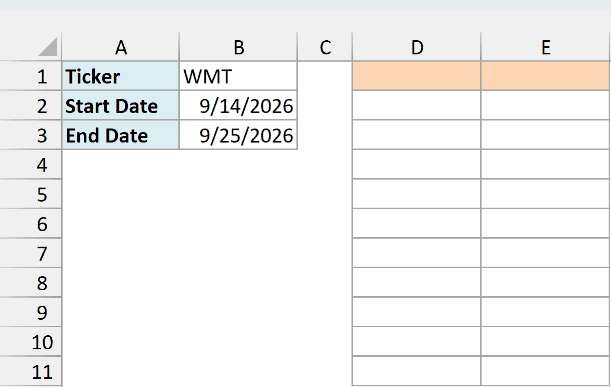
Below I have Walmart’s ticker (WMT) with a two-week date range, and I want the daily closing prices for those dates, starting in cell D1.
Here is the formula:
=STOCKHISTORY(B1,B2,B3)
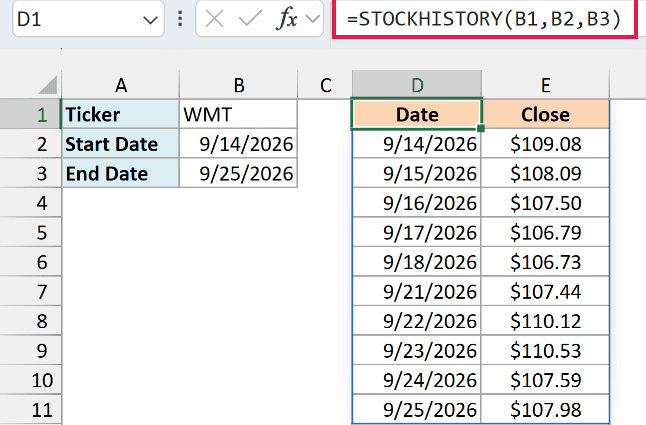
This one formula returns a small table with a header row and two columns, Date and Close. Since I only gave it the ticker and the two dates, it uses the defaults for everything else.
You get 10 rows of prices because STOCKHISTORY only returns days the market was open. Saturday, September 19 and Sunday, September 20 are skipped.
When you enter the formula, you may see #BUSY! for a moment while Excel fetches the data.
Important: STOCKHISTORY needs an internet connection, and you get #CONNECT! when Excel can’t reach the data service. This is usually temporary, so wait a while and recalculate (Ctrl + Alt + F9) or reopen the file later.
Example 2: Get Monthly Prices with the Interval Argument
Daily prices are useful for a week or two, but for a whole year you usually want one price per month.
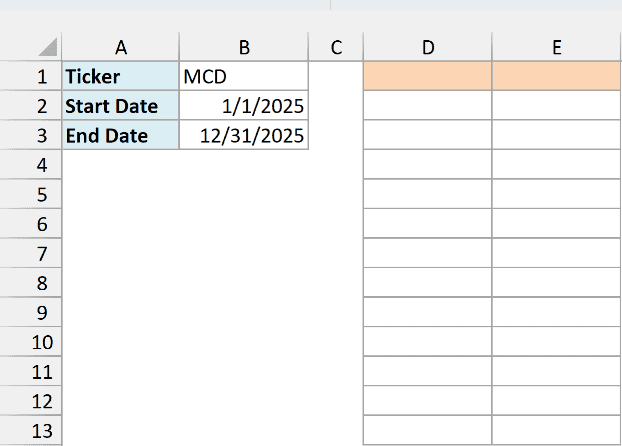
Below I have McDonald’s ticker (MCD) with the dates for all of 2025, and I want the monthly closing prices starting in cell D1.
Here is the formula:
=STOCKHISTORY(B1,B2,B3,2)
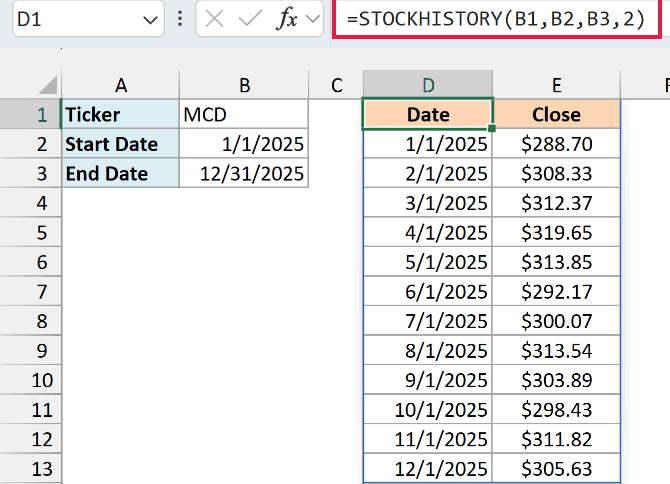
The 2 in the interval argument tells STOCKHISTORY to return monthly prices, so you get 12 rows, one for each month of 2025.
Notice that each date is the first day of the month, even when the market was closed that day (like January 1).
The Close next to it is the closing price on the last trading day of that month. So the January row shows where the stock ended January.
If you want weekly prices instead, use 1 as the interval. Each row then shows the first trading day of the week and the closing price at the end of that week.
Pro Tip: To have the dates move forward on their own, use =STOCKHISTORY(B1,EDATE(TODAY(),-12),TODAY(),2) to get monthly prices from a year ago up to the current month. The TODAY function recalculates every time you open the file, so the window moves forward on its own.
Example 3: Get Open, High, Low, Close, and Volume
By default, STOCKHISTORY gives you only the Date and Close columns. You can ask for more with the property arguments.
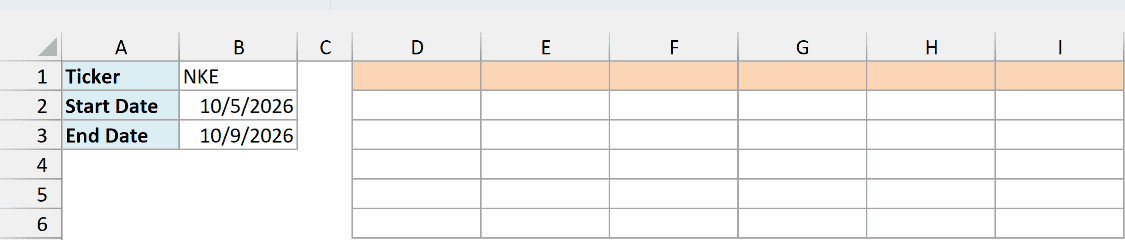
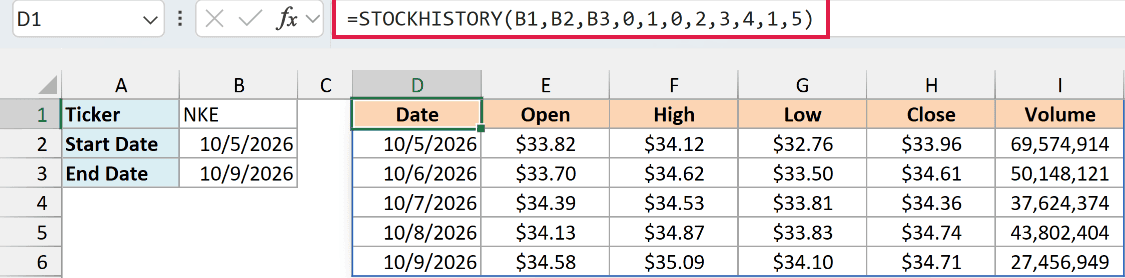
Below I have Nike’s ticker (NKE) with the dates for one trading week, and I want the date, open, high, low, close, and volume for each day, starting in cell D1.
Here is the formula:
=STOCKHISTORY(B1,B2,B3,0,1,0,2,3,4,1,5)
How this formula works:
- B1, B2, B3 are the ticker, start date, and end date, just like before.
- 0 is the interval (daily) and 1 is headers (show them). These two come before the properties in the syntax, so you have to fill them in (or leave them empty with just a comma) to get to the property arguments.
- 0, 2, 3, 4, 1, 5 are the properties: Date, Open, High, Low, Close, and Volume. The columns come back in exactly this order.
As soon as you list even one property, the default columns go away and you get only what you asked for. So if you want the Date column, include 0 in the list, like I did here.
The order is up to you. I put Close after Low because that’s the usual Open, High, Low, Close order you see on price charts.
You also don’t have to ask for every column. Listing only 0, 1, and 5 would give you just the date, close, and volume.
Example 4: Get the Closing Price on a Specific Date
Sometimes you don’t want a table at all, just one price that you can use in another calculation.
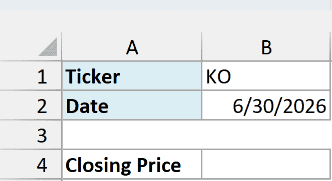
Below I have Coca-Cola’s ticker (KO) and a date, and I want the closing price on that date in cell B4.
Here is the formula:
=STOCKHISTORY(B1,B2,,,0,1)
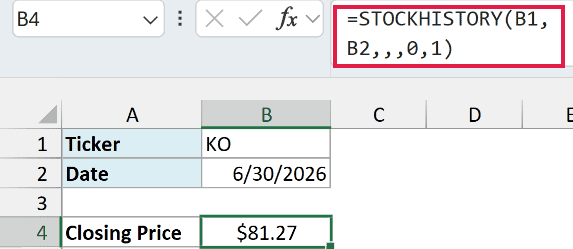
This returns $81.27, the closing price of Coca-Cola on June 30, 2026, in a single cell.
Three things make this a one-cell result:
- I left out the end_date (the first empty spot between the commas), so it’s just one day.
- I set headers to 0, so there’s no header row.
- I asked only for property 1 (Close), so there’s no Date column.
The second empty spot is the interval, which stays at its default (daily).
This only works when the date is a trading day. If B2 has a weekend or a market holiday, there’s no price for that day, and you get a #VALUE! error (the next example fixes this).
Example 5: Get the Last Closing Price Before a Weekend or Holiday
If you track prices on fixed dates (like the end of each month or a payday), some of those dates will land on a weekend or holiday.
Below I have Coca-Cola’s ticker (KO) and July 4, 2026, which falls on a Saturday, and I want the last closing price on or before that date in cell B4.
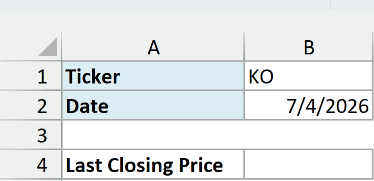
Here is the formula:
=TAKE(STOCKHISTORY(B1,B2-7,B2,0,0,1),-1)
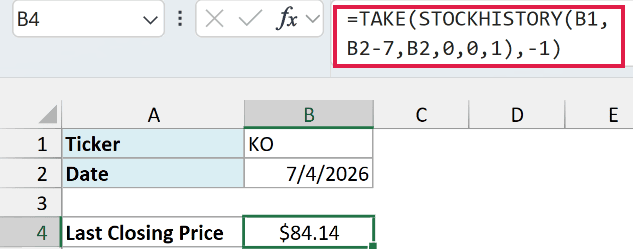
This returns $84.14, which is Coca-Cola’s closing price on Thursday, July 2, 2026. The market was also closed on Friday, July 3, when the Independence Day holiday was observed, so July 2 was the last trading day before July 4.
How this formula works:
- STOCKHISTORY(B1,B2-7,B2,0,0,1) gets the closing prices from a week before the date in B2 up to that date, with no header row and no Date column. That’s a short list with one price per trading day.
- TAKE(…,-1) uses the TAKE function to keep only the last item in that list, which is the most recent closing price on or before B2.
When the date in B2 is a trading day, the last price in the list is that day’s own close, so the same formula works for every date.
Looking back a week covers a normal weekend, and even a long holiday weekend like this one.
Example 6: Get Currency Exchange Rates
STOCKHISTORY also works with currency pairs. Instead of a ticker, you give it two currency codes with a colon between them.
Below I have the currency pair USD:EUR with the dates for the first half of 2026, and I want the monthly exchange rate starting in cell D1.
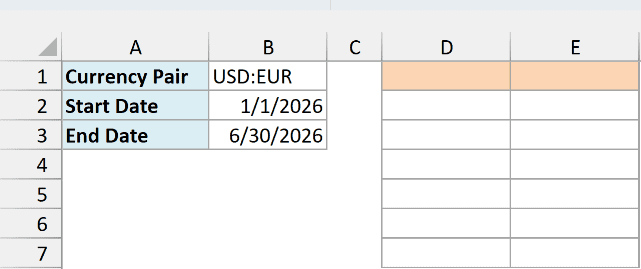
Here is the formula:
=STOCKHISTORY(B1,B2,B3,2)
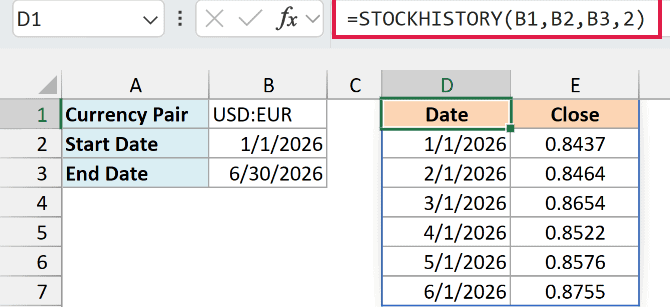
This is the same formula as Example 2. The only difference is the stock argument, which now holds a currency pair, so the Close column shows how many euros one US dollar bought at the end of each month.
The order of the codes matters. USD:EUR gives you euros per dollar, while EUR:USD gives you dollars per euro.
Example 7: Find the Highest and Lowest Price in a Year
Since STOCKHISTORY returns a list of numbers, you can wrap it in other functions, like MAX or MIN, to get a single answer.
Below I have Disney’s ticker (DIS) with the dates for all of 2025, and I want the highest price in cell B5 and the lowest price in cell B6.
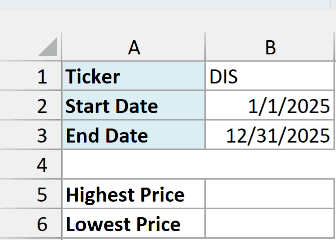
Here is the formula for the highest price:
=MAX(STOCKHISTORY(B1,B2,B3,2,0,3))
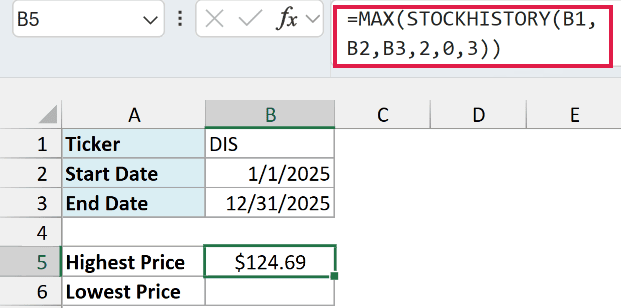
This returns $124.69. STOCKHISTORY returns only the High column (property 3) with no header row, one value per month, and the MAX function picks the largest one.
Here is the formula for the lowest price:
=MIN(STOCKHISTORY(B1,B2,B3,2,0,4))
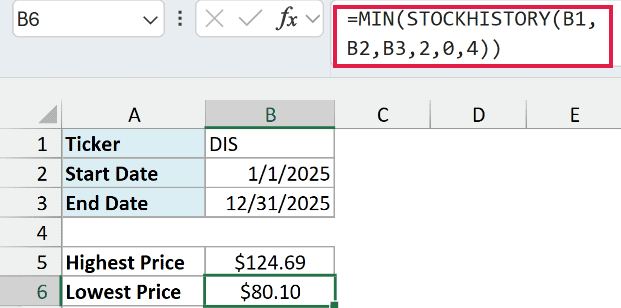
This returns $80.10. Here STOCKHISTORY returns the monthly Low values (property 4), and the MIN function picks the smallest one.
I used the monthly interval on purpose. Each month’s High is the highest daily high in that month, so the largest monthly High is also the highest price of the year.
You get the same answer as you would from daily data, but from 12 values instead of about 250, which keeps the formula quick.
Example 8: Compare Returns for Multiple Stocks
Let’s step it up with a watchlist. Here I want to see how much each stock went up or down over the same quarter.
Below I have six tickers with the first and last trading days of Q3 2026, and I want the return for each stock over that period in column B.
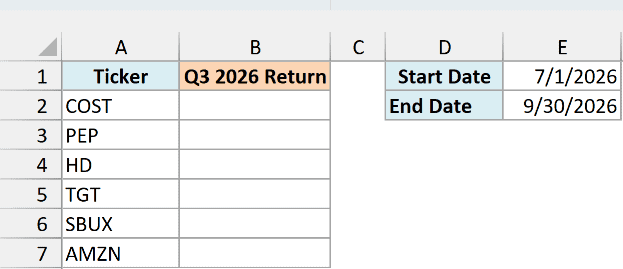
Here is the formula:
=STOCKHISTORY(A2:A7,E2,,,0,1)/STOCKHISTORY(A2:A7,E1,,,0,1)-1
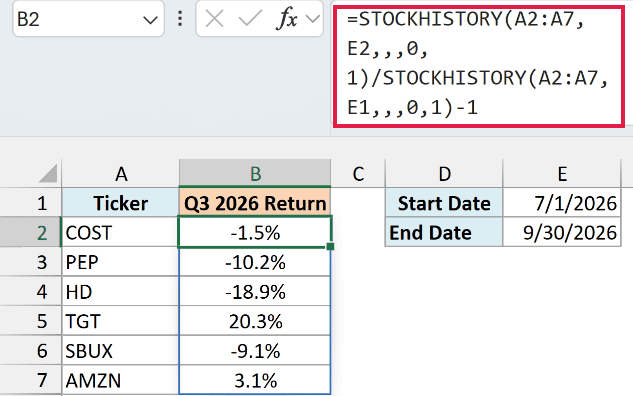
Enter this formula in cell B2, and it gives you the return for all six stocks. Target did the best with a 20.3% gain, while Home Depot dropped 18.9%.
How this formula works:
- STOCKHISTORY(A2:A7,E2,,,0,1) gets the closing price on the end date for every ticker in A2:A7. It’s the same single-price setup as Example 4 (one day, no headers, only the Close).
- STOCKHISTORY(A2:A7,E1,,,0,1) does the same for the start date.
- Dividing the end price by the start price and subtracting 1 gives the percentage change, and the results spill down to B7.
This works because each ticker gives back just one number, so Excel can line up one result per ticker in a single column.
Important: Give each STOCKHISTORY call a single date when you pass it a list of tickers. With a date range, it doesn’t return a column of prices per ticker or an error, it quietly returns just the first price for each one.
Both dates need to be trading days, because each one is looked up exactly, like in Example 4.
If your quarter starts or ends on a weekend or holiday, use the first trading day of the quarter as the start date and the last trading day as the end date.
In this article, I showed you how to use the STOCKHISTORY function to get daily and monthly prices, pick the columns you need, get a single day’s price, track exchange rates, and compare several stocks.
I hope you found this article helpful.
Other Excel Articles You May Also Like:
