

The PPMT function in Excel tells you how much of a loan payment goes toward paying off the amount you borrowed (the principal) in a specific period.
Your payment stays the same every month, but the split between interest and principal keeps changing. PPMT gives you the principal part for any payment you pick, which is handy when you want to see how fast a loan is really getting paid down.
In this article, I’ll show you how to use PPMT with seven examples, from a single loan payment to a 12-month schedule and the month your principal finally overtakes the interest.
Follow along with the example file
PPMT Function Examples.xlsx
PPMT Function Syntax
Here is the syntax of the PPMT function:
=PPMT(rate, per, nper, pv, [fv], [type])
- rate – the interest rate for each period. For monthly payments, this is the annual rate divided by 12.
- per – the payment number you want the principal for, such as 1 for the first payment.
- nper – the total number of payments over the life of the loan.
- pv – the present value, which for a loan is the amount you borrowed.
- [fv] – (optional) the balance you want left after the last payment. If you leave it out, Excel uses 0, which means the loan is fully paid off.
- [type] – (optional) when the payments are due. Use 0 (or leave it out) for payments at the end of each period, and 1 for payments at the start.
The per argument is what makes PPMT different from the PMT function. The same loan gives you a different answer for every payment number you put in.
PPMT needs per to be an actual payment in the loan, so it has to be between 1 and nper. If it’s 0, or bigger than nper (like payment 37 on a 36-payment loan), you get the #NUM! error.
The PPMT function works in all Excel versions, including 365, 2024, 2021, 2019, 2016, Mac, and the web.
When to Use the PPMT Function
Use this function when you need to:
- Find how much of a specific loan payment goes toward the principal
- See how much principal you pay off each month in the first year of a loan
- Check the principal split on loans paid yearly, or paid at the start of each month
- Build a loan schedule that splits every payment into interest and principal
- Find out when your payments start paying more principal than interest
Let me show you a few practical examples of how to use the PPMT function.
Example 1: Find the Principal in One Loan Payment
Let’s start with a simple example.
Below is a $15,000 home renovation loan at 9% annual interest, paid monthly over 3 years, and I want to find how much of the first payment goes toward the principal in cell B7.
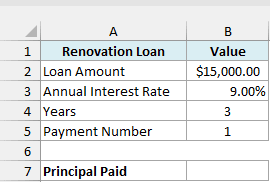
Here is the formula:
=PPMT(B3/12,B5,B4*12,B2)
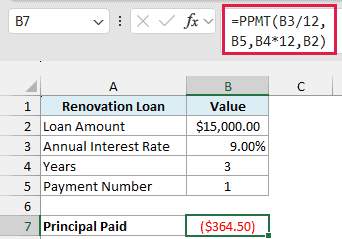
The rate is B3/12 because the loan is paid monthly, so the 9% annual rate becomes 0.75% per month. In the same way, B4*12 turns 3 years into 36 monthly payments, and B5 tells PPMT which payment to look at.
The result is ($364.50), which means $364.50 of the first payment goes toward the loan balance. The remaining $112.50 of that payment is interest.
The result is negative because Excel treats money you pay out as a negative number. The loan amount is entered as a positive number (money you received), so the principal you pay back comes out negative.
If you’d rather see a positive number, put a minus sign in front of PPMT. I’ll do that in the rest of the examples.
Important: The rate and nper arguments must use the same time period. If you use the annual rate (B3) with 36 monthly payments here, PPMT returns ($63.53) instead of ($364.50), a wrong answer with no error to warn you.
Example 2: Get the Principal for Every Month With One PPMT Formula
Now let’s get the principal for a whole year of payments in one go.
Below is a $28,000 student loan at 5.5% for 10 years, with the month numbers 1 to 12 in column A, and I want the principal paid in each month in column B.
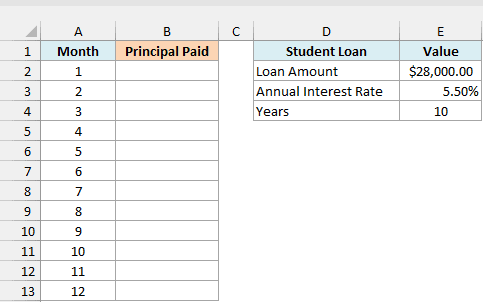
Here is the formula:
=-PPMT(E3/12,A2:A13,E4*12,E2)
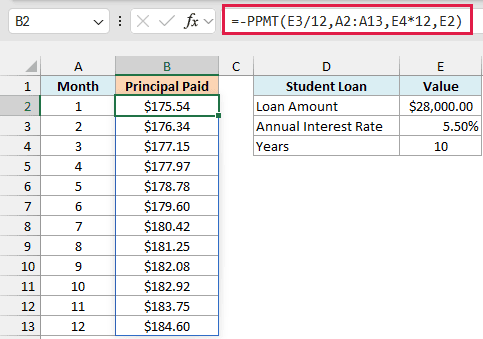
Here, the per argument is the whole range A2:A13 instead of a single cell. PPMT works out the principal for each month number, and Excel spills the 12 results into B2:B13, which means it fills the cells below automatically.
Notice that the principal goes up a little every month, from $175.54 in month 1 to $184.60 in month 12. Each payment lowers the balance, so the next month has slightly less interest, and a bit more of the same payment goes to the principal.
If any of the cells in B3:B13 already has something in it, the formula can’t spill and returns a #SPILL! error instead. Clear those cells and the results show up.
Spilling a range like this works in Excel 365 and Excel 2021 or later. If you are using Excel 2019 or earlier, enter the below formula in cell B2 and then copy it down to B13:
=-PPMT($E$3/12,A2,$E$4*12,$E$2)
Example 3: PPMT for a Loan With Yearly Payments
Not every loan is paid monthly.
Below is a $12,000 loan from a family member at 4% interest, paid back once a year over 5 years, and I want the principal paid in each year in column B.
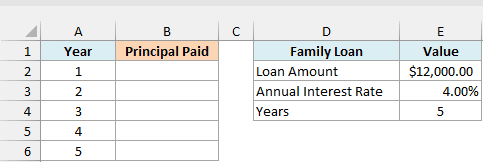
Here is the formula:
=-PPMT(E3,A2:A6,E4,E2)
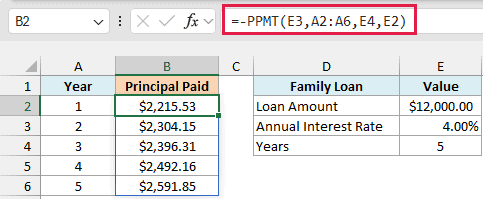
Since there’s one payment a year, the rate and the number of payments don’t need any adjusting. E3 goes in directly as the rate (4%), and E4 as the number of payments (5), with no dividing or multiplying by 12.
The same idea works for any other schedule. For quarterly payments, you would divide the annual rate by 4 and multiply the years by 4.
Pro Tip: To check a PPMT setup, add up the principal for every period of the loan. Here the five values add up to exactly $12,000, the amount borrowed, and if your total doesn’t match the loan, the rate or nper is probably off.
Example 4: Payments Due at the Start of Each Month
Here’s one where the timing of the payment changes the answer.
Below is a $4,800 furniture store payment plan at 10% interest over 12 months, where the first payment is due on the day of purchase, and I want the principal paid in each month in column B.
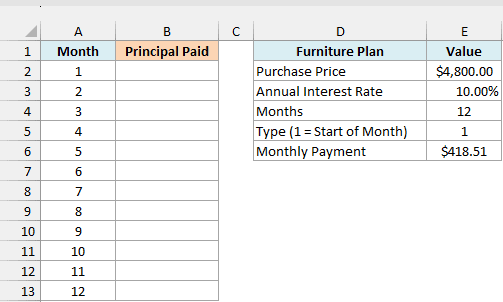
Here is the formula:
=-PPMT(E3/12,A2:A13,E4,E2,0,E5)
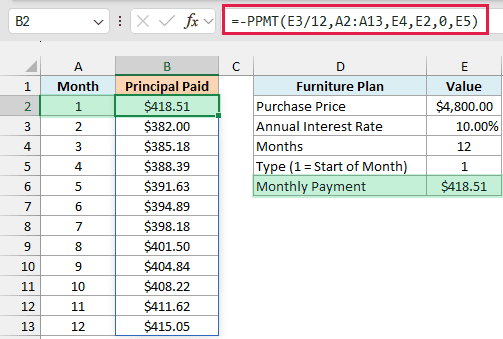
The nper argument is just E4 here, because E4 already holds the number of months (12), so there’s nothing to multiply.
The last argument, type, is 1 (from E5), which tells PPMT that payments are made at the start of each month.
The 0 before type is the fv argument. You have to fill it in to get to type, and 0 means the plan is fully paid off at the end.
Look at month 1. The principal is $418.51, which is the full monthly payment shown in E6, because the first payment is made right away and no interest has built up yet.
That monthly payment in E6 comes from the PMT function with the same type setting, =-PMT(E3/12,E4,E2,0,E5).
From month 2, interest starts to take a share of each payment, which is why the principal drops to $382.00.
Example 5: PPMT for a Loan With a Balloon Payment
Let’s look at a loan that the regular payments don’t fully pay off.
Below is a $30,000 car loan at 6.9% over 5 years, where $8,000 is left as one big balloon payment at the end, and I want the principal in the first payment in cell B8.
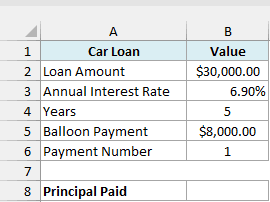
Here is the formula:
=-PPMT(B3/12,B6,B4*12,B2,-B5)
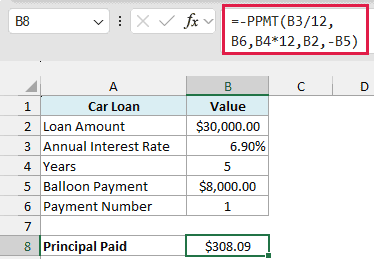
The fifth argument, fv, is the balance left after the last regular payment. Here it’s -B5, the $8,000 balloon, with a minus sign because it’s money you still have to pay out at the end.
The result is $308.09. Without the balloon, the principal in the first payment would be $420.12, because the regular payments would then have to clear the full $30,000 by the last month.
Important: With a positive loan amount, the balloon must go in as a negative fv. If you use B5 instead of -B5, Excel treats the $8,000 as money you get back, and the principal jumps to a wrong $532.15.
Example 6: Build a Loan Schedule With PPMT and IPMT
PPMT is often paired with the IPMT function, to split every payment into its two parts.
Below is a $20,000 personal loan at 11.5% over 5 years, with the month numbers in column A, and I want the interest paid in column B and the principal paid in column C for the first 12 months.
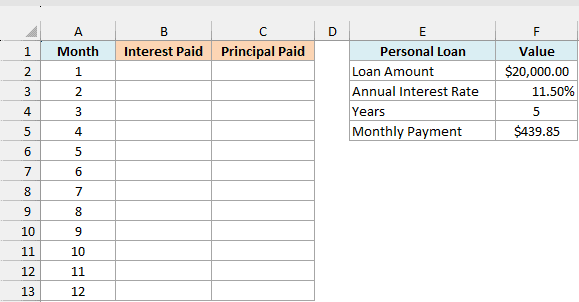
Here is the formula for the interest part:
=-IPMT(F3/12,A2:A13,F4*12,F2)
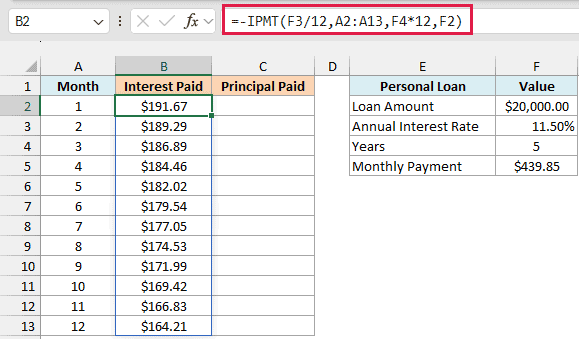
IPMT takes exactly the same arguments as PPMT, but it returns the interest part of each payment. In month 1 that’s $191.67, which is one month of 11.5% interest on the full $20,000.
And here is the formula for the principal part:
=-PPMT(F3/12,A2:A13,F4*12,F2)
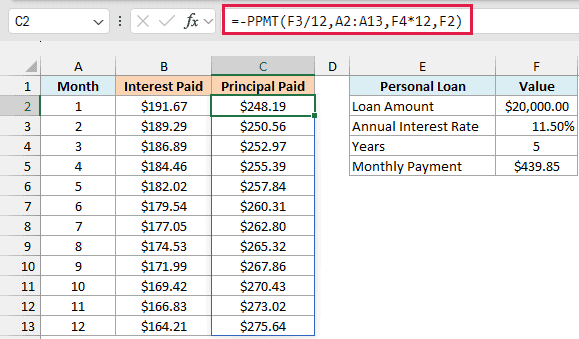
In every row, the interest plus the principal equals the monthly payment of $439.85 in F5 (give or take a cent from rounding on screen). That payment comes from =-PMT(F3/12,F4*12,F2).
Over these 12 months, the principal climbs from $248.19 to $275.64, and the interest drops by the same amount the principal goes up.
Pro Tip: If you only need the total principal paid over a stretch of payments, like the whole first year, the CUMPRINC function gives you that total in one formula. For this loan, the first 12 months add up to $3,140.33.
Example 7: Find the Month When Principal Overtakes Interest
Let’s step it up with something a bit more advanced.
Below is a $300,000 mortgage at 6.75% for 30 years, and I want to find the first month where the principal part of the payment is bigger than the interest part, in cell B6.
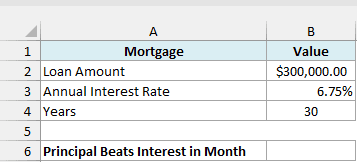
Here is the formula:
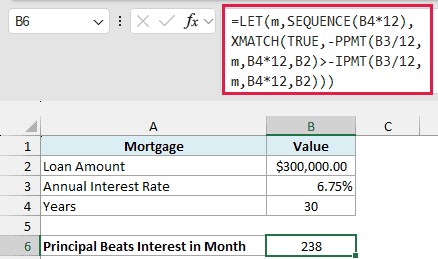
=LET(m,SEQUENCE(B4*12),XMATCH(TRUE,-PPMT(B3/12,m,B4*12,B2)>-IPMT(B3/12,m,B4*12,B2)))
How this formula works:
SEQUENCE(B4*12)creates the month numbers from 1 to 360. LET stores that list as m, so we don’t have to write it twice.-PPMT(B3/12,m,B4*12,B2)returns the principal for all 360 months, and the -IPMT part returns the interest for the same months.- The
>comparison checks each month and gives TRUE where the principal is bigger than the interest. XMATCH(TRUE, ...)returns the position of the first TRUE, and since the list starts at month 1, that position is the month number.
The answer is 238, so it takes almost 20 years before more of each payment goes to principal than to interest. In month 238, the principal is $976.03 and the interest is $969.77.
This formula needs Excel 365 or Excel 2021 and later, since LET, SEQUENCE, and XMATCH aren’t available in older versions.
So these are seven ways you can use the PPMT function in Excel. Just remember to keep the rate and nper in the same time period, and add a minus sign when you want positive results.
If you want a ready-made schedule that also tracks the remaining balance, have a look at this loan amortization schedule in Excel.
I hope you found this article helpful.
Other Excel Articles You May Also Like:
