

The DGET function pulls one value out of a table, from the one record that matches the conditions you set. You write those conditions in a small block of cells, and DGET returns the value from whichever column you ask for.
It comes in handy when a lookup depends on more than one column, or on a condition like “any date in March”.
The catch is that DGET wants exactly one match, so it shows an error instead of guessing when nothing (or more than one record) matches.
In this article, I’ll show you how DGET works, how to set up its conditions, and how to avoid the two errors you’ll run into most.
Follow along with the example file
DGET Function Examples.xlsx
DGET Function Syntax
Here is the syntax of the DGET function:
=DGET(database, field, criteria)
- database – The range that holds your data, including the header row. Each row is a record, and each column is a field.
- field – The column you want the value from. You can type the column header in double quotes (like “Price”), give its position in the database as a number (3 for the third column), or point to a cell that holds the header.
- criteria – The range that holds your conditions. It usually has one or more headers from the database, with a condition typed in the cell below each header.
DGET uses the header row to know which column is which, so the database range must include the headers. The headers in your criteria range have to be spelled the same way as the ones in the data (uppercase or lowercase doesn’t matter).
If your data is an Excel Table, use TableName[#All] as the database. The plain table name leaves out the header row, so DGET can’t find the column and returns #VALUE!.
Conditions that sit on the same row of the criteria range must all be true, so they work like AND. If you add a second row of conditions, DGET treats it as OR, which means a record only has to match one of the rows.
DGET always returns a single value. If no record matches your conditions (or the matching cell is empty), you get a #VALUE! error.
If more than one record matches, you get a #NUM! error, because DGET won’t pick one of the matches for you.
The DGET function works in Excel for Microsoft 365, Excel 2024, 2021, 2019, 2016, and Excel for Mac.
When to Use the DGET Function
Use this function when you need to:
- Get one value from a table when the match depends on two or more columns.
- Look up a record using comparisons such as greater than, less than, or a range of dates.
- Find a record from partial text, using wildcard characters.
- Keep your lookup conditions in cells, so anyone can change them without touching the formula.
- Be sure only one record matches, since DGET shows an error instead of quietly returning the first match.
Let me show you a few practical examples of how to use the DGET function.
Example 1: Basic DGET Formula With One Condition
Let’s start with a simple example.
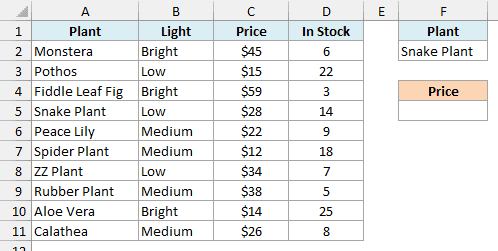
Below is the price list of a small plant shop, and I want to get the price of the Snake Plant in cell F5, using the condition in F1:F2.
Here is the formula:
=DGET(A1:D11,"Price",F1:F2)
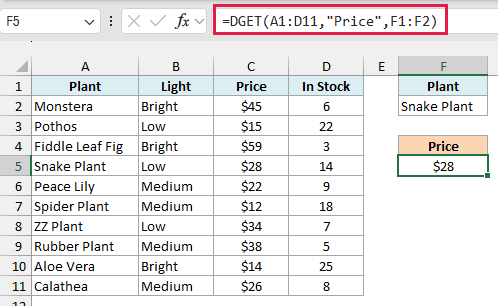
This returns $28.
In the above formula, A1:D11 is the whole table with its headers, and “Price” tells DGET which column to return. The criteria range F1:F2 says the Plant column should be Snake Plant, so DGET finds that row and gives back its price.
If you change F2 to Peace Lily, the formula updates to $22 without any edit.
Notice that the criteria range sits to the right of the data, not below it. Microsoft recommends this, because new rows added to the bottom of your table would otherwise run into the criteria range.
Example 2: DGET With Multiple Criteria
Now let’s look at the main reason to use DGET, which is matching on more than one column.
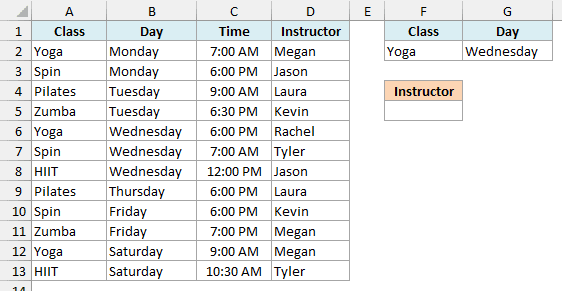
Below is a weekly class schedule at a gym, and I want to find the instructor for the Yoga class on Wednesday in cell F5.
Here is the formula:
=DGET(A1:D13,"Instructor",F1:G2)
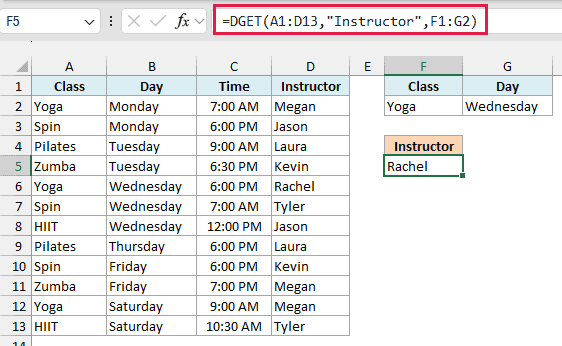
This returns Rachel.
The criteria range F1:G2 has two headers side by side, Class and Day, with Yoga and Wednesday below them. Because both conditions are on the same row, a record has to match both, and only one row in the schedule does.
There are three Yoga classes in this schedule (Monday, Wednesday, and Saturday). If you used only the Class condition, DGET would find all three and return #NUM!.
Important: If your conditions can match more than one record, add another condition that narrows it down to one. If you actually want all of the matches, use the FILTER function instead.
If you want an OR condition instead, put each condition on its own row of the criteria range, like Yoga on Wednesday in one row and Pilates on Thursday in the next.
In this schedule, that pair matches two classes, so DGET would return #NUM!. That’s why OR conditions are rarely useful with DGET, since they usually match more than one record.
Example 3: Get an Exact Match With DGET (Fix the #NUM! Error)
In this next one, the formula looks right and still returns an error.
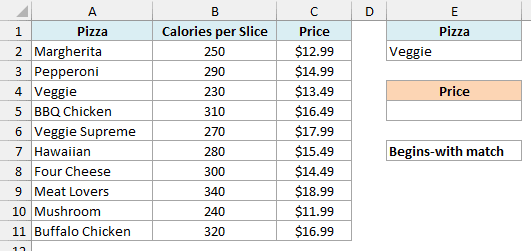
Below is a pizza menu, and I want to get the price of the Veggie pizza in cell E5.
Here is the formula:
=DGET(A1:C11,"Price",E1:E2)
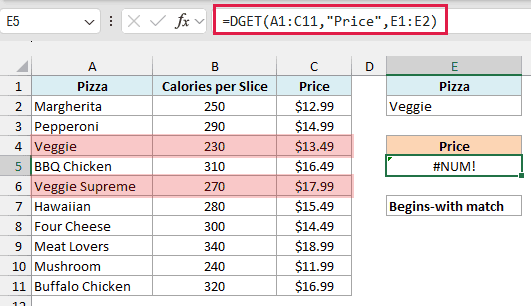
This returns #NUM!, even though there’s only one pizza called Veggie.
The reason is that a text condition in DGET means “begins with”. So Veggie in E2 matches both Veggie and Veggie Supreme, and two matches give you #NUM!.
To make DGET look for the exact text, the condition has to read =Veggie. But you can’t type =Veggie straight into a cell, because Excel reads anything that starts with an equal sign as a formula and shows a #NAME? error.
So in G2, I’ve entered ="=Veggie", which displays the text =Veggie. DGET reads that as “exactly equal to Veggie”.
Here is the formula that uses this new criteria range:
=DGET(A1:C11,"Price",G1:G2)
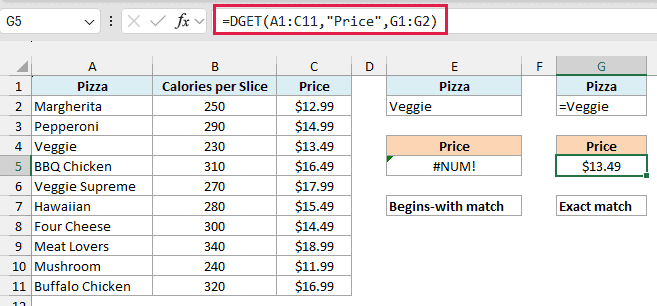
This returns $13.49, the price of the Veggie pizza alone.
This begins-with behavior only applies to text. Number conditions such as 250 already match exactly.
The match is also not case-sensitive, so veggie and VEGGIE work the same way.
If you only need to match one column and you’re on Microsoft 365 or Excel 2021 and later, the XLOOKUP function avoids this problem completely, since it looks for an exact match by default.
Example 4: DGET With Dates and Comparison Operators
Conditions don’t have to be exact values. You can use operators like greater than (>), less than (<), and not equal to (<>).
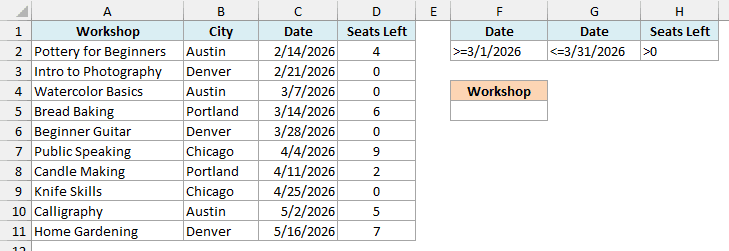
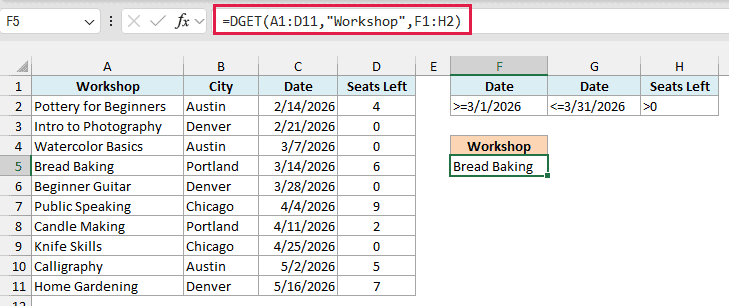
Below is a list of weekend workshops, and I want to find the workshop in March 2026 that still has seats left, in cell F5.
Here is the formula:
=DGET(A1:D11,"Workshop",F1:H2)
This returns Bread Baking.
The criteria range F1:H2 has three conditions on one row, so all three must be true. The two Date conditions, >=3/1/2026 and <=3/31/2026, together mean “any date in March”.
Repeating a header like this is how you put two conditions on the same column.
The third condition, >0 under Seats Left, skips the workshops that are already full.
Watercolor Basics and Beginner Guitar also fall in March, but both have 0 seats left. That leaves Bread Baking as the only record that meets all three conditions.
Excel reads the dates in these conditions using your computer’s date settings. So type them in the same date format you use when entering a date in a cell.
Example 5: DGET With Wildcard Characters
Sometimes you only know part of the text you’re looking for. DGET supports wildcard characters for this.
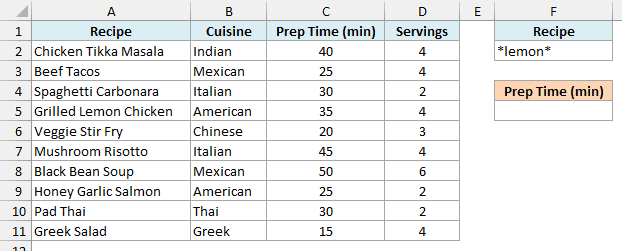
Below is a list of recipes, and I want to get the prep time of the recipe that has the word lemon anywhere in its name, in cell F5.
Here is the formula:
=DGET(A1:D11,"Prep Time (min)",F1:F2)
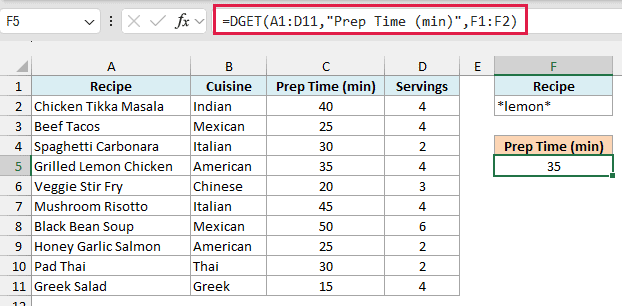
This returns 35, the prep time for Grilled Lemon Chicken.
The condition in F2 is lemon. The asterisk (*) stands for any number of characters, so the condition matches any recipe with lemon somewhere in the name, whether it’s at the start, middle, or end.
There’s also the question mark (?), which stands for exactly one character. For example, a condition like P?d Thai would match Pad Thai.
Wildcards still follow the one-match rule. If the list had a second recipe with lemon in its name, this formula would return #NUM!.
Example 6: Return Multiple Columns With One DGET Formula
DGET usually returns one value, but in Microsoft 365 it can return values from several columns at once.
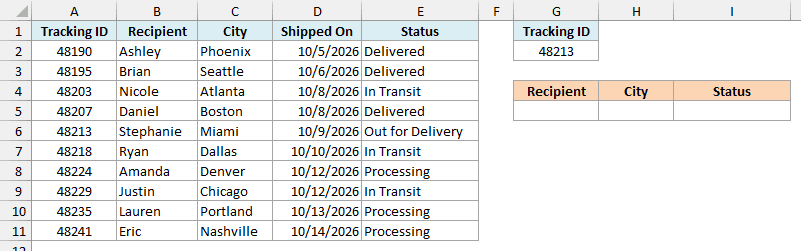
Below is a package tracking list, and I want to get the recipient, city, and status for tracking ID 48213 in G5:I5.
Here is the formula:
=DGET(A1:E11,{"Recipient","City","Status"},G1:G2)
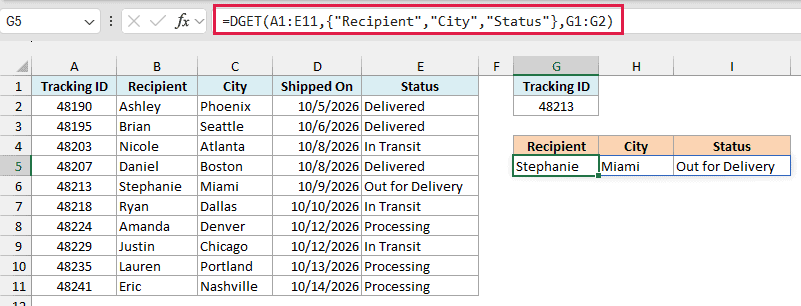
This returns Stephanie, Miami, and Out for Delivery, in three cells.
Instead of one column header, the field argument gets a list of headers inside curly brackets. DGET returns one value for each header, and the results spill into the cells to the right of G5.
Important: Type the headers inside the curly brackets. If you point the field argument at a range of header cells (like G4:I4), DGET returns #VALUE! instead of spilling.
If the cells to the right of G5 aren’t empty, you’ll see a #SPILL! error until you clear them.
If your version of Excel doesn’t spill the result (Excel 2019 or earlier, for example), enter the below formula in cell G5 and then copy it to H5 and I5:
=DGET($A$1:$E$11,G$4,$G$1:$G$2)
This version uses the header in row 4 as the field argument, so each copy picks up its own column.
Example 7: DGET With a Formula as the Condition
Let’s step it up with a more advanced use case. Your condition can also be a formula, which lets you compare two columns of the same record.
Below is an office supply inventory with the current stock and the reorder level for each item, and I want to find the item whose stock has dropped below its reorder level, in cell F5.
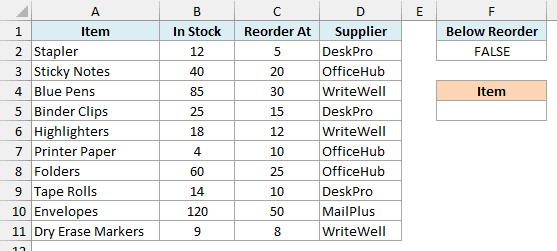
Here is the formula:
=DGET(A1:D11,"Item",F1:F2)
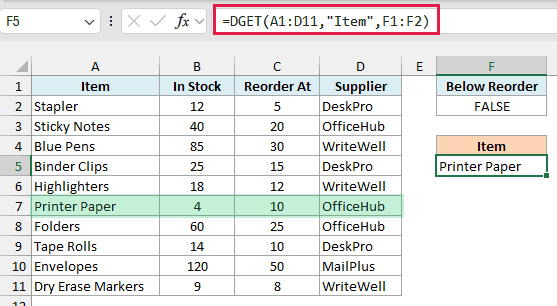
This returns Printer Paper, which has 4 in stock against a reorder level of 10.
How this formula works:
- The condition in F2 is the formula =B2<C2. It’s written for the first record in the table (row 2), and DGET runs it again for every record, moving it down one row at a time. That’s why B2 and C2 have no dollar signs.
- The header in F1 is Below Reorder, which doesn’t match any column in the table. A formula condition needs a header that is either blank or different from every column header in the table.
- F2 shows FALSE because it only displays the result for the first record (the Stapler has 12 in stock and a reorder level of 5). That’s expected, and it doesn’t affect the DGET result.
This works well when you expect exactly one record to meet the condition. If two items were below their reorder level, DGET would return #NUM!, and the FILTER function would be the better choice to list all of them.
So those are seven ways to use the DGET function in Excel, from a simple one-condition lookup to returning several columns at once.
Just remember that DGET wants exactly one match. #VALUE! means nothing matched, and #NUM! means too many records did.
I hope you found this article helpful.
Other Excel Articles You May Also Like:
