

The DCOUNT function counts the cells in a column that contain numbers, but only for the rows that meet the conditions you set. It’s one of Excel’s database functions, and it’s handy for counting records, like orders or bookings, that match certain rules.
What makes DCOUNT different from other counting functions is where the conditions live. You type them in a small criteria range, which uses the same headers as your data, so you can see and change them without editing the formula.
In this article, I’ll show you how DCOUNT works, from a single condition to OR conditions, number and date ranges, exact text matches, and formula-based conditions.
Follow along with the example file
DCOUNT Function Examples.xlsx
DCOUNT Function Syntax
Here is the syntax of the DCOUNT function:
=DCOUNT(database, [field], criteria)
- database – The range that holds your data, including the header row at the top.
- field – (Optional) The column whose numbers you want to count. You can type its header in double quotes (like “Rating”), give its position in the database (like 3), or point to the header cell.
- criteria – The range that holds your conditions. Its top row has one or more headers copied from your data, and the cells below them hold the conditions.
The header row matters because DCOUNT finds each column by matching the headers in your criteria range against the headers in your data.
The field argument decides which column gets counted. Blank cells and text in that column are skipped, so pointing it at a text column (like names) returns 0.
The criteria range can sit anywhere on the sheet as long as it doesn’t overlap your data. Keep it beside or above the data rather than directly below it, so new rows you add to the table don’t run into it.
The DCOUNT function works in all Excel versions, including Microsoft 365, 2024, 2021, 2019, 2016, Mac, and Excel for the web.
When to Use the DCOUNT Function
Use this function when you need to:
- Count records that meet one or more conditions, with the conditions kept in cells you can change
- Count rows that match one value or another (OR conditions) without adding up several COUNTIF formulas
- Count values that fall between two numbers or two dates
- Count only the rows where a column has a number filled in, such as entries that already have a score
- Count records using a formula-based condition, such as values above the average
Let me show you a few practical examples of how to use DCOUNT.
Example 1: DCOUNT With One Condition
Let’s start with a simple example.
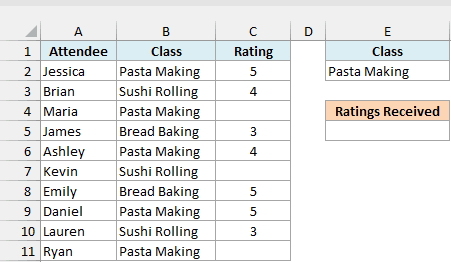
Below is a cooking class sign-up list with each attendee’s class and rating, and I want to count how many Pasta Making attendees left a rating, with the result in E5.
Here is the formula:
=DCOUNT(A1:C11,"Rating",E1:E2)
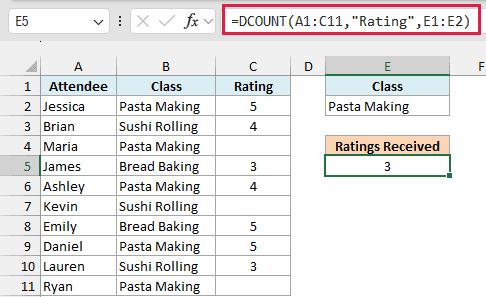
In the above formula, A1:C11 is the whole table including the headers, “Rating” is the column to count, and E1:E2 is the criteria range. The criteria range is just the Class header in E1, with Pasta Making typed below it in E2.
DCOUNT finds the five Pasta Making rows and counts the ones with a number in the Rating column, just like the COUNT function does. Maria and Ryan haven’t rated their class yet, so their blank cells are skipped and the result is 3.
Important: The header in your criteria range has to match the column header in your data exactly. If E1 said “Classes” instead of “Class”, DCOUNT would return 0 without any error, which is easy to miss.
A typo in the field argument behaves differently. If you write “Ratings” instead of “Rating” in the formula, DCOUNT can’t find that column and returns a #VALUE! error.
Example 2: Count All Matching Records (Leave Out the Field)
Now let’s see what happens when you leave out the field argument.
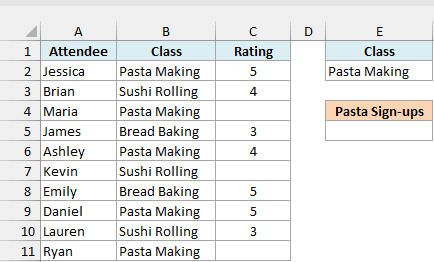
Below is the same cooking class list, and this time I want to count everyone who signed up for Pasta Making, rated or not, with the result in E5.
Here is the formula:
=DCOUNT(A1:C11,,E1:E2)
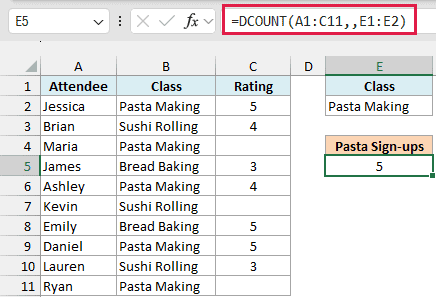
Notice the two commas back to back. That empty spot is where the field argument would go, and leaving it empty tells DCOUNT to count every record that matches the criteria.
Since DCOUNT is no longer checking a column for numbers, Maria and Ryan are counted too, and the result is 5 instead of 3.
So use this version when you want the number of matching rows. Use the Example 1 version when you only want the rows that have a value in a specific column.
Example 3: DCOUNT With Multiple Criteria (AND)
Here’s a scenario with two conditions that both need to be true.
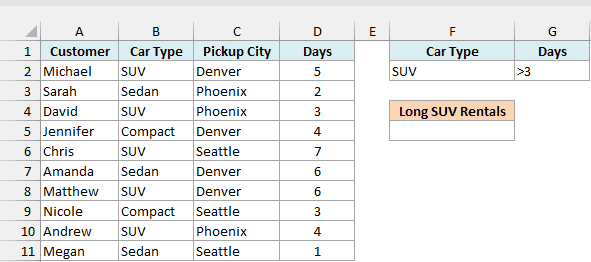
Below is a car rental log with each customer’s car type, pickup city, and number of days, and I want to count the SUV rentals that lasted more than 3 days, with the result in F5.
Here is the formula:
=DCOUNT(A1:D11,"Days",F1:G2)
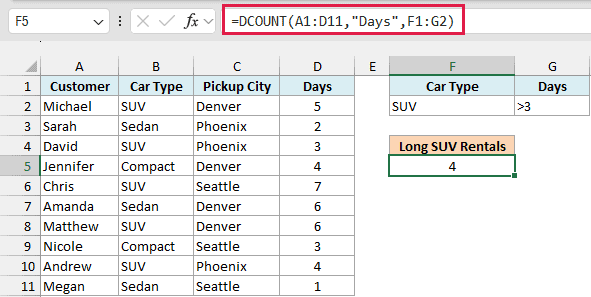
The criteria range F1:G2 has two headers side by side, Car Type and Days, with SUV and >3 in the row below. When conditions sit in the same row, DCOUNT counts a record only if it meets all of them.
Five of the rentals are SUVs, but David’s lasted exactly 3 days, so it fails the >3 check and the result is 4.
Notice that the criteria range only needs the columns you’re filtering on. The Customer and Pickup City columns aren’t part of it, and that’s fine.
You can use any comparison operator in a criteria cell. For example, >=5 means at least five days, and <>Sedan means every car type except Sedan.
Example 4: Count Records That Match Either Condition (OR)
Now let’s look at OR conditions, which is where the criteria range setup really pays off.
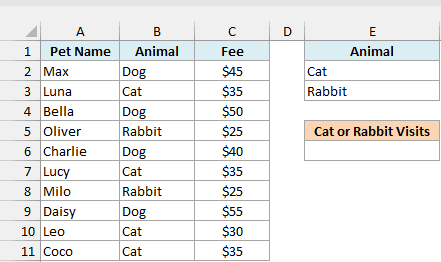
Below is a pet grooming log with each pet’s animal type and grooming fee, and I want to count the visits for cats or rabbits, with the result in E6.
Here is the formula:
=DCOUNT(A1:C11,"Fee",E1:E3)
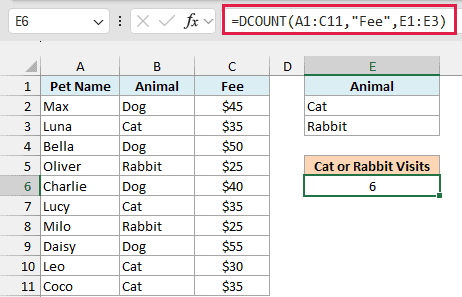
This time the criteria range E1:E3 has the Animal header with Cat in E2 and Rabbit in E3. Conditions on separate rows work as OR, so DCOUNT counts a record if it matches any one of the rows.
There are four cat visits and two rabbit visits, so the result is 6. To include another animal, type it in E4 and extend the criteria range in the formula to E1:E4.
Important: Fill in E4 before you extend the range, because a blank row inside the criteria range matches every record. If E1:E4 had an empty E4, DCOUNT would count all 10 visits instead of 6.
Example 5: Count Values Between Two Numbers
This next one comes up all the time: counting values that fall between two numbers.
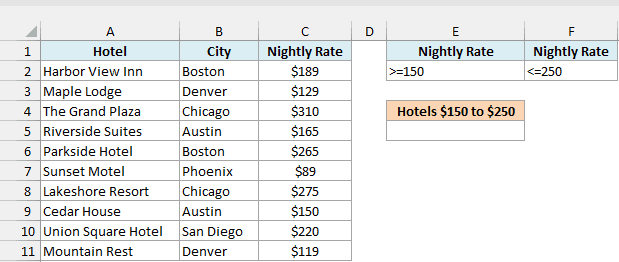
Below is a list of hotels with their nightly rates, and I want to count the hotels that cost between $150 and $250 a night, with the result in E5.
Here is the formula:
=DCOUNT(A1:C11,"Nightly Rate",E1:F2)
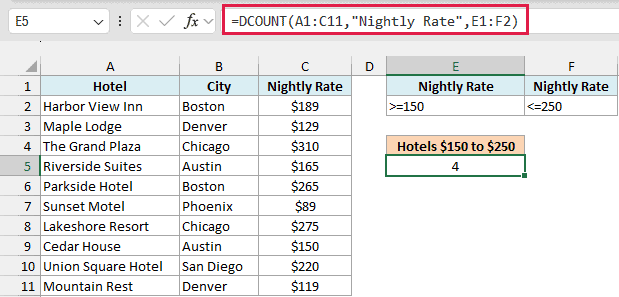
The trick here is using the Nightly Rate header twice in the criteria range, with >=150 under one and <=250 under the other. Both conditions sit in the same row, so a hotel has to pass both checks to be counted.
Four hotels fall in that range. Cedar House, at exactly $150, is included because of the >= sign, so use > and < instead if you want to leave out the end values.
Example 6: Count Between Two Dates Using Input Cells
Let’s step it up with a date range you can change without touching the formula.
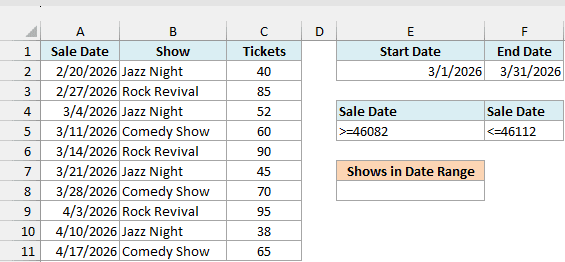
Below is a list of concert ticket sales by date, and I want to count the sales between the start date in E2 and the end date in F2, with the result in E8.
Here is the formula:
=DCOUNT(A1:C11,"Tickets",E4:F5)
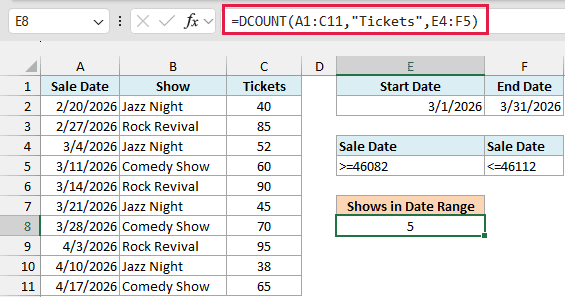
The criteria range E4:F5 uses the Sale Date header twice, just like the hotel rates in Example 5. But instead of typed dates, the conditions are small formulas that pull the dates from the input cells.
E5 has =">="&E2 and F5 has ="<="&F2. Each one joins a comparison sign with the date from its input cell.
You’ll see >=46082 in E5 instead of a date. That’s normal, because Excel stores dates as numbers and 46082 is how it stores 3/1/2026, so DCOUNT still reads it correctly.
Five sales fall in March 2026, so the result is 5. Change the dates in E2 and F2, and the count updates on its own.
You could also type >=3/1/2026 straight into the criteria cell, and that works too. The input-cell version is just easier to change when you want a different date range.
Example 7: Exact Match vs Starts With in Text Criteria
Text conditions in DCOUNT don’t work quite the way you’d expect, so this one is worth knowing.
Below is a coffee shop sales list with each drink, its size, and the cups sold, and I want to count the Mocha sales, first with a plain text condition and then with an exact match, with the results in E5 and G5.
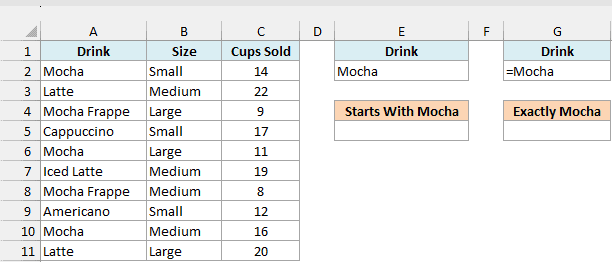
Here is the formula with the plain text condition:
=DCOUNT(A1:C11,"Cups Sold",E1:E2)
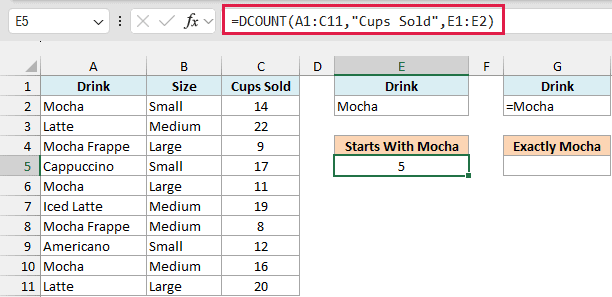
You might expect 3 here, since there are three Mocha rows. But DCOUNT returns 5, because a text condition like Mocha means “starts with Mocha”, so the two Mocha Frappe rows get counted too.
Here is the formula with the exact match:
=DCOUNT(A1:C11,"Cups Sold",G1:G2)
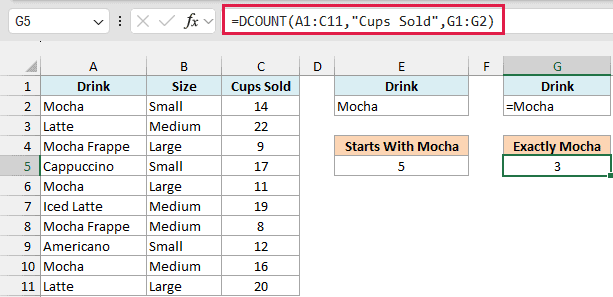
The only difference is the criteria cell. G2 holds the formula ="=Mocha", which displays as =Mocha and tells DCOUNT to match the whole cell, so the result is 3.
If you’re typing it by hand, you can also enter ‘=Mocha with an apostrophe in front. The apostrophe makes Excel keep it as text instead of treating it as a formula.
Either way, the match ignores case, so mocha, Mocha, and MOCHA are all counted the same.
Pro Tip: Text criteria also accept wildcards. Type *Latte in the criteria cell to count every drink with Latte anywhere in its name, such as Latte and Iced Latte.
Example 8: Use a Formula as the DCOUNT Criteria
Finally, let’s use a formula as the condition.
Below is a bookstore list with the copies each book sold, and I want to count the books that sold more than the average, with the result in E5.
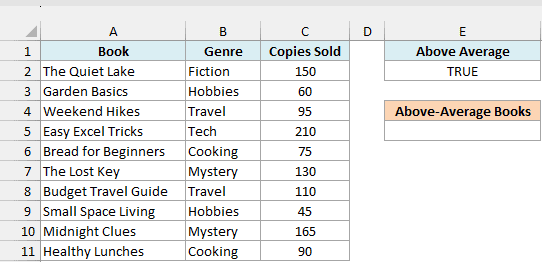
Here is the formula:
=DCOUNT(A1:C11,"Copies Sold",E1:E2)
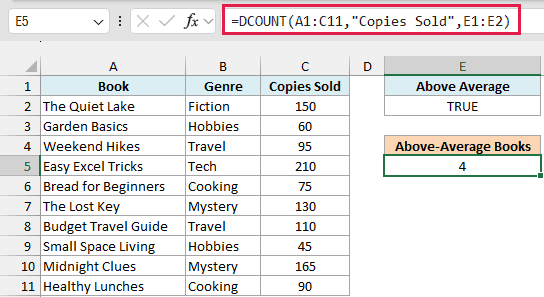
The criteria cell E2 holds =C2>AVERAGE($C$2:$C$11). DCOUNT runs this check for every book, moving C2 down to C3, C4, and so on, while the $ signs keep the average range fixed.
E2 itself shows TRUE because it only checks the first book (150 copies is above the average of 113). Four books pass the check, so the result is 4.
Make sure the formula points to the first data row, which is C2 here. If it pointed to C3 instead, each check would look at the next book down, and you’d get 3 instead of 4.
Important: The header above a formula condition must not match any column header in your data. Use a label like Above Average, because if E1 said Copies Sold, DCOUNT would return 0.
So these are eight practical ways to use DCOUNT in Excel, from a single condition to OR rows, date ranges, and formula criteria. The criteria range takes a minute to set up, but then you can change the conditions without touching the formula.
If you’d rather keep the conditions inside the formula itself, the COUNTIFS function does the same kind of counting. I hope you found this article helpful.
Other Excel Articles You May Also Like:
- Count Between Two Numbers in Excel (COUNTIF / COUNTIFS)
- How to Use Multiple Criteria in Excel COUNTIF and COUNTIFS Function
- Excel COUNTA Function
- DSUM function
- DGET function
- COUNT vs COUNTA in Excel: What’s the Difference?
- Count Cells That Are Not Blank in Excel
- SUMIF vs SUMIFS in Excel: What’s the Difference?
