

The FORECAST.ETS function in Excel predicts a future value from the numbers you already have, such as next month’s gym members or next quarter’s bookings.
It looks at the overall direction of your data and at any pattern that keeps repeating, like a weekend rush or a summer peak. Then it carries both forward to the date you ask about.
The method behind it is called exponential smoothing, which simply means recent data counts for more than older data. You don’t need to know the math to use it, though.
In this article, I’ll show you how FORECAST.ETS works, starting with a one-cell forecast and then moving on to forecasting several periods at once, weekly patterns, missing data, repeated dates, and a confidence range.
Follow along with the example file
FORECAST.ETS Function Examples.xlsx
FORECAST.ETS Function Syntax
Here is the syntax of the FORECAST.ETS function:
=FORECAST.ETS(target_date, values, timeline, [seasonality], [data_completion], [aggregation])
- target_date – The date (or period number) you want a forecast for.
- values – The historical numbers you want to forecast from.
- timeline – The dates (or period numbers) that go with those values.
- [seasonality] – Optional. The length of the repeating pattern. Leave it out (or use 1) and Excel finds the pattern on its own, use 0 for no pattern, or enter a whole number such as 4 or 7.
- [data_completion] – Optional. What to do with missing values. Leave it out (or use 1) to fill each gap with the average of its neighbors, or use 0 to treat gaps as zero.
- [aggregation] – Optional. How to combine values that share the same date. The default is 1 (AVERAGE). The others are 2 (COUNT), 3 (COUNTA), 4 (MAX), 5 (MEDIAN), 6 (MIN), and 7 (SUM).
The timeline needs an even step between its dates, such as one day, one week, one month, or one quarter (dates on the 1st of each month count as even). If the gaps between dates are uneven, FORECAST.ETS returns the #NUM! error.
The values and timeline ranges also have to be the same size. If one is a row longer than the other, you get the #N/A error.
The FORECAST.ETS function works in Excel 2016 and later on Windows and Mac, including Microsoft 365, 2024, 2021, and 2019. It is not available in Excel for the web or in the Excel mobile apps.
When to Use the FORECAST.ETS Function
Use this function when you need to:
- Predict the next month, week, or day from past numbers
- Forecast data that rises and falls on a regular cycle, like busy weekends or a summer season
- Forecast a whole run of future periods with one formula
- Get a forecast even when a few values are missing from your history
- Show a low and high range around a forecast
Let me show you a few practical examples of how to use the FORECAST.ETS function in Excel.
Example 1: Forecast Next Month with FORECAST.ETS
Let’s start with a simple example.
Below I have the number of members at a gym at the start of each month in 2025, and I want to forecast the members for January 2026 in cell E2.
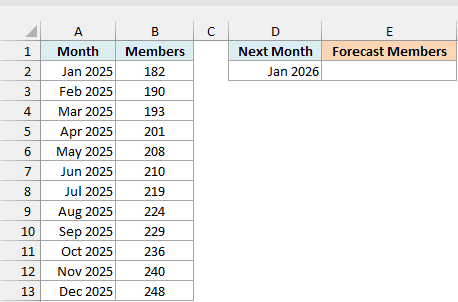
Here is the formula:
=FORECAST.ETS(D2,B2:B13,A2:A13)
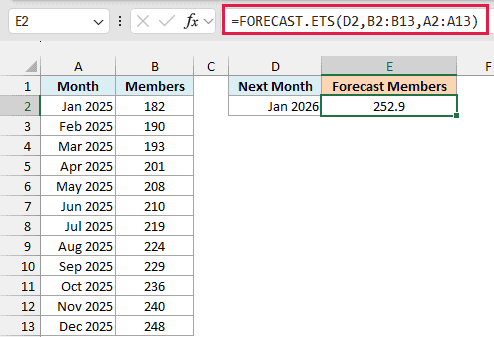
D2 is the month I want a forecast for, B2:B13 has the member counts, and A2:A13 has the months they belong to. The formula returns 252.9, which continues the steady climb from 182 members in January to 248 in December.
I left out all three optional arguments here, so Excel uses their default settings. It looks for a repeating pattern on its own (it finds none in this steady climb), and for a simple history like this one, that’s all you need.
The result has decimals because FORECAST.ETS doesn’t round its answer. You can show it as a whole number with the Decrease Decimal button, or wrap the formula in the ROUND function if you need a whole number for other calculations.
Example 2: Forecast Several Quarters at Once (Spill)
Now let’s forecast more than one period with a single formula.
Below I have the bookings at a lakeside campsite for each quarter from 2023 to 2025, and I want to forecast the bookings for the four quarters of 2026 in column E.
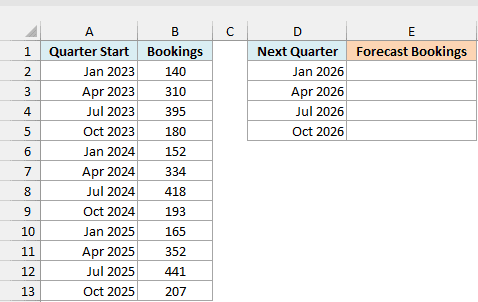
Here is the formula:
=FORECAST.ETS(D2:D5,B2:B13,A2:A13)
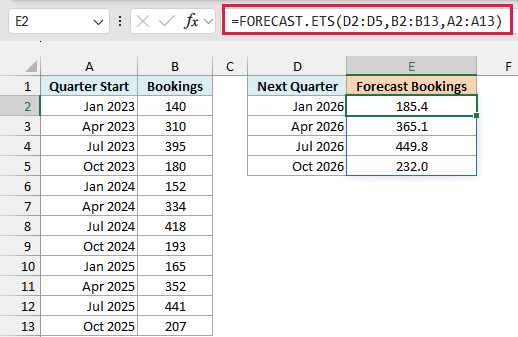
This time the target_date argument is the range D2:D5 instead of one cell. FORECAST.ETS works out a forecast for each of the four dates and spills the results into E2:E5.
Look at how the forecasts follow the same shape as the history. Bookings are low in the January quarter (185.4), climb in April (365.1), peak in July (449.8), and drop again in October (232.0).
That’s the seasonality at work. Excel spotted the pattern that repeats every four quarters and carried it into 2026, on top of the slow growth from one year to the next.
Pro Tip: To forecast further ahead, add more dates below D5 and change D2:D5 in the formula to cover them. Make sure the cells below E2 are empty, or the formula returns a #SPILL! error.
Spilling formulas like this one need Excel 2021 or Microsoft 365. If you are using Excel 2019 or 2016, enter the below formula in cell E2 and then copy it down to E5:
=FORECAST.ETS(D2,$B$2:$B$13,$A$2:$A$13)
The same works for the FORECAST.ETS and FORECAST.ETS.CONFINT formulas in Examples 3 and 6: point the formula at the first date only, lock the other ranges with dollar signs, and copy it down.
The low and high formulas in Example 6 then just subtract or add the cells in each row.
Example 3: Check and Set Seasonality (FORECAST.ETS.SEASONALITY)
Here’s a scenario where the repeating pattern matters a lot.
Below I have the daily bike rentals at a park kiosk for three weeks in June, and I want to check the pattern Excel finds in cell E2 and then forecast the next week’s rentals in column H.
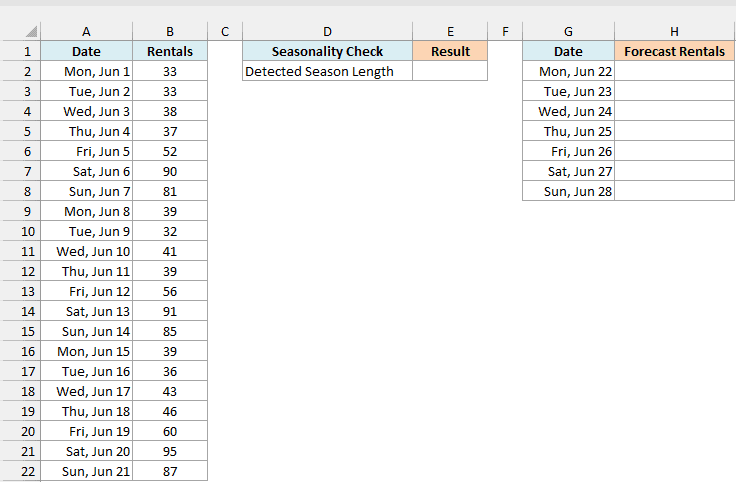
Before forecasting, it helps to see what pattern length Excel detects. The FORECAST.ETS.SEASONALITY function returns the length of the repeating cycle that FORECAST.ETS would use automatically.
Here is the formula:
=FORECAST.ETS.SEASONALITY(B2:B22,A2:A22)
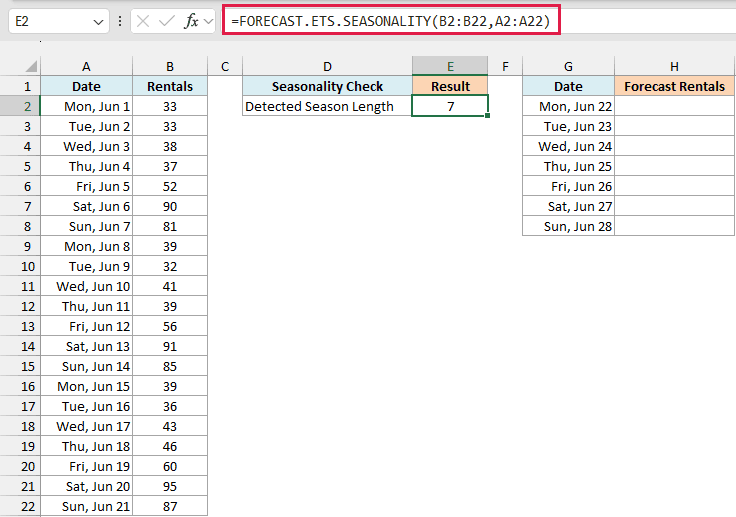
It takes the same values and timeline as FORECAST.ETS and returns 7. So Excel found a pattern that repeats every 7 days, which matches the data, since rentals jump to 80 or more every Saturday and Sunday.
Since we know rentals follow a weekly cycle, we can put that 7 straight into the forecast formula as the seasonality argument. That way Excel doesn’t have to guess the cycle, which matters when your history is short or a little noisy.
Here is the formula:
=FORECAST.ETS(G2:G8,B2:B22,A2:A22,7)
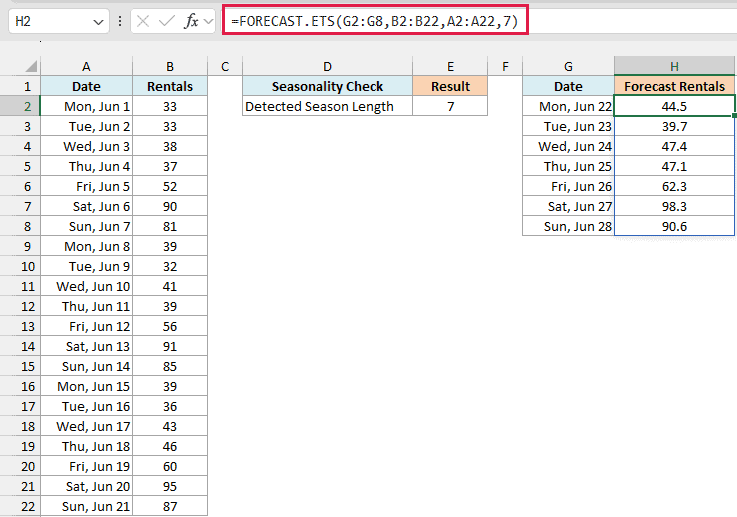
The forecast keeps the weekly shape. Weekdays stay between 39.7 and 62.3 rentals, and the weekend jumps to 98.3 on Saturday and 90.6 on Sunday.
If FORECAST.ETS.SEASONALITY ever returns a number that doesn’t match how your data behaves, enter the right cycle yourself. Use 7 for daily data with a weekly pattern, 12 for monthly data with a yearly pattern, or 4 for quarters.
And if your data has no repeating pattern at all, use 0. That gives you a forecast based on the trend alone.
Important: Excel can only spot a pattern that repeats in your history, so the history has to cover the cycle at least twice. For a yearly pattern in monthly data, that means at least 24 months of numbers.
Example 4: Forecast When Some Values Are Missing
Real-world logs often have gaps, and FORECAST.ETS can work around them.
Below is a community pool’s daily swimmer count from July 6 to 17, with three days left blank, and I want to forecast the swimmers for July 18 with the blanks filled in (column E) and with them counted as zero (column F).
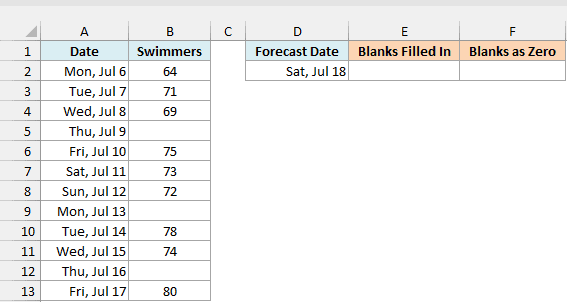
Here is the formula that fills in the gaps:
=FORECAST.ETS(D2,B2:B13,A2:A13)
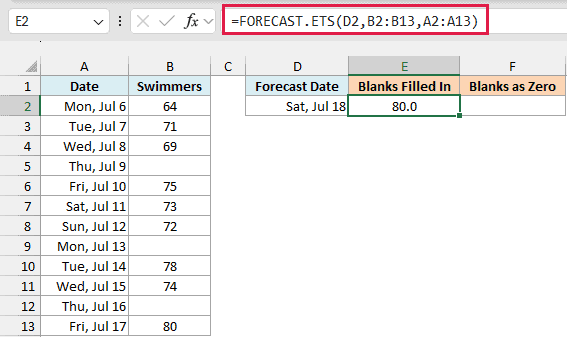
With data_completion left out, Excel fills each blank day (July 9, 13, and 16) with the average of the days on either side of it. So the forecast comes out at 80.0, close to the 72 to 80 swimmers the pool drew on its last few recorded days.
That’s the right choice when a blank means the count simply wasn’t written down.
But if the blanks are days when the pool was closed, then zero swimmers is the true number. In that case, set data_completion (the fifth argument) to 0, and skip the seasonality argument before it by leaving an empty spot between the commas.
Here is the formula:
=FORECAST.ETS(D2,B2:B13,A2:A13,,0)
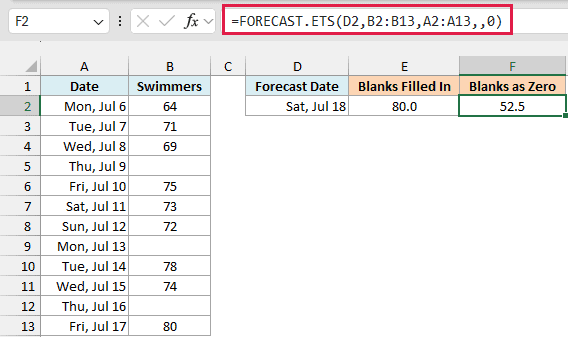
Now the three blank days count as zero, which pulls the forecast down to 52.5. The skipped seasonality argument keeps its default, so Excel still looks for a pattern on its own.
The two results are far apart, so pick the setting based on what your blanks really mean. Microsoft says FORECAST.ETS can handle up to 30% of the values missing, but the fewer the gaps, the more you can trust the forecast.
Example 5: Forecast Daily Totals When Dates Repeat
This next one is about logs that have more than one entry for the same date.
Below I have a delivery driver’s tip log, with one row for each delivery and two deliveries every day, and I want to forecast the total tips for Sunday, May 10, in cell E2.
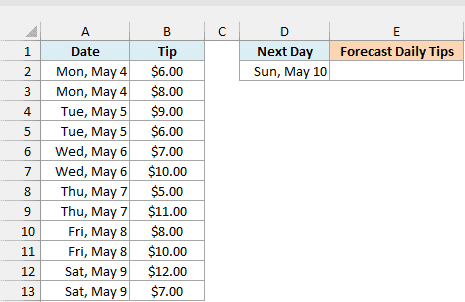
Here is the formula:
=FORECAST.ETS(D2,B2:B13,A2:A13,,,7)
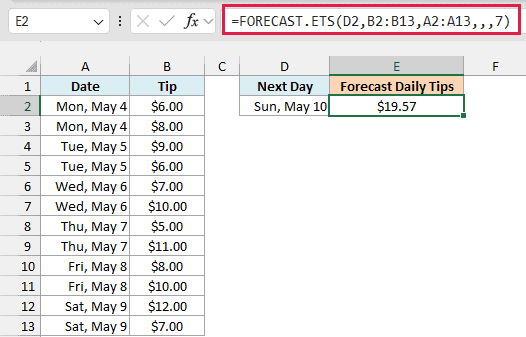
The 7 in the aggregation argument tells Excel to add up all the tips that share a date. So the log becomes one total per day ($14, $15, $17, $16, $18, and $19), and the forecast for May 10 is $19.57.
Just like in Example 4, the empty spots between the commas skip seasonality and data_completion, so both keep their defaults.
Important: If you leave out the aggregation argument, Excel averages the values that share a date. Here that would forecast the size of one typical tip, not the total for the day, so always set aggregation to 7 when you want daily totals.
You’d get the same $19.57 if you first added up each day’s tips in a separate table and then forecast from that. The aggregation argument just saves you that extra step.
Example 6: Add a Confidence Range with FORECAST.ETS.CONFINT
Let’s end with a forecast that also tells you how sure it is.
Below I have the weekly orders at a pizza place for 12 weeks, and I want to forecast the next four weeks in column E, along with a margin in column F and a low and high range in columns G and H.
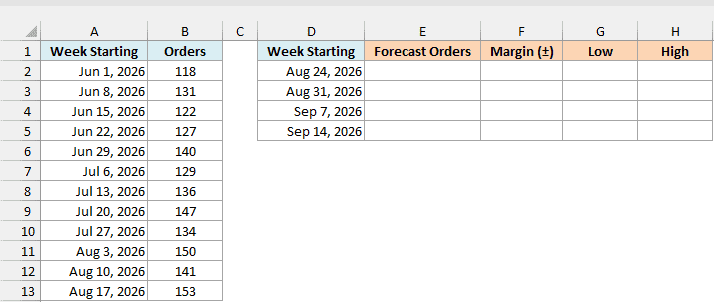
First, here is the forecast formula:
=FORECAST.ETS(D2:D5,B2:B13,A2:A13)
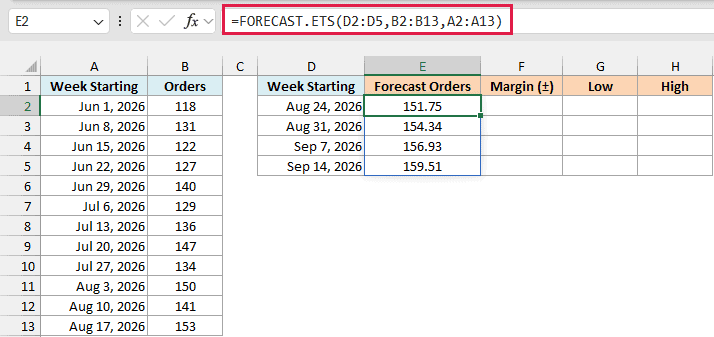
This works just like Example 2, and spills four forecasts from 151.75 orders up to 159.51.
Next, here is the formula for the margin:
=FORECAST.ETS.CONFINT(D2:D5,B2:B13,A2:A13)
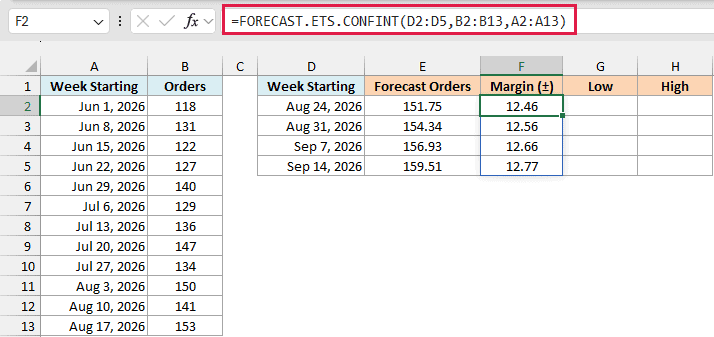
FORECAST.ETS.CONFINT takes the same arguments as FORECAST.ETS and returns how far above or below the forecast the real number is likely to land. For the week of August 24, the margin is 12.46 orders.
By default, this margin is set at a 95% confidence level. If you want a different level, add it as the fourth argument, for example 0.9 for 90%.
Notice how the margin gets a little wider for each week further out (12.46 up to 12.77). That’s because Excel is less sure about weeks that are further away.
Now, here is the formula for the low end of the range:
=E2#-F2#
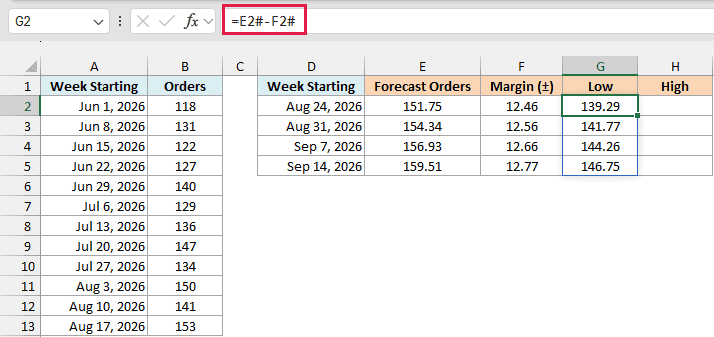
The # after E2 and F2 refers to the whole spilled range in each column. So this one formula subtracts each margin from its forecast and spills four low values, starting at 139.29.
And here is the formula for the high end:
=E2#+F2#
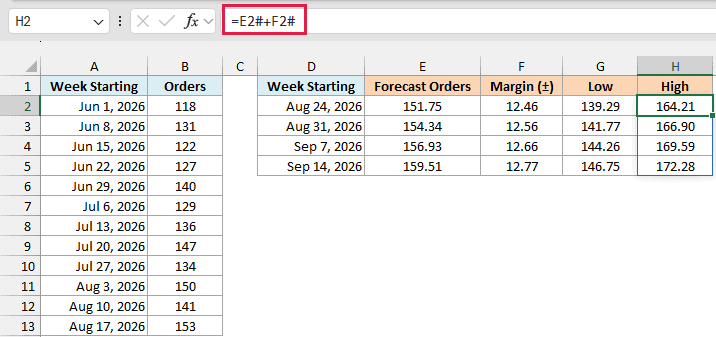
This adds the margin to each forecast instead, so the week of August 24 gets a range of 139.29 to 164.21 orders. Sharing the forecast as a range makes it clear that it’s an estimate, not an exact number.
In this article, I showed you how to use the FORECAST.ETS function to forecast one period or several at once, handle repeating patterns, gaps, and repeated dates, and add a confidence range around the result.
If your data has no seasonal pattern and you want a straight-line forecast, the FORECAST.LINEAR function is a simpler option.
I hope you found this article helpful.
Other Excel Articles You May Also Like:
