

The FORECAST.LINEAR function predicts a value by drawing a straight line through the numbers you already have and reading where that line lands. It works well when your data moves in a fairly steady direction, like orders that grow a little every week.
In this article, I’ll show you how FORECAST.LINEAR works, how to forecast one value or several at once, and how to use it with dates, missing data, and a list that mixes more than one person’s numbers.
Follow along with the example file
FORECAST.LINEAR Function Examples.xlsx
FORECAST.LINEAR Function Syntax
Here is the syntax of the FORECAST.LINEAR function:
=FORECAST.LINEAR(x,known_y's,known_x's)
- x – the value you want a prediction for, such as next week’s number, a future date, or a trip distance.
- known_y’s – the past values of the thing you want to predict, such as orders, weights, or fares.
- known_x’s – the values that go with each known_y, such as week numbers, dates, or miles.
All three arguments are required. The x value has to be a number (a date works too), and text such as “next week” returns a #VALUE! error.
The known_y’s and known_x’s ranges need the same number of cells. If one range has 10 cells and the other has 9, you get a #N/A error instead of a forecast.
The known_x’s also need at least two different values. If every value is the same, there’s no line to draw, and FORECAST.LINEAR returns #DIV/0!.
The FORECAST.LINEAR function works in Excel 365, 2024, 2021, 2019, and 2016 on Windows, and in Excel 365, 2024, and 2021 on Mac. In Excel 2013 or earlier, the FORECAST function does the same job with the same three arguments.
When to Use the FORECAST.LINEAR Function
Use this function when you need to:
- Predict next week’s or next month’s number from a steady trend
- Forecast several future periods with one formula
- Estimate a value for a future date
- Estimate one number from another related number, like a ride fare from the trip distance
- Fill in a missing value in the middle of your data
Since FORECAST.LINEAR draws a straight line, it isn’t a good fit for data with a repeating seasonal pattern, like ice cream sales that peak every summer. For that kind of data, the FORECAST.ETS function is the better choice.
Let me show you a few practical examples of how to use the FORECAST.LINEAR function.
Example 1: Forecast Next Week’s Orders
Let’s start with a simple example.
Below is a bakery’s weekly cake orders for the last 10 weeks, and I want to forecast the orders for week 11 in cell E2.
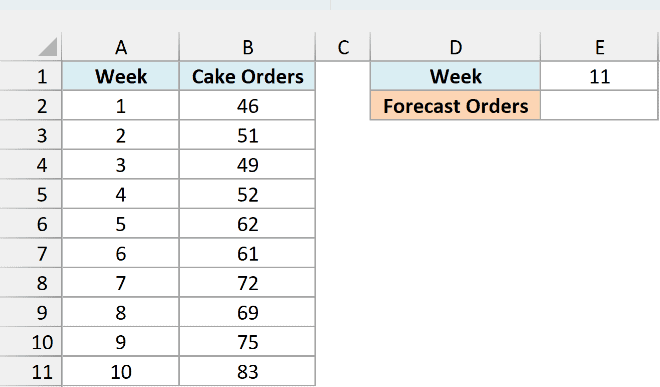
Here is the formula:
=FORECAST.LINEAR(E1,B2:B11,A2:A11)
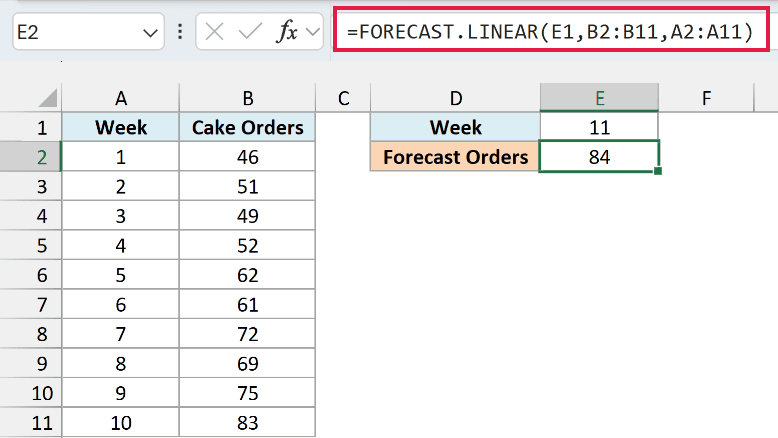
This returns 84, so the bakery can expect about 84 cake orders in week 11.
E1 holds the week I want a forecast for (11). B2:B11 has the cake orders, which are the values to predict, and A2:A11 has the week numbers those orders belong to.
Since the formula points to E1 instead of having 11 typed into it, you can change the week in E1 and the forecast updates on its own.
Excel fits the straight line that best matches these 10 weeks and reads where that line sits at week 11. Orders went up by about 4 a week, so the forecast lands just above week 10’s 83.
Important: Put the values you want to predict (the cake orders) before the values they’re based on (the week numbers). If you swap the two ranges, Excel still returns a number, but it’s the wrong one, and there’s no error to warn you.
Example 2: Forecast Several Periods With One FORECAST.LINEAR Formula
Now let’s forecast more than one value with a single formula.
Below is a phone’s battery level, checked every 10 minutes of use, and I want to forecast the battery level at 100, 110, and 120 minutes in column E.
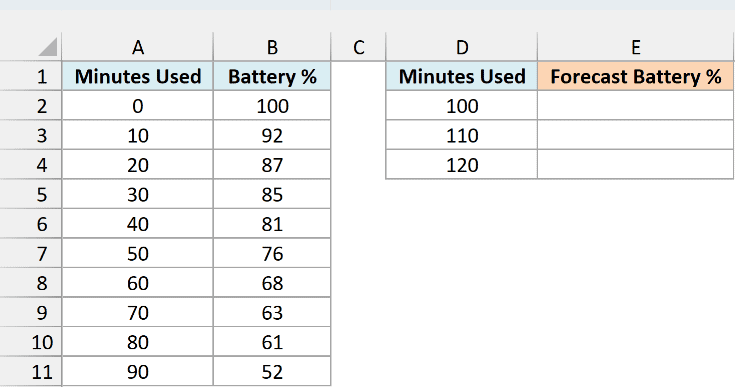
Here is the formula:
=FORECAST.LINEAR(D2:D4,B2:B11,A2:A11)
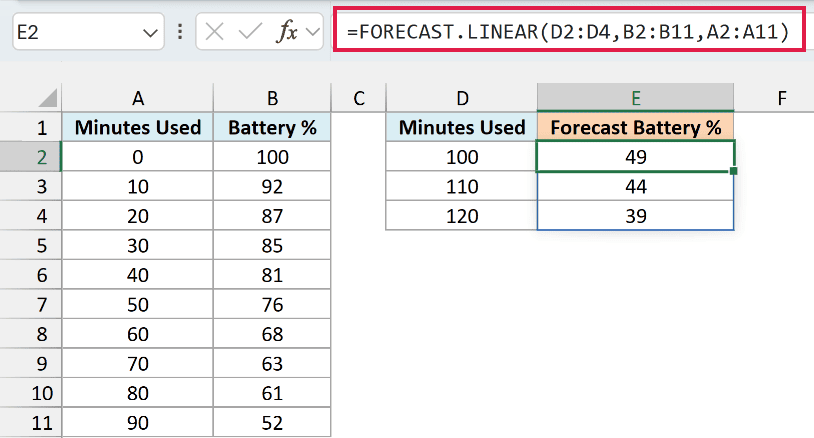
This returns 49, 44, and 39, so the battery should be just under half full at 100 minutes and down to about 39% at 120 minutes.
Since the first argument is a range of three values (D2:D4), Excel returns three forecasts, one for each value. They spill into E2:E4 on their own, so there’s no need to copy the formula down.
This trend also goes down instead of up. FORECAST.LINEAR handles that the same way, and the line simply slopes downward.
If E3 or E4 already has something in it, the results have nowhere to spill and the formula shows a #SPILL! error. Clear those cells and the forecasts appear.
If you are using Excel 2019 or earlier, enter the below formula in cell E2 and then copy it down to E4:
=FORECAST.LINEAR(D2,$B$2:$B$11,$A$2:$A$11)
The dollar signs keep the two known ranges fixed as you copy, so only D2 changes to D3 and then D4.
Example 3: Linear Forecast for a Future Date
FORECAST.LINEAR also works when your x values are dates.
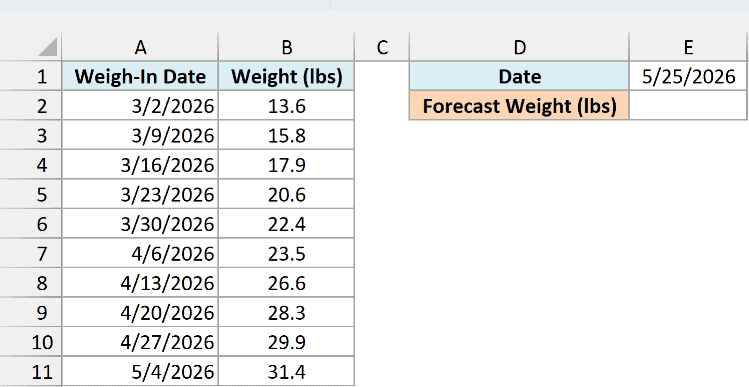
Below is a puppy’s weight from weekly weigh-ins, and I want to forecast its weight on May 25, 2026 in cell E2.
Here is the formula:
=FORECAST.LINEAR(E1,B2:B11,A2:A11)
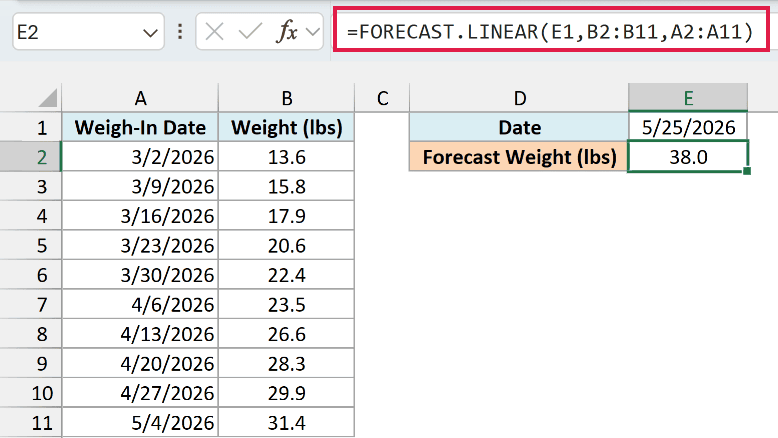
This returns 38.0, so the puppy should weigh about 38 lbs on May 25, three weeks after the last weigh-in.
This works because Excel stores every date as a number (May 25, 2026 is 46167 behind the scenes). So FORECAST.LINEAR treats the dates in A2:A11 like any other x values and fits a line through them.
Example 4: Estimate a Ride Fare From the Trip Distance
The x values don’t have to be time at all. FORECAST.LINEAR can estimate one number from any related number.
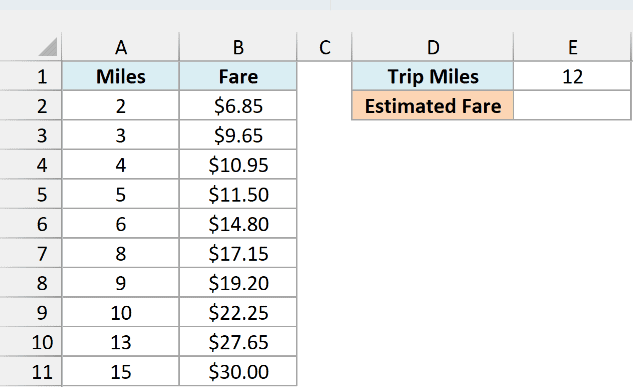
Below are ride fares for trips of different lengths, and I want to estimate the fare for a 12-mile trip in cell E2.
Here is the formula:
=FORECAST.LINEAR(E1,B2:B11,A2:A11)
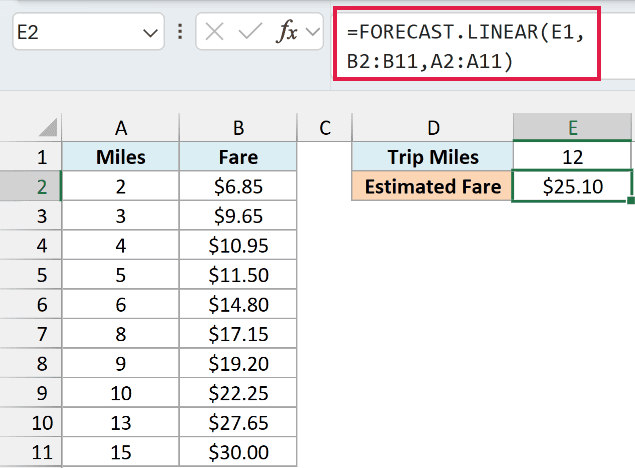
This returns $25.10, so a 12-mile ride should cost about $25.
Here the fares are the known_y’s and the miles are the known_x’s. The best-fit line through these trips works out to $3.50 plus $1.80 per mile, so a 12-mile trip comes to $3.50 plus 12 times $1.80, which is $25.10.
If you want to see those two numbers yourself, the INTERCEPT function returns the $3.50 and the SLOPE function returns the $1.80 from the same two ranges.
Notice that the miles aren’t evenly spaced, and there’s no 12-mile trip in the data. That’s fine, since FORECAST.LINEAR doesn’t need the x values to be evenly spaced.
Just keep your x value reasonably close to the data you have. A 12-mile trip sits inside the 2 to 15 miles in the list, but a 100-mile estimate would assume the same per-mile pattern holds far beyond anything you’ve recorded.
Example 5: Fill In a Missing Value
Here’s a case where FORECAST.LINEAR fills a gap instead of looking ahead.
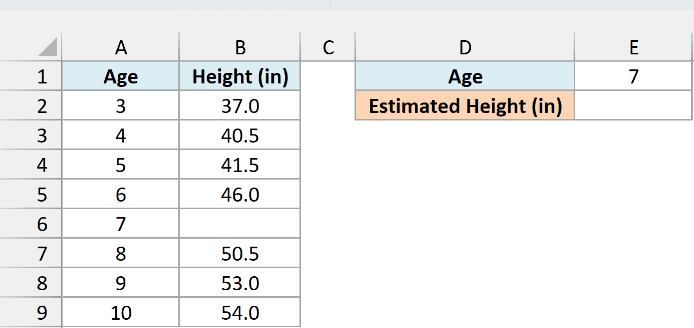
Below is a child’s height from yearly checkups, with the age 7 checkup missed, and I want to estimate the height at age 7 in cell E2.
Here is the formula:
=FORECAST.LINEAR(E1,B2:B9,A2:A9)
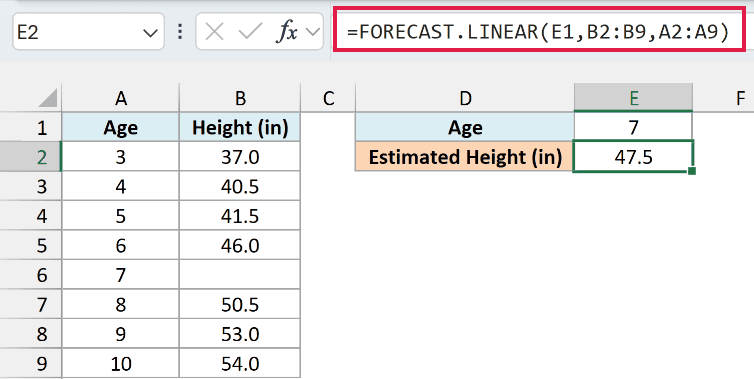
This returns 47.5, so the child was probably about 47.5 inches tall at age 7.
The range B2:B9 includes the empty height cell for age 7, and that’s fine. FORECAST.LINEAR skips any row where the height is blank and fits the line through the seven checkups that have both an age and a height.
Since age 7 sits between ages 6 and 8, this is an estimate inside your data rather than a forecast beyond it, which is usually the safest way to use a straight-line fit.
Example 6: Forecast for One Runner in a Mixed List (with FILTER)
Let’s step it up with a more advanced use case.
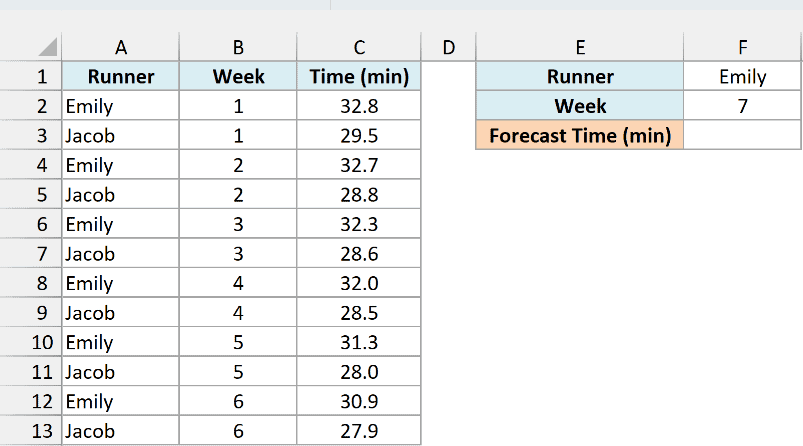
Below is a running log with two runners’ 5K times over six weeks, and I want to forecast the time for the runner named in F1 and the week in F2, with the result in cell F3.
Here is the formula:
=FORECAST.LINEAR(F2,FILTER(C2:C13,A2:A13=F1),FILTER(B2:B13,A2:A13=F1))
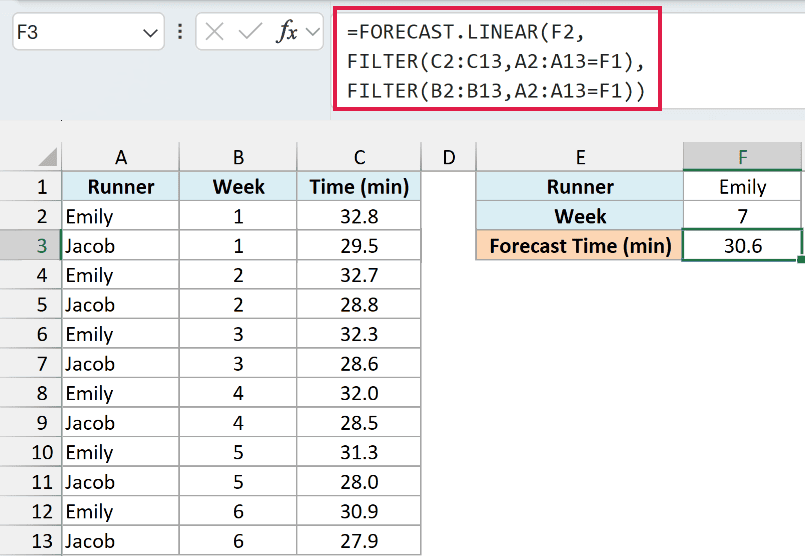
This returns 30.6, so Emily should run her week 7 5K in about 30.6 minutes.
How this formula works:
- FILTER(C2:C13,A2:A13=F1) pulls out only Emily’s times from column C.
- FILTER(B2:B13,A2:A13=F1) pulls out the week numbers for those same rows from column B.
- FORECAST.LINEAR then fits a line through just Emily’s six weeks and reads it at week 7 (the value in F2).
Change F1 to Jacob and the forecast becomes 27.5 minutes, this time using only Jacob’s times.
Both FILTER functions use the same condition, so the times and the weeks stay lined up row for row.
The FILTER function is available in Excel 365 and Excel 2021 or later. If you are using Excel 2019 or earlier, enter the below formula in cell F3 and press Control + Shift + Enter instead of just Enter:
=FORECAST.LINEAR(F2,IF(A2:A13=F1,C2:C13),IF(A2:A13=F1,B2:B13))
Here the IF function returns FALSE for every row that belongs to the other runner, and FORECAST.LINEAR ignores those values, so you get the same 30.6.
So these are some practical ways to use the FORECAST.LINEAR function in Excel to forecast one value or several, predict a value for a date, fill a gap, and forecast from a filtered list.
I hope you found this article helpful.
Other Excel Articles You May Also Like:
